Substitute Management
This function ensures that the current award procedures and the task inbox of a user can be processed by another person in their absence.
Appointing or Dismissing a Substitute
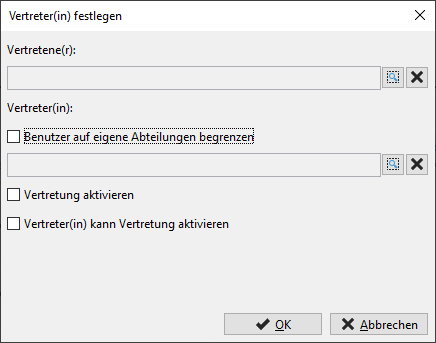
Select the menu command EXTRAS - REPRESENTATIVE MANAGEMENT - APPOINT/REPLACE REPRESENTATIVE(S). The Define representative window is opened.
Click on the magnifying glass icon to the right of the empty text field and select an entry from the user list. The name is transferred to the text field. Activate the Limit users to their own departments checkbox to shorten the selection list. Delete an entry that is no longer required using the X button to the right of it.
Activate the checkbox Activate substitution when the time of the substitution has been reached or check Substitute can activate substitution if your substitute should perform this action themselves.
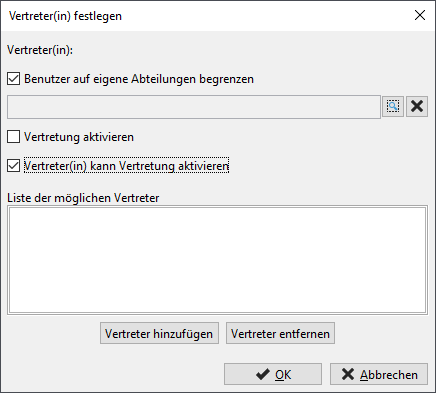
In addition to the selected substitute, you can specify other potential substitutes who can activate their substitution if required. Use the Add substitute button to add any number of entries from the user list. Delete an entry via Remove representative.
Info
As long as a user has taken over the substitution of a user, all other users authorized to substitute lose the right to activate this substitution as well.
You can activate your substitution at any time. If the user concerned is already logged in, all your tasks in their task area will be marked with the note - By proxy of: First name Last name -.
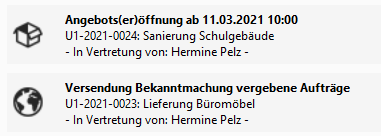
You can cancel your substitution at any time, even if the corresponding user is logged in, by deactivating the Enable substitution checkbox. After updating the substitute user's task inbox, your tasks will be removed from their task inbox.
Info
You cannot activate a substitution by another user if you yourself have taken on the substitution of one or more people.
Assume substitute role
If you want to take on a deputy role yourself, select the menu item EXTRAS - DEPUTY ADMINISTRATION - ASSIGN/DELETE DEPUTY.
A list of all users for whom you are designated as a substitute is displayed in the Assume substitute selection window.
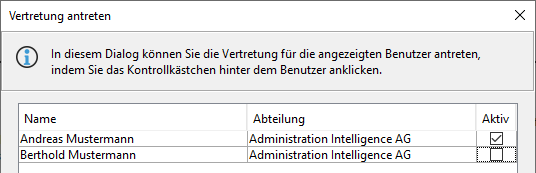
Activate the desired entry in the Active column. Several substitutions can be activated at the same time.
Info
You cannot start the substitution for a user if the user to be substituted is still logged in.
The tasks of another user appear in your task inbox with the note: - Substitute for: First name Last name -.
You automatically have the same menu and function rights as the person you are currently standing in for, so you process the pending tasks of the person you are standing in for in the same way as your own.
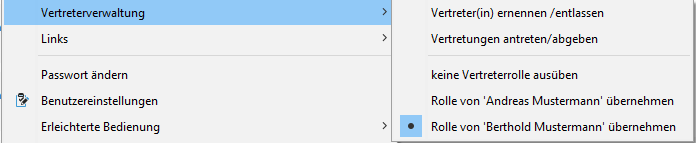
You can recognize your current active role by the black dot in the EXTRAS - REPRESENTATIVE ADMINISTRATION menu below the horizontal line:
Tip
Select the entry Do not perform a substitute role if you want to switch on your personal menu and function rights so that you can perform your own tasks.
You can hand over the substitution of another user at any time by deactivating the checkbox in the Take on substitution selection window. Your task inbox will be updated automatically and will only contain your own tasks.
Frequently asked question
As soon as you have opened a task as a substitute, it remains in your task inbox for processing until the next workflow step and is only then returned to the original user.
Decentralized substitute administration
Info
This function is only available if the customer model of your AI TENDERINGMANAGER has been adapted accordingly.
In order to facilitate the administrative maintenance of substitutes, it is possible that in the event of the absence of both the representative and the representative, a user designated for this purpose can change the substitute definition decentrally and it is not necessary to involve a central user administrator. With this user right, the assigned substitutes can be maintained for all users of their own and all subordinate organizational units. The procedure is identical to the substitute management described above.