Login
Several authentication options are offered in the AI TENDERINGMANAGER. By default, login with user name and password is implemented. The individual login mechanisms are briefly described below.
Login with User Name and Password or with Signature Card
To start the AI TENDERINGMANAGER, double-click on the program icon on your desktop. The Logon window will open. You can also log in to the AI TENDERINGMANAGER after receiving an e-mail message. In this case, open the link from the e-mail to call up the login window.
Info
The program icons on the login page depend on the respective program licenses in the customer model.
Enter your user name and password here and then click on Login. If you try to log in with incorrect user data, you will receive a corresponding message.
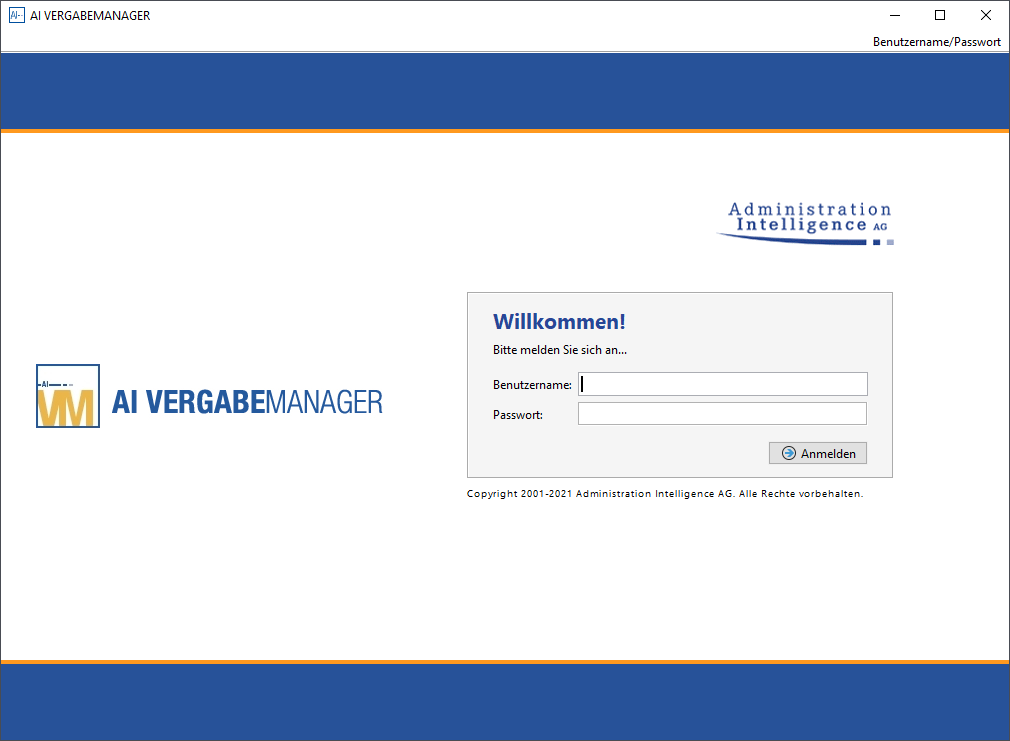
After successfully logging in, the overview page of the AI TENDERINGMANAGER appears on your screen.
To exit the program, select the menu command FILE - EXIT or close the program window.
In the course of adapting the operation of the AI TENDERINGMANAGER to the newer versions of standard office software, the buttons are highlighted with an orange background when you move the mouse over them. If you click on a button, it is marked as "active" by a darker orange color.
Info
You can also log in with a signature card. To do this, select the entry Smartcard in the top right-hand corner and follow the instructions on the screen.
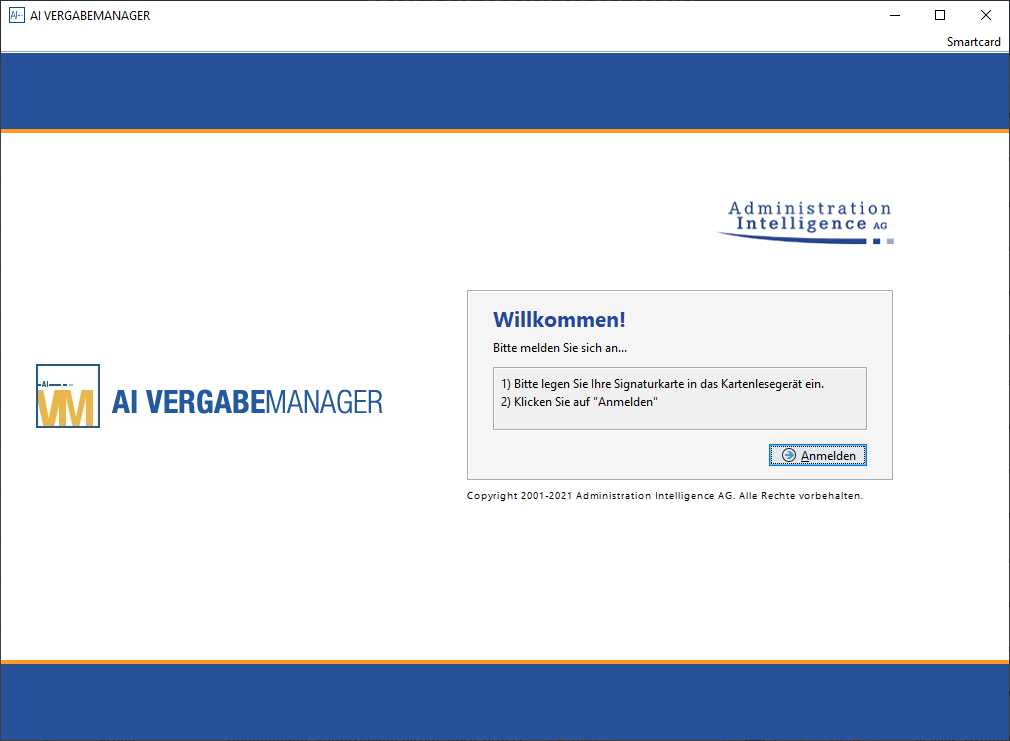
Card readers that are connected to the host computer via the serial RS-232 interface (COM port) are not supported. Further information on the current card readers can be found at www.governikus.de/ .
Warning
You should change the password immediately after logging in for the first time! To do this, call up the menu command EXTRAS - CHANGE PASSWORD. Enter the old password in the OLD PASSWORD input field, then click in the NEW PASSWORD field and enter the new password here. You must then enter the new password again in the PASSWORD CONFIRMATION field and confirm with OK.
Login via LDAP
Info
This function is only available if the customer model of your AI TENDERINGMANAGER has been adapted accordingly.
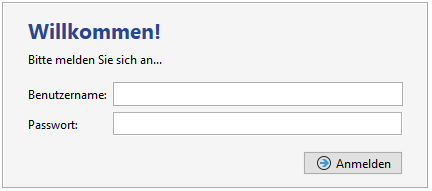
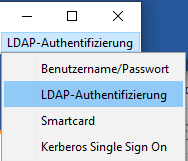
When you enter a user name and password, a login process is carried out via LDAP to the central directory service. If the data entered is available in the central directory service and the user has been successfully authenticated, the user is also automatically authenticated in the AI TENDERINGMANAGER. Further settings can be made via the admin interface.
Login via Kerberos or an SAP Portal
Info
This function is only available if the customer model of your AI TENDERINGMANAGER has been adapted accordingly.
In both login mechanisms, a so-called single sign-on is carried out so that a user only has to authenticate himself on one system. In the first case, logging in via Kerberos, authentication is carried out by belonging to a domain, which is checked when the operating system is started. In the second case, logging in via an SAP portal, authentication is performed by the user logging in to an SAP portal and a valid SSO ticket being transferred from the SAP portal for logging in to the AI TENDERINGMANAGER.
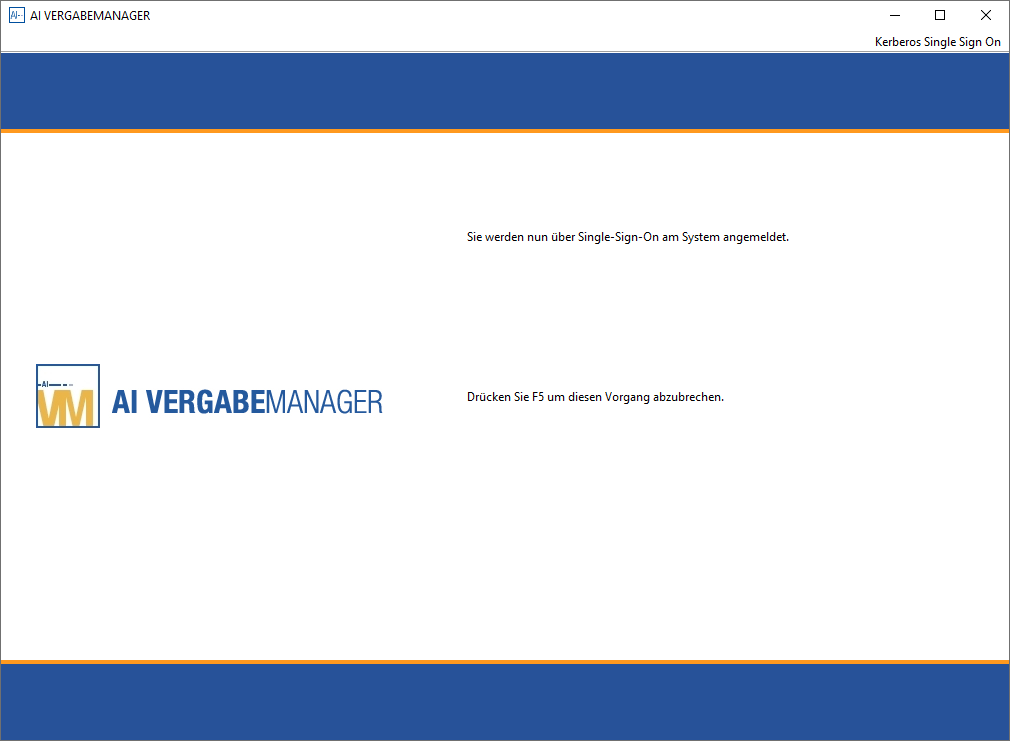
Another manual login to the AI TENDERINGMANAGER is not necessary with the single sign-on mechanisms. The synchronization of user data from central directory services (e.g. Active Directory) has been separated from the actual login process in order to enable a clear separation of the processes.