Projects and Award Procedures
Award procedures within the AI TENDERINGMANAGER must always be assigned to a project, even if the contracting authority has not explicitly created one. For awards that have not been assigned to a project, a standard project is automatically created based on a template and depending on the award type (VOL, VOB).
Projects are used to hierarchically combine a complex procurement measure. Projects can contain sub-projects and award procedures and do not have a workflow themselves. A project manager is assigned to each project. It is also possible to configure a function assignment at project level in order to be able to make role defaults for the award procedures created in the project.
Info
At the customer's request, the system can be set up to allow selected users to edit both function assignments and project properties. This function becomes relevant, for example, when a team in an awarding office is newly formed.
Creating a New Project
To create a new project, do one of the following:
-
Click New in the toolbar and select Project.
-
Choose FILE - NEW - PROJECT.
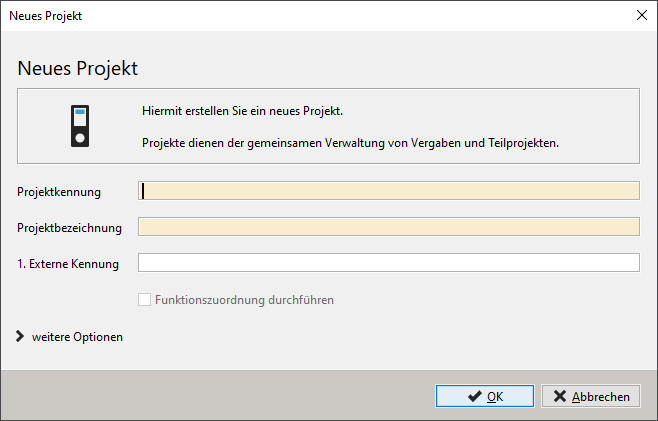
Enter the name of the measure in the Measure field, e.g. renovation of the west wing, and then the relevant Property, e.g. Musterstadt primary school. In the Project no. field, you can enter a project number from an external project management system. Click on More options to display less frequently used input fields. Select an entry and a suitable project template from the list of possible project managers. These entries may already be preset. By marking the check Execute function assignment, you can determine the employees for the roles in the individual award procedures of the project. If the field is gray, i.e. inactive, changes to the function assignment are not provided for in the current configuration and the roles are assigned to users according to the standard rules of the procedure template. Confirm your entries with OK.
Info
After a project has been created, the Project Data form can be accessed in the project tree to enter further data about the project. This includes, for example, the execution dates. This data is then adopted for the further process.
Open Project
Select one of the following options to open an existing project:
-
Click on Open in the toolbar and select Project.
-
Select the menu command FILE - OPEN - PROJECT.
Select the desired project in the list and click on the button Open.
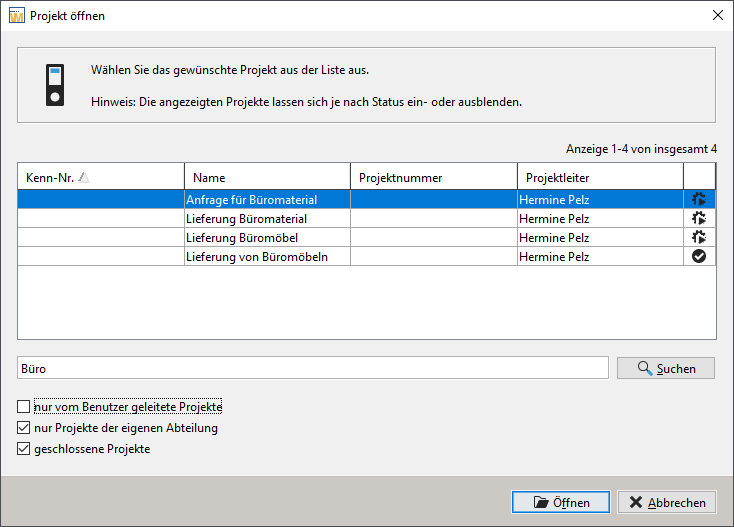
For users with the appropriate authorization, the Only user-managed projects check box is not selected by default, i.e. they are shown the list of all projects regardless of the project manager.
Info
This function is only available to you if the customer model of your AI TENDERINGMANAGER has been customized accordingly.
Tip
You can also search for a specific project. Enter the search term in the text box to the left of the Search button and then click Search. To see the entire list again, remove the search term and click Search again.
Closing a Project
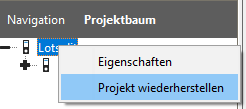
You can close projects using the corresponding context menu in the project tree. Answer the subsequent question message with Yes.

No new award procedures or subprojects can be added to a closed project. You can release a closed project again via the project tree.
In the Open project window, completed projects are displayed with a check mark when the Closed projects filter has been selected.

Creating a New Award Procedure
Choose one of the following options to create a new award procedure:
-
Click NEW in the toolbar and select the Award procedure entry.
-
Select the FILE - NEW - AWARD PROCEDURE menu command.
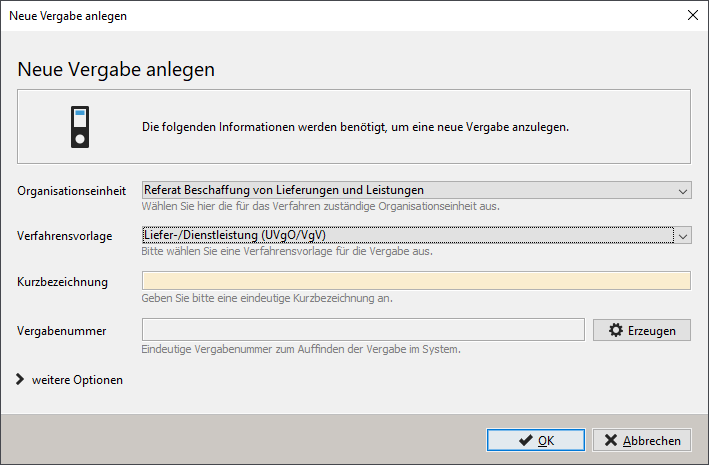
Select an entry from the organizational unit and procedure template list boxes. The entry in the Short description field corresponds to the file name of the tender (e.g. Visitor Furniture). It is displayed in the title bar when an award procedure is open and in the task inbox for each task. It also serves as the heading for the call for tenders when it is published on an award platform. Choose the short description so that you and other parties involved can quickly find the award procedure again and not confuse it with another one. Click on Create to generate an award number according to the specifications of the stored file number generator or – if allowed in the system – enter the award number manually.
Click on Further options to display less frequently used input fields.
Info
The program remembers whether or not the Further options area was open the last time the window was opened and applies these settings the next time it is opened.
Describe the service to be provided in the Service field. Do not use this field to provide a complete description of the quantity and scope of the service; instead, use the options provided in the announcement forms. This field is usually used for correspondence in print templates, e.g. in the invitation to tender as the subject line or heading.
Info
Please note that you can enter a maximum of 250 characters in the Service field and that manual line breaks are disabled. This is due to the further use of the field in forms.
You can assign the new award procedure to an existing project. To do this, click on the button with the magnifying glass symbol to the right of Project. A list of all existing projects is displayed from which you can make a selection. The black X button next to the magnifying glass cancels the project selection. In this case, AI TENDERINGMANAGER creates a new project together with the new award procedure, which has the same name as the award procedure. After you have completed all the input fields, click OK. Creating an award procedure is a major operation in the AI TENDERINGMANAGER. It may therefore take a few seconds. A window will appear to keep you informed of the progress.
Creating a New Award Procedure Based on a Template
Choose one of the following options to create a new award procedure based on a template: - Click NEW in the toolbar and select the Award Procedure Based on Template entry. - Select the FILE - NEW - AWARD PROCEDURE BASED ON TEMPLATE menu command. In the Create New Award window, select the desired procedural template, enter the short name of the new award procedure, create the award number, and then click OK. The Copy award data window opens.
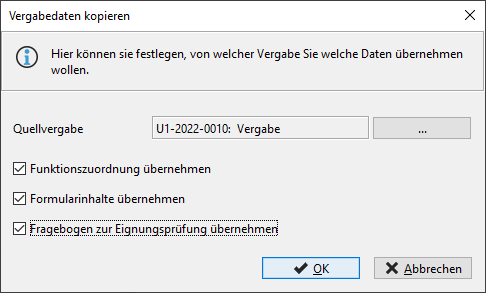
Select the source award procedure for the copying process by clicking on the button with the three dots and selecting the corresponding entry in the Open award procedure window. Use the three checkboxes Function assignment, Form contents and Questionnaire for aptitude test to control which data from the source award should be transferred to your new award. Click OK to start the copying process.
Info
To copy service specifications from other award procedures, please use the import function within the workflow step Edit service specifications
Creating an award procedure is a key process in the AI TENDERINGMANAGER. Therefore, this may take a few seconds. A window will appear to inform you of the progress.
Open Award Procedure
To open an existing award procedure, do one of the following:
-
Click on Open in the toolbar and select the Award procedure.
-
Select the menu command FILE - OPEN - AWARD PROCEDURE.
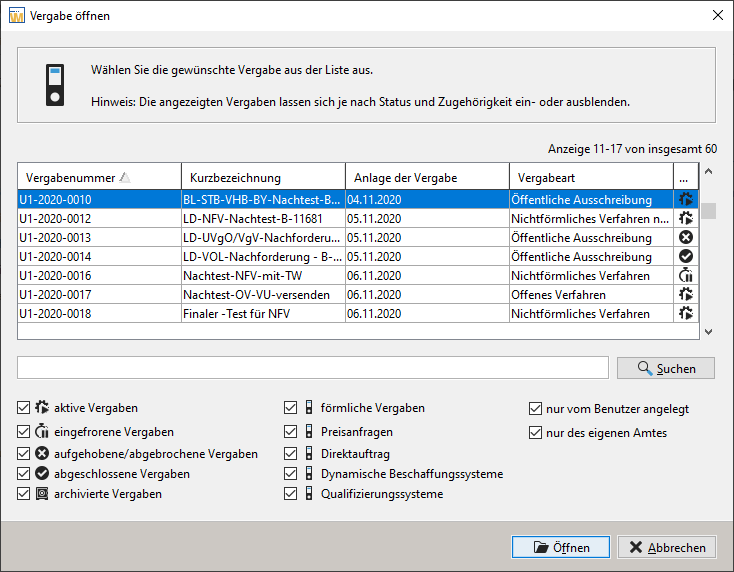
Select the desired award procedure in the list and click on the OPEN button. If the desired award procedure is not displayed, you have to change the VIEW FILTERS. Various checkboxes are available for this purpose at the bottom of the dialog box. Activate the filter criteria as required. The symbols in the last column of the list correspond to the symbols for the individual filters, e.g.  for a completed award procedure.
Info
You can also search for a specific award procedure. Enter the search term in the text box to the left of the Search button and then click Search. To redisplay the entire list, remove the search term and click Search again.
Creating Supplement Awards
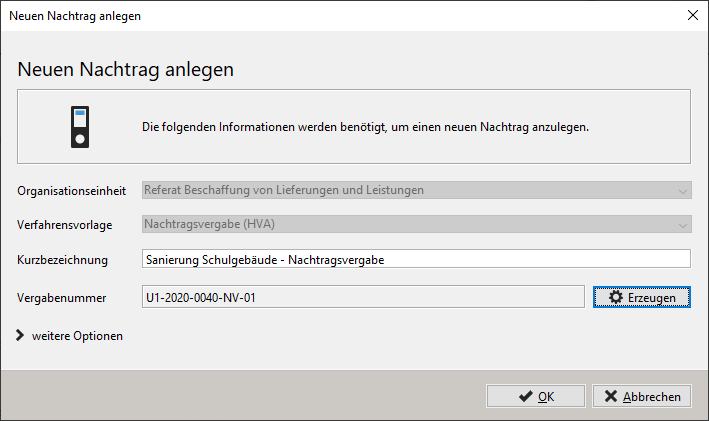
Particularly in construction projects, changes often arise after project completion that lead to contract deviations and associated supplements. Choose one of the following options to create a new supplementary award: Click New in the toolbar and select Supplement. Select File - New - Supplement. The Open Award Procedure window will open, in which the completed award procedure for which a supplementary award is to be created can be selected. Only completed procedures can be selected here. If the selected procedure does not support supplementary awards, a corresponding error message will appear. The data for the new supplementary award can then be entered. The procedure template is already selected and cannot be changed.
Info
You can also create a supplementary award directly from an open, completed award procedure by selecting the Supplementary Award context command in the PROJECT TREE. The New Award window appears.
Click Create to generate an award number according to the specifications of the stored file number generator or - if allowed in the system - enter the award number manually. Click on More options to display less frequently used input fields.
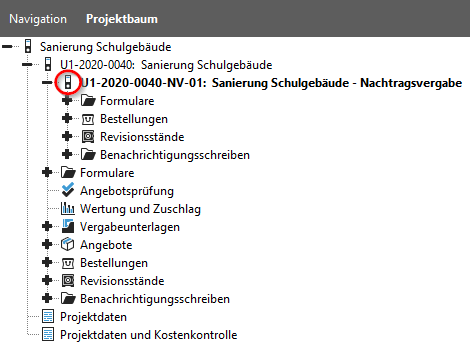
Supplementary awards are displayed in the project tree below the selected completed award procedure. By default, they have the addition supplementary award and consist of a few forms.
Creation of Prior Information Notices
Info
This function is only available to you if the customer model of your AI TENDERINGMANAGER has been adapted accordingly.
Similar to an award procedure, the process of the prior information notice is defined as a workflow that can include various forms and functions as well as the actual publication. Since a prior information process is not automatically assigned to a project, a distributed role model can be used as a basis for this process.
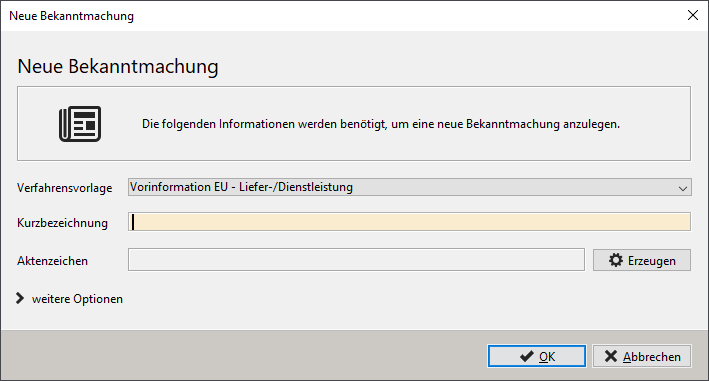
Choose one of the following options to create a new pre-information notice:
- Click NEW in the toolbar and select the Announcement entry.
- Choose the FILE - NEW - ANNOUNCEMENT
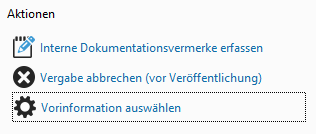
A prior information notice can be linked to various award procedures at a later date. To do this, select the Select prior information notice action within an award procedure.
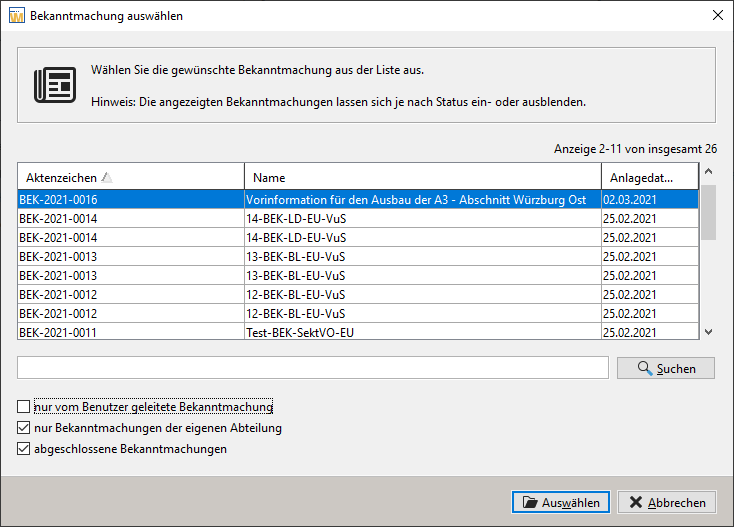
The Select notice window opens.
After linking a prior information notice to an award procedure, it is displayed in the project tree under the award procedure to which it was linked. From there, it is possible to access the forms of the prior information process in display mode, for example.
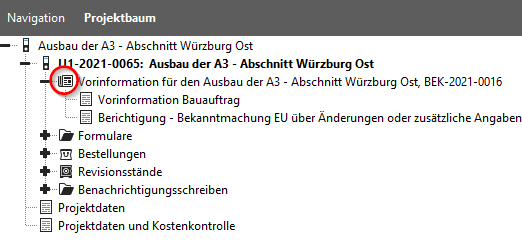
tree