Opening of Offers
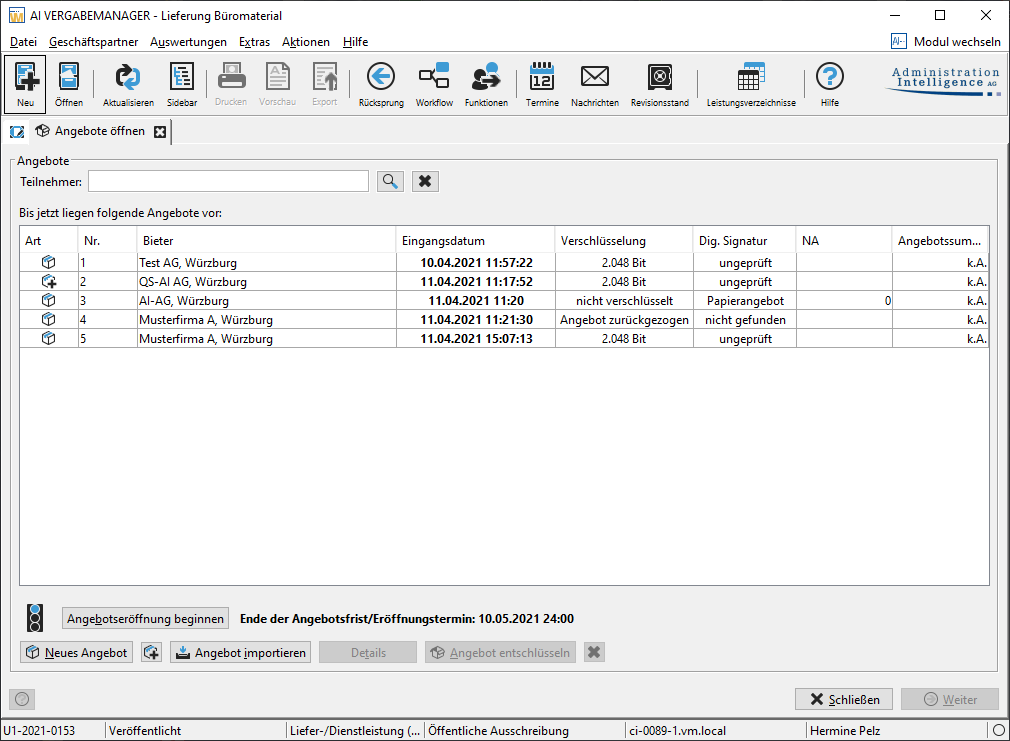
In all award procedures, the opening of tenders is a step that is started manually from the task inbox. The Open tenders window is opened.
Info
For contracting authorities that are not allowed to know the identities of the participating companies until the offers are opened, the AI TENDERINGMANAGER can be configured in such a way that the offers of a procedure are displayed in the overview but all identifying data is replaced by the word "Hidden". In such anonymized procedures, the number of offers is known until the opening of the offers begins, but not the identity of the bidders.
All offers you have received via the are displayed in a summary table before the opening of the offers, but cannot be viewed or decrypted. To make it easier to read the location at the submission, the bidder's name and location are displayed in both the overview and the detailed view of the offers. The offers are numbered automatically in the order in which they are received. If necessary, you can filter the list of bidders by entering a search term in the Participants field. Companies that have submitted a written offer can be recorded even before the offer is opened. To do this, click on the New bid button. At this point, you can only enter the company name and the offer date. For more information, see paper offers.
Info
Offers from other media (e.g. CD-ROM or e-mail attachment) must first be imported before you can use the data. Click the Import offer button, select the offer file you received from the bidder and click Open.
Info
If the procurement documents allow a bidder to submit several main offers, this multiple submission of offers is also supported during the opening of offers when paper offers are entered and via the interface to the procurement platform.
Entering the Withdrawal of an Offer
If necessary, tenders can be withdrawn before the opening of tenders, but also after the opening of the first tender. It is necessary to record a withdrawal after the opening of tenders in order to be able to take into account withdrawals that only become known afterwards, e.g. by means of a letter whose envelope remained sealed until the opening of tenders.
To withdraw an offer, select it in the list and click on the button Enter offer withdrawal. The Enter offer withdrawal window opens. Enter a reason for the withdrawal in the mandatory field.
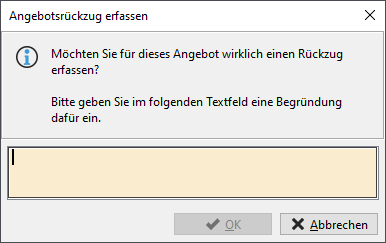
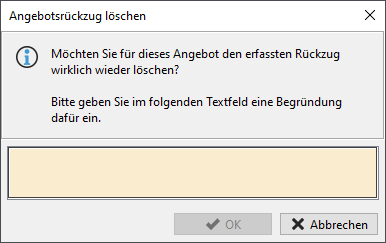
The new status "Offer withdrawn" is displayed in the Encryption column. The reverse step – Revoke offer withdrawal – is also only possible after entering a reason. These reasons are logged in the award notice.

Paper offers can also be completely removed from the list before the offer opening. Mark the offer in the list and click on the button with the black X. Confirm the first warning message with Yes. Another window will then open. Here you have three options:
| Selection | Effect |
|---|---|
| Yes | Delete offer and bidder. |
| No | Delete offer, but the bidder remains a participant in this award procedure. |
| Cancel: | Cancel the deletion process. |
If the date for opening tenders has not yet been reached in the schedule, but you have already received all tenders, you can also start the opening of tenders early, provided that this is allowed in the program settings.
Warning
This step has far-reaching consequences for your award procedure, because from this point on it is no longer possible to go back in the process!
To start the step, click on the button Start offer opening. A warning message appears, which you must confirm with Yes.
The Authorization window is then displayed.
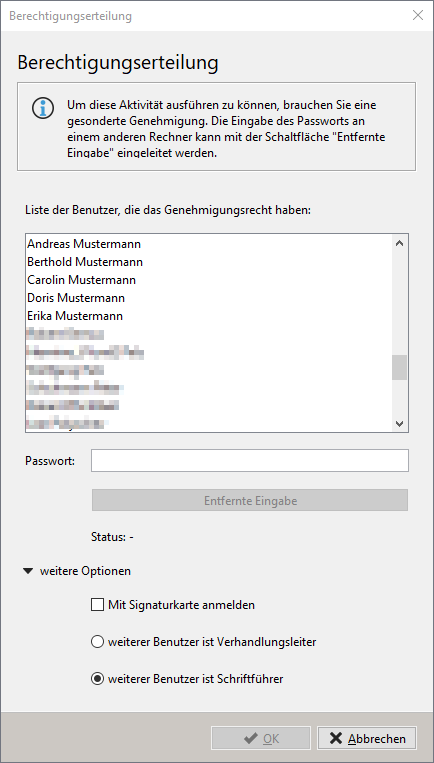
It contains a list of all users who have the authorization to approve. Select a name from the list. This user must be in the password field password or identify themselves via a signature card. To do this, activate the Login with signature card field. Then click OK.
The radio buttons Another user is the meeting chair and Another user is the secretary allow you to determine the roles of the users for this process, i.e. if the user selected in this window is the negotiator, they will be treated as the user who started the offer opening process. The currently logged-in user is then automatically the approving user (secretary).
Tip
The classic four-eyes principle has been extended in the age of electronic tendering and makes it possible that the second person does not necessarily have to be physically present during the opening of the tender. They enter their password at a remote workstation, after being prompted by the software, and then the opening of the offer can be started.
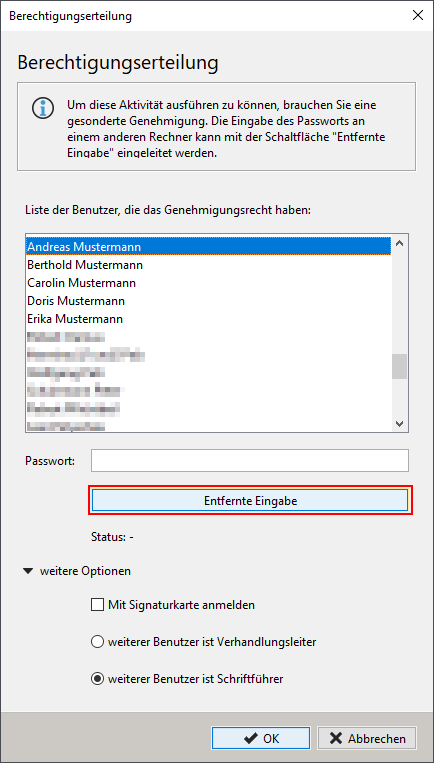
Further information on this topic can be found at offer opening for remote users.
In the next step, the keys relevant for the offers are required. Both keys are loaded one after the other either with a signature card or from an external data carrier. As soon as one of the authorized users has done this, the first private key is decrypted and then the process is repeated with the authorized users for the second private key.
Info
Before the first offer is opened, a consistency check between the AI TENDERINGMANAGER and the tendering platform takes place in the background. This process can take several minutes. If the check is successful, no message is displayed. If the consistency check could not be carried out due to network difficulties, a second attempt will be started automatically. If an inconsistency is detected or if the consistency check could not be carried out, the administrators will be notified by e-mail.
Overview of Tenders
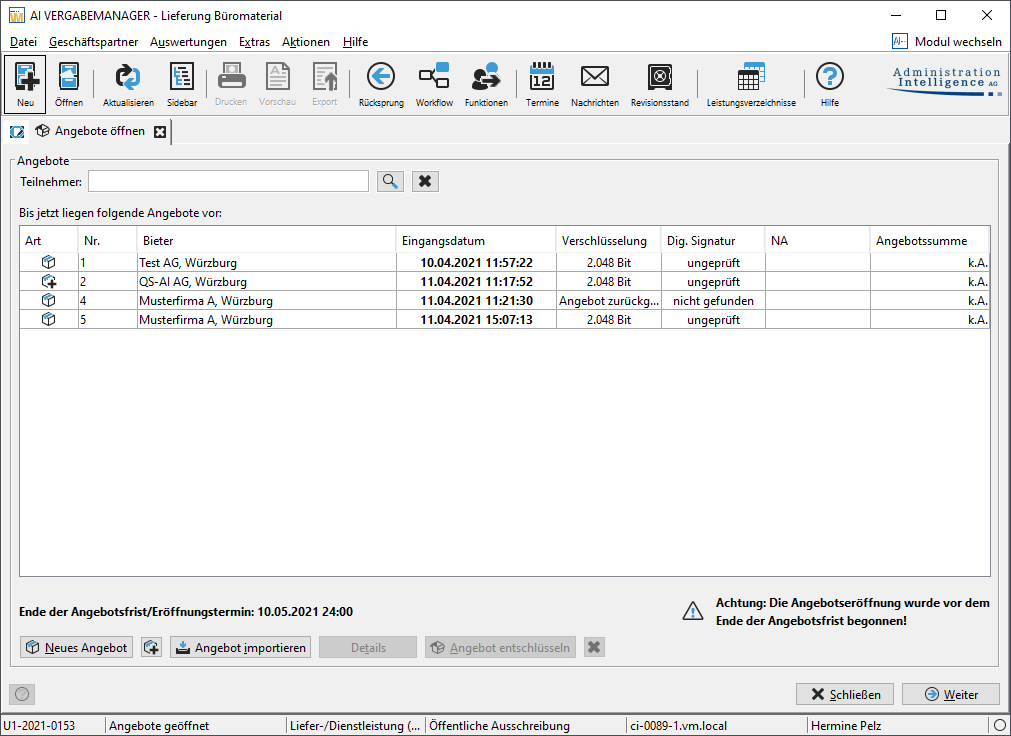
After opening the offers, you can decrypt all electronically received offers individually. The offers that you have received by post can now be entered and subjected to an initial formal check using the New Offer button.
Frequently asked question
If secondary offers are allowed in the award procedure and the bidder has submitted such offers together with a main offer, these will be displayed in a procedure with the AI bill of quantities after decrypting the digital offers below the main offer. For procedures with an external bill of quantities, the procedure of the VOB procedure at submission applies at this point, i.e. the electronic secondary offers for a main offer are not displayed here.
Opening the Electronic Bids
Double-click the corresponding offer in the overview or click on the Decrypt offer button and answer Yes to the decryption question. The selected offer is downloaded from the server, opened using the allocation keys and displayed in an additional window for review.
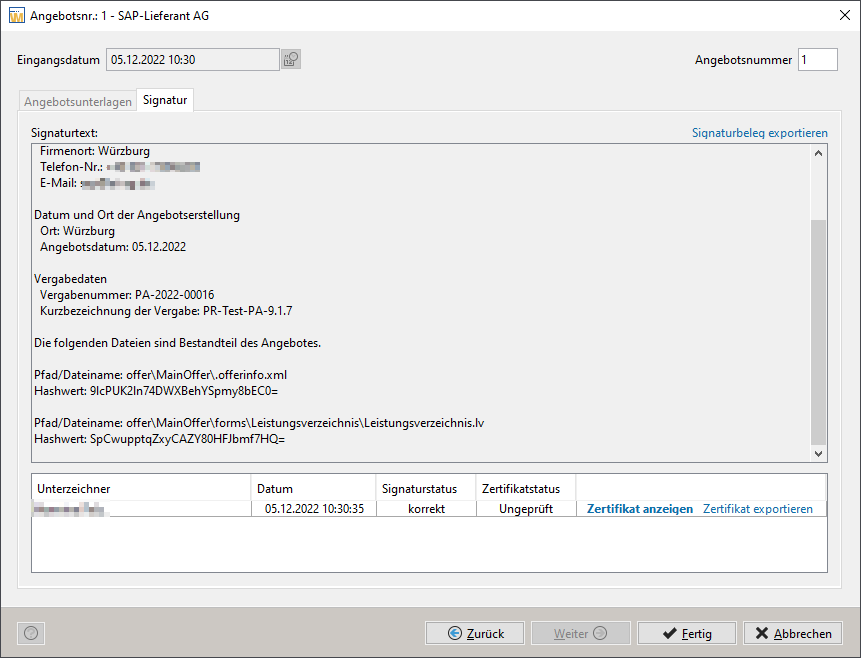
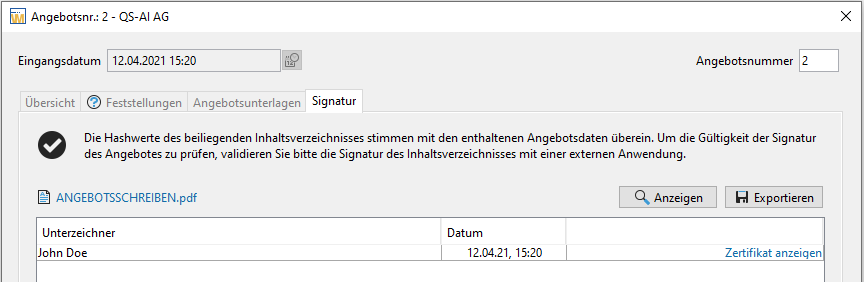
The offer details of electronic offers contain an additional signature tab. Click on the link at the top right Export signature and save the signature text as a TXT file in a directory of your choice. The status of the certificate used is displayed in the lower part of the window. You can obtain further information by clicking on the View certificate link. To check the certificate, click on the Export certificate link. Check the validity of the certificate using appropriate software.
Tip
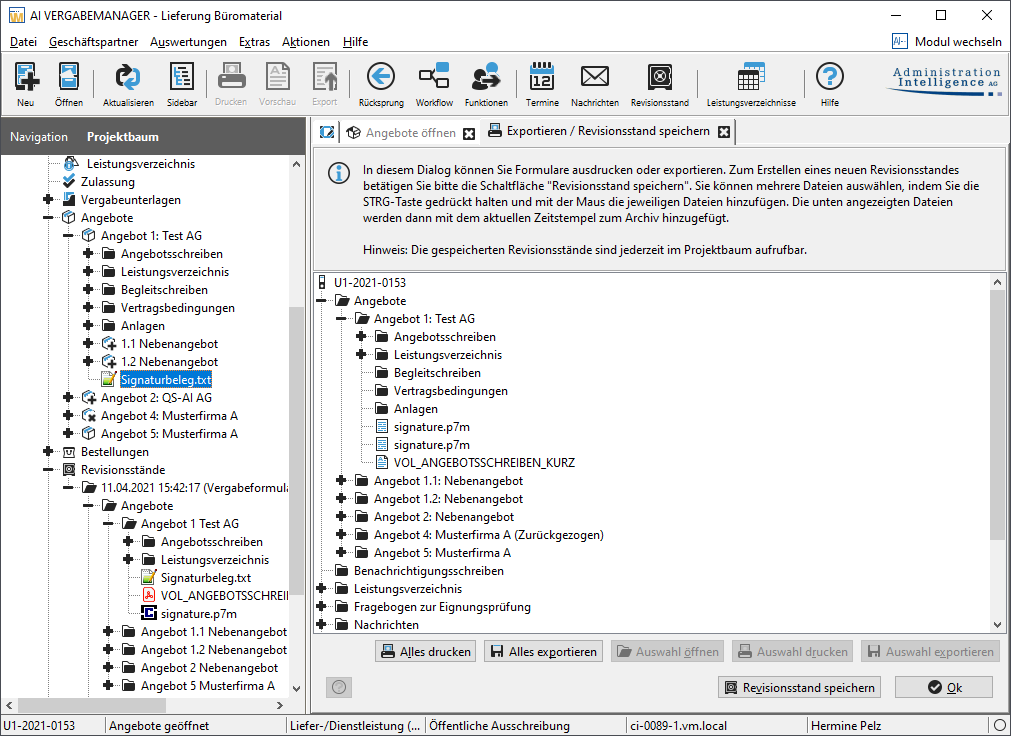
The signature receipt of an electronic offer can also be displayed and – if necessary – printed in the project tree and in the revision status.
The entries in the Offer data and Electronic offer documents tabs are already filled in for electronic offer and cannot be changed.
External Signature of Bids
Info
This function is only available for digital offer submission in the AI BIDDINGCOCKPIT.
To ensure greater flexibility when signing bids, electronic bids can be signed here with an external program.
After selecting the external signature signature type in the AI BIDDINGCOCKPIT and compiling the offer files, a PDF document is exported that the bidder can sign with a legally valid signature using an external signature program – once for all offer components. This signed document is then imported into AI BIDDINGCOCKPIT, completing the process of electronic offer submission.
When tenders are opened, a technical check is carried out in AI TENDERINGMANAGER between the signed PDF document and the contents of the offer files. If the result of this check is positive, a check mark is displayed in the Signature tab of the offer detail dialog and the Dig. signature column in the offer opening contains the value External. The validity of the signature of the offer can be checked with a corresponding external program.
If the check is negative, a warning triangle is displayed in the offer detail dialog and the value Not correct is displayed in the Signature column of the offer opening. This offer is considered to have been manipulated and can be excluded from the offer review.

Entering Paper Offers
Once the offer opening has started, you can use the New Offer button to enter and perform an initial check on offers that you have received by post. The Enter New Offer window opens. Depending on the type of procedure, it contains different input fields.
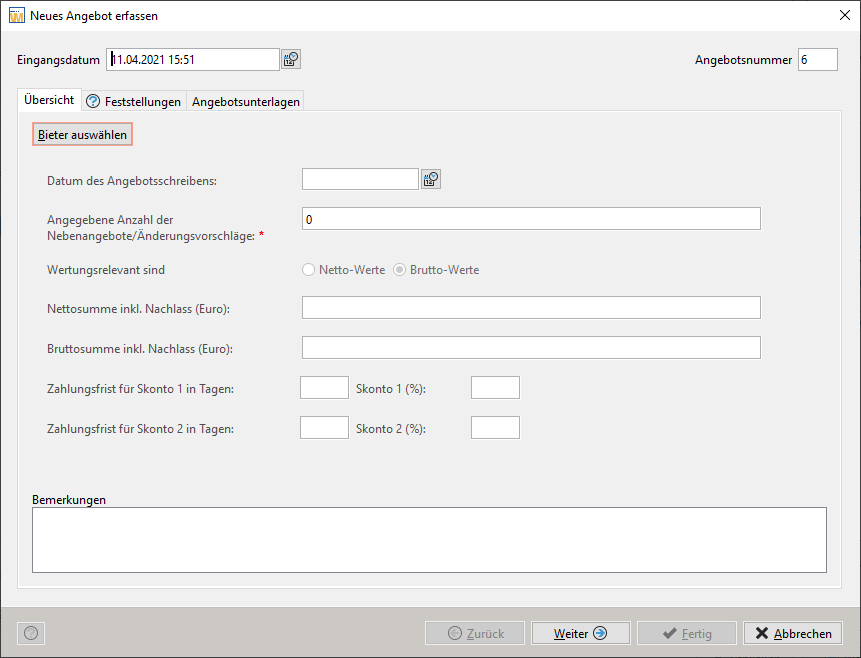
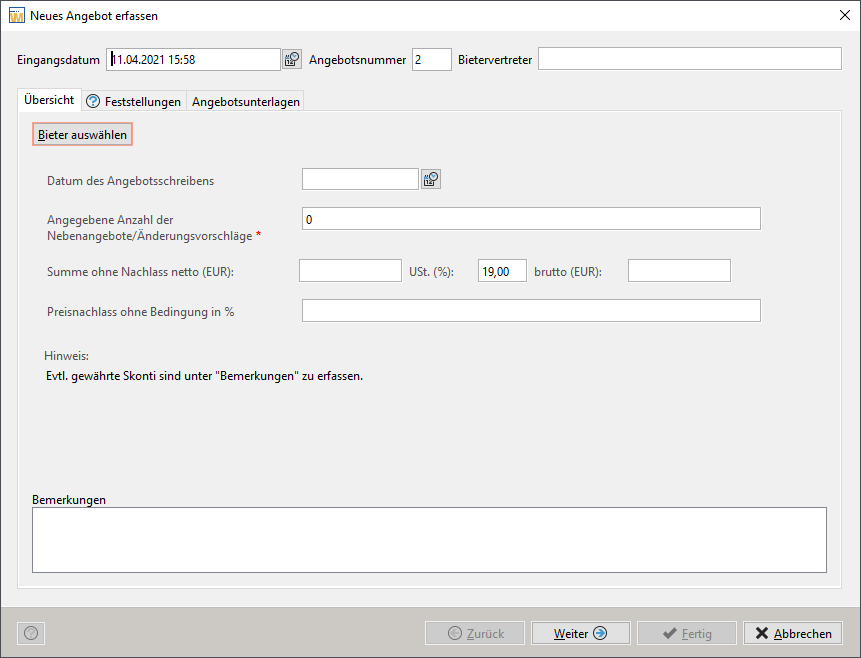
The entry date is set to the current date by default, but can be changed if necessary. The offer number is automatically assigned in the order in which they are entered. Click on the Select bidder button. Another window will appear, displaying all participants assigned to the award procedure so far at the top. At the bottom, you will see all participants from offers that have already been entered.
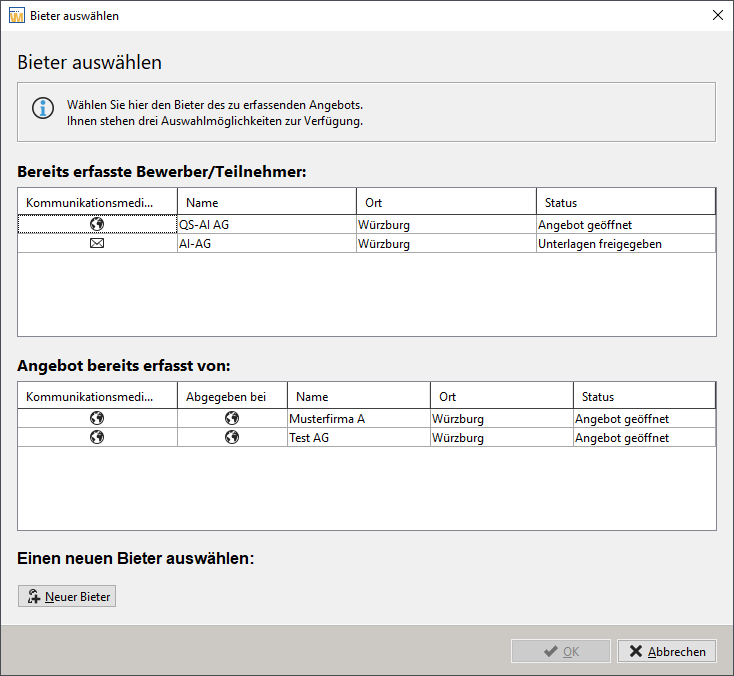
Select an entry from the upper list or click on the New bidders button to select a bidder from the company master data. For more information, see [company master data] (../create/company-master-data.md "Switch to company master data").
Tip
If several main offers from the same bidder are permitted in the offer documents, you can also select the desired bidder from the lower area of the window.
In the Select participant window, you can use Further options to enter the date of the request for and sending of the offer documents. Finish selecting the bidder by clicking on the Add button. You will return to the Enter new offer window.
The following tabs are available for you to enter information:
| Tab | Description |
|---|---|
| Overview (Services) | Enter the date of the offer letter, the number of secondary offers, the gross total, if Gross Values is activated in the Relevant for Evaluation field, as well as any discounts and remarks. The entries in the bill of quantities in the offer documents tab can be used to overwrite the entries for the gross total values. |
| Overview (construction work) | Enter the date of the letter of offer, further remarks on the cover letter, the number of alternative offers, the gross and net offer amount in euros, the sales tax as a percentage (19% is preassigned) and, if applicable, the unconditional price reduction as a percentage. Any discounts granted are entered in the Remarks field. |
| Findings (delivery/service) or formal audit (construction work) | Contains empty electronic bills of quantity, which must be subsequently recorded with the help of the bidder's documents. You can also enter the bill of quantities later in a further workflow step. The components of the paper offer are structured by subject and contain the identical folder structure as the electronic offer sent via the AI BIDDINGCOCKPIT. This structure is also reflected when the offers are called up in the project tree and in the revision levels. It is possible to add further files. Attachments added when entering a paper offer can be saved in any (existing) folder. |
| Offer documents (delivery/service) |
Contains an empty electronic bill of quantities, which must be subsequently entered with the help of the bidder's documents. You can also enter the bill of quantities later in a further workflow step. The components of the paper offer are structured by subject and contain the identical folder structure as the electronic offer sent via the AI BIDDINGCOCKPIT. This structure is also reflected when the offers are called up in the project tree and in the revision levels. It is possible to add further files. Attachments added when entering a paper offer can be saved in any (existing) folder. |
| Offer documents (construction work) | Contains a blank offer letter, which must be subsequently entered using the bidder's documents. The structure of the paper offer is identical to the folder structure of the electronic offers and can also be found in the project tree and in the revision statuses. It is possible to add further files. Attachments added when entering a paper offer can be saved in any (existing) folder. |
Enter the required information in the Overview tab and click Next. The second tab, Findings, is activated. The answers to the audit criteria are given in Yes/No radio buttons. If you answer one of the questions with No, an additional mandatory field will appear in which you must enter a reason.
Tip
You can click the All Met button to automatically set the correct options for the Yes/No fields in the entire tab. In this window, click the Next button to activate the next tab or the Back button to return to the previous tab. When you have finished entering data in all tabs, click Done. The newly created offer appears in the offer overview table.
Secondary Offers
The AI TENDERINGMANAGER treats secondary offers as independent business objects that can be checked and evaluated individually.
In a VOL procedure with the AI bill of quantities, secondary offers can be entered for a main offer, which refer to the total service or a partial service of the main offer. A complete set of technical specifications is stored for each variant. When a variant is created for a main offer, the bill of quantities for the main offer is copied with all entries. The change can then be entered at one of the selected levels (bill of quantities, lot, group or item).
No AI bill of quantities is stored in a VOB procedure or in any procedure that includes an external bill of quantities (e.g. a GAEB file). Main offers can be linked to one or more associated secondary offers here. The resulting combined offers are checked and evaluated as independent offers. This ensures that a bidder can be represented in the evaluation with several variants of his offer at the same time.
Secondary Offers for a Main Offer (AI bill of quantities)
Electronically submitted variants for a main offer are only displayed in the overview table of offers after the main offer has been decrypted. They appear below the main offer with a number suffix, e.g. 5.1, 5.2, etc., for the offer with the number 5.
For paper offers with associated secondary offers, the required entries are subsequently recorded in the workflow step Record secondary offers.
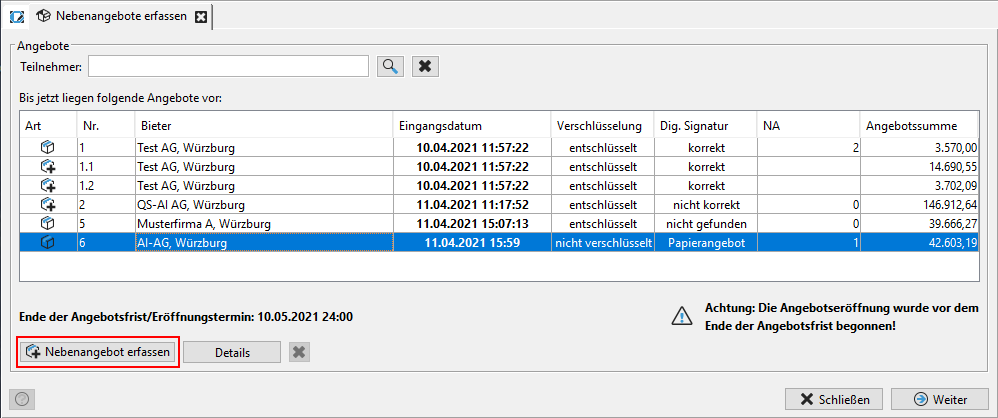
Mark the main offer for which there is a secondary offer in the offer overview of the workflow step and click on the Record secondary offer button at the bottom left.
The Record new secondary offer window opens.
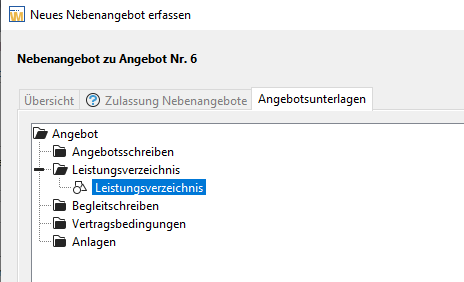
Double-click the bill of quantities in the Offer Documents tab. The completed bill of quantities for the main offer is opened.

Select the element of the bill of quantities for which you want to enter a change and click on the Enter Change button in the toolbar or use the context menu EDIT CHANGE with the right mouse button. The input mask for the change is called up. In addition to the change amounts (net or gross amount and sales tax), you must also enter a reason for the changes.
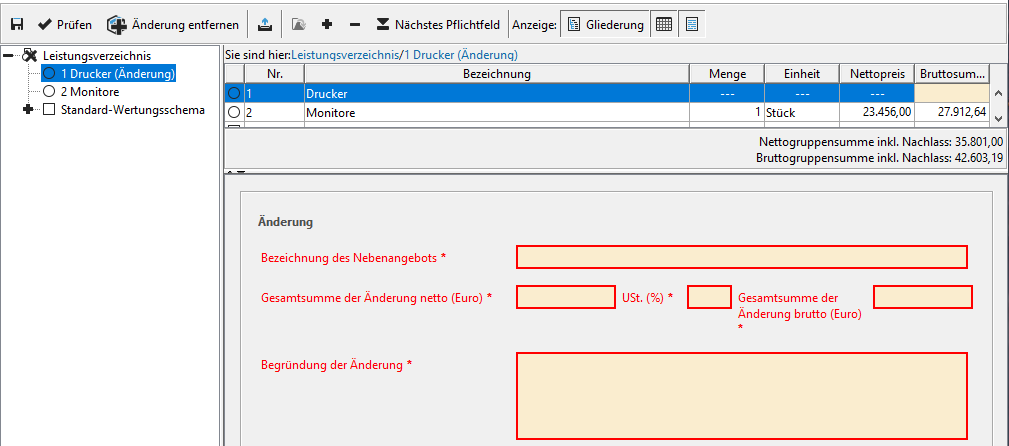
The changed amount is adopted into the bill of quantities. You can recognize the changed item by the parenthesis (change) in the project tree of the bill of quantities.
If necessary, you can undo the change by clicking the Remove Change button in the toolbar.
The remaining forms in the Offer documents tab are edited in the same way as a offer. Please refer to the information on paper offers.
Secondary Offer without Main Offer (AI bill of quantities)
With this type of offer, the bidder can either offer a complete alternative service, which is evaluated independently, or make the desired changes to individual items or groups of the bill of quantities. An electronically submitted alternative offer for a main offer is treated like a main offer and displayed in the overview table of offers during the opening of tenders before the decryption process has started.
Info
This offer must not be submitted in addition to a main offer, i.e. the bidder cannot be represented in the evaluation with a main offer and a secondary offer without a main offer at the same time.
To enter such an offer, which was sent on paper, click on the button Enter secondary offer without main offer in the Open offers window.
For information on the entries in the OVERVIEW and FINDINGS tabs, see Entering paper offers.
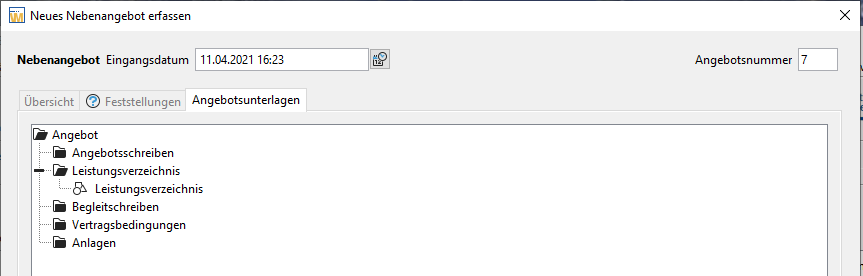
Double-click on the bill of quantities in the offer documents tab. The empty bill of quantities is opened.

To enter an amendment, select the corresponding element of the bill of quantities and click on the Enter text button in the toolbar or right-click to open the context menu and select the ENTER AMENDMENT option.
The input mask for the amendment is displayed.
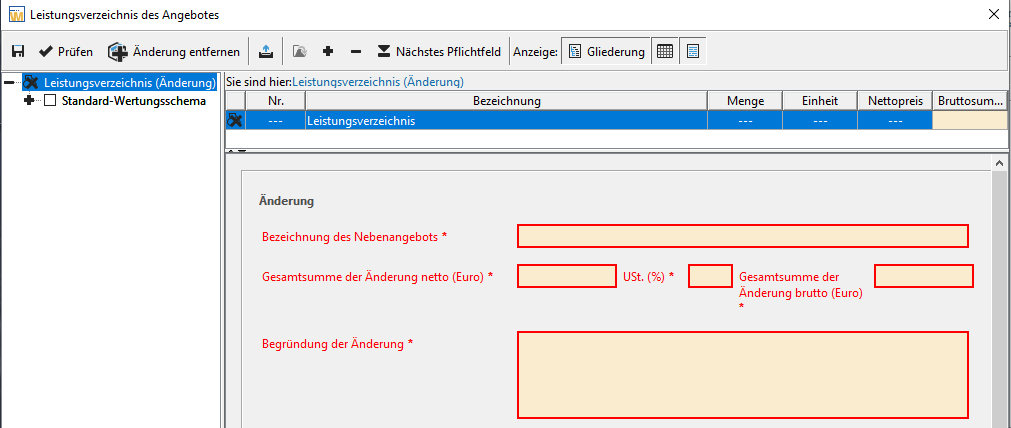
Enter the desired information in the following mandatory fields.
| Field name | Input |
|---|---|
| Description of the variant: | Enter a description for your variant |
| Total net amount of the change: | Enter the net total amount in euros. |
| VAT (%): | Enter the VAT in % |
| Gross (In Euro): | Calculated from the two previous fields. |
| Reason for change: | Enter a brief explanation of the change made |
Info
The changed amount is adopted into the bill of quantities. In the project tree of the bill of quantities, you can recognize the changed element by the parenthesis (change).
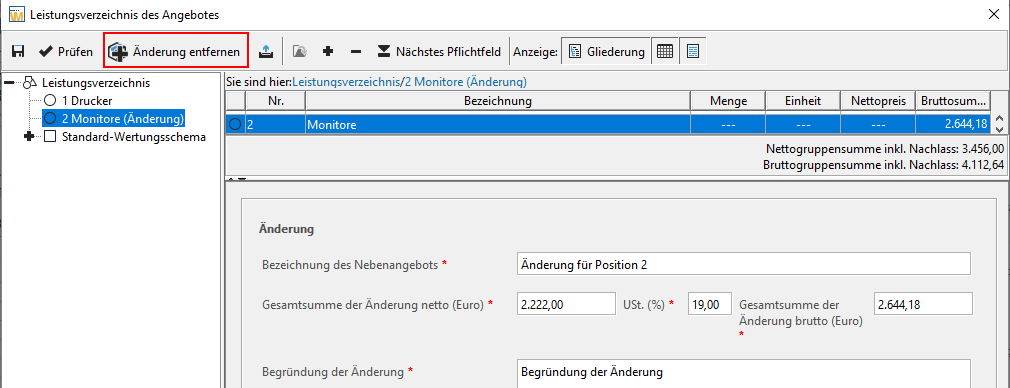
You can use the Remove changes button in the toolbar to undo the changes if necessary.
Evaluating Secondary Offers (AI bill of quantities)
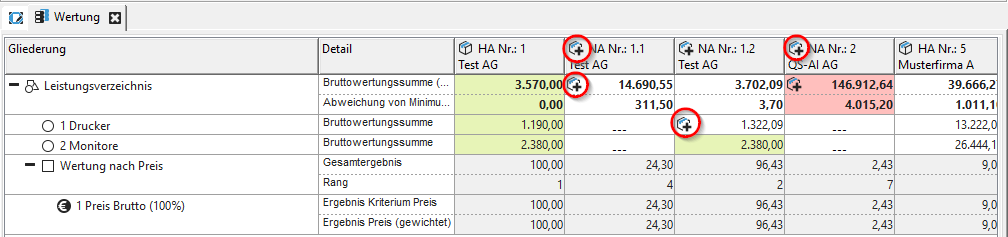
All main and secondary offers are displayed in the evaluation matrix and in the price comparison. The secondary offers can be recognized by the symbol with the green plus sign in the column header. In addition, the same symbol is used to show at which level of the bill of quantities (BQ, lot, group or item) a change has been made.
Secondary Offers for a Main Offer (external bill of quantities)
Frequently asked question
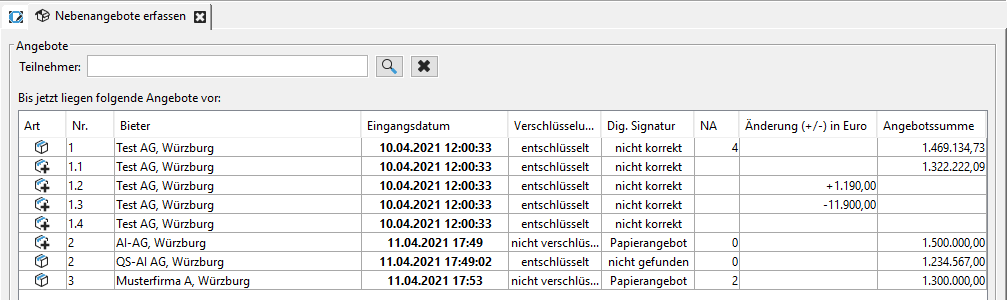
In the overview table of offers, the electronic alternative offers for a main offer with an external bill of quantities are not displayed after the opening of offers and decryption of the main offers. You can only see the number of alternative offers here in the number in the NA column.
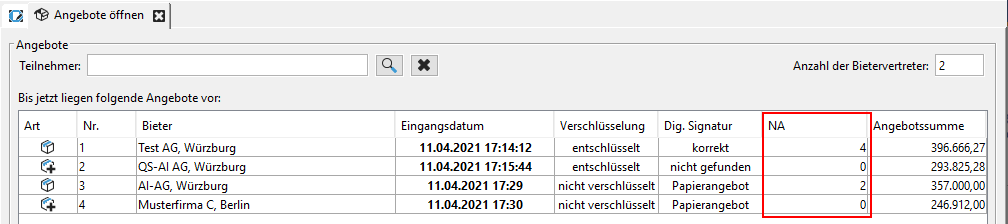
These alternative offers only appear in the workflow step Enter alternative offers below the main offer with a number supplement, e.g. 1.1, 1.2, etc., for offer 1.
Tip
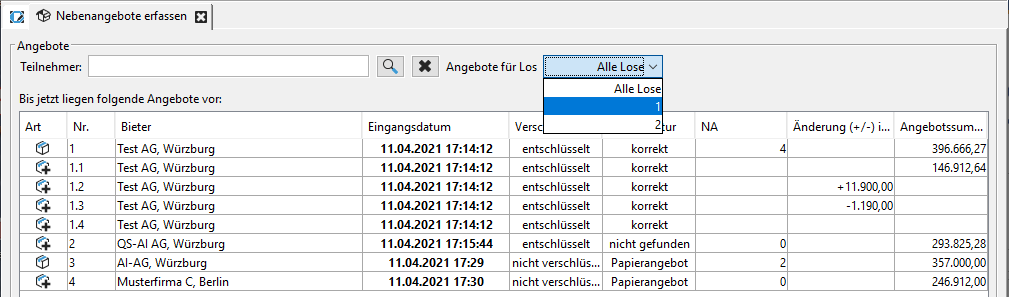
In a lottery, you can filter the offers by lots (see red outline below). The amounts of the change proposals (1) are displayed in the Change (+/-) column, while the special proposals (2) are displayed in the offer total column. There is no amount in either column for price reductions (3).
For paper offers with associated secondary offers, the required entries are entered at this point.
Select the main offer for which a secondary offer is available in the offer overview of the workflow step and click on the Enter secondary offer button at the bottom left.
The Enter new variant window opens.
Info
In a lot procedure, you must first select the desired lot in an additional window. The lot number then appears in parentheses, e.g. (Lot 1), in the upper left corner next to the offer number.
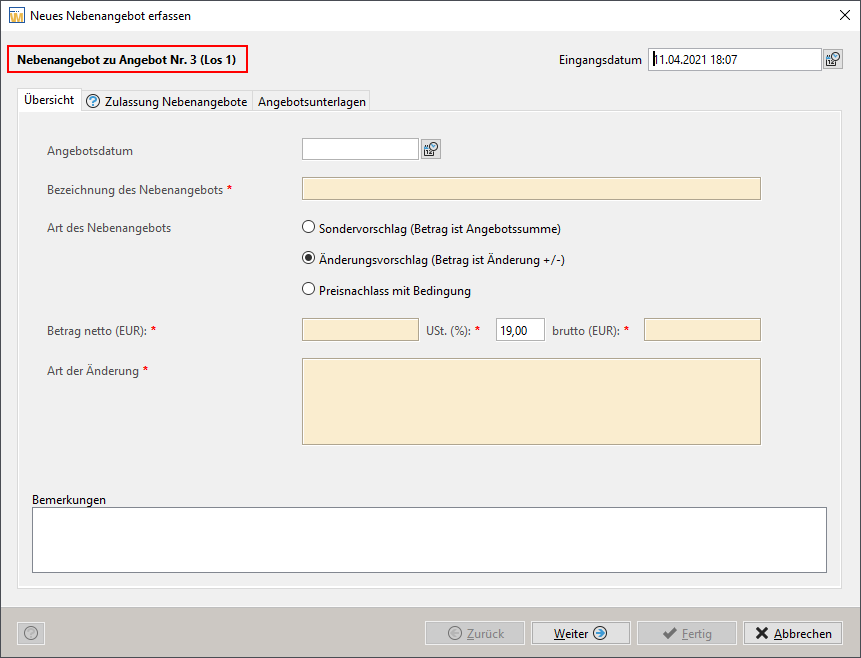
In a procedure with an external bill of quantities (e.g. GAEB file), you can create three different types of alternative offers for a main offer:
-
Change proposal: This refers to a sub-area of the service and is specified with a change amount (positive or negative number). Any number of different change proposals can be entered.
-
Separate proposal: This refers to the entire tendered service and is specified as a total amount. Multiple separate proposals can be created for the tendered service, which are then represented as independent offers in the evaluation.
-
Price reduction with conditions: This variant has no amount and is only considered in the workflow step Final Valuation Amount. To allow a high degree of flexibility, the content and effect on the price are text field or in an added document.
Tip
Depending on the selection made in the Type of additional offer option field, different fields are displayed in the input mask. The default is change proposal. For change proposals, negative numbers are also allowed in the number fields.
Enter the required information in the following fields and then click on Next or Done.
| Field | Description |
|---|---|
| Date of offer | Date of the main offer. |
| Description of the secondary offer | Mandatory field: Brief description of the secondary offer. |
| Type of secondary offer | Option field for selecting the secondary offer type. This is pre-assigned with the change proposal. |
| Net Amount (Euro) | Mandatory field: net total amount for special proposal (only positive numbers possible) or net change amount for change proposal (positive and negative numbers possible). Calculated from gross amount (Euro) and VAT (\%). |
| VAT (%) | Mandatory field: VAT rate in percent. Taken from the main offer. Can be changed. |
| Gross amount (Euro) | Mandatory field: Total gross amount for separate proposal (only positive numbers possible) or gross change amount change proposal (positive and negative numbers possible). Calculated from net amount (Euro) and VAT (%). |
| Type of amendment | Mandatory field: Brief description of the type of amendment to the secondary offer. |
The remaining forms in the Offer documents tab are processed in the same way as a bid. Please also note the information at [paper offers] (#entering-paper-offers "Switch to entering paper offers")
Secondary Offer without Main Offer (external bill of quantities)
With this type of offer, the bidder can offer a complete alternative service that is evaluated independently. An electronically submitted variant to a main offer is treated like a main offer and displayed in the overview table of offers during the opening of tenders before the decryption process has started.
Info
This offer must not be submitted in addition to a main offer, i.e. the bidder cannot be represented in the evaluation with a main offer and a secondary offer without a main offer at the same time.
To enter such an offer, which was sent in paper form, click on the button Enter secondary offer without main offer in the workflow step Open offers.
Please also note the information at Entering paper offers
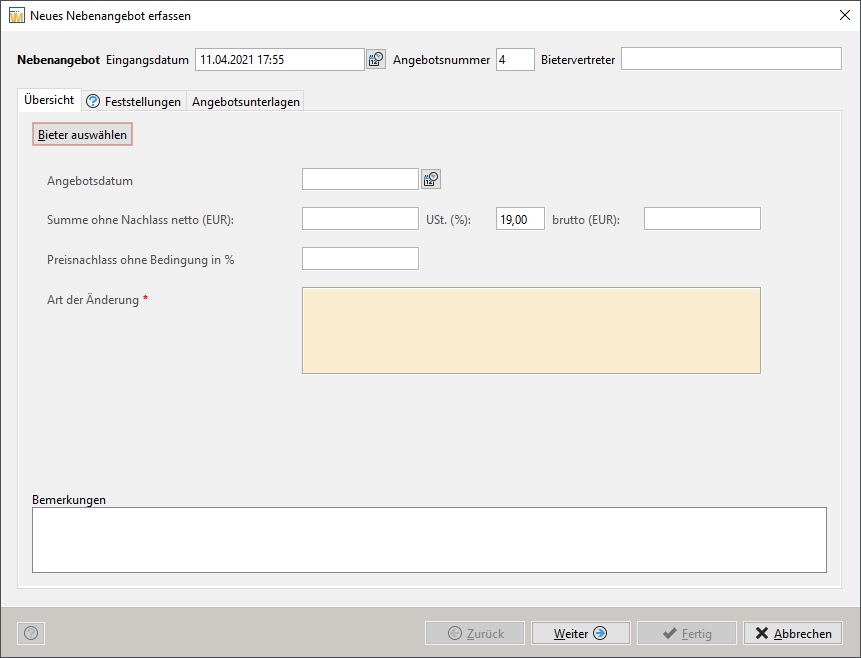
After you have assigned a bidder, enter the desired information in the following fields and then click on Done.
| Field name | Input |
|---|---|
| Net amount without discount: | Enter the net total amount in euros |
| UST (%): | Enter the sales tax in % |
| Gross amount (in euros): | Calculated from the two previous fields |
| Unconditional discount: | Enter a discount in % if one exists |
| Reason for amendment: | Enter a reason for the type of amendment |
Calculation Check of the Secondary Offers (external BQ)
This workflow step only contains the alternative offers without main offers and the alternative offers for a main offer of the type special proposal and change proposal. The price reduction variant with conditions is not included here. The checked amounts are displayed in the corresponding columns.
In a lot-based process, you can filter this view of the variants by lot.
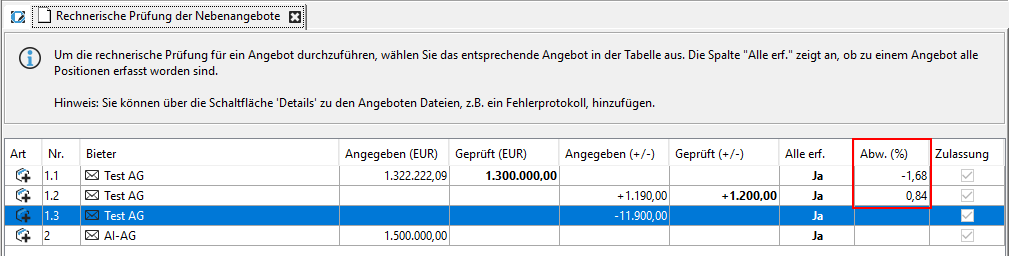
Mark the desired alternative offer in the list and click on the Check button. The entry window for the mathematically checked sum is called up.
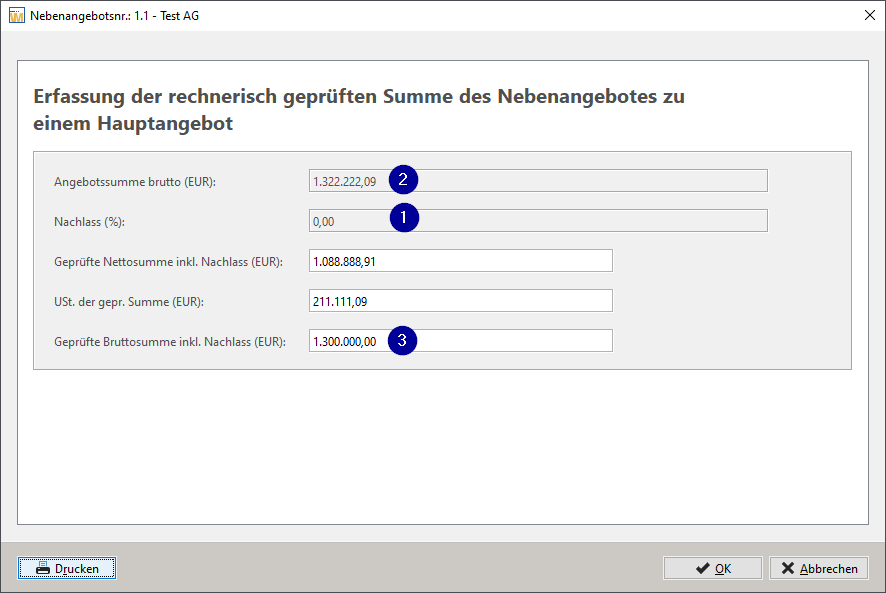
The unconditional discount (1) from the main offer is transferred to the alternative offer. The field Gross offer total (2) shows the originally entered gross amount of the alternative offer. The field Verified gross total incl. discount (3) contains the value calculated with the discount. You can enter your verified change total here.
The percentage variance is displayed for all types of alternative offers in the Deviation (%) column of the overview table (see red outline in the overview above).
Info
In the case of the change proposals, the input mask is identical, but instead of the two gross totals, the gross change amount and the checked change amount incl. discount are displayed.
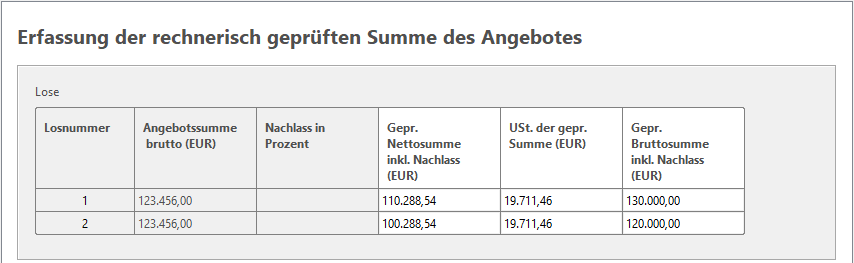
Since the alternative offers are not detached without the main offer, the checked totals are listed in a table when the lots are split and can be changed here.
Combining Secondary Offers (external BQ)
In this workflow step, you have the option of combining the main offer with one or more of its variant bids. All combined bids created in this way are considered to be independent bids and are included in the evaluation. In addition, an existing secondary offer with a discount can increase the chances of winning the contract if it is linked to a combined offer or to the main offer.
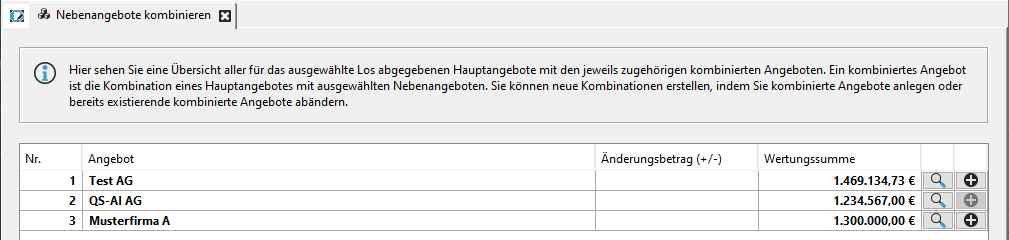
On the overview page, all main offers with secondary offers are marked with the plus sign  symbol in the last column.
tip
For the purpose of awarding contracts, a lot filter is displayed here, similar to the one in the computational check, since the secondary offers always refer to only one lot. The magnifying glass symbol can be used to access the details of the main offers at any time.
To combine, click on the plus sign of the selected offer. The Create Combined Offer window will open.
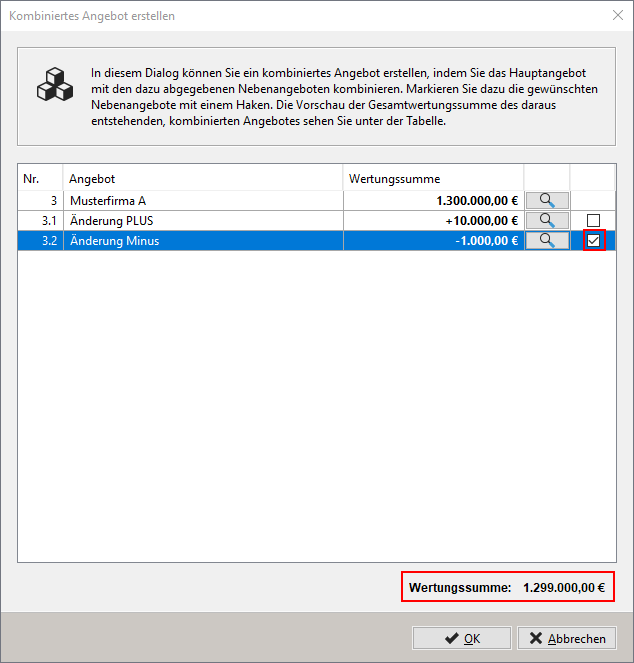
The main offer and its evaluation total are displayed in the top line of the input window, and the associated change proposals with their positive or negative change amounts are displayed below them in further lines.
If necessary, you can view the details of the offers by clicking on the magnifying glass symbol.
In the far right column, check the box of the alternate you want to combine with the main offer. You can select one, all, or any number of alternates. The new scored total is displayed further down the window (red border). Click OK to save the combined offer.
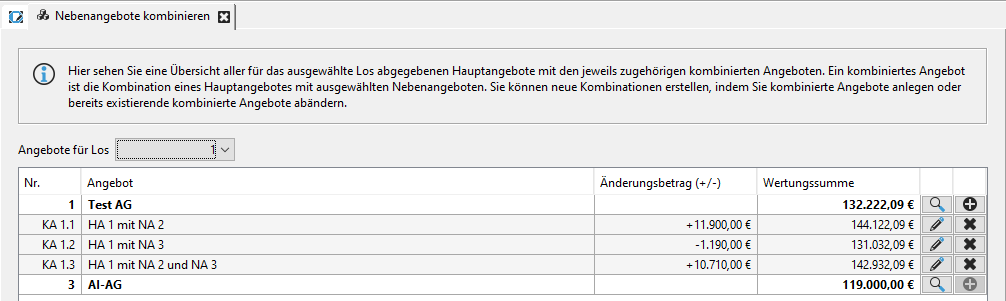
The number of the combined offer is composed as follows: the text KA, the number of the main offer from which it originates and a consecutive integer, e.g. KA 3.2 for the second combined offer from main offer 3.
The designation of the combined offer consists of the number of the main offer and the number(s) of the associated secondary offers, e.g. HA 3 with NA4.
The combined offers created in this way can be subsequently changed using the pencil symbol or deleted using the X symbol.
Hint
Existing combinations cannot be recreated. You will receive a corresponding warning.
Final Evaluation Sum (external BQ)
In order to increase a bidder's chances of winning the contract, a variant of the type price reduction with conditions can be calculated with the associated main offer or the existing combined offers in this workflow step.
The following offer types are displayed in the overview:
-
Main offer
-
Secondary offer to main offer -- Special proposal
-
Secondary offer without main offer
-
Combined offer
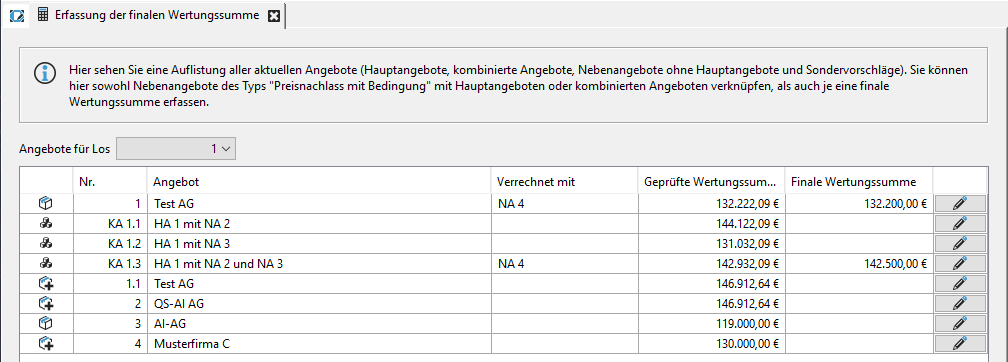
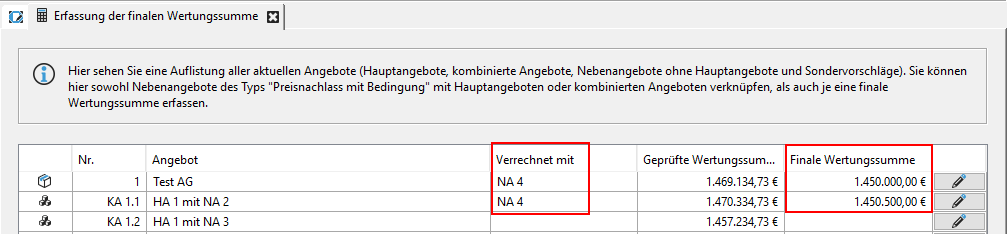
To enter the final score for a bid, click on the pencil icon in the far-right column.
The Enter final score window opens.
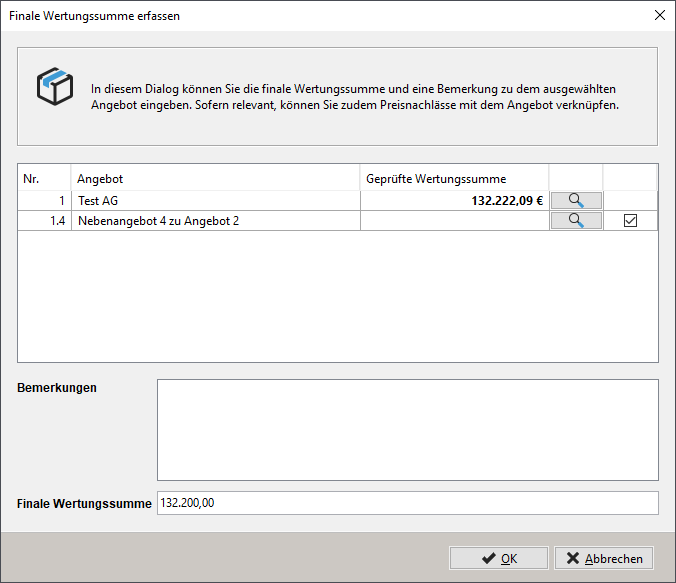
In the top line of the window, you will see the main offer or the combined offer with its checked valuation total. Activate the checkbox for the secondary offer of a price reduction with conditions that you want to apply to this offer and enter the final valuation total in the field below. Use the Remarks field to document the process. Click OK to save your entries.
The final score is displayed in the corresponding column in the overview, while the number of the conditional discount is displayed in the Cleared with column.
Secondary Offers in the Evaluation (external BQ)
Warning
Please note that an external evaluation with the AI LV-ASSISTENT is not possible for procedures with external bills of quantities and submitted variant bids.
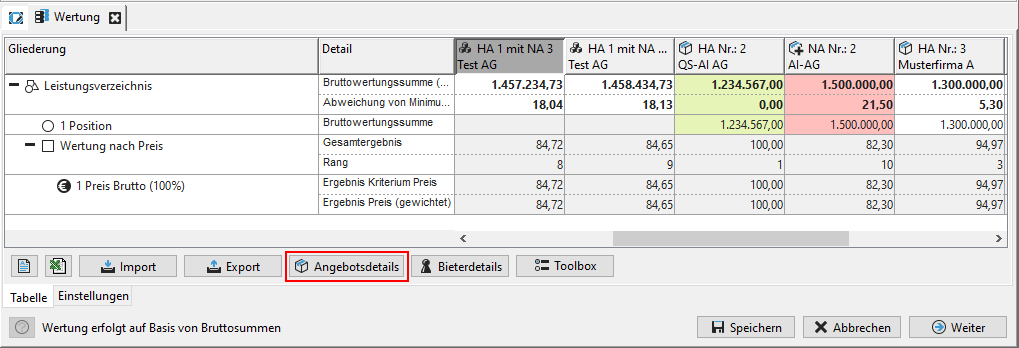
The following types of offers can be included in the evaluation and be accepted:
-
Main offer
-
Alternative offer for main offer -- special proposal
-
Alternative offer without main offer
-
Combined offer
Tip
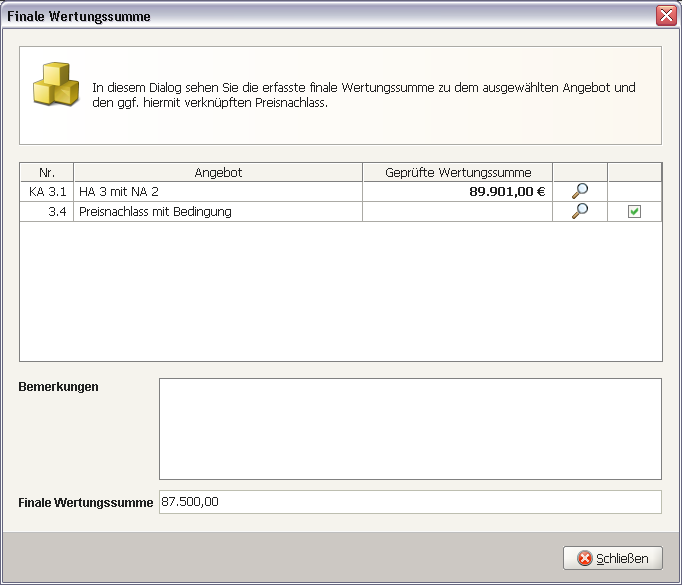
The Offer Details button and the corresponding magnifying glass symbols allow you to easily track the development process of your combined offer.
Print Entire Offer
If necessary, you can print a bidder's entire offer with all associated documents in one step.
To do this, activate the Offer documents tab within the desired bid's data-entry window. Click on the Print offer button. The bill of quantities and the various program-specific forms (e.g. the offer letter) are sent directly to the printer as PDF documents. For the added external documents, the associated program is recognized by the file extension and possibly started before printing.
Info
Please note that you cannot print a GAEB file that is included in the offer directly. These files are exported from the AI TENDERINGMANAGER using the Export button and can be printed using a suitable application.