Offer Evaluation¶
The following evaluation stages are planned to determine the validity and suitability of an offer:
| Evaluation stage | Content |
|---|---|
| Evaluation stage 1 | Determining the offers to be excluded due to content-related and formal defects. |
| Evaluation stage 2 | Checking the personal and professional suitability of the bidders. |
| Evaluation step 3 | Checking the offer prices. |
| Evaluation step 4 | Selecting the most economical offer. |
To map these requirements, AI TENDERINGMANAGER provides several consecutive steps that serve to decide on and document the individual aspects of admission:
-
Calculative offer verification
-
Formal check
-
Aptitude test
-
Price comparison / price adequacy check
-
Comparability of secondary offers
Warning
In some of these steps, you have the option of determining the admission of the offers for the further procedure. It should be noted that an offer that is excluded from the formal or suitability check for a compelling reason can no longer be admitted. That is, the admission hook can no longer be activated in the further procedure.
Info
When evaluating offers, remarks that do not lead to exclusion are recorded in the award notice and can be clearly assigned to the individual bidders.
Info
The results of the formal and suitability test also affect the further processing of the offers in the procedure. For example, failure to meet the criterion § 16 no. 3 letter e VOL/A or § 42 no. 1 UVgO (timely access) means that the bill of quantities may no longer be checked for unfilled fields, since these tenders are generally not admitted and are therefore not recorded at item level.
Calculative Offer Verification¶
The calculative offer check is used to check the consistency between the actual total of the individual items and the final total of a offer specified in the offer frame data, e.g. in the offer letter.
In the overview table, all offers are displayed in the order of the offer number.
| Column | Value |
|---|---|
| No. | Offer number |
| Bidder | Communication medium, name and location of the bidder. |
| Entered | The sum of the offer entered within the offer frame data. |
| Evaluated | The checksum determined by adding the individual items or by an external check. |
| Fully entered | Indicates whether the prices of all individual items in the bill of quantities have been fully entered. |
| Deviation (%) | The difference between the Submitted and Checked columns. |
| Admission | The check box can be used to determine whether the offer is admitted to the further procedure. |
The following describes the calculative offer check for electronic and paper offer in detail.
Paper Bids¶
To check the mathematical consistency of paper bids, the offer totals specified by the bidder in the offer letter are first compared with the totals calculated in the bill of quantities.
If the bill of quantities included in the offer has not yet been fully entered at item level while the paper offer is being entered, you can now enter it at this point retrospectively. Double-click on the quote in the overview table. The bill of quantities for the quote is displayed and you can enter the items according to the information provided by the bidder. Any deviation is then displayed in the Deviation from checked total (%) field (see [red]{style="color: red"} circle). It is calculated as the difference between the fields Gross group total incl. discount (partial result) and Specified gross total.
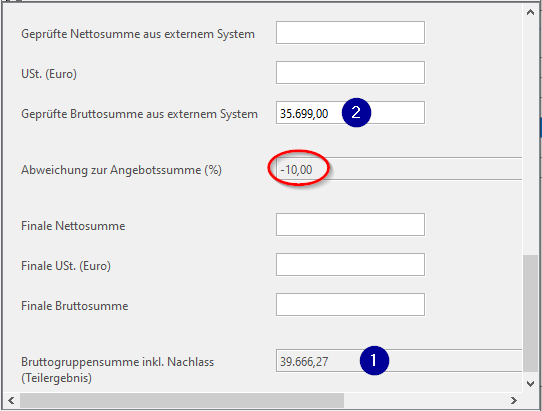
If the recalculation of the offer totals is carried out by an external party, you enter the checked total in the Checked gross total from external system (2) field. This is considered to be the primary valid checksum and is compared with the value in the Gross group total incl. discount (partial result) (1) field. The deviation appears in the Deviation from checked total (%) field.
Digital offers¶
It is also possible to carry out the external computational check for digital offers. The externally checked sums are compared with those from the bill of quantities. The recording is identical to the recording of the externally checked sums for paper offers.
Formal Check¶
For all offers or requests to participate, the offer review is documented in a matrix view. The offers that meet the defined criteria are marked for further processing by activating the admission control field at the bottom of the matrix.
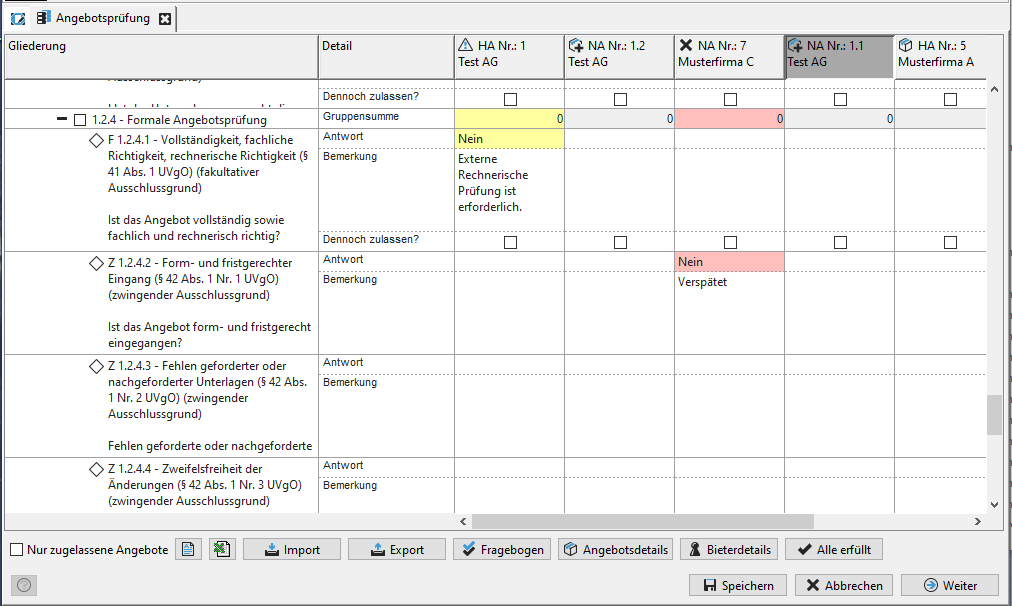
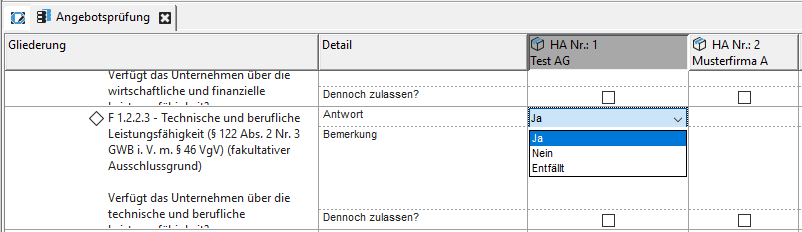
The evaluation criteria are located in the first column of the matrix and have different initial letters: F stands for facultative, while Z represents a mandatory reason for exclusion. Unfulfilled F criteria are marked in yellow in the affected cell and the corresponding offer symbols in the column header are additionally marked with a warning triangle. For unfulfilled Z criteria, the matrix cell is marked in pink and the offer symbol is marked with a black X. The answers are given in the respective offer column by selecting an entry in the list fields. Possible answers are: Yes, No or Not applicable.
Hint
If a criterion with a negative evaluation is irrelevant for the admission of the applicant, you can indicate this by selecting the option Admit anyway? and manually activate the Admission check box at the bottom of the matrix. If the Admit anyway option has not been activated, negatively evaluated criteria also require a reason.
Info
An offer that has not fulfilled an exclusive formal criterion (Z criterion) (e.g. an invalid signature of an electronic bid) can no longer be set to admitted. In this case, the corresponding control field in the table is not writable.
If criteria comparable to a UfAB-V evaluation have been set up for the suitability test, the sum of the suitability points for each offer is determined from the evaluation points of the B criteria. In order for the offer not to be excluded, all A criteria must also be met. For admission based on the evaluation points, it is crucial whether these are above the specified minimum number of points for the offer.
Tip
You can select an offer by clicking in the column header at the top. The buttons at the bottom of the assessment matrix have the following meanings:
| Button | Meaning |
|---|---|
 |
Filter to show or hide the disallowed offers. This ensures that the matrix is only opened with the accepted offers, instead of with all offers originally received. |
 |
Export the offer review as a PDF file. |
 |
Export of the offer check as an Excel spreadsheet. |
 |
Import of the offer check after the external check has been carried out with the AI BQ ASSISTANT program. |
 |
Export of the offer review for external review using the AI-BQ Assistant program. |
 |
Open the questionnaire for the suitability check of the selected bid. |
 |
Open the offer details for the selected offer. |
 |
Open the participant data for the selected offer. |
 |
All admission criteria of the selected offer are answered positively with one click of the mouse. |
Info
The matrix of the offer review can only be saved and closed if all necessary justification fields have been filled out.
Suitability Test¶
The suitability test is used to check the suitability of the bidders with regard to the characteristics:
-
expertise
-
performance
-
reliability
This step is analogous to the formal test, but only contains Z-criteria.
Lot-Wise Exclusion¶
In addition to the option of excluding offers after a suitability check, individual lots of an offer can also be excluded if the contracting authority so desires. Via the menu ACTIONS Lot-wise exclusion of offers, a list of offers is displayed, which contains the admission status for the individual lots.
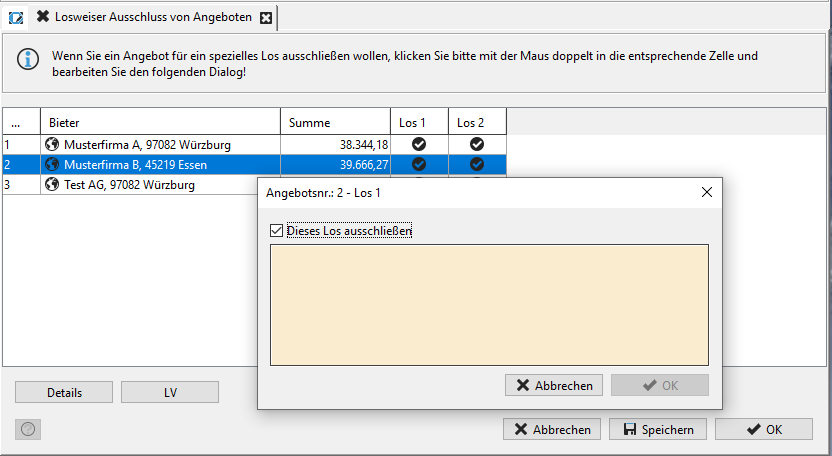
The lots excluded in this way and the respective reasons for exclusion can be integrated into the form set for display.
Info
In the Contract Award Proposal or Contract Award step, these excluded offers are included in the list, but are not considered by the system's automatic contract award. If necessary, the contracting authority can manually set the contract award for one of these excluded offers after answering "Yes" to the notification message and the question of whether to continue.
Price Comparison¶
This table compares the prices of the individual items of all offers. For easier orientation, you will see the lowest or highest price for each item highlighted in green or red. The same color scheme also applies in the Bill of Quantities line.
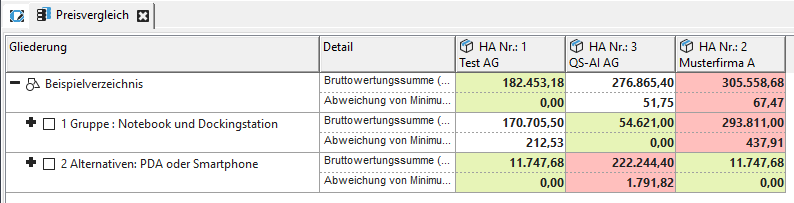
You can access the detail dialog for the bill of quantities, the offer details and the bidder details using the corresponding buttons at the bottom of the table if you first select the desired offer by clicking on the table header.

To export the price comparison, click the button with the Excel symbol. The information from the offer table is inserted into an Excel spreadsheet and can be edited.
Info
Only the information visible at the time of export is transferred from the price comparison to Excel.
To customize the display to your needs, you will find numerous options for filtering, sorting and the level of detail of the offer table on the Settings tab.
Tip
You can also control the most important settings directly via the toolbox. This has the advantage that you do not have to switch between the Table and Settings tabs and changes are immediately visible.
Click on the Toolbox button in the Table tab to show or hide the window.
The most important setting options for the offer table are briefly explained below:
| Setting | Meaning |
|---|---|
| Show/hide offers | Reduce the display to certain offers: Register Settings - Display filter - Toolbox – check box |
| Sorting of offers | Standard: Sorting by offer numbers manually – Click on table header Register Settings - Sorting - Toolbox - Sorting. |
| Hypothetical offers | Additional comparison options for offers Estimated item totals Most favorable items Most favorable lots Average item totals Most expensive items |
| Level of detail | Further criteria at BQ, group or position level Register Settings – Section Display e.g.: rank, variances, average,... |
Tip
You can save your settings in the price comparison via the Save button. This is particularly advantageous when there are many offers or individual positions, since the program no longer has to perform internal calculations when the price comparison is reopened.
Flexible Participation Request and Offer Review¶
Info
This function is only available to you if the customer model of your AI TENDERINGMANAGER has been customized accordingly.
The flexible examination of offers or requests to participate makes it possible that in award procedures the suitability of the bidders or candidates no longer has to be examined by means of a rigid yes-no questionnaire, but that the examination stages of the formal examination, the suitability examination and the examination of the appropriateness of the price can be mapped as criteria groups and criteria, on the basis of which the suitable bidders or applicants can be determined in the award procedure, with the award of evaluation points and taking into account a minimum number of points to be determined.
Create Questionnaire¶
The process of creating a questionnaire for a flexible suitability test is largely the same as creating a bill of quantities.
The result is the offer review catalog, where the review levels for formal review and for price adequacy are already specified. However, the review level "suitability test", for which a complex evaluation scheme can be set up, can be freely edited.
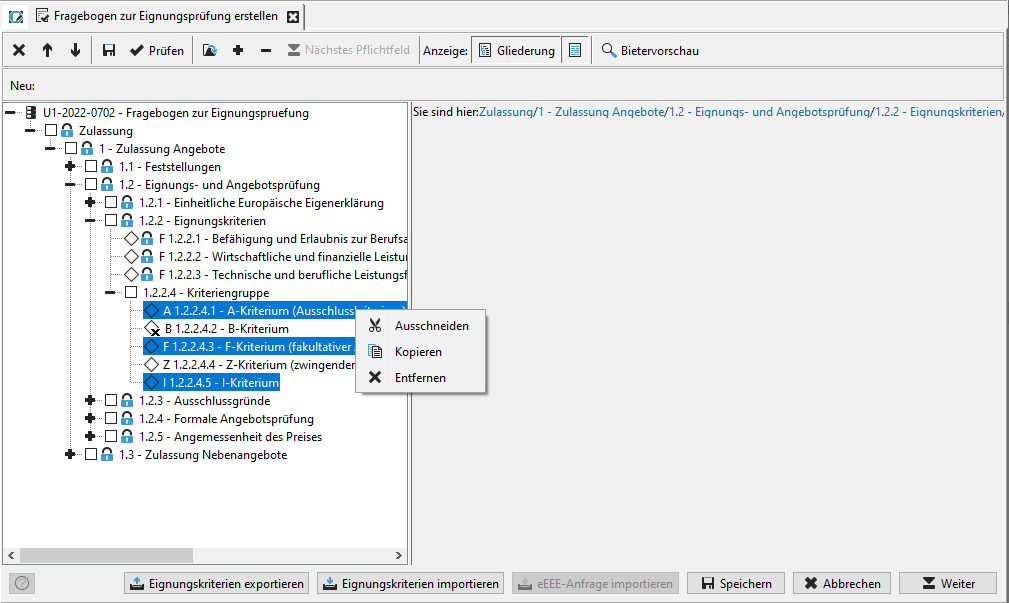
Criteria groups and criteria marked with a lock symbol cannot be deleted or moved. They are an integral part of the test sheet.
To make it easier to edit the aptitude test questionnaire, you can select several criteria at one level and move, delete, copy or insert them together. The name is not important, i.e. you can include criteria with the same name in different places in your questionnaire.
Info
If requested by the customer, the numbering of the criteria can be made variable, e.g. by replacing it with your own enumeration format or hiding it completely.
Publish Questionnaire¶
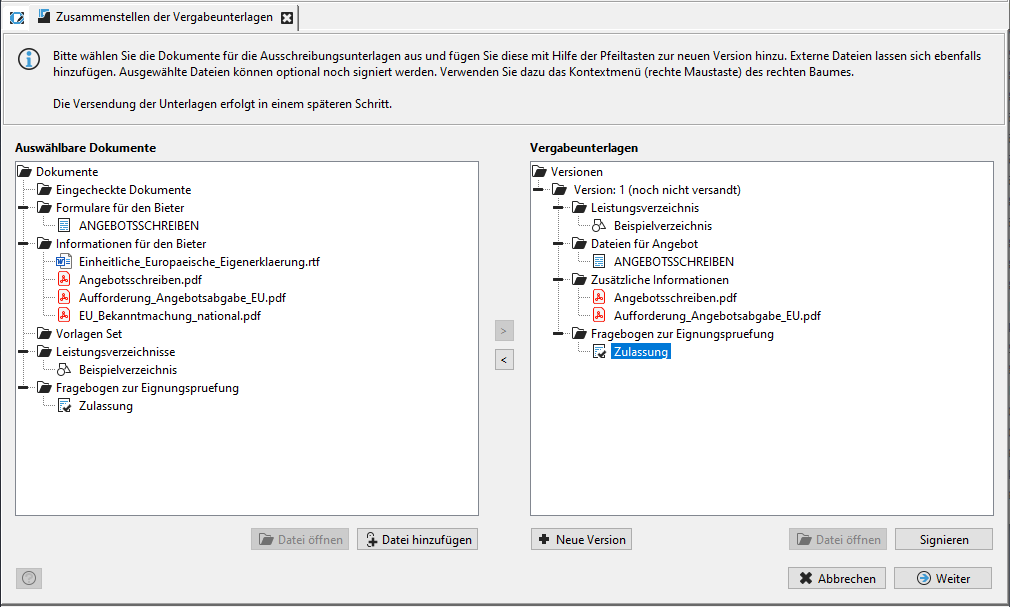
If the questionnaire for the flexible suitability test contains criteria that are to be published, the questionnaire is automatically added to the offer documents.
The questionnaire is included as an aidf file for electronic submission, while a PDF version is available for submission of offers or requests to participate in paper form.
Fill in the Questionnaire¶
The bidder edits and saves the questionnaire for the flexible qualification (in the form of an aidf file) in the AI BIDDINGCOCKPIT or AI BQ-COCKPIT. The process is the same as editing the bill of quantities. The bidder answers the questions that were compiled by the contracting authority.
Inverted Questions¶
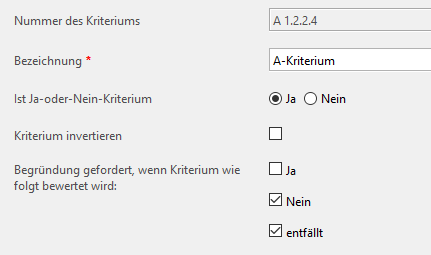
You can define inverted questions in the flexible suitability test by activating the Invert criterion check box. In this case, the criterion is met if it is answered "No" in the suitability test.
tip
To avoid misunderstandings, the criteria text should be formulated accordingly. Example question: "Is there an obvious mismatch between the price of the offer and the service?"
Mandatory Entry of the Reason¶
It is possible to specify in the catalog of questions or when creating user-defined criteria for which criteria evaluation (e.g. "not fulfilled" and "not applicable") a reason for this criterion must **be entered.
Info
The descriptions for each of the possible answers are flexible and can be individually adapted to customer requirements.
Questionnaire as Part of the Offer¶
Similar to the bill of quantities, the questionnaire for flexible suitability testing is also part of offers or requests to participate. It can be accessed in the detail dialog of an offer via the Electronic offer documents tab.
Tip
For offers or requests to participate that are available in paper form, it is possible for the awarding office to subsequently record the bidder's responses.
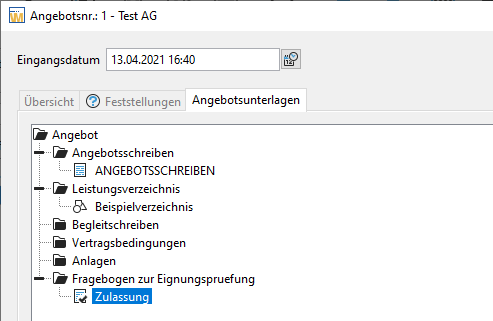
Display of the Offer Total¶
If requested by the customer, it can be set that the offer totals of the offers are displayed during the offer review and the offers in the suitability matrix are sorted according to their price.
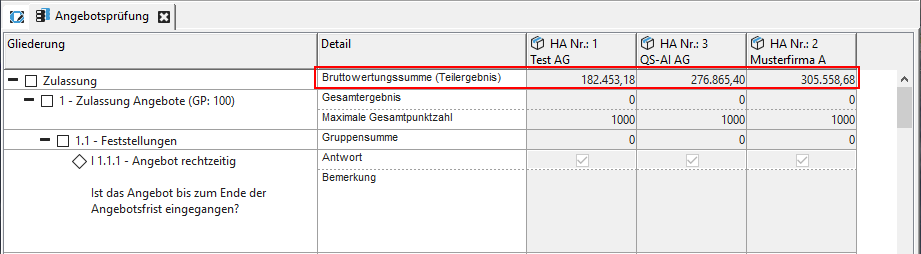
Criteria Description as Tooltip¶
The complete criterion text is displayed as a tooltip when you move the mouse pointer over the corresponding field without clicking.
Set Variable Column Width¶
The width of all columns in the suitability matrix or scoring matrix can be changed as required by moving the separator (double arrow) in the column header with the mouse. This allows you to determine where long labels are wrapped.
The first two columns always remain visible when scrolling horizontally.
Tip
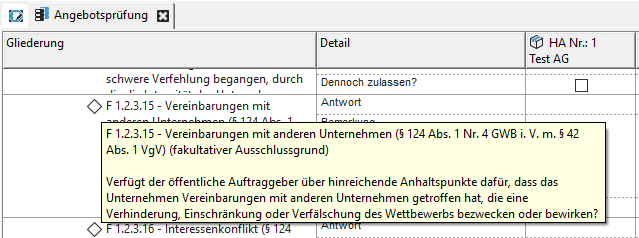
If you need to enter long texts, for example to explain your rating, you can change the row height in the matrix as needed. To do this, click on the separator in the second column and move the double arrow in the desired direction using the mouse. If the length of the cell contents exceeds the designated number of text lines, a scroll bar will appear on the right side.
Answer Options for Criteria¶
In the context of the dynamic suitability test, there is another option for question catalogs in addition to the two answer options "Yes" and "No" (or "Met" and "Not Met"). This is the "Not Applicable" option. The following answer options are available:
-
Yes
-
No
-
Not Applicable
Info
The labels for each of the answer options are flexible and can be customized to meet customer requirements.
In addition, when creating user-defined criteria, you can decide whether a criterion can only be evaluated with "Yes/No" (fulfilled/not fulfilled) or additionally with the option "Not applicable" ("Is Yes-or-No-Criterion..." switch).
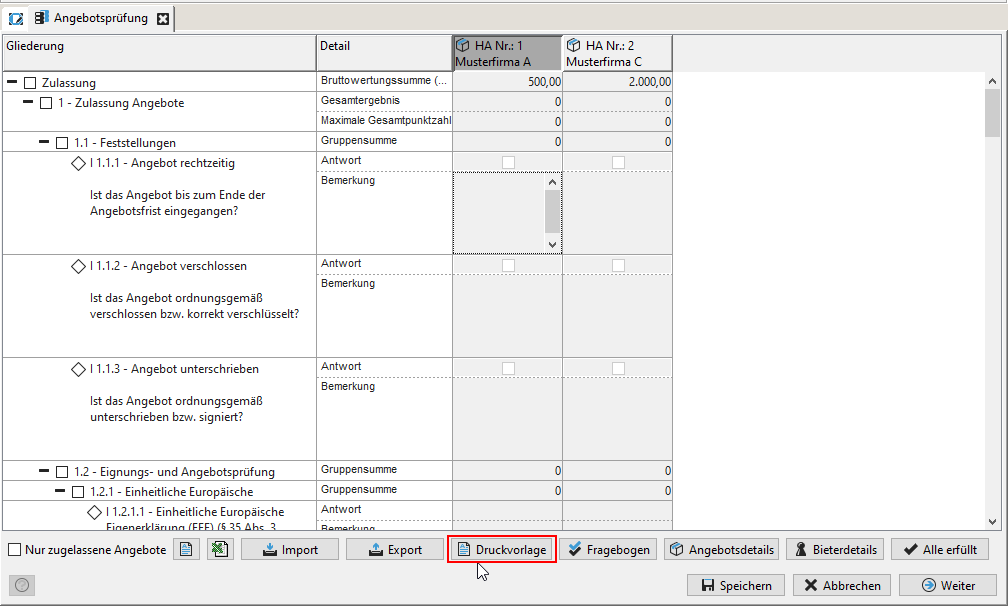
PDF Print Templates¶
It is possible to transfer the entries made during the flexible suitability test into a predefined, customer-specific PDF form in order to document the results of the offer check.
Reuse of Qualification Criteria¶
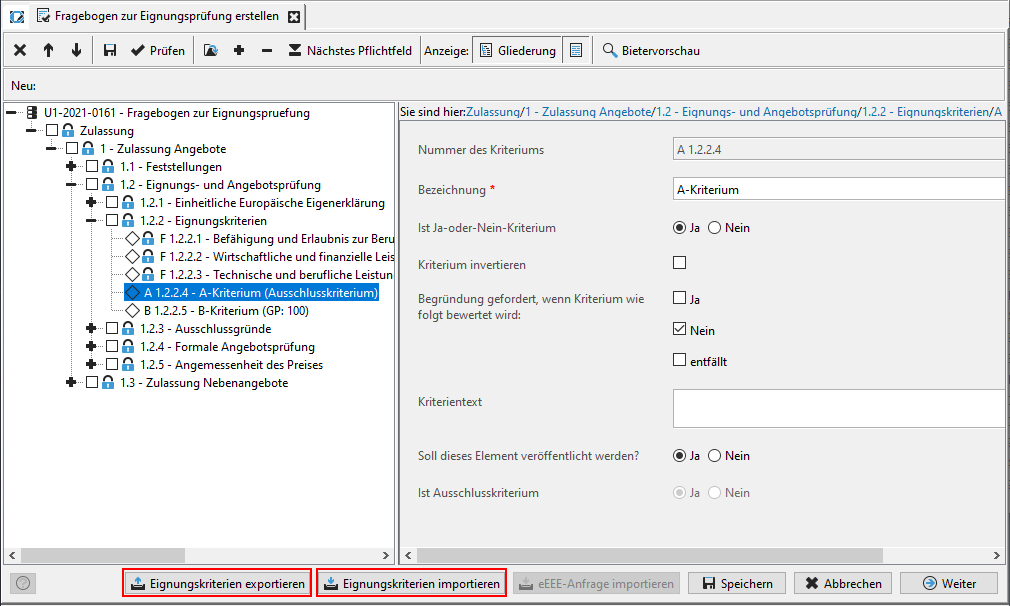
In the case of recurring tenders, similar qualification criteria are usually also applied. To minimize the amount of work involved in entering your own qualification criteria, you can export the qualification test questionnaire from an ongoing procedure and import it into another procedure. Of course, the imported criteria can still be edited afterwards.
Info
The functionality for adopting the suitability criteria from an award procedure based on a template can still be used.
To export, click on the button Export eligibility criteria and save the file locally on your computer.
Tip
The import of eligibility criteria is only possible until publication. The export is not affected.
When importing the suitability criteria using the Import suitability criteria button, a plausibility check is carried out. For example, suitability criteria exported from a two-stage procedure must not be imported into a single-stage procedure and vice versa. In this case, you will receive a corresponding warning.
Linking of Selection Criteria in the Contract Notice¶
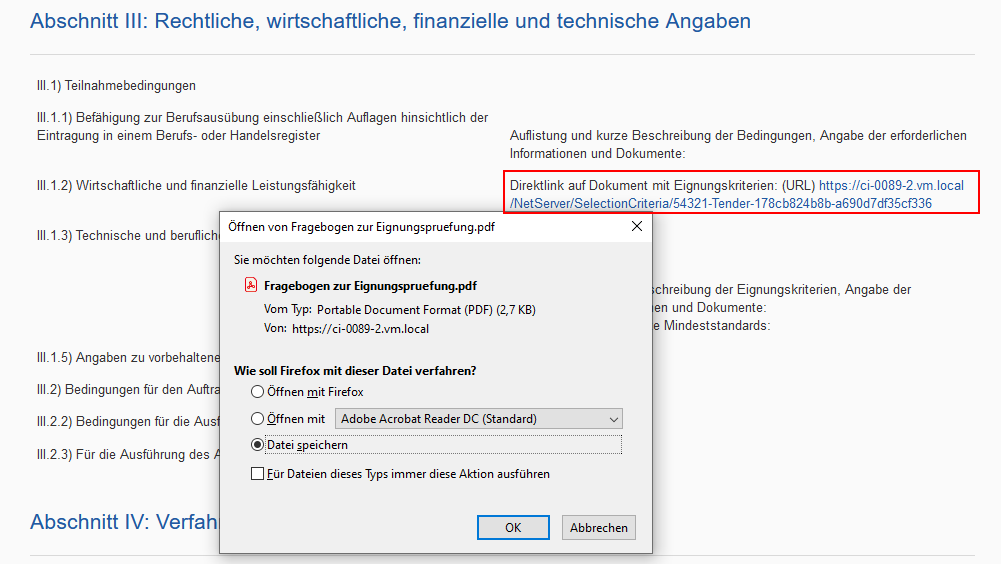
The provision of selection criteria in the contract notice as required by the EU can be done by directly linking the questionnaire.
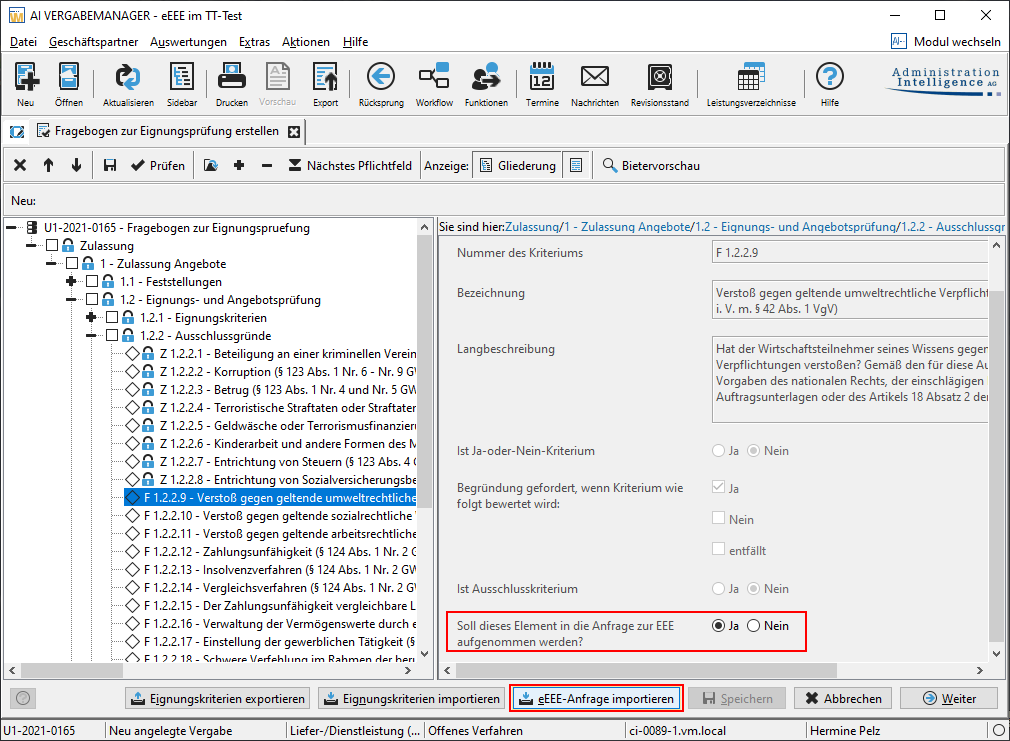
To do this, the contracting authority must manually enter or import these selection criteria and select Yes in the field called "Should this element be published?". All these criteria are then automatically included in the questionnaire for the aptitude test, as part of the offer documents.
Info
This function is currently only available in AI TENDERINGMANAGER systems that are connected to the AI TENDERINGPLATFORM.
In the form for the announcement, you can click on the direct link to document with eligibility criteria checkbox in sections III.1.1 to III.1.4.
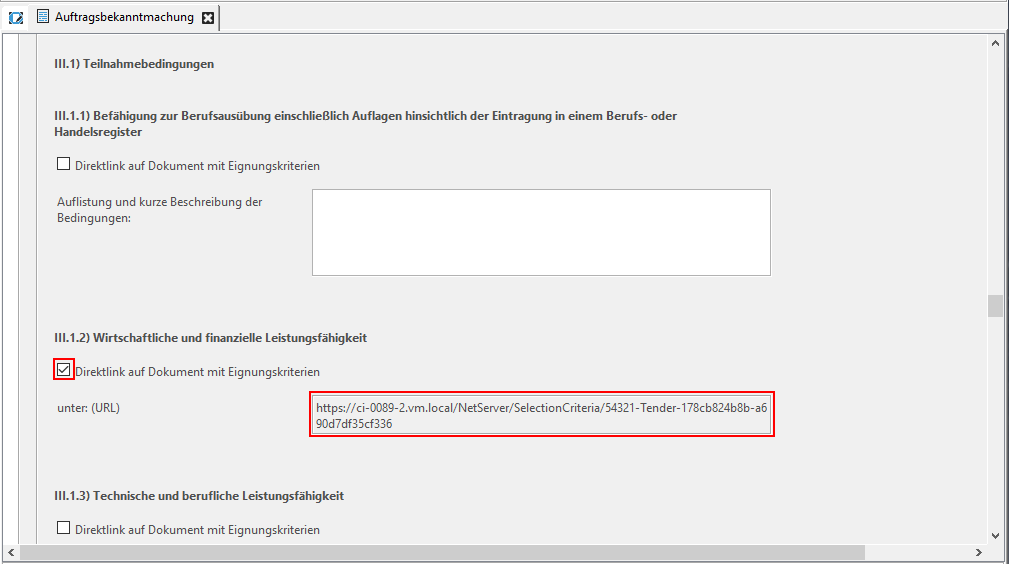
The questionnaire can be downloaded directly from the AI TENDERINGPLATFORM announcement using the automatically generated link.
European Single Procurement Document¶

If the customer model has been set up accordingly, a template for an electronic European Single Procurement Document (eESPD) is automatically attached to the offer documents for EU procedures. This template is automatically generated after the questionnaire for the suitability test has been compiled and is part of the offer documents or the pre-qualification documents in the case of a two-stage procedure. When creating the questionnaire for the suitability test, the contracting authority has the option of importing an external eEEE request or defining for the existing criteria whether these should be part of the eEEE.
Tipp
Some of the mandatory exclusion reasons required by law are always part of the eEEE and cannot be removed. They are marked by an additional lock symbol.
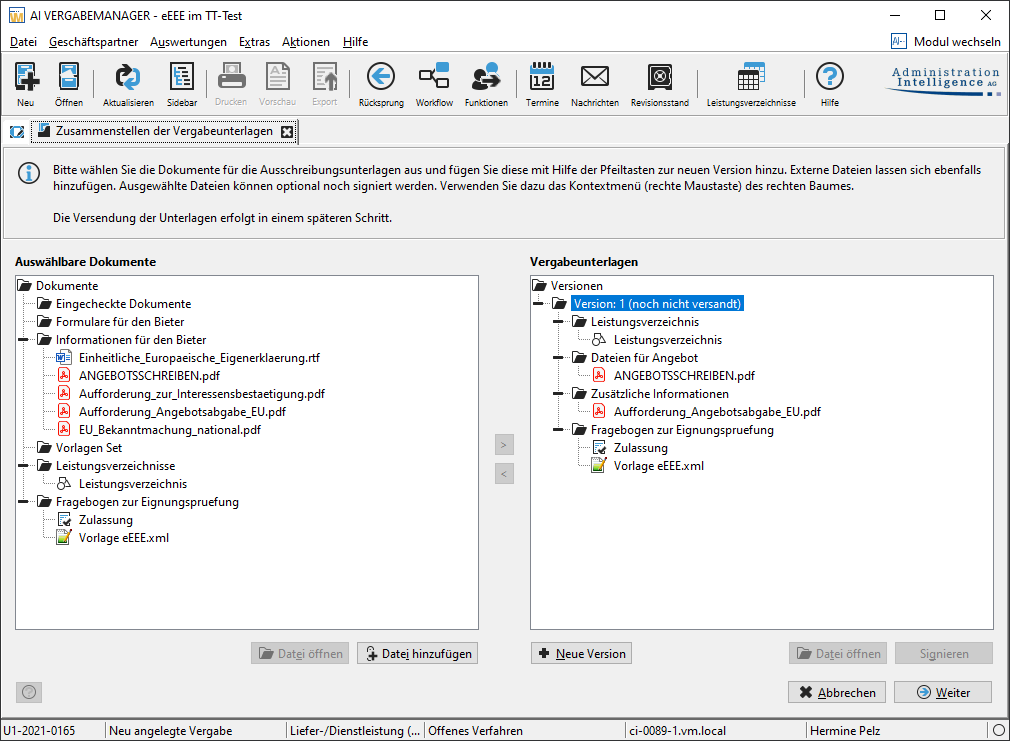
The eEEE template in xml format is automatically created after leaving this workflow step and can be viewed when compiling the offer documents.
The bidder needs the EU online service or another eEEE tool to enter his answers. The eEEE response created in xml format must be imported into the electronic offer so that it can be submitted encrypted and, if necessary, signed.
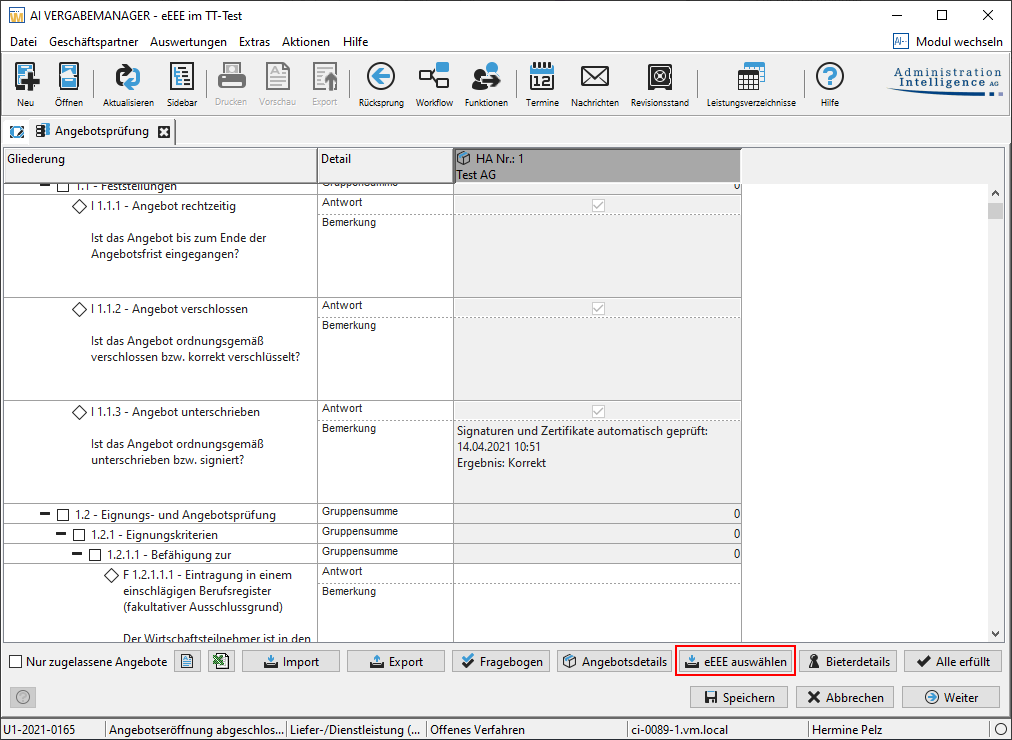
In the offer check, the bidder's eEEE file can be selected from the offer documents using the Select eEEE button and transferred to the suitability matrix to display the bidder's answers for the corresponding questions.
Exporting the Suitability Check for AI BQ-ASSISTENT¶
Similar to the technical evaluation, you can also carry out the suitability test externally.
After external processing in AI LV-ASSISTENT, the completed airate file can be reimported using the Import button. The suitability matrix is automatically updated in the process. You can then assess the suitability data and possibly correct it, or accept or reject the offers.
Start the export assistant by clicking the EXPORT button in the suitability matrix.
It will guide you through the necessary steps to create the export file (*.airate). Read the additional information in the dialog window carefully.
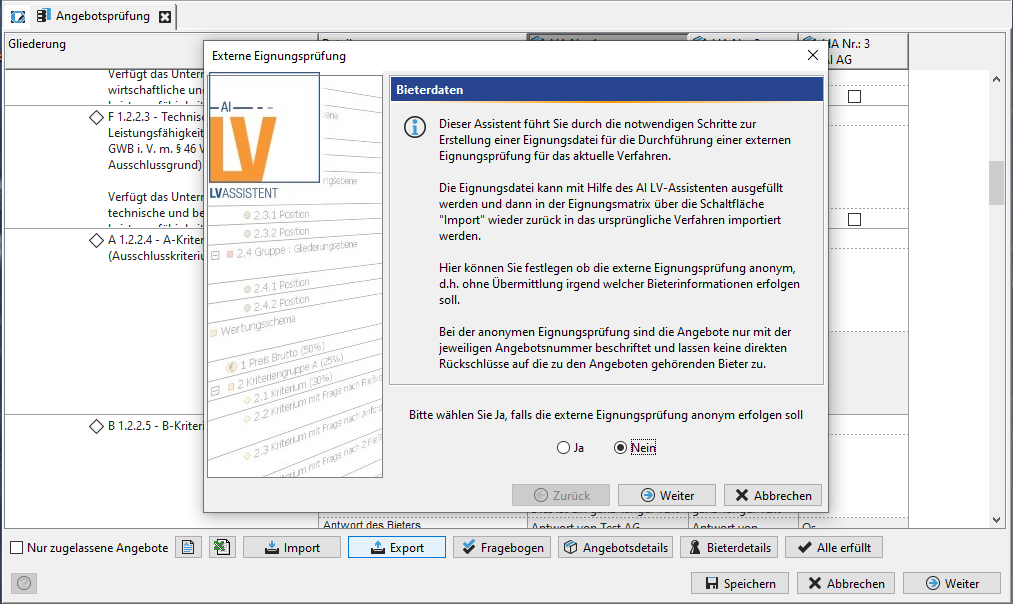
Step 1
Here you determine whether the bidder information should be included in the export file. In the case of anonymous evaluation, the offers are only identified by their numbers.
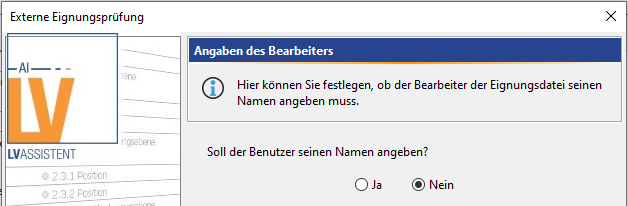
Step 2
If necessary, you can specify that the name of the person responsible for the suitability test should be entered in AI BQ-ASSISTENT. After re-importing the suitability file, this name is displayed in the suitability matrix of AI TENDERINGMANAGER.
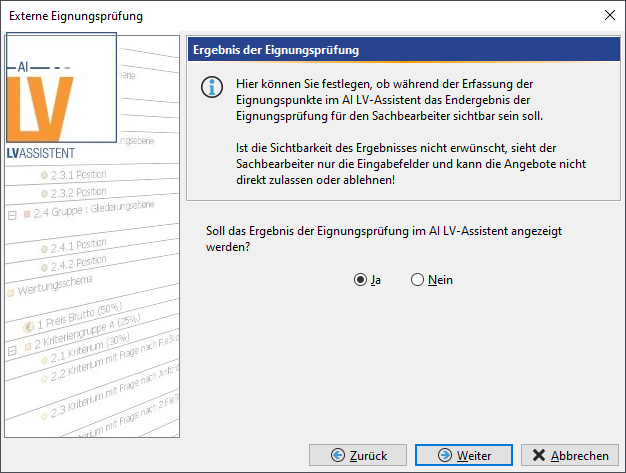
Step 3
Decide whether the final result of the aptitude test should be displayed.
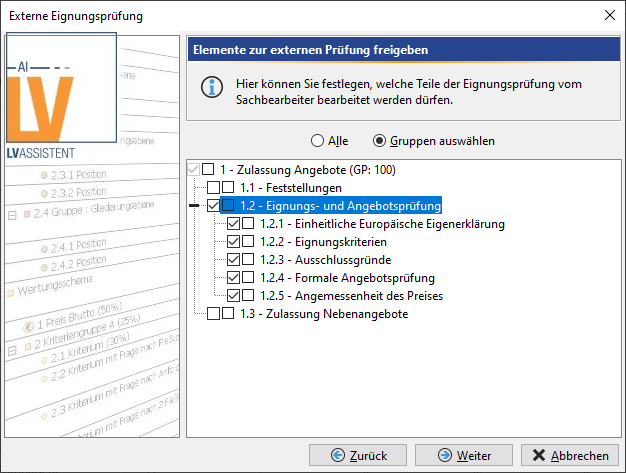
Step 4
Select all or individual categories for export by clicking the corresponding checkboxes.
Step 5
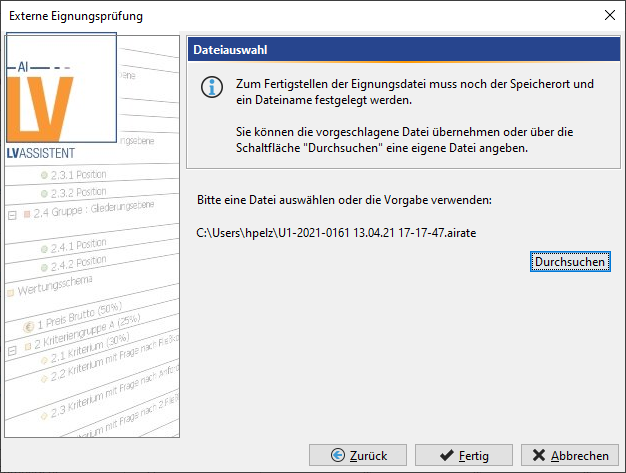
In this step of the wizard, you can accept the suggested file name and location of the export file (*.airate) or use the Browse button to choose any other location.
Step 6
Export options in the flexible suitability test
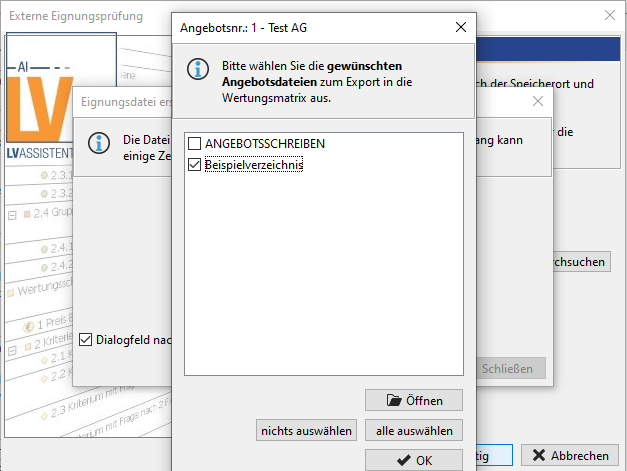
If the customer wishes, it can be controlled during export in the flexible suitability test whether a selection of the offer documents to be exported should be made possible or whether all offer documents should be exported automatically.
Evaluating the Offers¶
When evaluating the content of the offers, you evaluate the offers according to the criteria defined in the evaluation scheme of the bill of quantities.
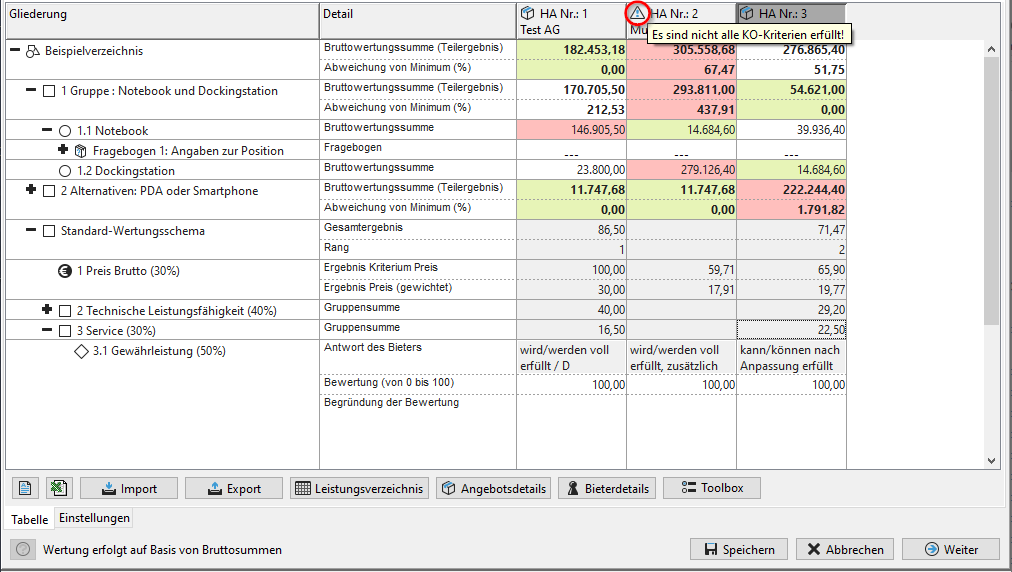
Activate the check boxes of the criteria for the individual offers or enter the evaluations directly into the table fields. For better orientation, an activated control field is marked with an orange frame.
Info
In a standard evaluation scheme, the following calculation is carried out for each offer to determine the number of points achieved for the criterion Price:
The factor ||Minimum offer amount|| stands for the positive amount of this figure. This results in a calculated score of a maximum of 100 points. The offer amounts are commercially rounded before the calculation.
Further information on the evaluation results in the AI evaluation scheme can be found at Calculation formulas in the AI evaluation scheme.
Tip
Bidders who have not fulfilled a KO criterion are indicated in the rating matrix by a warning symbol in the table header.
When the service is **split into lots, a check is activated when the technical evaluation task is completed, provided that the evaluation sum for a offer in the lot is available and greater than 0.00 euros and the evaluation fields are not filled in. This warning message indicates for which bids and which lots not all evaluation fields have been filled in.
Info
Bidders whose price is changed by the evaluation of secondary offers are marked with the corresponding symbol in the evaluation matrix. The evaluation sum of the offer then corresponds to the original offer sum, taking into account the partial service variants, modified by the considered partial service variants or the offer sum of an overall service variant.

Info
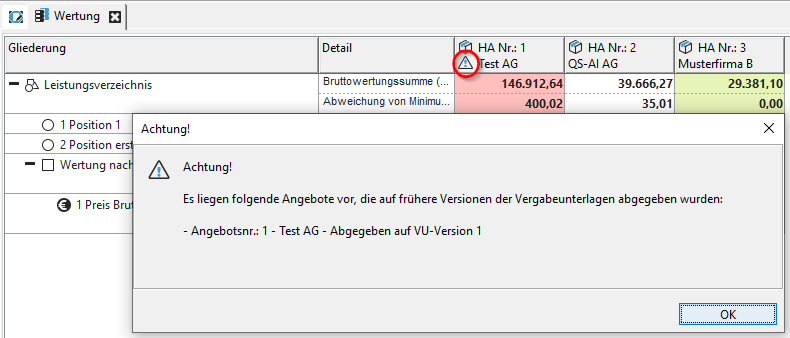
Electronic offers submitted on the basis of an outdated version of the award procedure documents are marked with a warning symbol in the evaluation matrix. In addition, a warning dialog with the corresponding information is displayed each time the dialog is opened.
Keyboard Control in the Evaluation Matrix¶
The keyboard control within the evaluation matrix is done with the help of the following keys:
| Keyboard code | Function |
|---|---|
| [ARROW UP] | One cell up. |
| [RETURN] or [ARROW DOWN] | One cell down. |
| [TAB] or [ARROW RIGHT] | One cell to the right or next row. |
| [SHIFT] + [TAB] or [ARROW LEFT] | Move one cell to the left or previous row. |
| [CTRL] + [X] | Cut the selected cell contents and copy them to the clipboard. |
| [CTRL] + [C] | Copy the selected cell contents to the clipboard. |
| [CTRL] + [V] | Paste clipboard content. |
Right-click in the Bill of quantities row of the evaluation table to open the context menu for expanding or collapsing the entire evaluation scheme.
Justification of the Evaluation¶
An additional reason for the evaluation field in the evaluation table provides the option to justify the evaluation points awarded for a criterion. It is defined at the level of the evaluation scheme whether the reason is a mandatory field or not.

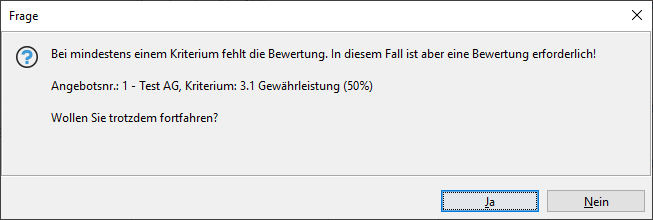
If a rating has been given for a criterion that requires a reason, an error message with details will be displayed if the reason is missing.
Info
If the scoring sum is available for an offer or lot and the scoring fields have not been filled in, a warning message appears at the end of the dialog for which offers or lots the scoring fields have not all been filled in. This warning can be ignored and the workflow continued.
Scoring Result of Bidder Answers Preassigned¶
Yes/No criteria in the evaluation matrix are already prepopulated with the bidder responses (Yes or No) and thus also evaluated. However, you can change this evaluation result if necessary to correct an incorrect statement by the bidder.

The bidder's response in the evaluation matrix is only readable.
Multiline Fields¶
Multiline text fields can be displayed in the evaluation matrix for the technical evaluation or in the suitability test. If the length of the cell content exceeds the specified number of text lines, a scroll bar is displayed. In display mode, multiline text fields in the evaluation matrix are truncated with three dots "...". When entering a long text in a table cell, a scroll bar with arrows appears on the right side.
Tip
Insert a line break within the table cell by using the keyboard shortcuts [ALT] + [RETURN] or [SHIFT] + [RETURN].

Deviation from Estimated Prices¶
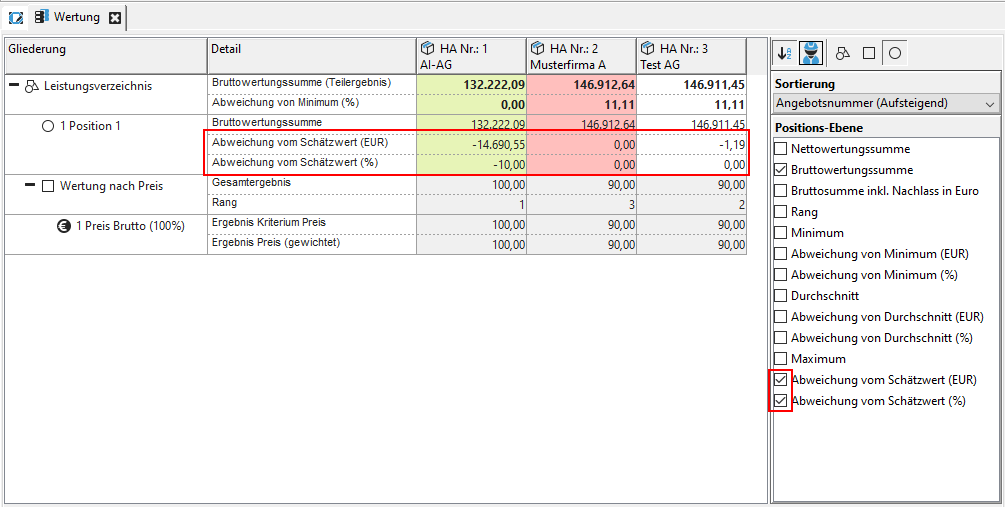
The toolbox can be used to switch on the display of "Deviation from estimated value (EUR)" and "Deviation from estimated value (%)" in the evaluation matrix, for groups and items respectively.
Display of KO and Decision Criteria¶
The exclusion criteria have a corresponding addition, "exclusion criterion", in the name.
Groups for which the 0-point rule is set have the addition "Exclude if total 0 P.".
In the scoring view, designations that are not fully displayed in the first column are fully displayed using tooltips.
Switch on Calculation Options¶
If there are many offers and the scoring scheme is very complex, you have the option of switching off the real-time calculation of the criteria points to speed up data entry. Deactivate the Automatic recalculation after changing the positions to be considered check box in the Calculation options section of the Settings tab.

If you now enter further criteria ratings, a warning message will appear above the matrix.
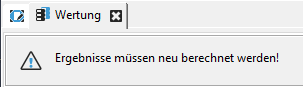
At the same time, the Next button at the bottom right is renamed Calculate.

Click on Calculate to update the evaluation scheme.
Info
You can save your entries at any time by clicking on the \textsc{Save} button. You can then interrupt the evaluation of the offers by clicking on the \textsc{Cancel} button and continue processing at a later point in time.
A description of further settings and buttons can be found at price comparison.
Output Evaluation Matrix as PDF¶
The content of the evaluation matrix in the workflow steps price comparison, **evaluation and awarding the contract can be output as a PDF file. The export is done via the corresponding button on the left below the table.

file
Consistency Check of Surcharges¶
When excluding a bidder who has already been assigned an award proposal or an award, a confirmation dialog is displayed.
At this point, the user has the choice of whether the corresponding invalid pre- and surcharges should be removed or whether the corresponding bidder should not be excluded.
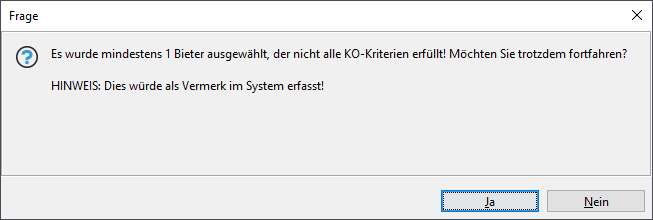
A corresponding dialog also exists for the exclusion of lots.
Evaluation and Acceptance in the Project Tree¶
The evaluation matrix can also be accessed at any time via the project tree.
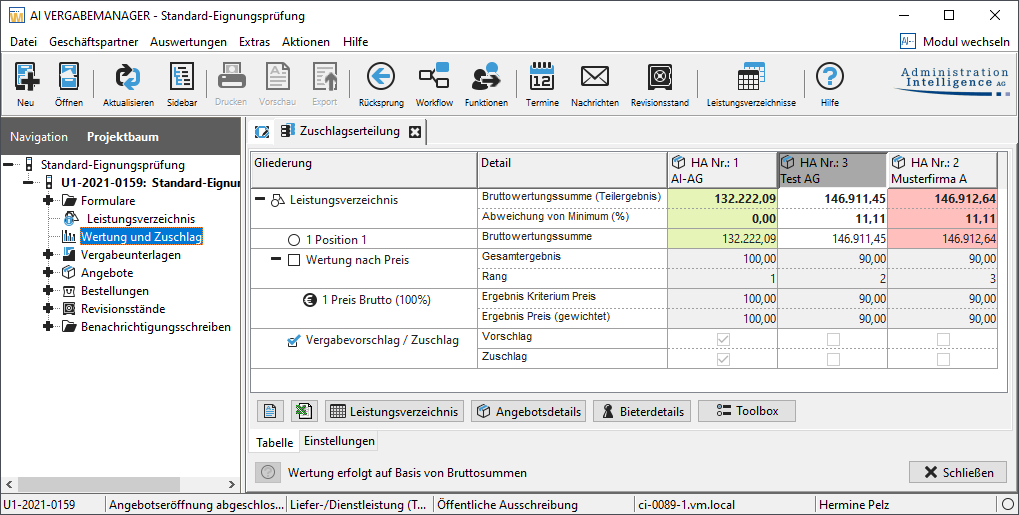
Hypothetical Offers¶
The creation of hypothetical offers in the evaluation matrix was geared towards the processing of specialist positions (e.g. cleaning services, monthly costs, etc.).
The calculation of hypothetical offers from average prices has changed. Previously, only the average of the item total was calculated for the average value. Now, the average value is calculated for each amount entered for an item and then the total is formed with the results according to the calculation formula. This leads to a more accurate calculation of the average price.
A simple example should illustrate the difference.
The formula for calculating the total of an offer is:

Exporting the Evaluation Matrix for AI BQ-ASSISTENT¶
To export the scoring matrix for AI BQ-ASSISTANT, click on the Export button at the bottom of the scoring matrix. An assistant will guide you through the necessary steps to create the export file (*.aiscore). Read the additional information in the dialog window carefully.
Step 1
Here you determine whether the bidder information should be included in the export file. In the anonymous evaluation, the bids are only identified by their numbers.
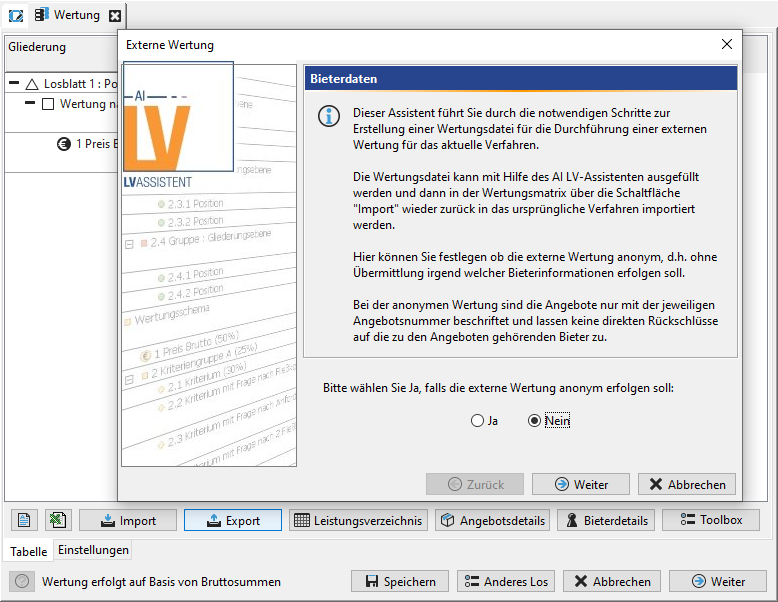
Step 2
If necessary, you can specify that the name of the person responsible for the technical evaluation should be entered in AI BQ-ASSISTANT. After re-importing the evaluated bill of quantities, this name will be displayed in the evaluation matrix of AI TENDERINGMANAGER.
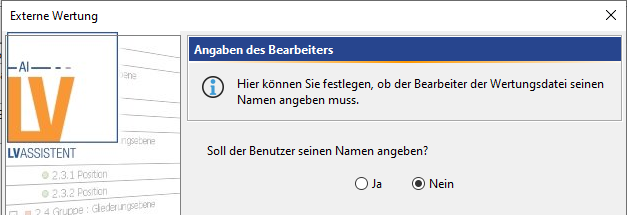
Step 3
If necessary, remove all positions, their prices and the calculated sums from the export file. When this file is imported at a later date, the missing prices are reassigned and the sums recalculated.
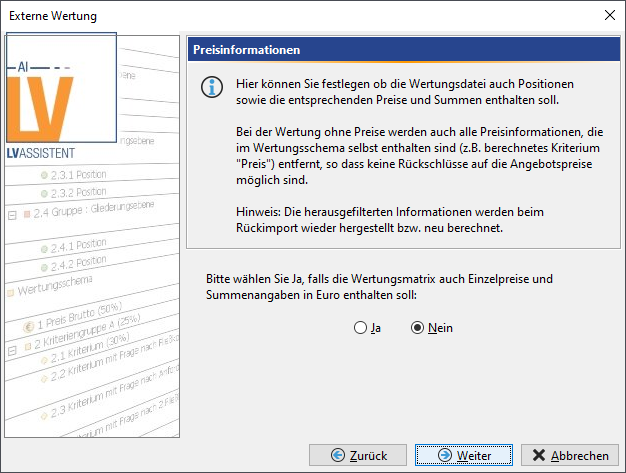
Step 4
For processes with a lot split, you can decide whether all or only certain lots should be included in the export file.
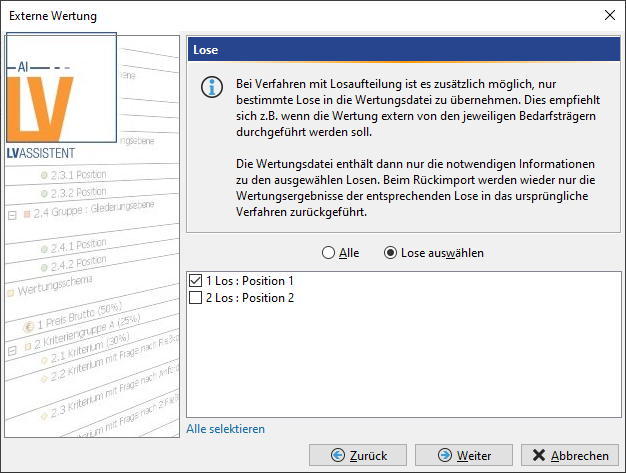
Step 5
Decide whether the evaluation result should be displayed during the evaluation of the offers.
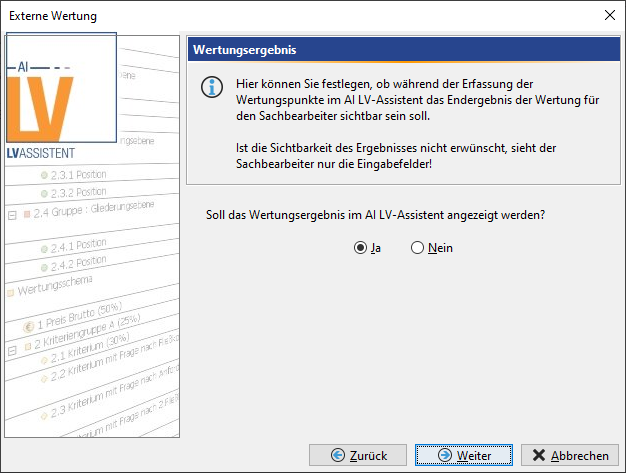
Step 6
All offer documents and the files belonging to the offer or lot are displayed in additional windows and can be selected or opened for export.
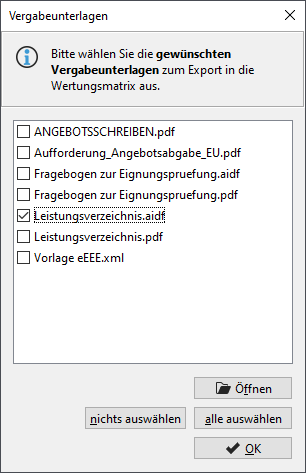
Step 7
In the last step of the wizard, you can accept the suggested file name and the location of the export file (*.aiscore) or change them using the Browse button.
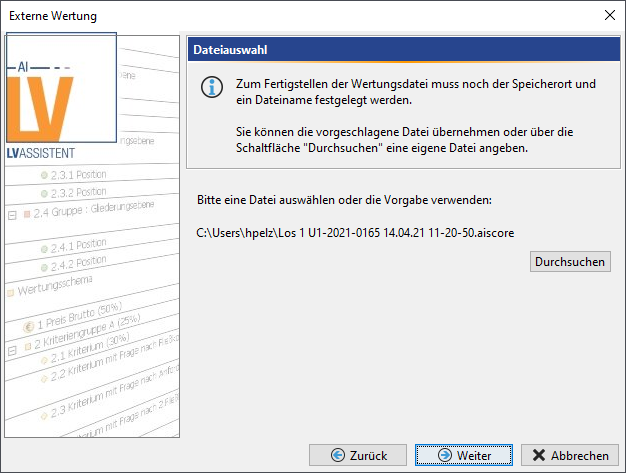
If there are lots, an additional window will open that allows you to export further lots. Then click on the button Done.
Info
The aiscore file can be processed with \textbf{AI LV}-ASSISTENT and then imported into \aivm.
Warning
Please note that AI BQ-ASSISTANT cannot be used for external evaluations with submitted secondary offers and external bills of quantities.