Bills of Quantity
A central task in creating the award documents is the creation of a bill of quantities (abbreviation: BQ). In doing so, you describe the individual items in detail and enter the exact order quantities and estimated prices. To do this, you design a valuation scheme for the offer evaluation and can create questionnaires.
When you create a new award procedure in a VOL procedure template, a new set of service specifications is automatically created and the Create Service Specifications window is opened.
Display
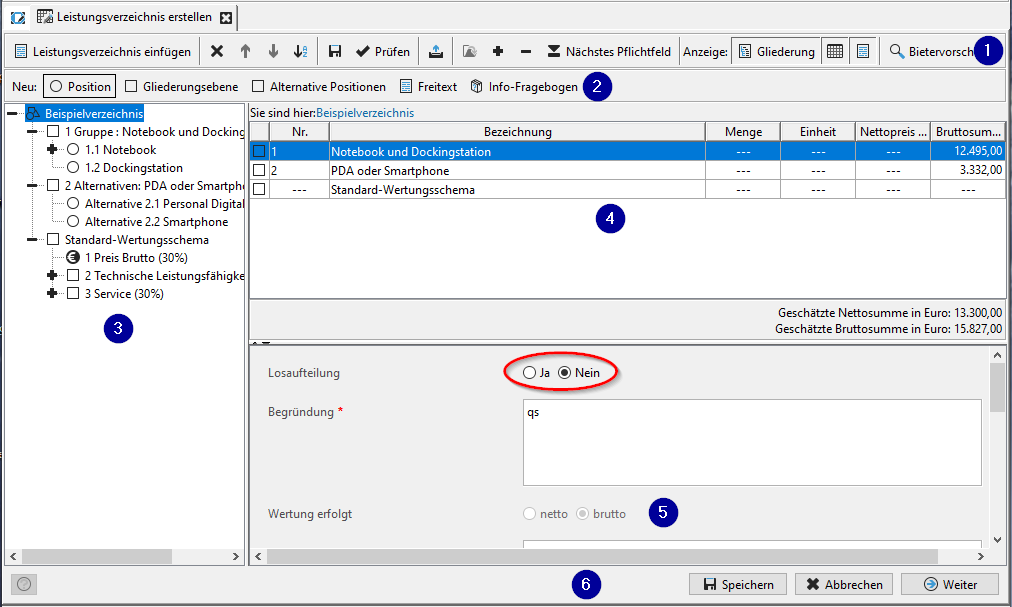
The bill of quantities contains two toolbars (1) and (2), a control bar (6) and three different areas: the outline (3) on the left, the table (4) at the top right and the form area (5) below it. These areas can be moved with the mouse over the two area dividing lines (double arrow with pressed mouse on the dividing line) or can be shown or hidden with the help of the display buttons (Structure. Table, Form) on the toolbar (1).
The outline (3) provides a structured overview of the bill of quantities. Just as in the tree view of Windows Explorer, you can expand or reduce the displayed list by clicking the + and - signs in front of the symbols.
If you have selected an element in the outline (3), all its sub-elements at the same hierarchy level are displayed in the table (4) . In the form view (5), you see all the fields of the active element that is marked in the outline or table and can make the desired entries here.
The information bar You are here, located under the two toolbars, gives you a quick overview of where you are in the bill of quantities.

The current element is displayed last from left to right. Clicking on the links allows you to quickly switch to the higher-level hierarchy levels.
If only the form view (5) is displayed, additional icons are displayed on the toolbar (1) that you can use to scroll within the bill of quantities.

Click on the arrow keys or enter the desired page number in the white input field and confirm your entry with [RETURN].
Tip
You can interrupt your work on the bill of quantities at any time and save your entries. To do this, either click on the SAVE symbol in the toolbar (1) or on the Save button in the control bar (6). If you cancel work in the bill of quantities using the Cancel button, you will also be asked if you want to save the entries.