Message Overview
Select one of the following options to call up the overview of all sent or received messages in the AI TENDERINGMANAGER:
-
Click on Messages in the toolbar.
-
Select the menu command BUSINESS PARTNER - MESSAGE OVERVIEW.
The Messages tab is opened. By clicking on the checkboxes in the upper area, you can filter the list of displayed messages.
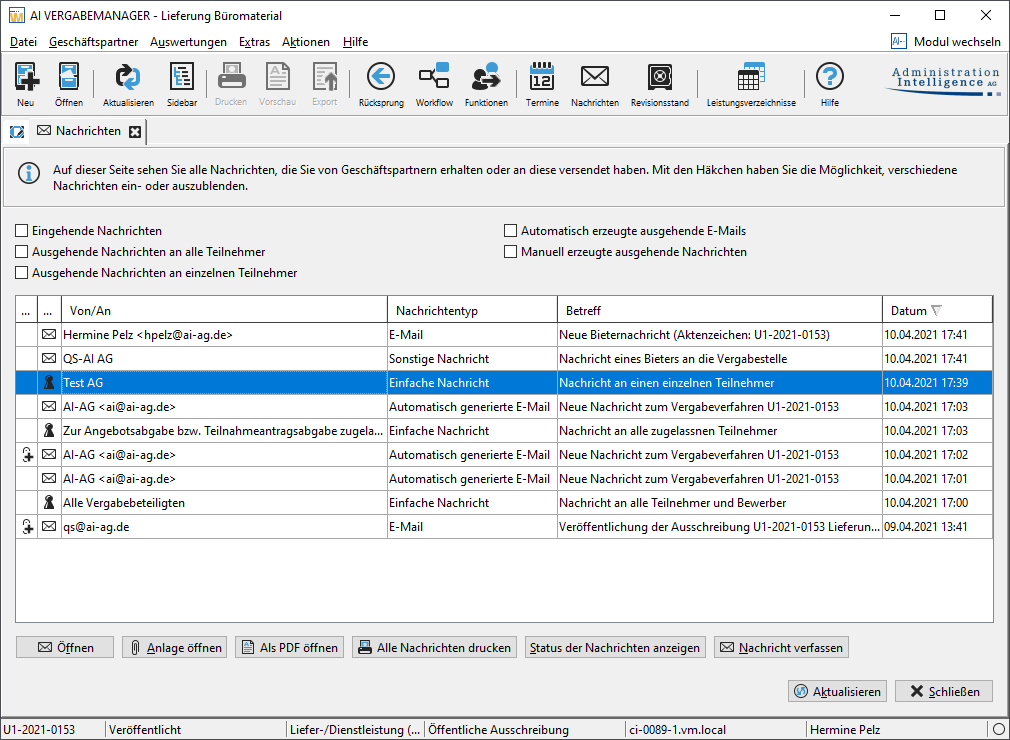
The messages automatically generated by the program and the bidder messages from the have a letter symbol. All messages entered manually by the awarding office have a blue male symbol and can be sent to individual or all participants. Messages with attachments are marked with a paperclip.
Tip
You can use the Open attachment button to open the attachment of a message directly from the message overview.
The person responsible for awarding the contract receives an automatic e-mail notification when a bidder message has been received via the AI T ENDERINGPLATFORM to the AI TENDERINGMANAGER.
Sending Messages
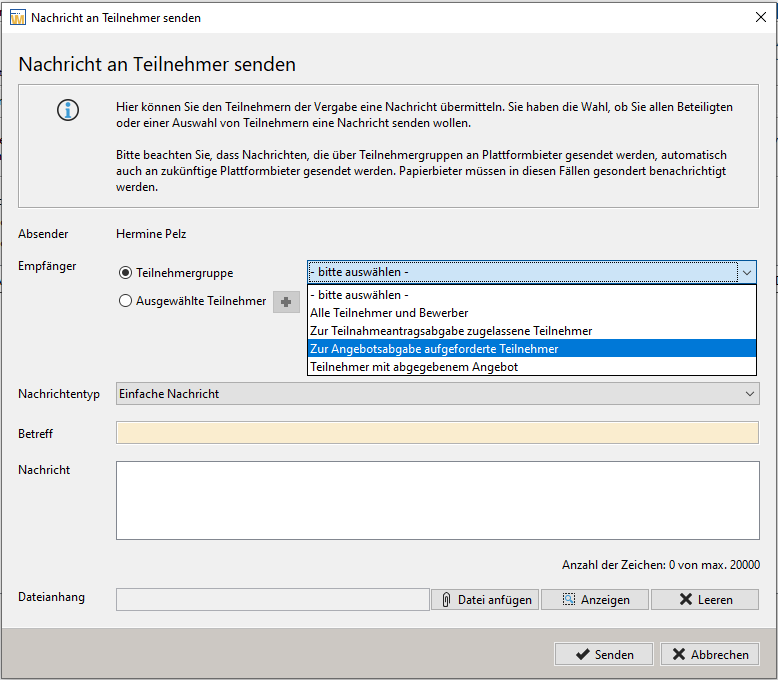
In the message overview, click on the button at the bottom right Compose message. The Send message to participant window opens.
If you want to send the message to a group of participants, leave the radio button Participant group activated in the Recipients area and select a Group of participants from the list to the right. The entry All participants and applicants is always available.
Tip
By selecting Participants invited to submit a bid, you can quickly and easily send messages to all candidates who have been invited to submit a bid during the bidding phase of a two-stage procedure in order to inform them of any changes.
Info
In anonymized award procedures whose participants are not known until the bid is opened, messages cannot be sent to individual participants. After de-anonymization, this option can be selected again.
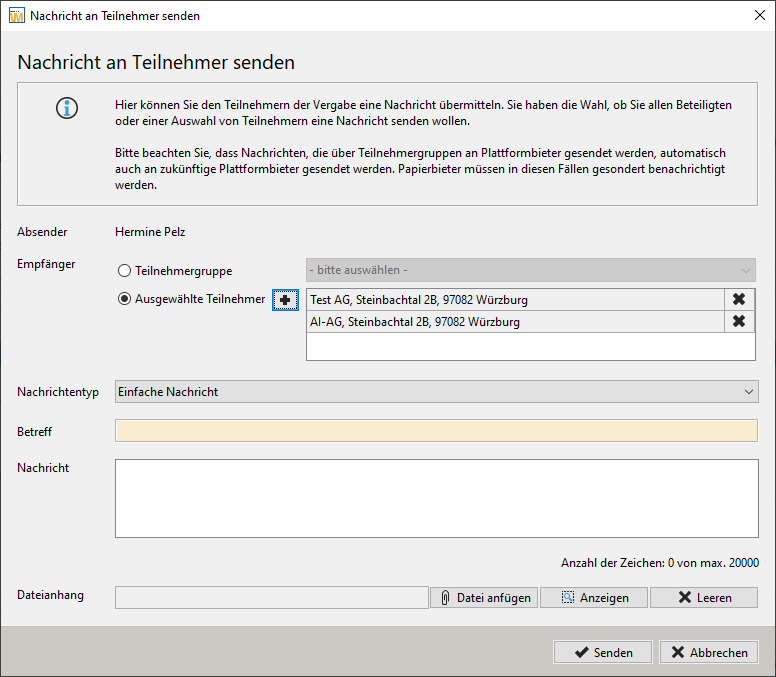
To send a message to individual participants, activate the radio button Selected participants in the Recipients section and then click on the icon with the blue plus sign.
Another window with all participants in the award procedure is opened.
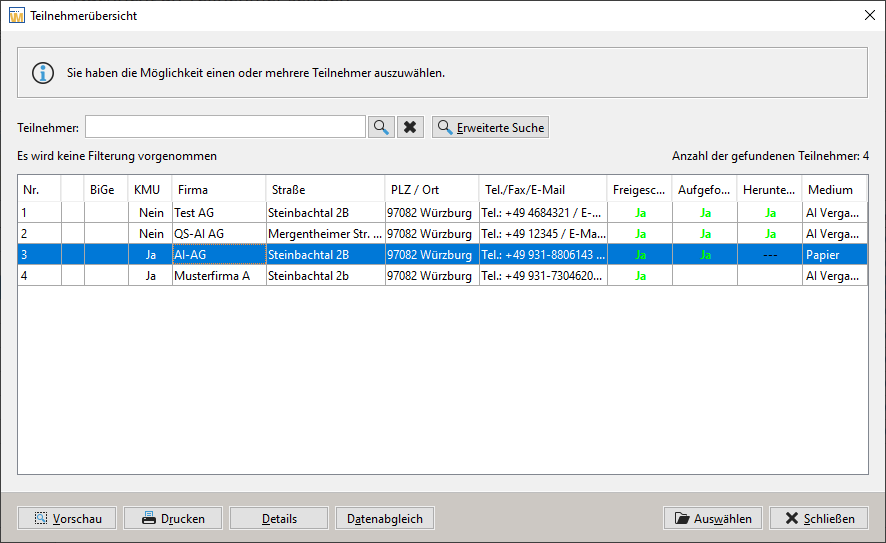
Select one or more participants from the list using the SHIFT key and click on Select. The data is transferred to the message window.
Info
If the customer model of your system has been adapted accordingly, you can select both electronic bidders and paper bidders at this point.
You can use the black X symbol to remove participants from the list that have been transferred by mistake.
If required, select an option from the list Message type . This list can be configured in the admin interface of your system.

Enter the subject of the message and the text of your message in the message field. If required, you can also add a file attachment using the button with the attach file. Then click on Send and confirm the subsequent Info message with OK.
Info
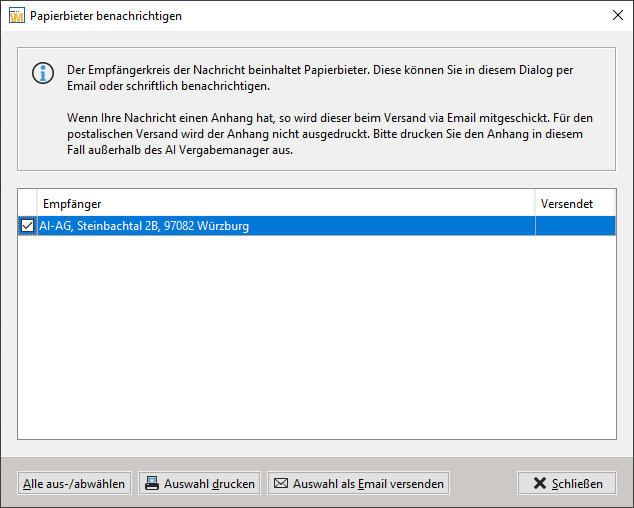
If your customer model supports messages for paper bidders, the Notify paper bidders window is then opened.
Activate the checkbox in front of the name and select the dispatch type at the bottom of the window. Confirm the successful info message with OK.
A letter symbol is displayed in the Sent column for all sent e-mail messages. The printed messages are marked with a printer symbol.
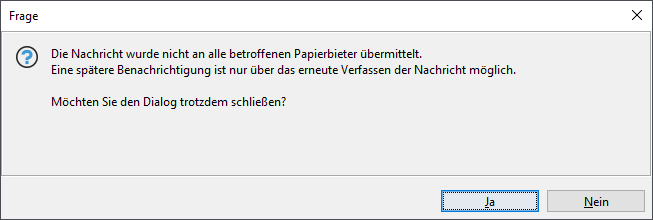
When closing the window, you will be warned if one of the participants has been omitted.
The electronic participants of an award procedure can either retrieve the messages directly on the AI TENDERINGPLATFORM or view them in the AI TENDERINGMANAGER after opening the award procedure.
Overview of the Messages Read by a Bidder
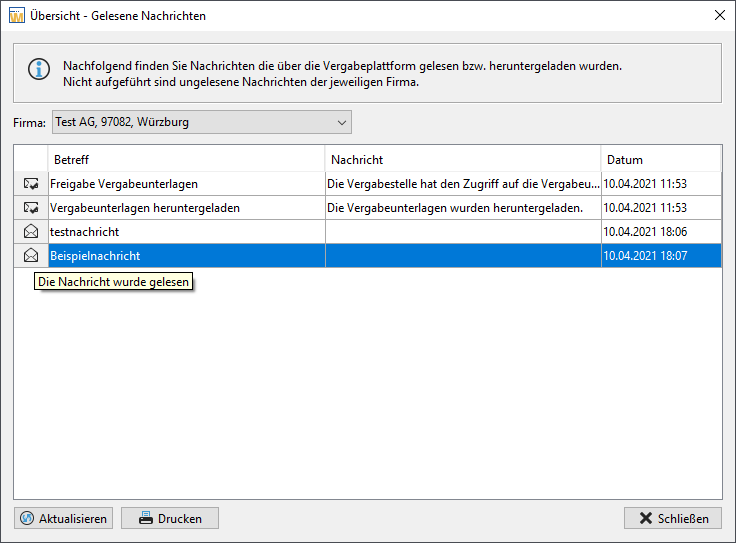
If you want to get an overview of all the messages a bidder has read either directly on the AI TENDERINGPLATFORM or in the AI BIDDER COCKPIT, click on the Show message status button in the message overview. Select the relevant company from the list and click on Update. The current status of the messages is retrieved from the AI TENDERINGPLATFORM.
Frequently asked questions
Please note that the unread messages of a company are not displayed here!
Info
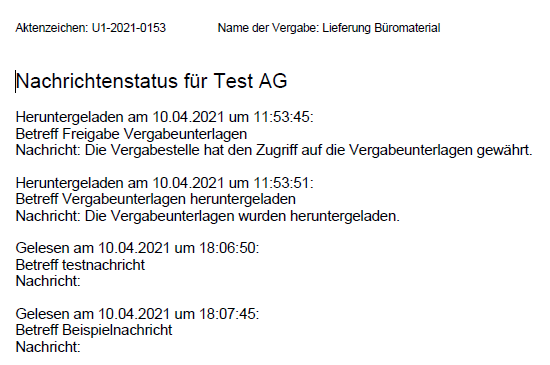
The messages in the overview each have a tooltip when you hover the mouse over the symbol. You can also print this overview as a PDF file for documentation purposes.
Info
In order to be able to better depict security measures specific to the awarding authority, it is also possible to call up the message overview as an action at the customer's request. Users who may not be granted the right to view the message overview, e.g. due to corruption protection, can call up the message overview again after the submission via the Actions menu area. This function is only available if the customer model of your AI TENDERINGMANAGER has been adapted accordingly.