Example of how to Create a Bill of Quantity
The following is an example of how to create a simple bill of quantity with two different groups of items, a scoring scheme with two hierarchical levels and several criteria with questions.
The aim of the tender is the procurement of new notebooks, docking station and PDAs with the following evaluation criteria: Technical performance (CPU, RAM, hard disk), service and price.
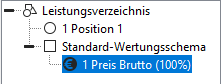
You have already created an award procedure with a procedure template for delivery services. The standard directory consists of an item and an evaluation scheme with the criterion price.
Carry out the following steps in the specified order:
-
Click on the Outline Level button in the New toolbar . A new group is added to your bill of quantities. It appears in the outline below the item.
-
The item inserted by default is not required. To delete it, select the item in the outline and click on the Remove button (black X) in the toolbar.
-
Click on the new group and enter the following values in the form area at the bottom right in the specified form fields:
name Notebook and docking station
The group you have just created is displayed in the outline with a black X on the symbol because the group does not yet contain any elements (the table at the top right is still empty).
-
Click on the Notebook and docking station group and then on the Position button in the New toolbar. The new element appears slightly indented below the group.
-
Click on the new position. On the right-hand side in the form area, enter the following values in the form fields for this position:
Name Notebook
Length - 12.1 inch TFT or larger with at least 1024 x 768
- Intel Pentium M with at least 1.5 GHz or AMD Athlon XPM 2200+
- 1024 MB DDR RAM or more
- 60 GB UDMA-100 hard disk or larger
Quantity 10
Net price 1,000
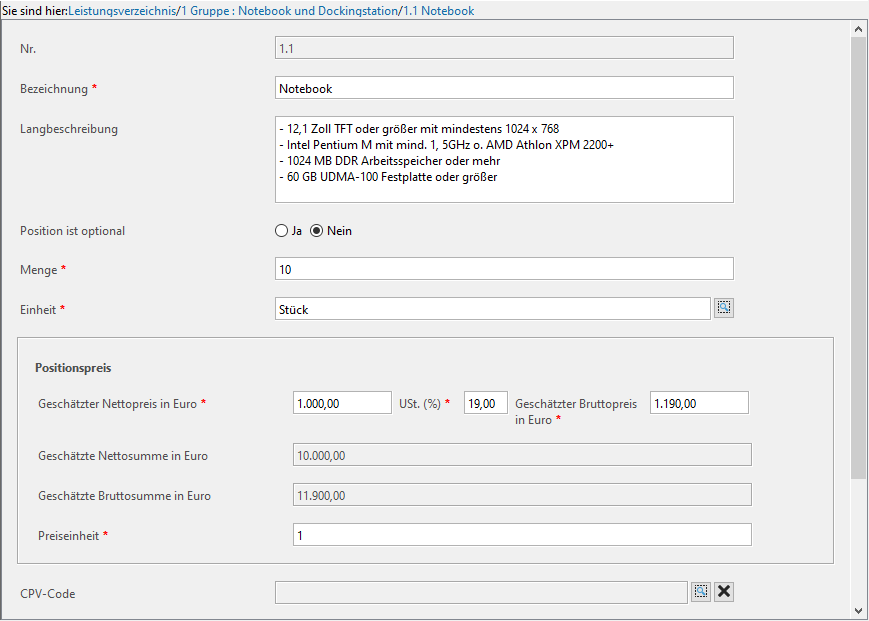
Example entry in the bill of quantities The form field Unit is pre-assigned with unit, i.e. it does not need to be changed.
The gross value of the item is calculated automatically based on the VAT rate entered. The error marker disappears.
-
Enter a questionnaire for this item. Right-click on Notebook in the outline. The context menu is opened. Select the command NEW... - INFO QUESTIONNAIRE. The questionnaire icon is displayed slightly indented below the item.
-
In the right-hand form area, click in the Title field and enter information on the position here.
-
The New toolbar now displays the buttons for Questions. Point to the first icon with the mouse. The list of all available question types expands downwards. Select the entries Enter the manufacturer! and Enter the product name!. The two questions appear slightly indented below the questionnaire in the outline.
-
Click on the questions. The question text is already displayed, i.e. you do not need to make any further entries here.
-
The area You are here: above the table shows you where you are currently located within the bill of quantities.
Click on the link Notebook and docking station to display the level of the 1st group.
-
Enter another position in this group as described under points 4 and 5 and enter the following values in the fields:
Name Docking station
Long description with the following connections:
- at least two USB 2.0
- one VGA
- one RJ45
quantity 10
Net price 50
-
Click on the bill of quantity icon in the outline to go to the top BQ level.
-
Select the Alternative items button from the list. A new group is added to the bill of quantities.
-
Click on the + sign in the outline in front of the new group. The group expands. Two new items (alternative items) already exist in the group.
-
Enter the form fields for the new group and its items as described under point 5:
Group
Name PDA or smartphone
Alternative position 1
description PDA
Long description - 3.5 inch TFT or larger, 65,536 colors, at least 320 x 240
- Intel XScale PXA 255 with at least 400 MHz or comparable
- 64 MB RAM or more
Quantity 8
Net price 350
Alternative position 2
description Smartphone
Long description - with GSM 900 / 1800 telephone function
- 3.5 inch TFT or larger, 65,536 colors, at least 320 x 240
- Intel XScale PXA 255 with at least 400 MHz or comparable
- 64 MB RAM or more
Quantity 8
Net price 450
-
Now enter the evaluation criteria. Click on the Scoring scheme in the outline. The New toolbar now displays the buttons for the criteria. 17.
-
Click on the Criteria group button. A new entry is inserted below the price criterion.
-
Click on the new group and enter the following values in the form fields in the form area on the right:
Designation Technical performance
Weighting in % 40
-
Click on the group Technical performance and then on the button Criterion with explanatory question in the toolbar New. The new element appears below the group. 20.
-
Click on the new element and enter the following values in the corresponding form fields in the right-hand form area:
Name CPU
Question text Enter the name and clock frequency of the CPU
of the offered notebook
Intel Pentium M with at least 1.5 GHz or
AMD Athlon XP --M 2200+ or better
Weighting in % 40
-
Click on the Technical performance group and then on the Criteria group button in the New toolbar. A new criteria group is inserted.
-
Enter the form fields of the group as described in point 19:
Name RAM
Weighting in % 30
-
Click on the Memory group and then on the Criterion button in the New toolbar. The new element appears slightly indented below the group.
-
Repeat the last step with the Criterion with question by integer button.
-
Click on the two new criteria in turn and enter the following values in the corresponding fields in the right-hand form area.
Criterion 1
Designation 1024 MB DDR or more
Exclusion criterion Yes
Yes/No criterion Yes
Weighting in % 0
Criterion 2
Name Size of actual working memory
Question text Indicate the size of the RAM in MB
Weighting in % 100
-
Repeat steps 22 - 25 and create another criteria group with two criteria within the group Technical performance.
-
Enter the form fields of the new group and its two criteria as above.
Group
Name Hard disk
Weighting in % 30
Criterion 1
description at least 60 GB UDMA-100
Exclusion criterion Yes
Yes/No criterion Yes
Weighting in % 30
Criterion 2
name Hard disk size
Question text Indicate the size of the hard disk in GB.
Weighting in % 100
-
Now click on the Scoring scheme icon to access the top level of the scoring scheme. the top level of the scoring scheme.
-
Repeat steps 13 - 15 to create another criteria group with three criteria. This time, select the following buttons for the criteria:
-
Criterion with requirement fulfillment question
-
Criterion with yes/no question
-
Criterion with question by integer
-
-
Enter the form fields of the new group and its three criteria criteria as in point 26:
Group
Name Service
Weighting in % 30
Criterion with question about fulfillment of requirements
description Warranty
Question text Is the warranty of 36 months fulfilled?
Weighting in % 50
Criterion with yes/no question
description On-site service
Question text Is on-site service guaranteed?
Exclusion criterion Yes
Weighting in % 0
Criterion with whole number question
Name On-call time
Question text How much is your on-call time in hours?
Weighting in % 50
-
Finally, you must adjust the weighting of the price criterion to the 100% limit of the top level in the scoring scheme. Click on the price criterion and enter the value 30 in the field Weighting in %.
-
Check the bill of quantities by clicking on the Check button.

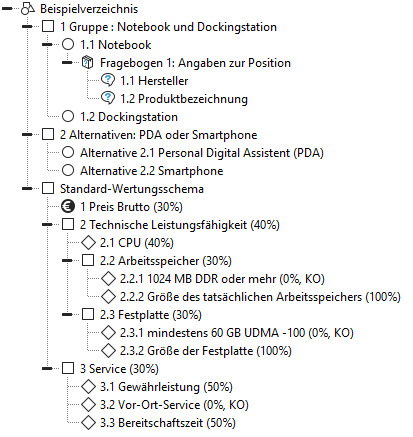
Final result of the sample bill of quantities
The final result of your entries should now look like this: