Deadline and Period Manager
You can conveniently plan the deadlines for your award in the deadline and period manager, whereby the legal and organizational provisions for the deadlines are taken into account.
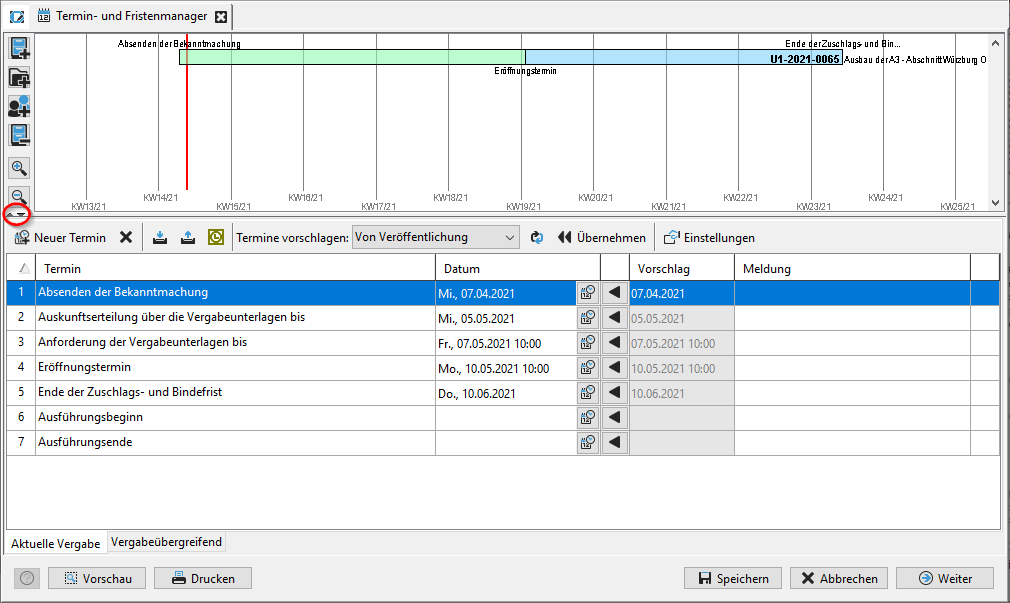
A horizontal line with two arrows (see red marking) divides the window into two different areas. Click on one of the two arrows to switch the window division off or on again, or move the areas as you like with the mouse button pressed. The deadline table contains an overview of all dates of the award. At the same time, their graphical representation is displayed in the upper area in the form of a bar chart. Both areas access the same data, i.e. if an appointment in the table changes, the diagram is automatically updated or if you change the bar chart with the pressed mouse button, the affected appointment in the table is changed accordingly.
Table area
The buttons in the area of the deadline table of the appointment and deadline manager have the following meaning:
| Button | Meaning |
|---|---|
 |
Create a new date. |
 |
Delete the selected date. |
 |
Imports an appointment plan exported in ***.aiterm** file format from another assignment. |
 |
Exports the current appointment plan in ***.aiterm** file format. |
  |
Export selected dates to Outlook or in iCalendar format as an e-mail. |
  |
Selection list for suggestion strategies: Based on the selected entry, appointment suggestions are automatically generated in the SUGGESTION column. |
 |
Reapply the proposal strategy, e.g. after making changes using the SETTINGS button. |
 |
Accept all suggested dates. |
 |
Change the key data for the proposal strategy. |
 |
Adopt this proposal date. |
 |
Open the MINIATURE CALENDAR for the appointment selection. |
If you hover the mouse over a symbol without clicking, the name of the button appears in a blue text field below the mouse pointer as a so-called tool tip.
Appointment Suggestions and Settings
Use the suggestion strategies drop-down list to instruct the appointment manager to find a suitable sequence of appointments based on a start date. The results are listed in the Suggestion column. Suggested values written in black differ from the displayed date values in the Date column, while suggestions in gray match the entered date. The suggestion strategy name usually indicates which date is decisive as the starting point. Click the Apply button if you want to adopt all the suggested dates in the Date column. For individual dates, use the button with the green arrow to the right of the calendar symbol for a date. The default suggestions for dates and deadlines depend on various factors (e.g. type of procedure, only electronic award data available, a prior information notice has already been published, etc.). You can change these key data for the award using the Settings button. The Procurement Settings form will open. After saving the settings, leave the form by clicking on the OK button and then you can have the deadlines recalculated. To do this, click on the button to the right of the selection list: Reapply proposal strategy. The new dates are displayed in the Suggestion column.
Info
If an appointment in the deadline table is changed by keyboard entry or with the help of the mini calendar, the PROPOSAL VALUE of all other appointments will automatically change. The basis for the new proposal is the proposal strategy currently set in the selection list. It is recalculated, starting from the last changed appointment, while maintaining the guidelines for the award.
Editing Appointments
You can enter date values (e.g. August 09, 2011) in the table manually with six or eight digits with dots (09.08.11 or 09.08.2011) or without dots (090811 or 09082011).
Info
Alternatively, you can select the date using a THUMBNAIL CALENDAR. Click on the button to the right of the date field. A small monthly calendar will appear.
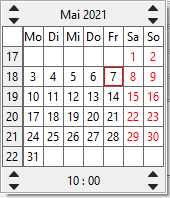
Use the right or left arrow keys to scroll month by month or year by year to select the desired date. For some appointments (e.g. the offer deadline), you can also set the time of day. The arrow buttons are then displayed at the bottom left for the hours and right for the minutes.
Tip
By clicking on the column title, you can sort the deadline table as you like. The current sorting criterion is displayed as a gray triangle to the right of the column name.
If necessary, you can add a new date to your allocation via Create appointment, or delete appointments that are no longer required using the button to the right: Delete selected appointment. When creating the deadline table, you can also access external files. The can import the file format with the extension *.aiterm, which was created with the AI APPOINTMENTASSISTANT program. Click on the Import button in the table area. The import dialog is called up. Select the desired file and click on Open.
Tip
Double-click on an appointment to open a detailed view of the appointment. In the REMINDER ON input field, you can enter an appointment reminder for a user that you have selected using the TO BE REMINDED USER selection field (the current user is preset). You may also add a DESCRIPTION. The appointments marked in this way are displayed in the ALL APPOINTMENTS or DUE APPOINTMENTS appointment overviews with a blue information symbol after the reminder time has been reached. If this user logs in again after this time has been reached, a reminder window with information about the due appointment is displayed. You can access the allocation directly from this window, edit the appointment, complete it or be reminded again.
Info
The table column MESSAGE displays red error messages and warning symbols if rules have been violated. Depending on the effect, these notes have different symbols:
| Symbol | Meaning | Example |
|---|---|---|
 |
Pure information with no effect on further processing. | The appointment is on an unauthorized weekday. The surcharge and binding period ends after the start of execution. |
 |
Warning without impact on further processing. | This date is in the past. |
 |
The error must be corrected. Saving and CONTINUE not possible. | The order of the dates is incorrect. The acceptance period ends before the tender submission period. |
Export Dates
You can export individual or all dates of the award to your Outlook calendar. To do this, use the Export selected dates to Outlook button. A setting on the server makes it possible to determine which calendar application (MS Outlook, Lotus Notes, etc.) is installed on the customer system. This setting affects the export format of the appointments. If, for example, Lotus Notes is configured, the appointments selected in the overview table are sent as an e-mail in iCalendar format to all recipients that were specified during the export process. After the e-mail has arrived in the inbox of the Lotus Notes application, it can be added to the personal calendar with a single click of the mouse. It is also possible to send several appointments to different recipients at the same time. To do this, several appointments can be selected in the table and several e-mail addresses can be entered in the address input field, separated by commas. In principle, an appointment can be exported to all calendar applications that support the iCalendar format.
Print
Below the table area of the appointments, next to the usual buttons (Cancel, Save and Forward) on the left side, there are two additional buttons:
- Preview: Creates a PDF document of the current view.
- Print: Sends the current view directly to the printer.
Before printing, go to the preview page to check the print result. When generating the PDF or printing, you can choose whether or not to include the diagram.
Chart Area
The bar chart in the upper half of the main page of the deadline manager has its own action bar on the left:
| Symbol | Meaning |
|---|---|
 |
Add a single award to the overview. |
 |
Add all awards belonging to the same project. |
 |
Add all awards of the same organizational unit. |
 |
When you click on the bar chart of an award in the overview, it is outlined in red. The marked award will be removed. |
 |
Zoom tool: Enlarge diagram. |
| Zoom tool: Zoom out. |
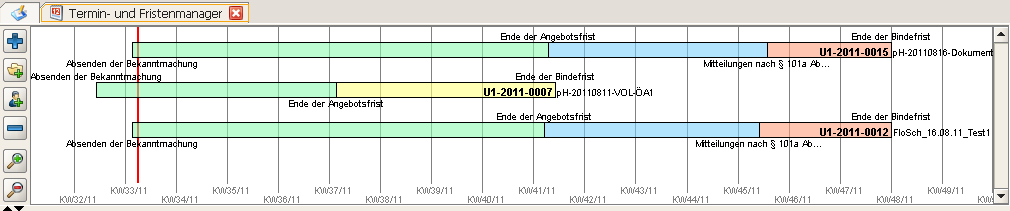
The time axis in the diagram area runs from left to right. The current date is indicated by a thick red line, the calendar weeks by thin, black vertical lines. Each time period for the award is symbolized by a colored bar, e.g. the time between sending the announcement and the end of the offer period. The color of the bar has no special meaning. It is only used for visual differentiation. If several awards are shown in the diagram, similar deadlines, i.e. periods with the same start and end points, are shown in the same color.
Tip
You can enlarge or reduce these bars by holding down the mouse button. The affected dates will then change at the bottom of the table area. If internal rules are violated in the process, red error messages will appear with the corresponding icons.
You can add the diagrams of further allocations for comparison and to get a better overview, enabling you to better coordinate the dates within a project. Click on one of the three buttons with the plus sign. The bar diagrams of further allocations are added. To remove an award from the overview, select the diagram (it is shown with a red one) and click on the button with the minus sign.
Info
Unlike the bar chart of the current award, you can no longer change the inserted diagrams.
Cross-Award Overview
By default, the Current Award tab is selected for displaying the table area in the main window of the Deadline and Period Manager. Click on the Cross-award tab to display an overview of a specific date (e.g. the tender opening dates for various awards). The dates of the same awards that are also displayed in the diagram area are listed. This is a convenient way to compare and coordinate several awards.
You can use the Date drop-down list to set which date is displayed. The following dates are available: - Submission of the announcement - Provision of information on the tender documents until - Request for the tender documents until - End of the award and binding period - Start of execution - End of execution - End of the offer period
Tip
All dates for which the calendar week of the displayed date matches are displayed in the same color. The dates of the current award can be changed here – as in the table view – using the calendar symbol or by keyboard entry. The button More information opens the window with the allocation details for each entry. Important master data for the allocation is displayed here, e.g. allocation number, service, allocation type, person responsible, etc. Click OK to return to the starting point. Click on the Save button to save your entries.