Archiving of Award Procedures
Info
By generating a data package that contains all relevant award data, the AI TENDERINGMANAGER can be connected to almost any external archiving system of the customer via an individually adapted interface.
An award procedure can only be archived after the set deadline has expired. When the time has been reached, archiving is released for scheduling. This is done by an automatic system-side check. Users can be defined who are informed when the deadline has been reached and who can schedule the archiving of the award procedure. From this point on, a background process starts that is executed during data generation for archiving. Depending on the system settings, the scheduling is either carried out automatically or must be triggered manually.
The archiving concept of the AI TENDERINGMANAGER provides numerous functions for easy archiving of completed award procedures.
-
The data generation creates files in PDF format.
-
The archiving status is displayed in the project tree as the revision level.
-
Individual procedures can be blocked or released for data generation.
-
When the archiving deadline is reached in a procedure, an automatic notification can be set up.
If you have the required authorizations, the ARCHIVE AWARD PROCEDURES command is available in the EXTRAS menu. The Archive Award Procedures tab displays all completed award procedures that have reached their archiving date.
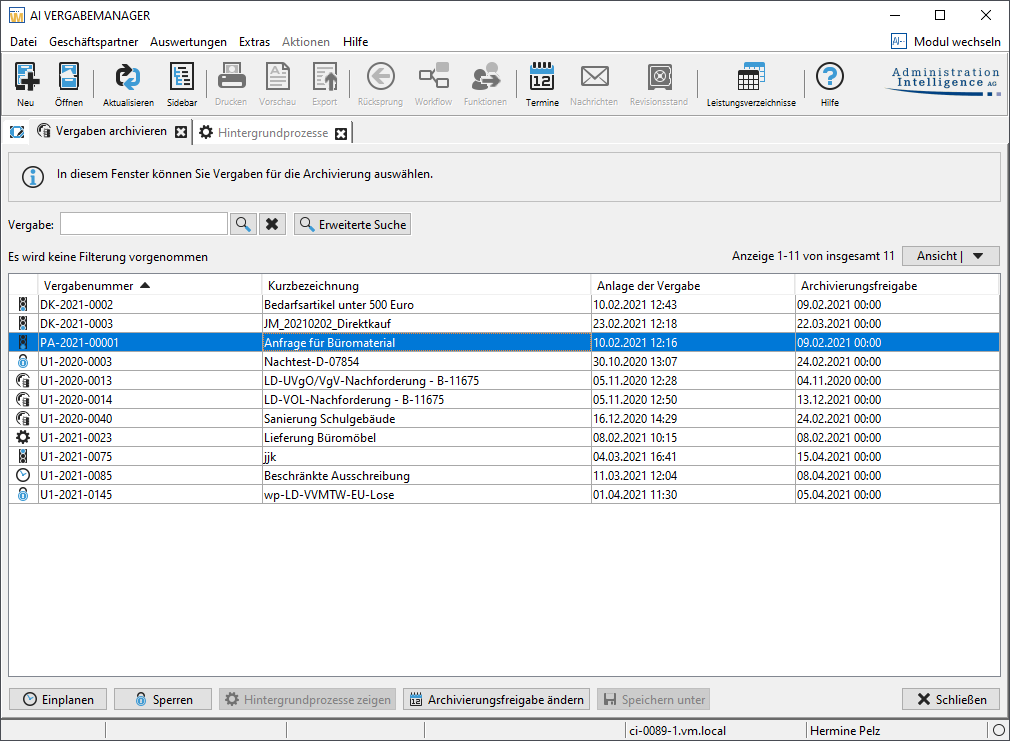
The buttons and symbols in this tab have the following meaning:
| Button/Symbol | Meaning |
|---|---|
 |
Search for the award procedure number in the Award field. |
 |
Delete the input in the Award field. |
 |
Opens the window for entering further search criteria. (See also Advanced search in archiving.) |
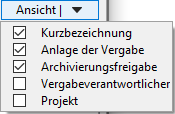 |
Select the columns displayed in the contract award overview. The first three table columns are preset. |
 |
The award procedure is terminated for the next data generation and the corresponding background process is created. This is only active for procedures whose archiving date has been reached (green traffic light) if the automatic data generation for archiving is switched off by the system. |
 |
Locking the procedure ensures that data generation for archiving is not automatically triggered when the archiving deadline is reached. Is active for procedures with a green or red traffic light. |
 |
The blocking must always be canceled manually. |
 |
Call up the background processes tab. The archiving status for the selected award procedure is displayed. Is active for scheduled procedures or for procedures whose data generation for archiving has already been completed. |
 |
Calls up the input window for changing the time from which the award procedure is released for archiving. Is active for closed procedures or for procedures with a green or red traffic light. |
 |
Saves the content of the archived procedure in a directory of your choice. Is only active for procedures whose data generation for archiving has already been completed. |
 |
Close the Archive award procedures tab. |
 |
Archiving not possible: The archiving date has not yet been reached. |
 |
Archiving possible: The archiving date has been reached or exceeded. In systems with automatic data generation for archiving, data generation is triggered for this award procedure during the next run. |
 |
Archiving not possible: The award procedure has been blocked for archiving. |
 |
In systems without automatic archiving, data generation for archiving is triggered for this award procedure during the next run. |
 |
The data generation for the archiving process is carried out at the current time. |
 |
Archiving not possible: An error occurred while generating the data for archiving. The associated background process contains a description of the error. |
 |
Data generation for the archiving process is complete. The archiving result can be checked in the project tree under *Revision statuses+. (See also Displaying archiving in the project tree.) |
 |
The archived procurement data has been saved locally. |
 |
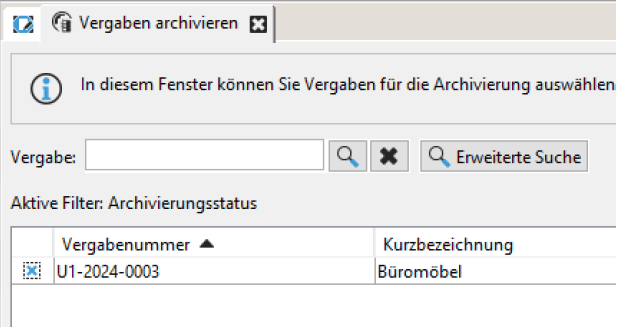
The award procedure has been scheduled for partial deletion, i.e. only the data packages are to be deleted. |
Partial Deletion
Partial deletion of an award procedure allows you to create supplementary procedures at a later point in time, even though the content data of the award procedure has already been deleted.
If an award procedure is scheduled for deletion during the next archiving run, a dialog box appears after clicking on ``Schedule deletion''. You can now select either complete deletion or just the deletion of data packets, i.e. partial deletion. Both variants can be undone until the next archiving run.
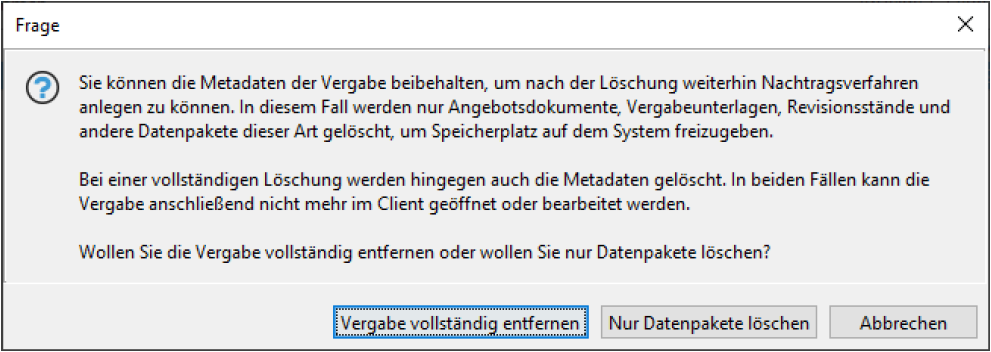
Delete award procedure completely: In this variant, the award procedure is completely removed from the system. It is no longer possible to create a supplementary procedure.
Delete data packages only: This variant deletes the offers, requests to participate, award and pre-qualification documents, attachments, revision statuses and other data packages. This can greatly reduce the amount of storage space required. Form data is retained and allows access and transfer of data to a supplement procedure via customizing. Other use cases, such as the cross-award calculation of the 80-20 rule in project forms, also work with partially deleted award procedures.
Info
Please note that partially deleted award procedures are no longer consistent with their content data. For example, forms still contain references to file attachments that no longer exist in the system. For this reason, it will not be possible to open or further process partially deleted procedures. They will only be displayed at selected points, for example in the dialog for creating follow-up procedures or at certain points in the admin interface.
Advanced Search in Archiving
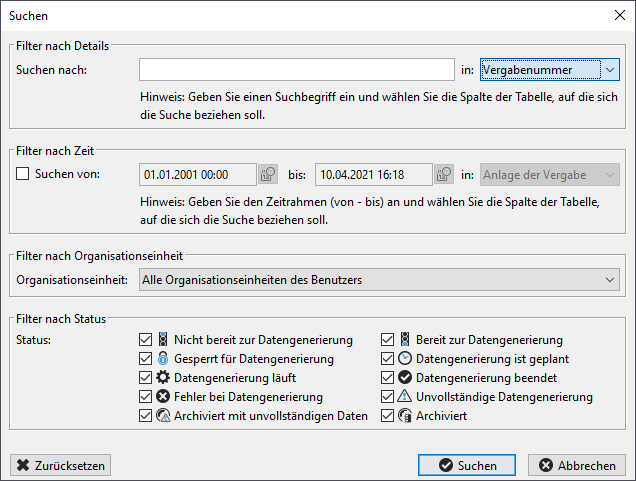
You can use the Advanced Search button to customize the overview of the award procedures to suit your needs.
You have the following search options in the Advanced Search:
-
Filter by details: Enter a search term in the Search for input field to search for a specific character string in the allocation number. From the IN list box to select a different column for the search.
-
Filter by time: Select the Search FROM check box and select a time frame (from -- to) or the point in time (creation or archiving release) to which the search should refer.
-
Filter by organizational unit: This filter is only relevant if you belong to several organizational units with separate master data.
-
Filter by status: Select the check boxes in the search window to customize the display in the awards overview to your needs.
-
You can use the Reset button to restore the original settings in the search window.
Display of Archiving in the Project Tree
After the data for archiving an award procedure has been generated, the project tree for this award procedure only contains a single directory, the revision levels.
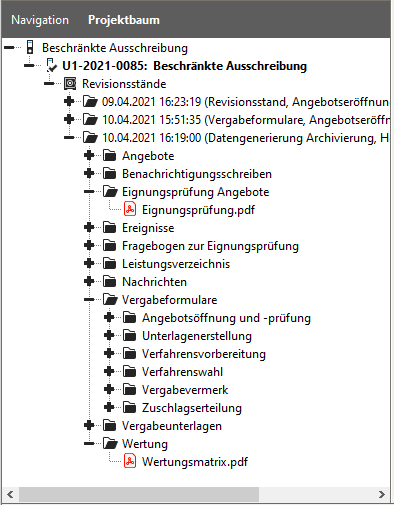
The directories before archiving are included in the revision status of the archiving. In the process, program-specific files are converted into the PDF standard format.
Message about Reaching the Archiving Deadline
In systems without automatic archiving, it can be set up so that designated users are informed with a message when the archiving date of the award procedures has been reached.
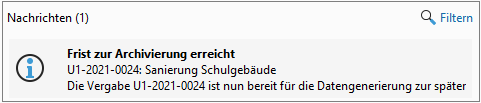
By double-clicking on this message, you can access the overview of archiving award procedures. You can then schedule or block the award procedure for the next archiving run or change the archiving date.