Selection of Bidders in Restricted Procedures
In the case of a restricted invitation to tender, a pre-selection of possible bidders is made from the list of all company data entered. The approve participant dialogue window contains a list of all company master data stored in the system on the left-hand side. The small symbols at the bottom right of the data record indicate the approval status of the company master record:
-
Symbol with tick: approved
-
Symbol with crossed-out circle: Locked
-
Symbol without feature: Unrated
Further information about this topic can be found in the section company master data.
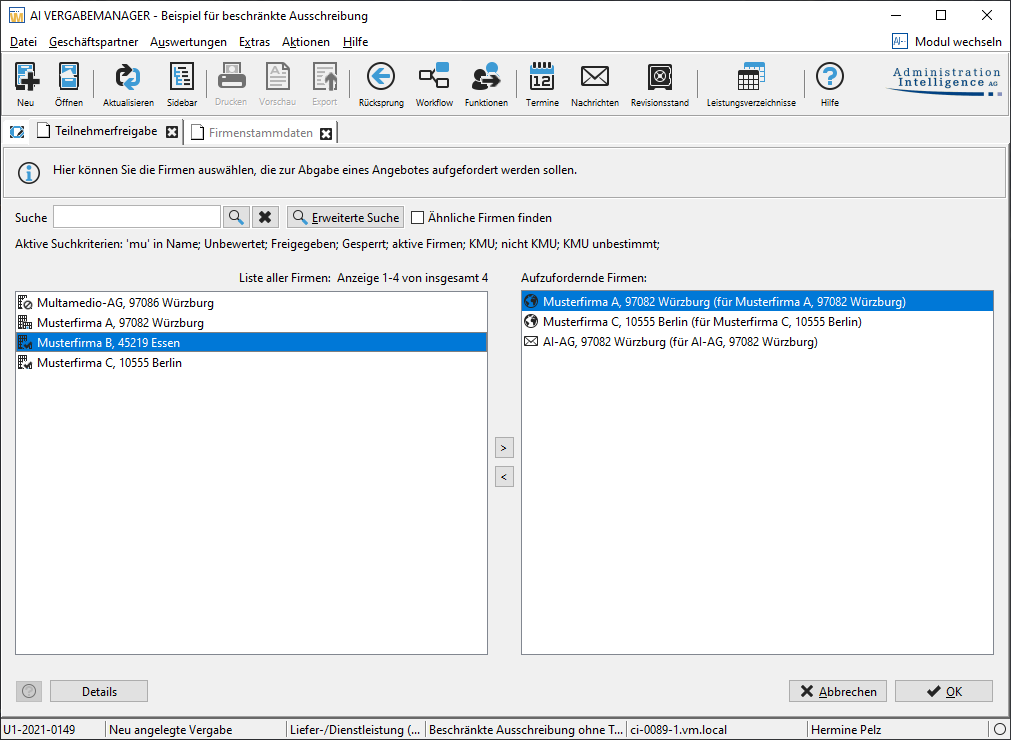
Select an entry on the left-hand side and click on the right arrow in the centre of the window to copy the company name to the right-hand side. If you want to remove an entry on the right-hand side, use the left arrow in the centre of the window.
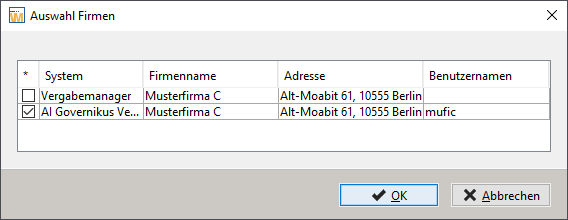
If the company master has already been linked to a data record from an external system (e.g. the AI TENDERINGPLATFORM ), you can choose between the manual paper bidder (award manager) and the electronic participant (AI TENDERINGPLATFORM) when selecting the participants.
Hint
For easier selection of electronic participants, the user names from the AI TENDERINGPLATFORM are also displayed.
You can narrow down the list of companies displayed by entering a search term in the SEARCH field or by customising the search criteria to your requirements via advanced search. The active search criteria are displayed below the search field.
Click on the Advanced search button. The window with the setting options for the search is opened.
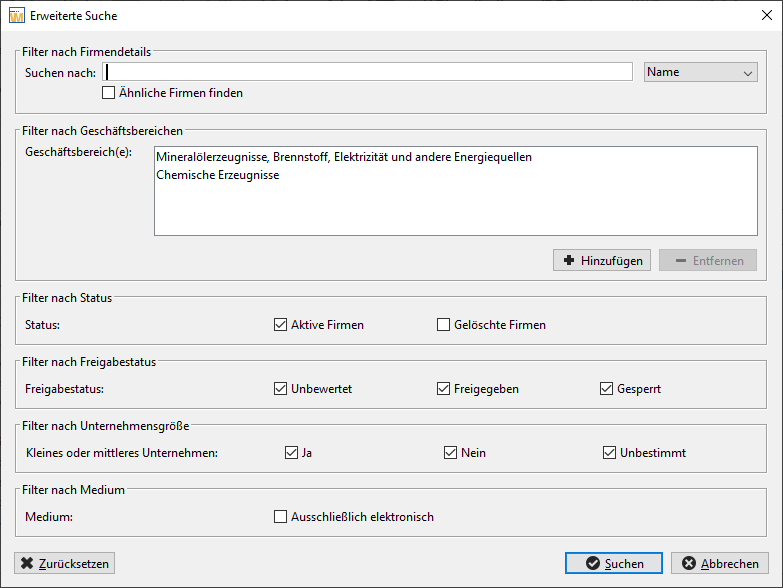
In the company details area, you can change the search to another column (e.g. postcode, city, telephone etc.). The default setting is to search by name.
You can use the business areas filter to specify one or more entries from the list of CPV codes as a search criterion. Click on add to select an entry from the available CPV lists. The remove button can be used to remove entries that are no longer required. In the option field find companies with you can specify whether the search result should only contain one entry or all entires from the list of business areas.
The release status of the data records can be filtered in the lower section of the window. By default, all data records are displayed regardless of their release status.
Hint
Use the RESET button to restore the original search filter settings.
Once you have selected the participants, complete this step by clicking on OK.