Forms and Function Dialogs
Most of the entries in the AI TENDERINGMANAGER are made in forms or via function dialogs.
Forms
Most entries in the are made in forms. Unlike function dialogs, forms have a slightly tinted background with white input fields and mandatory fields with a colored background. These forms are adapted to the respective customer specifications. The following field types can appear in the forms:
| Form field | Example | Meaning |
|---|---|---|
| Input field |      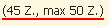 |
Mandatory fields are highlighted in color, fields with optional input have a white background and fields with display function are adapted to the form background. Mandatory fields can also be recognized by the red asterisk (*) next to the field name. The entries can be checked for compliance with certain conditions, e.g. only numbers. If the input values are incorrect, the field is highlighted in red. When you click in an input field, it is highlighted in blue and the user input is made in insert mode. As you type in a text field, the number of characters already entered is displayed. This is to prevent texts that are too long being entered and cannot be displayed in the print version. If the maximum number of characters in a field is reached, the display is highlighted in bold. |
| Option field |  |
Offers two or more options, only one of which can be activated. The activated option has a colored dot in a circle, e.g. yes/no field. |
| Checkbox |   |
Click to activate (checkmark) or deactivate (empty box). |
| File field | 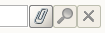 |
Add external attachment files to forms. From left to right: Attach file, edit file, display file content, delete file. |
| Selection list field |  |
If the magnifying glass symbol is to the right of an input field, a selection list with possible entries can be called up with a mouse click. Manual entries are also permitted. |
| Function button |    |
Triggers a function when the mouse is clicked, e.g. calling up a function dialog. Grey: Button in the form or dialog. Blue: Activated button when the mouse is pointed to it without clicking. Red border: Mandatory button, the workflow can only be continued once this function has been executed. |
| Date field | 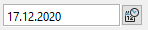 |
Has a miniature calendar icon on the right. The date can be entered using the mouse or keyboard. Expects mandatory date values. |
| Selection field |  |
Only selection from the list is possible. |
| Question mark |  |
If the question mark is to the left of an input field, the value entered in the field differs from the value originally suggested. By clicking on the question mark, the different entries are displayed and can be changed if necessary. |
Similar to the toolbar, the icons in the Form control bar at the bottom of the form window have a tooltip. The buttons on the right-hand side can also be called up using keyboard shortcuts, e.g. [ALT]+[W] for CONTINUE.

If there are no entries in a form, the appearance of the Next button changes.
Each mouse click on this button then leads to the next mandatory field marked in color in which entries are missing. Only when all mandatory fields have been completed will the Next button turn blue and you can proceed to the next step.
The icons at the bottom left of the form window have the following functions:
| Function | Icon | Example |
|---|---|---|
| Print templates and form printout |  |
The form content is output as a PDF document. There may be a choice between print template and dynamic mask printout, and the displayed PDF print templates are sorted if the corresponding information has been customized in the customer model. |
| Send form as e-mail |  |
The form content is sent as a PDF document attached to an e-mail. |
| Load last saved form data |  |
The input values from the last save operation are loaded. |
Table Fields in Forms
A special type of form field is the table. They consist of one or more columns and some buttons at the bottom. Here are a few examples:
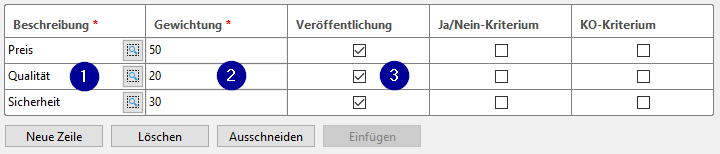
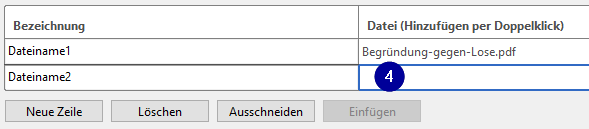

Click on the New row or New on selection button and insert a new row in the table. Each new row contains as many fields as the table has columns. The type of fields depends on the definition of the column. The symbol in the column often indicates the type of field, e.g. the paper clip stands for the file insert field (4) or the magnifying glass symbol for the selection list field (1).
The following is a list of all field types that can be contained in a table.
| Form field | Example | Meaning |
|---|---|---|
| Selection list field | (1) | Call up a selection dialog box by clicking on the magnifying glass symbol. Free text entries are also possible. |
| Input-only field | (2) | Colored background as mandatory field, with white background for optional input and adapted to the form background for display-only function. |
| Checkbox | (3) | Can be activated or deactivated with a mouse click. |
| File insertion field | (4) | Add an external file by double-clicking in the empty line. Can also be defined as a mandatory field. |
| Date field | (5) | Has a miniature calendar icon on the right. The date can be entered using the mouse or keyboard. Expects mandatory date values. |
Inserting Files into Forms
You have the following options for adding a file to a form:
- Use the file field from a form or within a function.
- Use the File insertion field (4) from table Example 2 within a form.
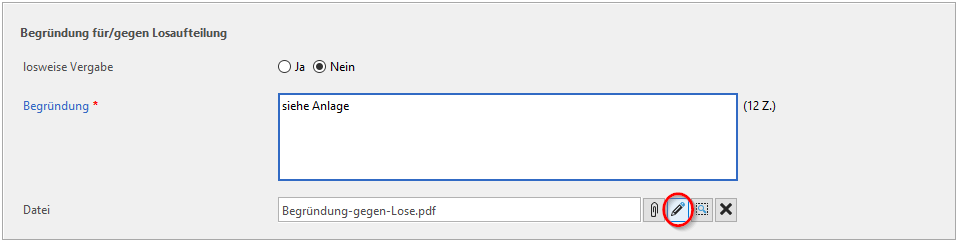
If a form contains the file field, you can add a file to this form using the paperclip symbol . Click on the magnifying glass to display the file or delete the file using the button with the black X.
Info
Open this file for editing directly from the form using the button with the pencil. The application associated with the file type is started on your computer. After editing, you can decide in an additional question window whether the changes should be accepted or discarded.
Click on the New row button to insert an empty table row in the File insertion field (4) from Table 2. Double-click in the colored area to open the Open file window. Select the desired document and click on Add. The Document management window appears. Here you can specify whether the file is to be added to the award documents and/or to the participation competition documents and possibly enter a name. Click on OK. The file is now displayed in the second column of the table. You can still assign a file name in the first column. To add another file, click on the New line or New on selection button and repeat the steps described above. You can use the Cut and Insert buttons, you can change the order of the documents within the table. Remove files that are no longer required using the Delete button. Documents that have a File insertion field or a File field in a form can be edited directly via the Edit file button in the Document management window without having to download them first, save them on the hard disk and upload them again after editing. In an additional Question window you can decide after editing whether the changes should be accepted or discarded.
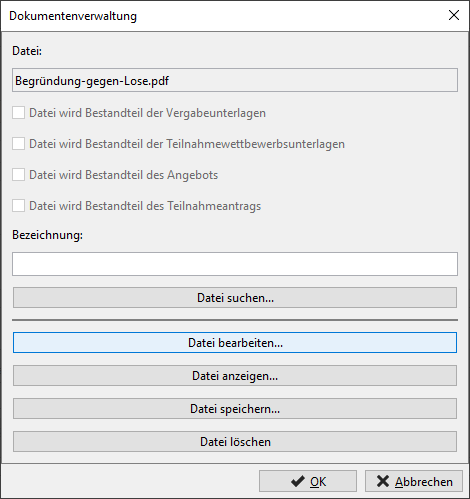
If the forms are adapted accordingly, it is possible to add several files to a table at the same time. To do this, select the desired documents in the Open file window with a mouse click using the [SHIFT] or [CTRL] key and click Add. The selected files are inserted into the table.
Info
After customizing the customer model, the file list displayed in the Open file window can be restricted to file types that make sense for this data field. This is useful, for example, when inserting GAEB bills of quantities in the construction sector. However, you can also remove the filtering for the specified types and search for all files by changing the file type field.
Design Options for Forms
This function is available as standard, but requires the system to be configured accordingly. Parts of the function (form color, logo) are only available if the customer model of your AI TENDERINGMANAGER has been adapted accordingly.
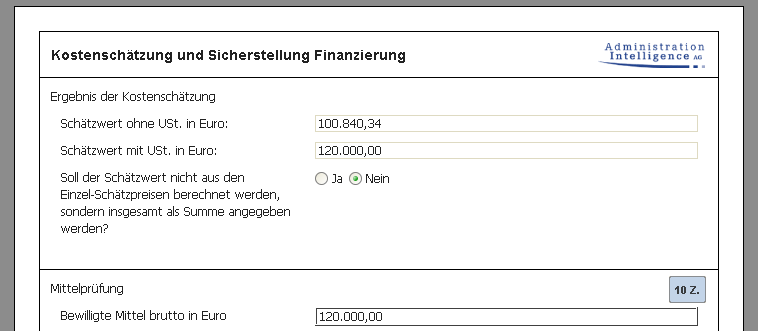
Based on common Office products, the forms of the AI TENDERINGMANAGER can be displayed with a white background and a logo in the form header.
Context Menu in the File Selection Dialog
The File selection dialog of the AI TENDERINGMANAGER contains a context menu via which commands that are often used, such as creating a folder or sorting the files, can be accessed quickly. Depending on whether you activate a window element with the right mouse button or not, different commands are made available.
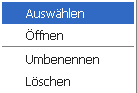
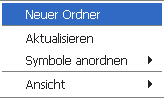
Below is an overview of both variants of the context commands.
| Command | Meaning |
|---|---|
| Context menu with activated element | |
| SELECT | Open a file/folder or save a file. |
| OPEN | Executes a file with the appropriate program specified in Windows. For folders, the Explorer opens. |
| Rename | Enables the file or folder name to be changed. |
| DELETE | Deletes a file or folder from the file system. |
| Context menu outside an item | |
| NEW FOLDER | Creates a new folder. |
| UPDATE | Updates the view to show any changes in the file system. |
| SORT SYMBOLS | Sorts the list of files by name (default), size, modification date or file type; clicking on the sort criterion again inverts the search pattern, i.e. names are then sorted in reverse order from Z to A. |
| DISPLAY | Changes the view of the displayed elements in the current window. Selection options: Icon, List and Details. |
Views in the File Selection Dialog
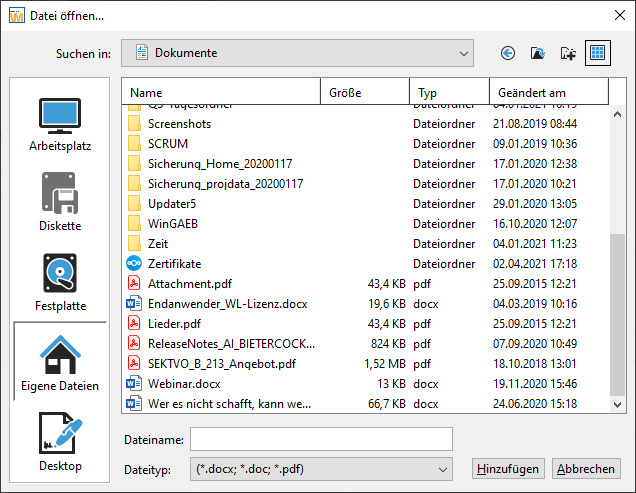
Similar to Windows Explorer, the file selection dialog of the AI TENDERINGMANAGER offers three different views of the file system to choose from. You can set these views either via the context menu (VIEW) or via the  at the top right of the search bar. The application remembers the set view so that there is no need to set it again the next time you open the file selection dialog.
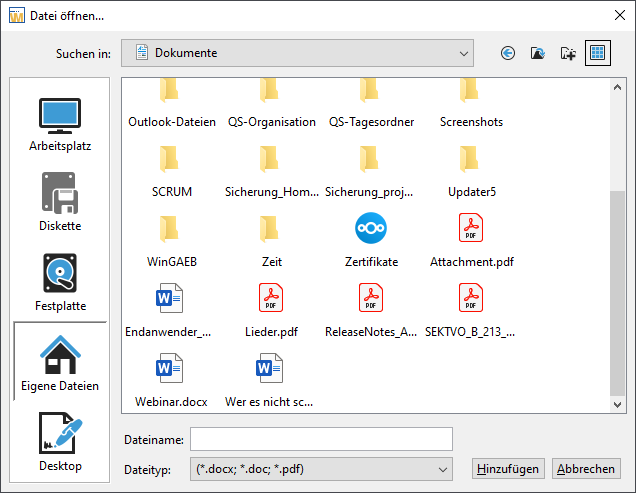
Icon view
In the icon view, files and folders can be quickly recognized and distinguished by the large icons.
List View
The list view displays the file system with smaller icons and in several adjacent columns so that as many files/folders as possible can be seen at once. Scroll from left to right to see the full contents of the window.
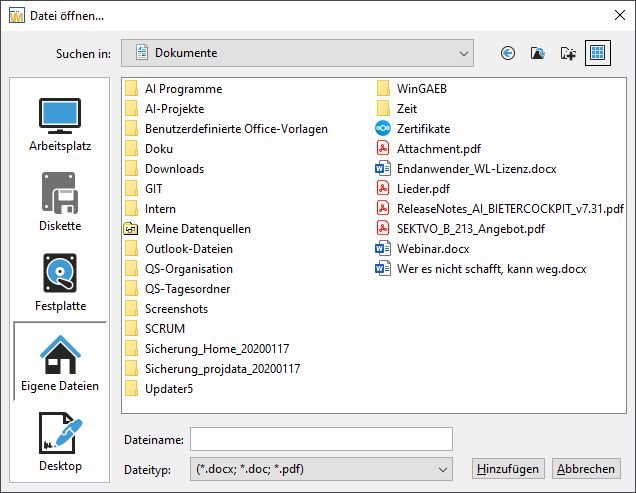
Detailed View
This view contains all relevant information about the files and folders. Enlarge or reduce the columns as required by moving the column separator line with the double arrow.
Function Dialogs
In addition to the input fields, function dialogs contain various buttons and icons. The blue context-sensitive help texts are also stored here. One example of a function dialog is the Deadline and Period Manager.
The following table contains some examples of frequently used buttons and icons:
| Form field | Example | Meaning |
|---|---|---|
| Date field |  |
Has a miniature calendar icon on the right: The date can be entered using the mouse or keyboard. Expects mandatory date values. |
| Insert file |  |
Calls up the Open file window to add external documents to the documents. |
| Selection list field |    |
Is indicated by an arrow on the right edge of the field. Click to open the list of selection options. |
 |
Calls up the print dialog. Selection of the print option GENERATE DYNAMICALLY or GENERATE FROM TEMPLATE possible as well as PREVIEW of the printout. | |
| Open file |  |
Display the file content. |
| Toolbox |  |
Display or hide a window with additional setting options. |
Confirmation Dialogs
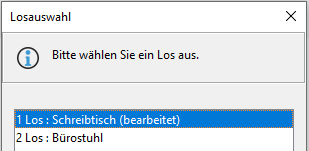
The question and confirmation dialogs of the AI TENDERINGMANAGER can be answered and closed with a simple keystroke. The underlined letter on the message buttons is the trigger for the desired action.
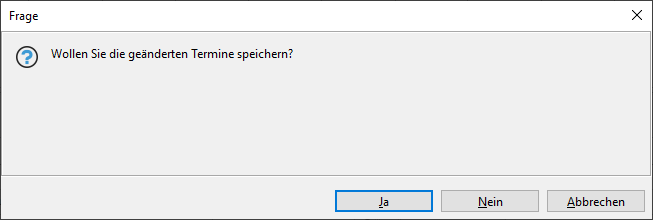
In the example above, the Yes button is activated (see colored border), i.e. it can be activated with the [RETURN] button. To save the changes, press the [Y] button or the RETURN button. Discard the changes with the N key or cancel the process by pressing the [A] key on your keyboard.
Selection Dialogs - Function Assignment
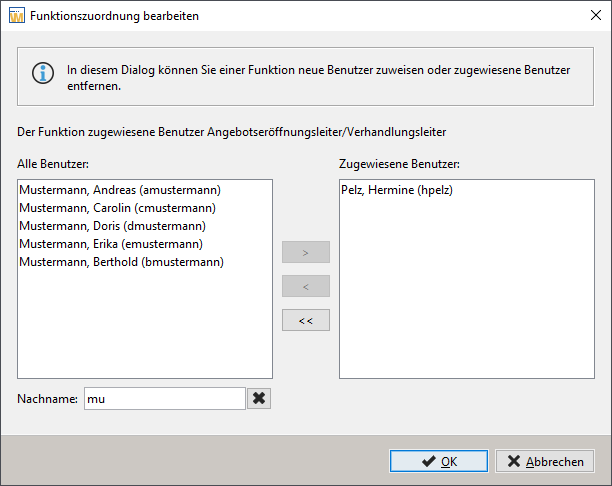
The selection windows for editing the function assignment and form authorizations contain a search field last name under the user list. Filter the list of user names by entering one or more letters.
Returns in the Award Process
The return function allows you to return to both simple and parallel process sections without affecting other - independent - sections. To clarify the return, a start point and then a finish point must always be selected first. This can be done using the Return button below the menu bar.

Info
There is also a Workflow return dialog developed explicitly for the return. To do this, select the menu command EXTRAS - WORKFLOW BACKSPACE


Several starting points can be specified in this dialog, depending on the authorization level and status of the process. Additional filters make it easier to select the correct start and end point.
Info
Select the desired lot in the Filter by lot number list field at the top and activate the Enable filter for destination point checkbox to only see the destination points for this lot.
When returning to a branched workflow in which one of the branches is still being executed, an additional activity is displayed that can neither be started nor forwarded and marks the end of this branch. From this end point of the branch, it is no longer possible to return to any point in the workflow branch that has already been completed.

Forward
This function enables the current task to be forwarded to an individual user or to a function (several users can be affected at the same time). To do this, use the context menu (right mouse button) of the corresponding task.
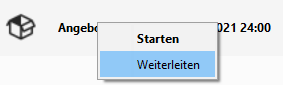
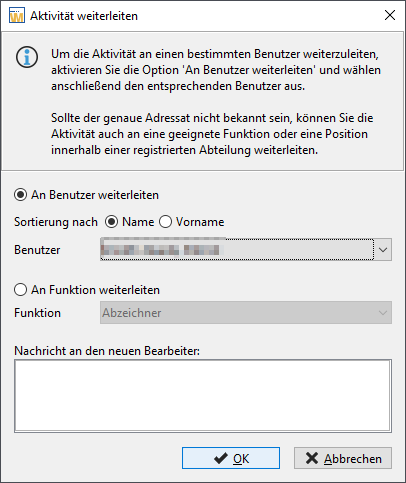 Forward task to user or function
The forwarded task is marked as forwarded in the user's task inbox.
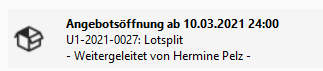
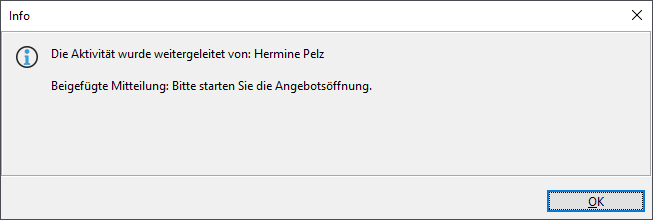 Forwarded task in the user's task inbox
Once the task has been completed, the subsequent workflow step is returned to the next designated agent.
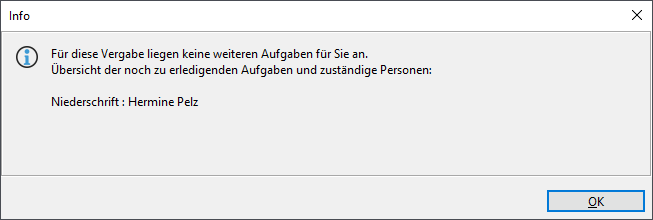
The forwarding is not logged in the assignment note; it only appears as a tooltip in the process overview of the workflow step concerned.

Areas in the Workflow System
Info
This function is only available if the customer model of your **AI VERGABE//MANAGER has been adapted accordingly.
By extending the workflow system, related actions and activities can be grouped into an area. Filtering is offered for these groupings if a selectable grouping is available.
Furthermore, area-dependent actions are available that relate to a grouped area in the workflow.
In the special case of a division of the workflow - for example into lots or partial requirements - the action is displayed with the corresponding area designation or, if the action is active in several areas, a selection of the possible areas is offered.