Company Master Data
The company overview offers the option of recording and editing company master data independently of the procedure and process phase.
Info
As of version 6.0, the AI COMPANYMANAGER has been integrated into the AI TENDERINGMANAGER and can be activated at the customer's request via certain system settings.
The AI COMPANYMANAGER is used for the centralised management of all company master data within the procurement system of a public contracting authority. It is located within the awarding office and ensures that all company data from the entire procurement process chain is updated, from the requisitioner to the awarding office to a back-end system, e.g. SAP, eVergabe or AI TENDERINGPLATFORM. The aim is to create a consistent company master data across all connected external systems. For further information, please refer to the AI COMPANYMANAGER user manual.
The AI COMPANYMANAGER distinguishes between company master data records that are created and edited in the AI TENDERINGMANAGER or AI COMPANYMANAGER im and company data records from external, connected systems (e.g. AI TENDERINGPLATFORM, SAP, eVergabe etc.). The latter are AI TENDERINGMANAGER read-only and can only be changed in the original systems.
Call up the overview of all company addresses available in the AI TENDERINGMANAGER via the menu command BUSINESS PARTNER - COMPANY MASTER DATA.
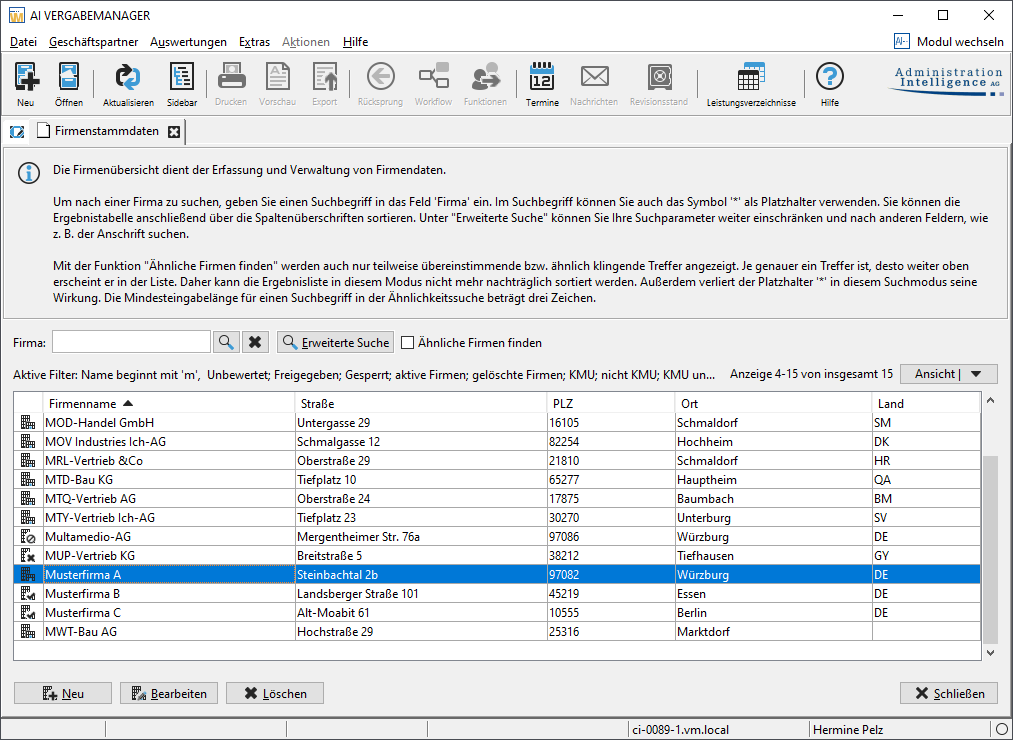
The buttons in this tab have the following meaning:
| Schaltfläche | Bedeutung |
|---|---|
 |
Full text search in the COMPANY field. The search for vague terms and individual syllables (similar to the Internet search) results in a hit list with descending relevance of the search term. |
 |
Delete entry in the COMPANY field. This also resets all current search criteria from the ADVANCED SEARCH to the default value. |
 |
Calls up the window for entering further search criteria. See also Advanced search in company master data |
 |
Activate the similarity search. See also Hierarchical search in company areas |
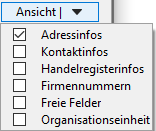 |
Selection of the columns displayed in the company overview. The address information is preset. |
 |
Calls up the input screen for entering a new company master data record. |
 |
Calls up the input screen for entering changes to an existing company master data record. Is only active if a company has been selected in the table. |
 |
Marks the company master data record as ‘deleted’. If an external company data record is linked to this master data record, it is displayed in an additional window for checking. See also Delete company master data record Is only active if a company has been selected in the table. |
 |
Closes the tab company master data |
 |
Approve company for restricted procedure. |
 |
Company deleted |
 |
Company is locked from entering. |
 |
Company has not been rated for restricted procedures. |
 |
Change notification: not yet assigned to a company. Only exists in AI COMPANYMANAGER. |
Info
If a company registers directly on the AI TENDERINGPLATFORM, its data is not automatically transferred to the AI TENDERINGMANAGER if certain system settings are made. Only after it has applied to participate in a public procedure will the data exchange take place and it will be displayed in AI TENDERINGMANAGER as an electronic participant within this procedure. Whether a company master data record is created at the same time depends on the system configuration of AI TENDERINGMANAGER and whether AI COMPANYMANAGER is in use.
Further information on the various configuration options for managing company data can be found in the AI COMPANYMANAGER user manual.
Advanced Search in Company Master Data
Click on the Advanced search button in the company overview. The Search window opens.
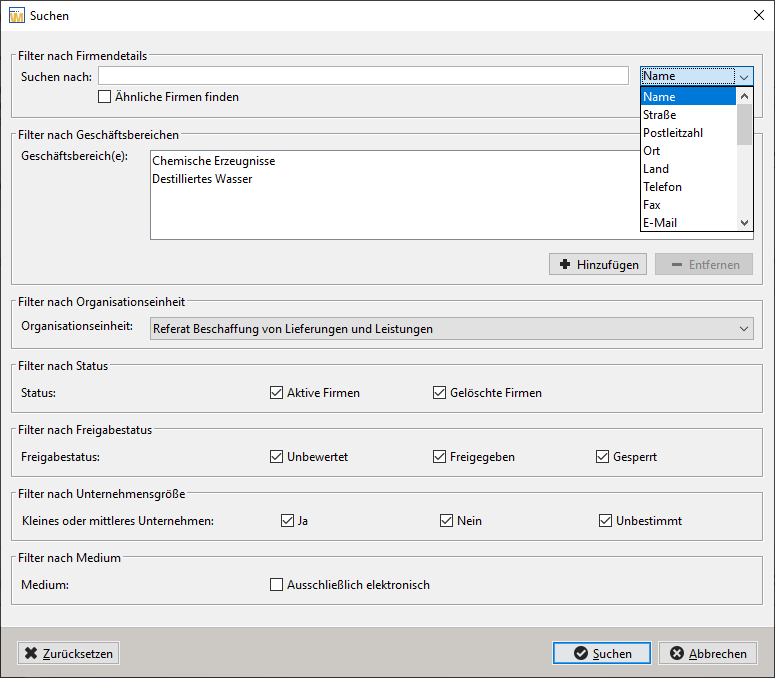
You have the following search options in the Advanced Search:
-
Filter by Company Details: Enter a search term in the input field Search for to look for a specific string within the company name. You can also use the * character as a wildcard in your search term. If needed, select a different column for the search from the dropdown list.
-
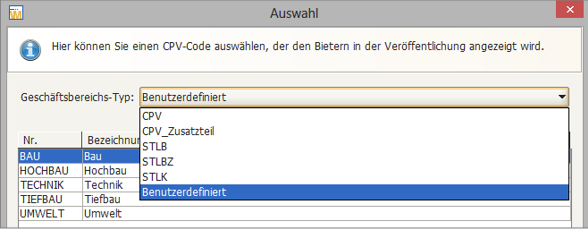
Filter by Business Sectors: Using the Business Sector(s) field, you can display only companies belonging to specific business sectors. Add the desired search terms using the Add button. In the dropdown list Business Sector Type, you can select from available lists (CPV, CPV_Additional, STLB, STLBZ, STLK) and then choose the desired category. If the business sector catalog is hierarchically structured, the search results will include the [direct]{.underline} parent elements as well as all child elements of your search term. For more information, refer to the section on hierarchical search in company areas
-
Filter by Organizational Unit: This filter is only relevant if you belong to multiple organizational units with separate company master data.
-
Filter by Status: Using the status Deleted Companies, you can search for companies that have been marked as deleted.
-
Filter by Approval Status: Filter the displayed companies based on their approval status.
-
Filter by Medium: This filter allows you to display only those company records that have been transferred via an electronic medium or an interface to an external system.
-
Use the Reset button to restore the original settings in the search window.
Similarity Search in Company Master Data
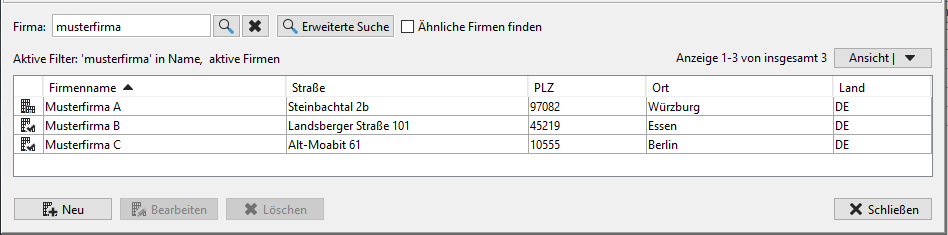
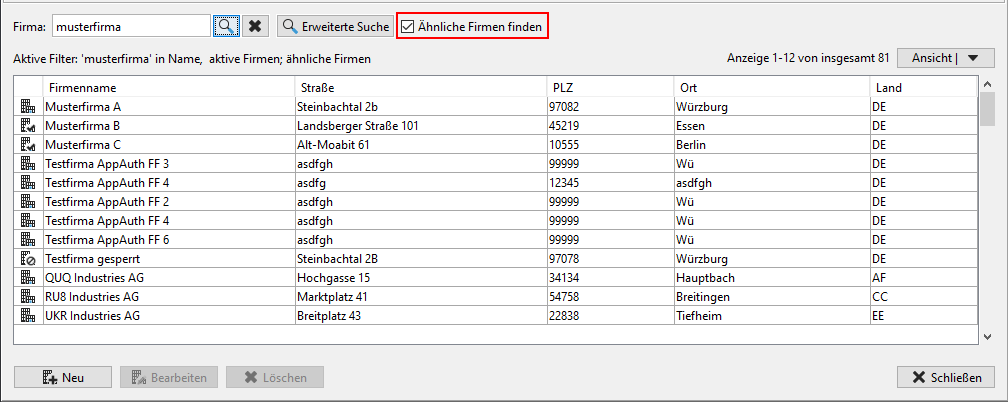
Unlike the Exact Match Search, which only finds companies whose names begin with the entered characters, the Similarity Search looks for word segments and individual syllables, generating a list of results sorted in descending order of match accuracy.
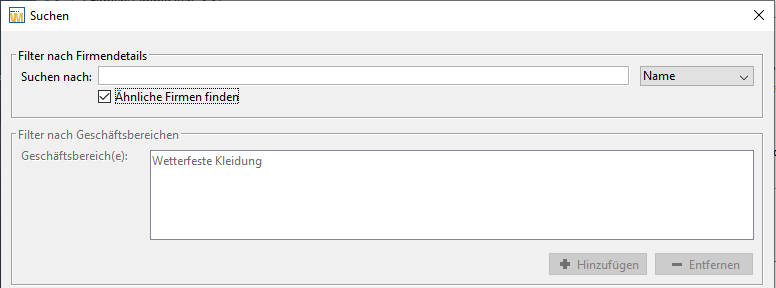
Activate the checkbox Find Similar Companies, enter the search term (at least 3 characters!) in the Company field, and then click the Magnifying Glass Icon.
Frequently Asked Question
The result list contains your search term or parts of it, sorted in descending order of match accuracy. Therefore, in this case, sorting the result list afterward by clicking on the columns is disabled.
Below, you will find—by way of comparison—the result list for a search using the search term (Sample) in both the standard search and with the similarity search activated.
Hierarchical Search in Business Sectors
Hierarchically structured business sectors (e.g., the list of CPV Codes) are also searched hierarchically. This means that the search results include not only direct matches but also all companies assigned to both the parent elements (parents) and the subordinate elements (children).
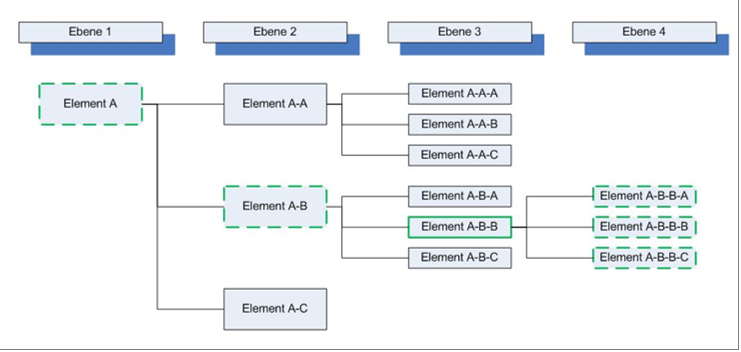
In the graphical example above, the search term is element A-B-B. The result list for the hierarchical search will include all entries with element A-B-B, as well as all entries of the parent elements (A and A-B) and the child elements (A-B-B-A, A-B-B-B, and A-B-B-C).
Example: CPV Code Search
Existing assignment of business sectors to companies:
| Company | Business Sector |
|---|---|
| Examplecompany A | “18200000-1: Outerwear“ |
| Examplecompany B | “18220000-7: Weatherproof Clothing“ |
| Examplecompany C | “18223100-9: Blazer“ |
| QS-AI-AG | “18223200-0: Jackets“ |
| AI AG | “18100000-0: Workwear, Special Workwear, anc Accessories“ |
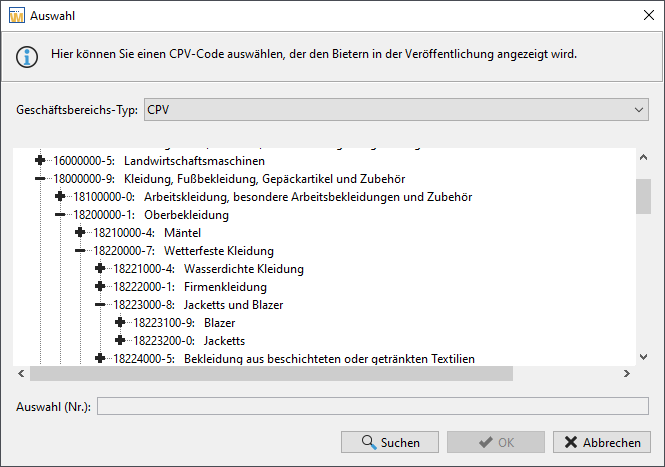
Search term: 18220000-7: Weatherproof Clothing
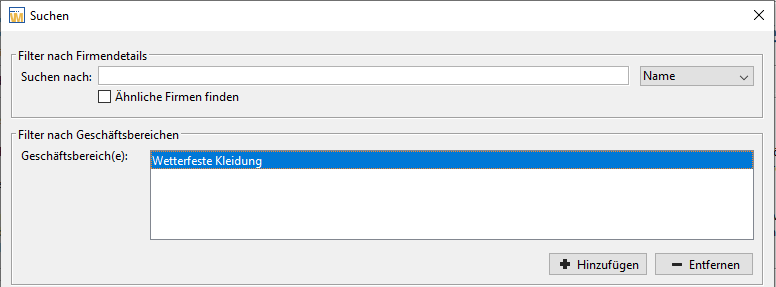
Search result:

| Company | Business area | |
|---|---|---|
| Examplecompany A | “18200000-1: Outerwear“ | Search term |
| Examplecompany B | “18220000-7: Weatherproof Clothing“ | Parent element |
| Examplecompany C | “18223100-9: Blazer“ | Child element |
| QS-AI-AG | “18223200-0: Jackets“ | Child element |
Frequently asked question
AI AG does not appear in the hit list because the search term is not a direct parent element of the search term.
If you search several business areas simultaneously, the list will contain all companies containing at least one of the business areas.
Similarity search is not possible for business areas. If Find similar company is not active. the filter for business area is inaktive
Creating a New Company Master Record
Click the New button in the Company Overview to create a new company.
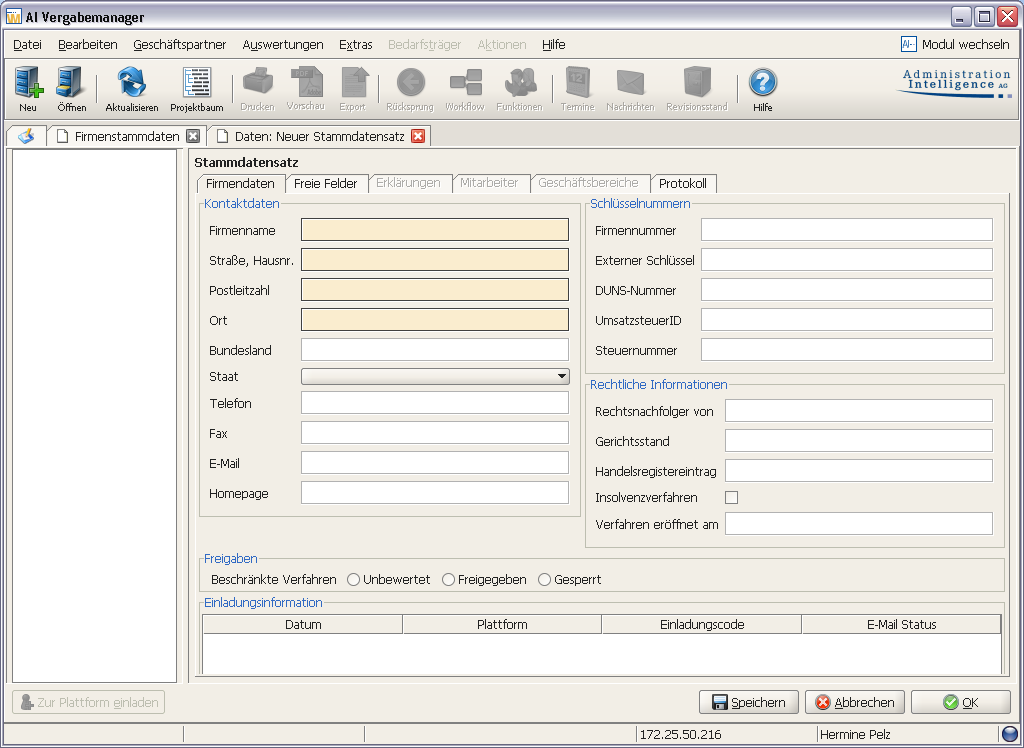
All fields highlighted in color are mandatory fields. Enter the required information in the Company Data and Free Fields tabs and click Save. After saving, the tabs Declarations, Employees, and Business Sectors will also be activated.
In the Declarations tab, you can record certificates, declarations, or company-related documentation and upload the corresponding files.
If needed, enter the contact details of company representatives in the Employees tab.
You can assign the new company to a business sector in the Business Sectors tab using CPV (Common Procurement Vocabulary) or STLB (Standard Service Book for Construction). This allows you to filter addresses based on these codes later. You can also select from a list of Custom business sectors. For more information on this topic, refer to Business areas of the AI TENDERINGPLATFORM.
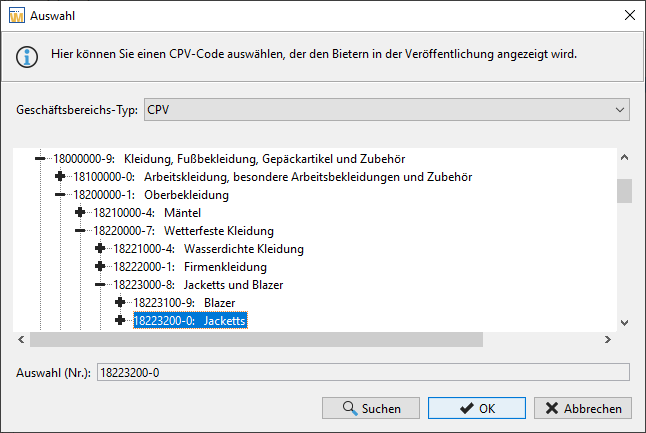
To assign a business sector to the new company, click New Business Sector, select the business sector catalog in the Business Sector Type dropdown menu, and choose an entry from the list.
Hint
Use the + and – icons next to an entry to expand or collapse the displayed list. Start a full-text search within the list using the SEARCH button. Confirm your selection by clicking OK.
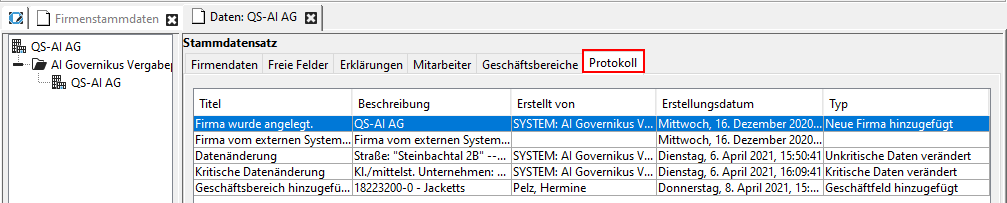
The Log tab automatically records all changes made to the company master record.
Deleting a Company Master Record
Company master records can be marked as deleted if needed. Once deleted, they will no longer be available for participation in restricted procedures and will not be displayed in the company master data overview by default.
Warnung
Please note that a deleted company cannot be restored in AI TENDERINGMANAGER.
To delete a company, use the Delete button in the company master data overview. Any existing links to company records from or in external systems will also be marked as deleted.
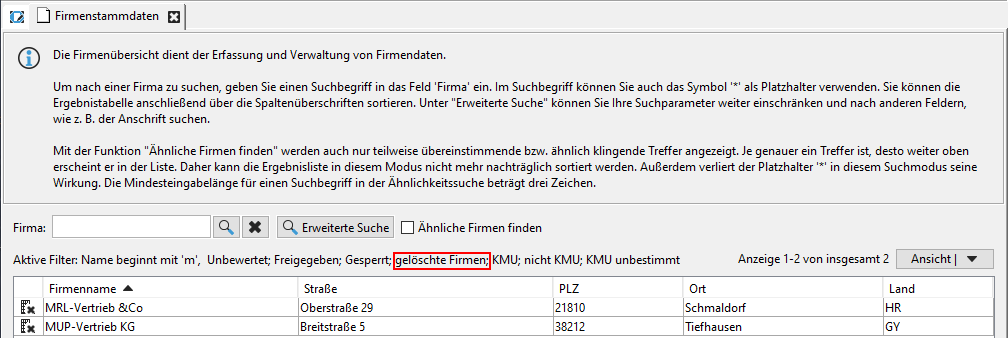
A deleted company is displayed with a red x when the filter Deleted Company is selected in the Advanced Search.
Inviting a Company to the AI TENDERINGPLATFORM
A company created in AI TENDERINGMANAGER can be invited to register on the AI TENDERINGPLATFORM. To do this, double-click the record in the company overview or open the company details using the Edit button. Then, click the Invite to Platform button at the bottom of the Company Data tab.
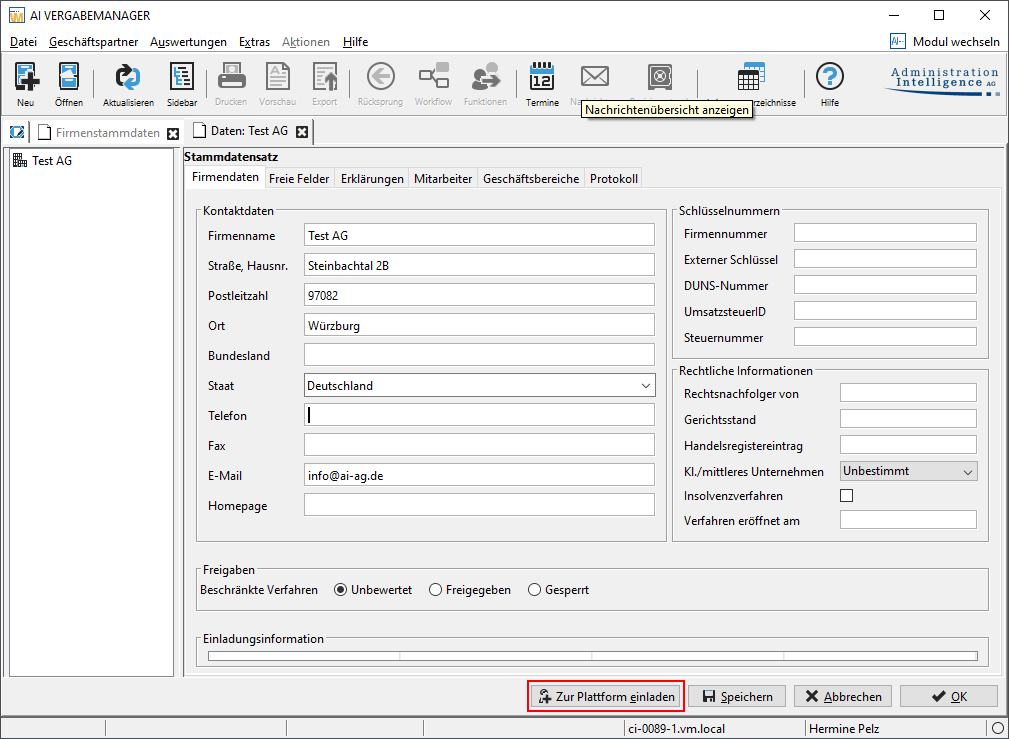
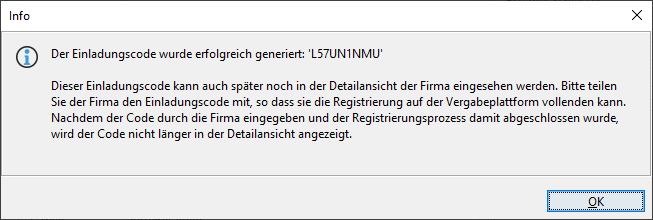
A new invitation code will be generated, which must be forwarded to the respective company so they can use it to identify themselves on the AI TENDERINGPLATFORM. At this point, the Invite to Platform button will be deactivated.
Hint
The invitation code can be sent multiple times via the context menu in the Invitation Information table.

The invitation code is automatically sent along with the company data to the AI TENDERINGPLATFORM, where the respective company can register. The company will also receive an email notification.
During registration, the company can enter the invitation code.
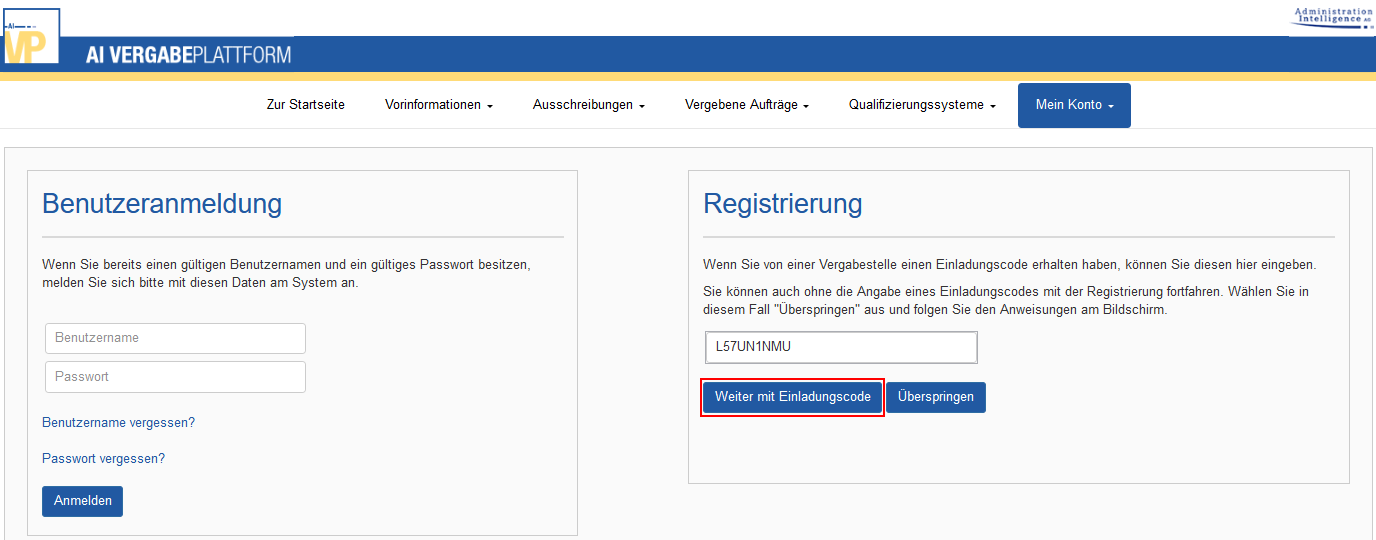
After registration, the recorded company data will be transferred to AI TENDERINGMANAGER and linked to the existing company master record.
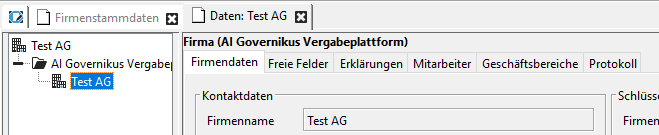
The external company record cannot be modified in AI TENDERINGMANAGER. However, you can adjust the entries in the master record to match the external company data.
Hint
The AI COMPANYMANAGER provides a convenient comparison function for this purpose.
Info
Upon customer request, the administration settings can be configured so that an invitation code is automatically generated when creating a company in AI TENDERINGMANAGER or AI COMPANYMANAGER, eliminating the need for the Invite to Platform button.
Due to the integration of AI TENDERINGMANAGER with the V24-II platform, companies created in AI TENDERINGMANAGER or AI COMPANYMANAGER are automatically created as companies on the V24-II platform.
Info
Upon customer request, AI TENDERINGMANAGER can be configured to prefill the corresponding registration form on the AI TENDERINGPLATFORM with existing data for a company that has received an invitation code. The company will be prompted to enter the invitation code after confirming the link in the invitation email. They will then have access to the prefilled registration form.
ASP Capabilities of the AI TENDERINGPLATFORM
Info
This function is only available if your AI TENDERINGMANAGER customer model has been adapted accordingly.
With the implementation of ASP capabilities in AI TENDERINGMANAGER, companies are assigned to organizational units. This allows users from different organizational units to manage separate company master data records with corresponding access and read permissions.
Hint
If a user belongs to multiple separate organizational units, they can filter the displayed company master data using the Organizational Unit filter in the Advanced Search window.

Certifications from the AI TENDERINGPLATFORM
If AI TENDERINGMANAGER is connected to an AI TENDERINGPLATFORM and the corresponding function is enabled, bidders can upload procurement-relevant documents such as declarations, certificates, and proofs on the AI TENDERINGPLATFORM, making them available to the connected awarding authorities.
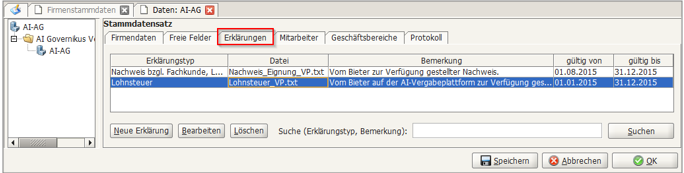
These documents can be viewed (depending on the configuration) in the company master record or company data record and can be edited or deleted if necessary.
Tipp
In edit mode, click the corresponding record and select the Declarations tab.
Business Sectors from the AI TENDERINGPLATFORM
If AI TENDERINGMANAGER is connected to an AI TENDERINGPLATFORM, bidders can assign their company to various business sectors on the AI TENDERINGPLATFORM.
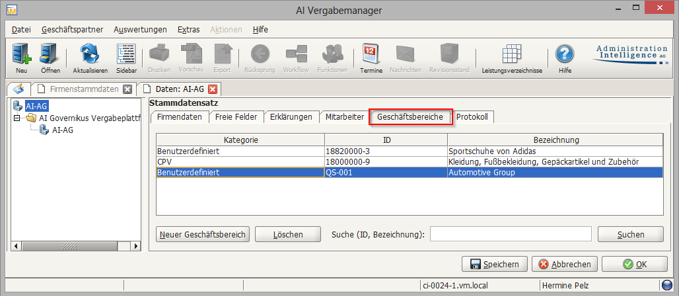
If the business sector selected on the AI TENDERINGPLATFORM is also available in AI TENDERINGMANAGER, it will be assigned to the corresponding category (e.g., CPV code). If a bidder selects a business sector on the AI TENDERINGPLATFORM that does not exist in AI TENDERINGMANAGER, it will either be ignored or assigned to a new user-specific category, which—if it does not yet exist—will be automatically created in AI TENDERINGMANAGER, depending on the system configuration.
Business sectors from user-defined categories can be assigned to other company master records in AI TENDERINGMANAGER. The Advanced Search function can also be used to search for these entries at any time.