Create Items
Select one of the following options to create a new item in the BQ:
- In the New toolbar (2), point to the Position button. The list of available items expands downwards. Select an entry.
- In the Outline view (3), right-click on the Bill of quantity icon or on one of the outline levels. In the context menu, select NEW... - POSITION.
- The same context menu can also be called up by right-clicking on the table area (4).
The numbers in the round brackets refer to the areas in the figure Bill of quantities.
The following input fields are available for completion by default:
| Field | Description |
|---|---|
| No. | Number of the item in the BQ. Is assigned automatically and depends on the sorting in the BQ. |
| Description | mandatory field : Short description of the item (max. 65 characters). |
| Long description: Detailed description of the item. | |
| Position is optional | Option field prefilled with No: The position is only possibly commissioned, but increases the estimated value in the BQ. The decision for or against is only made in the evaluation phase. A group always contains at least one item that is not optional. At the customer's request, it is also possible to create a group consisting only of optional items. |
| Quantity | mandatory field : Order quantity for item. |
| Unit | mandatory field : Order unit for item - Free text entry possible or select from the list by clicking on the LUPEN symbol. Is pre-assigned with piece. |
| Estimated net price in euros | mandatory field : Estimated value for net price per unit. |
| Estimated gross price in euros | mandatory field: Estimated value for gross price per unit. |
| VAT (%) | mandatory field: VAT rate in percent. Will be validated. Warning message for invalid tax rate. |
| Price unit | Mandatory field: Price unit for item - fraction of the item price, i.e. the item total is divided by this value. Is set to 1 by default. |
| CPV code | European classification standard (Common Procurement Vocabulary - CPV). Can be selected from a list by clicking on the MAGNIFYING GLASS symbol. |
| Attachments | Click on the PAPER CLIP icon to add a file attachment that contains further information on the item and becomes part of the tender documents. Use the middle icon to display the contents of the file and delete the file using the last button. |
If you need to enter several items, it is advisable to use the table view (4) of the bill of quantities. Here you can quickly navigate and copy between the items and their properties using the keyboard.
| Keyboard code | Function |
|---|---|
| [UP ARROW] | Move one cell up or to the previous column. |
| [RETURN] | One cell down or to the next column. |
| [TAB] | [TAB] |
| [SHIFT] + [TAB] | One cell to the left or to the previous row. |
| [CTRL] + [X] | Cut the selected cell content and copy it to the clipboard. |
| [CTRL] +[C] | Copy selected cell contents to the clipboard. |
| [CTRL] +[V] | Paste contents of clipboard. |
Generic Five-Factor Position
In order to be able to tender any service, there is a generic five-factor item in the bill of quantity. It consists of a maximum of 5 usable factors, with the help of which almost all calculations can be mapped. The total sum of the item is calculated using the following formula
Each of the five factors is optional and can be activated via the Use factor checkbox. The field Factor(value and name/unit) is then a mandatory field and is multiplied by the result from Price per price unit.

Info
Activate the BIDDER'S INFORMATION checkbox if the entry in the field should only be made on the bidder's side. In this case, it becomes a mandatory field on the bidder's page.
Click on Percentage to additionally multiply the factor in the calculation of the item amount by 0.01, i.e. to display percentage values.
If Divide by specification is activated, the number in the respective factor will be in the denominator in the calculation of the item amount or it will be multiplied by 1/factor.
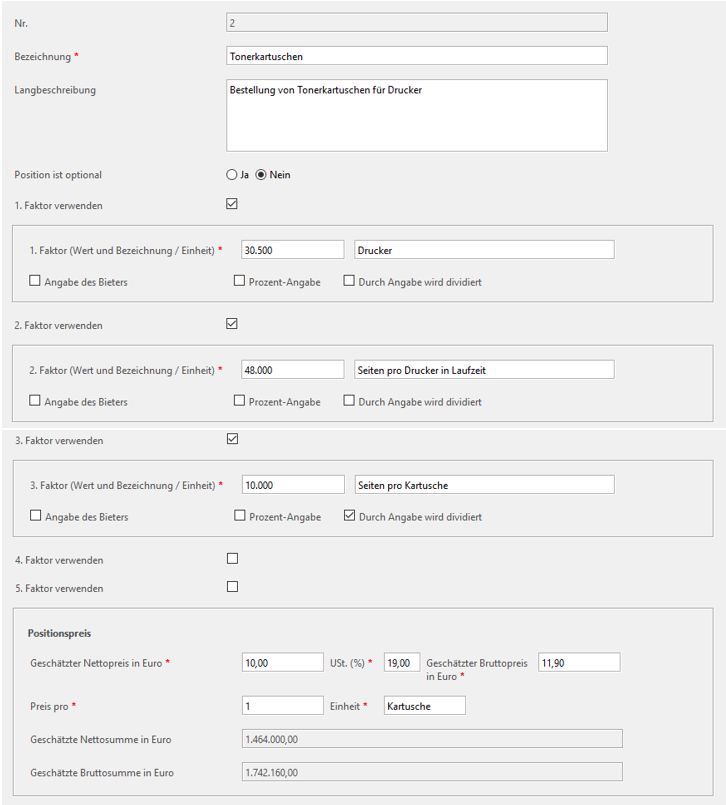
Application example: Toner cartridges
Specialist Positions
An alternative to the normal items are the specialist item types, which can be conveniently called up from the New toolbar (2). They are briefly explained below.
Fixed Amount and Monthly Costs
The total cost of the item is made up of a one-off purchase price and the ongoing monthly costs, e.g. copying or printing equipment is to be purchased for which a monthly maintenance fee must be paid over the term.
Calculation:
Example:
Monthly costs
The total costs of the item result from the ongoing monthly costs, e.g. for the rental of copying or printing equipment, which are incurred over the entire term.
Calculation:
Example:
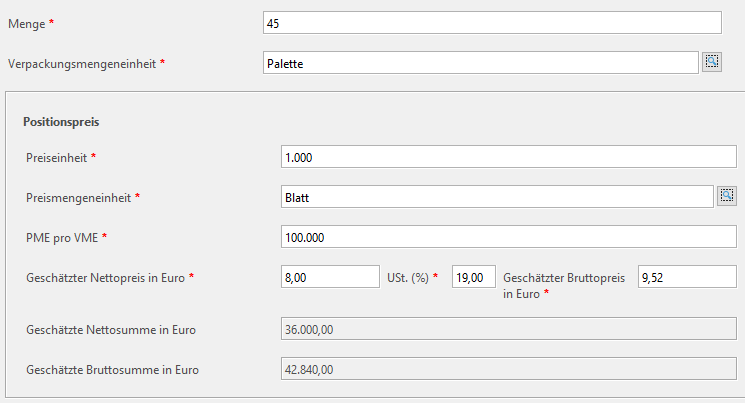
Packaging and Price Unit of Measure
Items for which different units of measure and price units are required for calculation, e.g. paper or office supplies tenders.
Abbreviations
| Abbreviation | Meaning |
|---|---|
| VME: | packaging unit |
| PME: | price unit |
Calculation:
Example:
Cleaning Service
Item for the tendering of maintenance cleaning services.
Total formula
Calculation steps
The parenthesis in the total formula represents the number of hours per month, which is calculated using the following formulas
This results in:
The final amount of the item is calculated by multiplying this number of hours by the hourly rate and the duration of the service:
Below you will find a numerical example with the corresponding input fields at item level to explain the formula.
number example

Framework Contract Item
This item is used exclusively in framework agreements and differs from the normal item by three input fields.
| Field | Description |
|---|---|
| Minimum order quantity | Minimum order value. Used to calculate the estimated item price if the estimated order quantity remains empty. |
| Estimated order quantity | Order value that is expected to be ordered. |
| Maximum order quantity | Highest order value of the item. |
Free Text Item
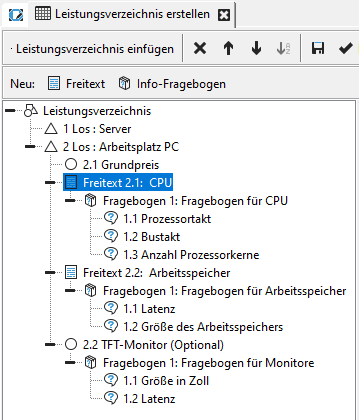
Another special form of item is the free-text item. These elements can be inserted at item, lot, group and BQ level. They are used for structuring within the service to be tendered.
The following is an application example for free text:
Tip
Free text items can also be inserted at the top level of the bill of quantities for lot splits. They are then counted independently of the lot number range. From the second level, a new number range is started for each entry on the first level, regardless of whether it is free text, questionnaires or lots.
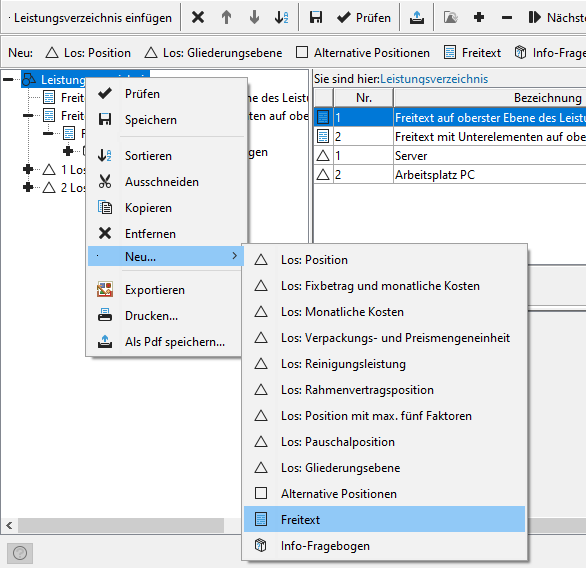
In addition to their own description and outline number, free text elements only have one optional input field, the long description .
Negative prices
Info
This function is only available if the customer model of your AI TENDERINGMANAGER has been adapted accordingly.
The AI TENDERINGMANAGER can also process negative prices in order to be able to carry out procedures in which redemption items are used.
Application examples for negative prices are
-
Tender for the dismantling of a server system, with the possibility of recycling the resulting material. The bidder can enter a negative value for this item in the bill of quantity. The amount to be paid by the awarding authority is automatically processed during the check and evaluation in AI TENDERINGMANAGER.
-
Tendering for track dismantling work with the possibility for the bidder to receive proceeds from the sale of scrap iron. This is indicated in the BQ with a negative number for the item disposal of scrap iron.