Sign-Off
In order to reproduce the division of work and hierarchization of work processes that are common in administrations, there are so-called sign-off steps in AI TENDERINGMANAGER.
If the next step is a sign-off, the processor of the previous task is informed which sign-off steps are pending and by whom they are to be carried out.
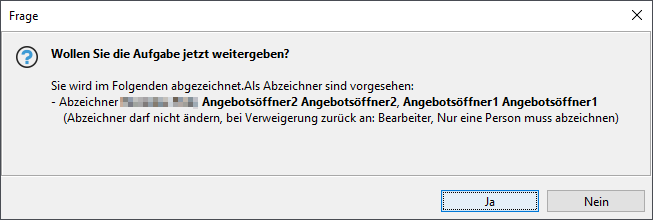
Click on No to cancel the forwarding of the task to the signatory.
With Yes, the task is placed in the task inbox of the supervisor or other defined users for approval and appears there with an additional note about the sign-off.
The signatory opens the task by double-clicking on it. As a rule, they cannot make any changes, they can only read the form. If changes are necessary, the signatory sends the form back to the editor using the Reject button. This automatically opens a comment field in which a reason must be entered.
Info
A comment can also be entered during the sign-off. This information is saved without being communicated to the processor. To do this, the signatory checks the box Add comment.
If the data in the form is correct, the task is removed from the task inbox using the sign-off button. The signatory also receives information about the next task in the workflow and which employee is processing it.
If an activity with several sign-off levels is rejected, all previous signers receive a message with the reason for the rejection.
Parallel Sign-Off
Info
This function is only available if the customer model of your AI TENDERINGMANAGER has been adapted accordingly.
If desired, it is possible to perform the sign-off steps in parallel. In this case, however, all users must sign off.
Unlike in the standard system, in this case the forms and workflow steps no longer have to be signed off by the signatories one after the other. All signatories receive the form in their task inbox at the same time. If one signatory completes the sign-off, the task does not disappear for the other signatories, i.e. they can all work on it at the same time. Only when the step has been signed off by all those responsible can the process be continued. This significantly shortens the workflow because there is no need for one signatory to wait for another.
If a signatory rejects the signature, the activity is returned to the person who forwarded the task for signature.
Signing PDF Documents
Info
This function is only available if the customer model of your AI TENDERINGMANAGER has been adapted accordingly.
In addition to the digital signature in the course of a sign-off, the AI TENDERINGMANAGER also offers the option of electronically signing print templates, such as the surcharge letter, and then checking this signature.
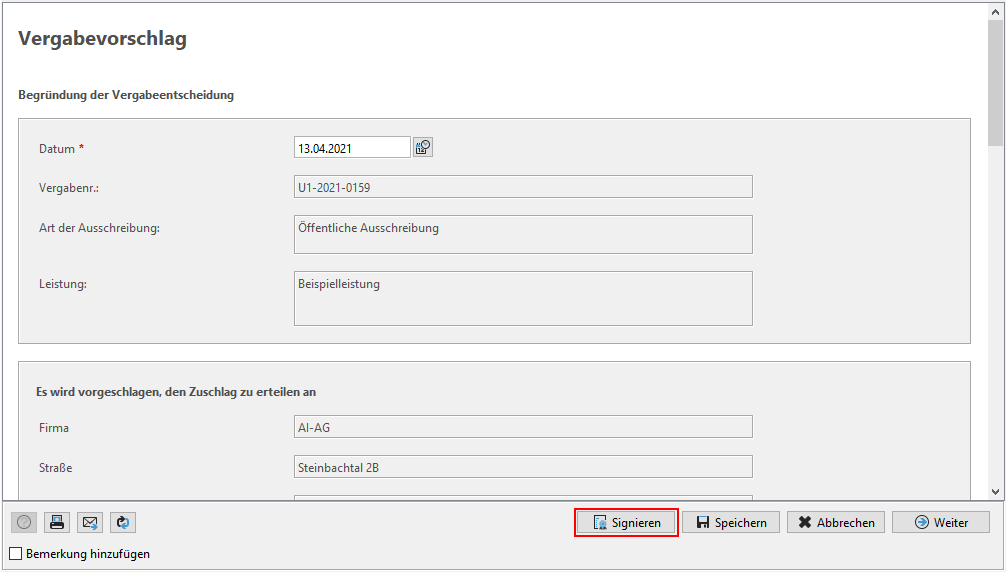
Signing can also be done separately from sending such a letter, i.e. the print template signed in an earlier workflow step is sent to the bidder as an attachment to a message. Further information on this can be found in the chapter Message overview.