Bidder Notification in the Workflow¶
Messages to bidders and interested parties can be sent in two different ways:
-
At any time during the procedure using the menu command BUSINESS PARTNER – SEND MESSAGE TO PARTICIPANT. These messages can also be provided with an attachment. If the attachment is to be signed, this must be done using an external application before adding it to the message. Further information on messages can be found in the chapter message overview.
-
In a specific workflow step of a procedure. This is how letters are sent that are an integral part of every procurement procedure and that must also comply with a certain form due to their legal relevance, such as letters of rejection or notification of the award of the contract.
Some of these bidder notifications from the workflow are described in more detail below.
Notification of Unsuccessful Bidders¶
In EU procedures, unsuccessful bidders must be notified in accordance with Section 134 (1) GWB. A comprehensive function is available for this purpose, enabling you to send an individual rejection to each unsuccessful bidders.
In the national procedure and in the EU procedure following a separate application by the bidders, the notification of the unsuccessful bidders in the national procedure takes place after the final award of the contract in accordance with § 19 VOL/A or § 46 UVgO or in the EU procedure in accordance with § 62 VgV.
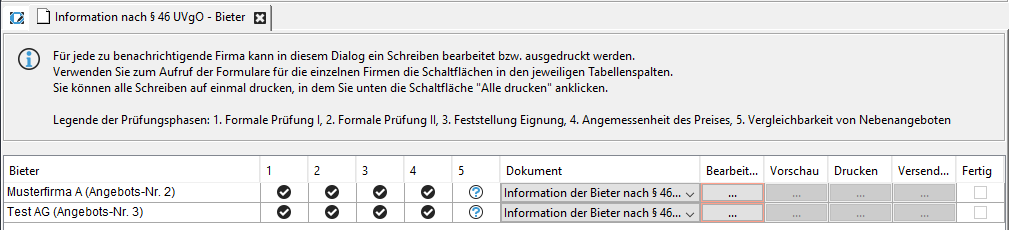
test
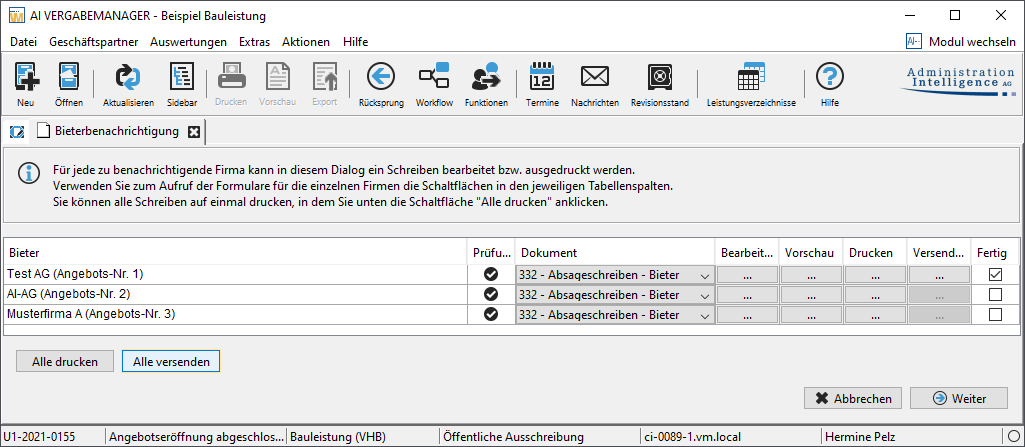
The column headings in the Offer Notification table have the following meaning:
| Column | Value |
|---|---|
| Bidder | Bidder's name and location. |
| Check | The individual results of the respective check phases, usually Formal check (during the opening of tenders) Formal check of the tenders Check of the bidders's suitability Check of the bidders's capacity Check of the bidders's reliability Check of the adequacy of price Comparability of alternative tenders |
| Template | List of available templates. |
| Edit | Open the form for individual entries to the bidder. |
| Preview | Open the stored program for checking the print output of the form, e.g. Adobe Reader for PDF forms. |
| Open the print dialog window. | |
| Send | Opens the input window for e-mail messages. This is only active for bidders with electronic offers. |
| Done | Check box for marking print jobs as completed. |
To edit the individual information for each bidder, click the button with the three dots in the Edit column. The rejection form will open, where you can enter individual entries for each bidder. Save your entries and click OK to return to the overview. Then click the button with the three dots in the Print column. The print dialog window opens.
The letters of rejection that have already been printed are displayed in the project tree as part of the digital procurement file.
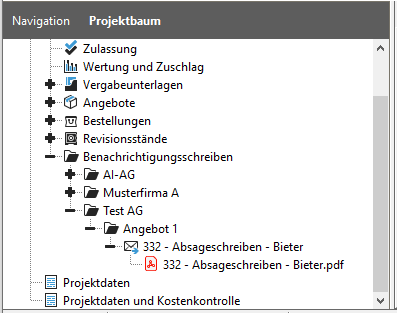
Access can be restricted by setting read-only rights. If no read-only rights are set, the rejection letters can be viewed by anyone who opens the award procedure.
Click on the button with the three dots in the Send column and then on OK if you want to send the rejection to the bidder as an attachment to an e-mail. The Send message to participant window opens.
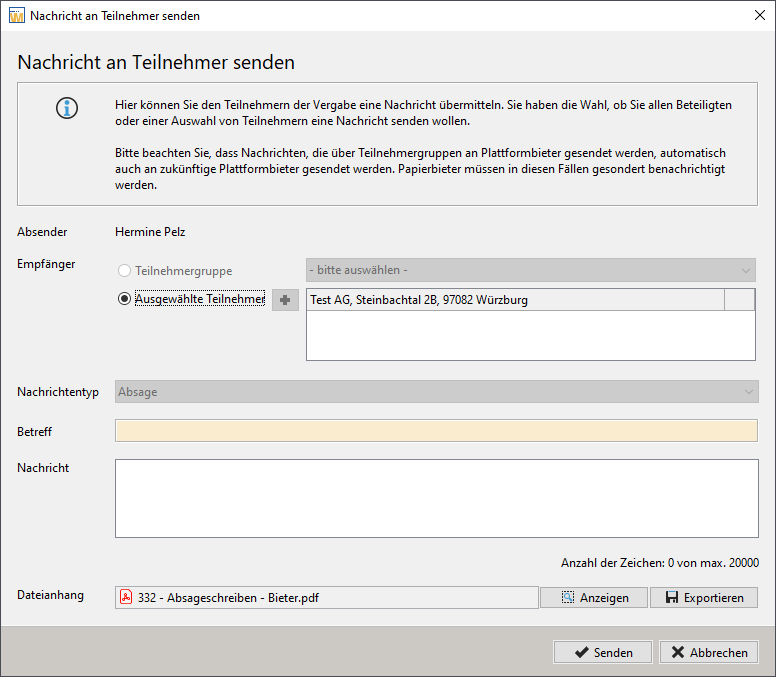
Before sending the messages, you can use the corresponding buttons to display or export the attached file.
The same function is also available for other notifications to the bidders, e.g. for the request for documents.
Info
If the contracting authority has provided for this and the AI TENDERINGMANAGER has been adapted accordingly, it is possible to send or print further documents from the procedure in addition to the notification letter. In this case, the documents are combined in the form of a ZIP archive.
Signature of Bidder Letters¶
Info
If AI TENDERINGMANAGER has been customized accordingly, it is possible to sign certain notification letters before sending them.
This signing process is explained below using the example of a cancellation.
In the Information about cancellation workflow step, click the three dots button in the Send column. The Send message to participant window opens.
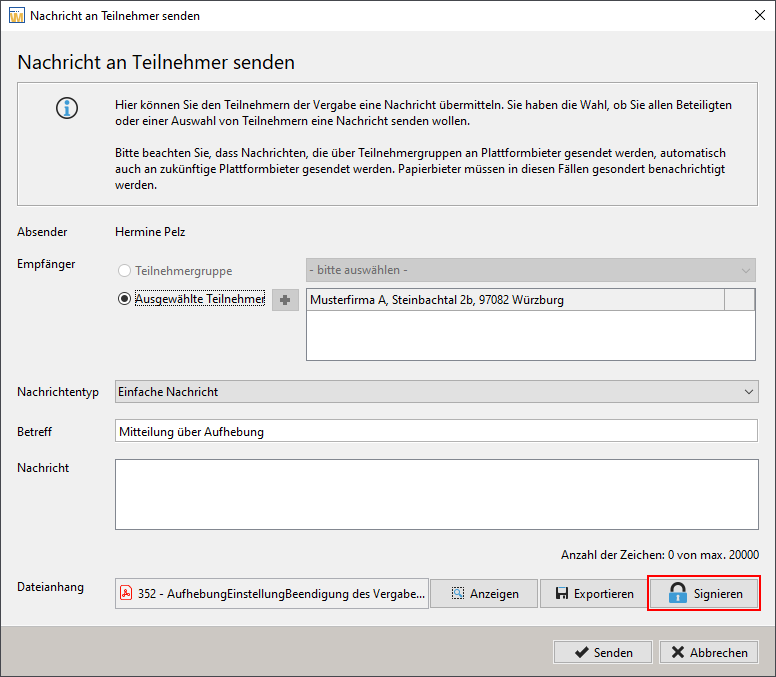
Click the Sign button here and select the desired signature component from the list.
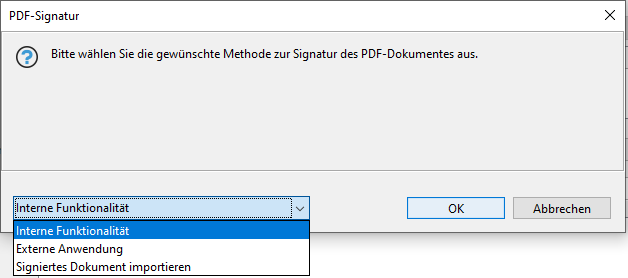
You can choose between the internal signature provided by with a signature card or soft certificate, or you can use an external application to apply the signature. The third option in the list refers to importing the signed document in the case of multiple signatures. These three options are briefly described below.
Signature with Internal Functionality¶
After you have decided to use the internal signature component provided by AI TENDERINGMANAGER, further information is displayed in the Sign Form window.
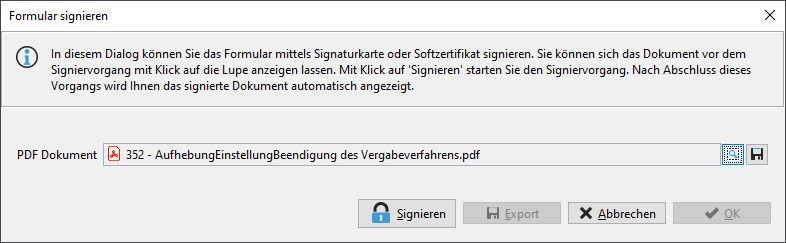
Click on the Sign button here and select the desired type of internal signature.
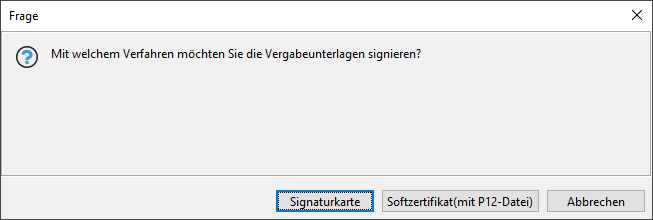
Signature with Signature Card¶
For the qualified electronic signature, you need a card reader and a valid signature card that is supported by AI TENDERINGMANAGER.
Click on the Signature card button to start the signing process. Select the certificate in another window and follow the on-screen instructions. You will be prompted to enter your PIN in another window.
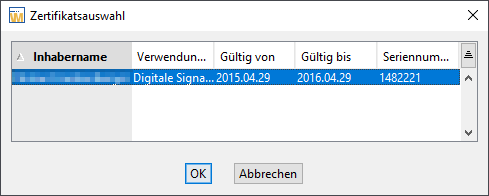
After applying the qualified signature, the signed document is displayed in the Send message to participant window.

You can use the View button to check the signature again before sending the message.
Signature with Soft Certificate¶
AI TENDERINGMANAGER also supports advanced digital signatures with soft certificates.
Click on the Soft certificate (with P12 file) button in the Select signature method window, then select your certificate file in. p12 format and click on Open.
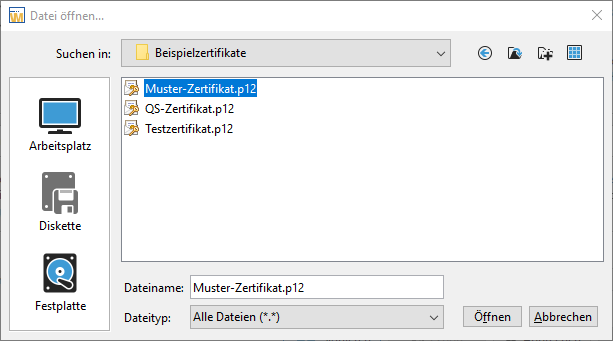
You will then be prompted to enter your password in another window.
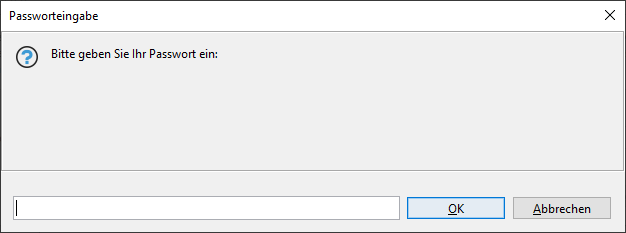
After applying the advanced signature, the signed document is displayed in the Send message to participant window.
You can use the View button to check the signature again before sending the message.
Signature with External Application¶
If you select External application in the Select signature component window, you must first save the cover letter in the location of your choice in the file system. The following window will then be displayed:
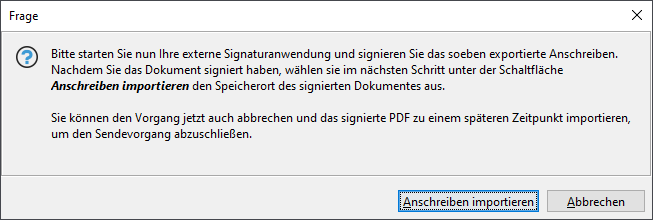
At this point, you can decide whether you want to apply the external signature immediately and add the signed document to your message using the Import cover letter button, or you can interrupt the process with the Cancel and postpone sending the message to a later time.
If you decide on the first option, the Send message to participant window will be displayed after the signed document has been added.

You can use the View button to check the externally signed file again before sending the message.
Multiple Signatures with Interruption¶
If a cover letter is signed multiple times, it may have to be made available to other persons. In such cases, the signed cover letter is sent in two independent steps.
In the first step, select External Application in the Select Signature Component window and export the corresponding PDF document. The following dialog for importing the signed document can be closed with the Cancel button.
After applying all the required external signatures, start the sending process via the Send column in your workflow step and select the Sign button here.
This time, in the PDF Signature window, select Import Signed Document from the list and click OK.
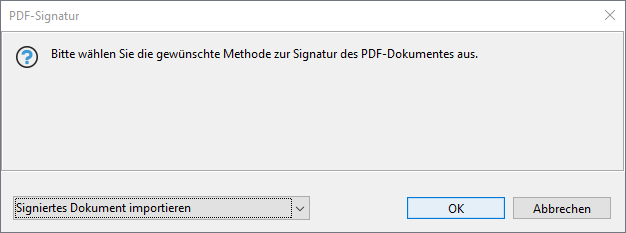
After adding the multi-signed document, the Send message to participant window is displayed.
You can use the View button to check the externally signed file again before sending the message.
Attachments in the Bidder Cover Letter¶
The winning letter sent to the successful bidder often includes additional files that were added to the letter as attachments while the form was being processed.
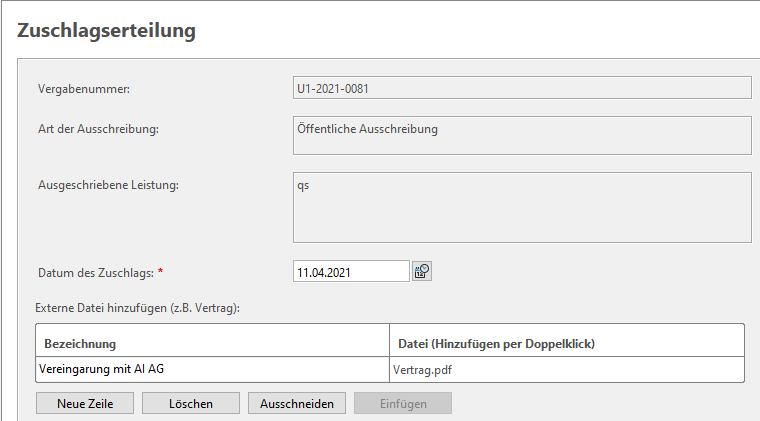
In this case, all attachments are attached to the bidder message together with the letter of acceptance in a ZIP archive.
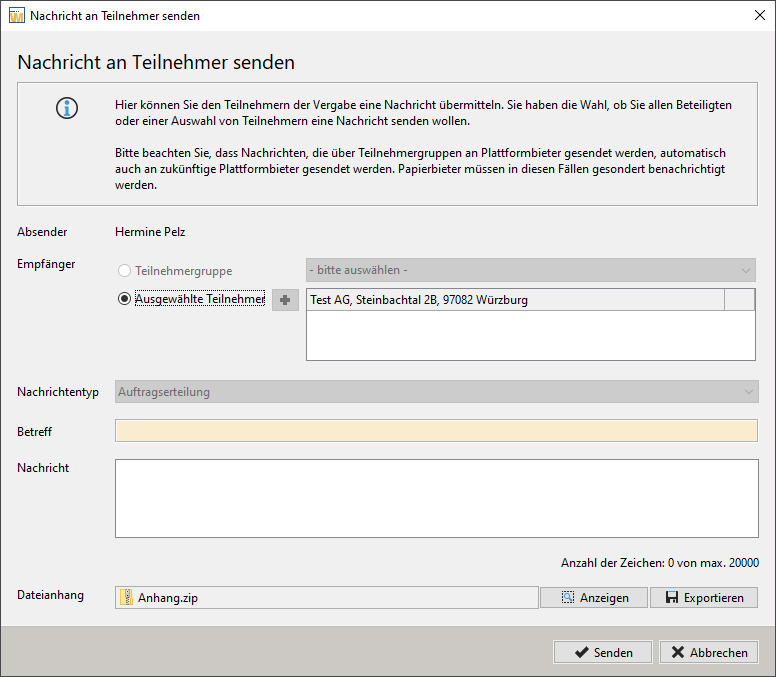
During signing, regardless of whether it is done via the internal component or an external application, only the PDF letter is signed, not the added attachments.
Tip
If a signature is also required for the attachments, you must do this with an external application before uploading them to the form.
Before sending, you can view the contents of the ZIP archive by clicking on the View button.
