Direct Purchase
According to Section 3 (6) VOL/A or Section 14 UVgO, services up to a contract value of EUR 500 may be procured without a procurement procedure, taking into account the budgetary principles of efficiency and economy.
The direct purchase award type in AI TENDERINGMANAGER is designed to be lean and efficient - in line with the legislator's intentions - so there is no need to solicit bids from bidders, which regularly leads to delays. The short workflow only serves to document the direct order process.
The following processes are included in the direct purchase:
-
The requisition office orders a requisition item with a value of up to 500 euros.
-
The person responsible for awarding contracts creates a direct purchase awarding process in AI TENDERINGMANAGER. The decision in favor of this award type is documented in the process.
-
market and price research is carried out outside of the AI TENDERINGMANAGER via the Internet or telephone.
-
Product-related information on the process (e.g. safety data sheets or technical information), the terms of delivery and payment (place of delivery, method of payment, payment term) are negotiated directly with the supplier in question. The supplier's general terms and conditions are accepted.
-
The person responsible for awarding the contract documents the result of the search and negotiation in the direct purchase note in the AI TENDERINGMANAGER and prepares an award proposal.
-
The awarding of the contract is documented in the awarding process of the AI TENDERINGMANAGER. If necessary, the data is transferred to a merchandise management system.
-
The order is triggered.
Recording the process in the AI TENDERINGMANAGER ensures that all direct purchases can be processed transparently and with a low risk of corruption. In addition, this procedure allows the contracting authorities to report on these purchasing activities.
Create Direct Purchase and Enter Order Items
Select one of the following options to create a new direct purchase:
-
Click on New in the toolbar and select Direct Purchase from the list.
-
Select the menu command FILE - NEW - DIRECT PURCHASE.
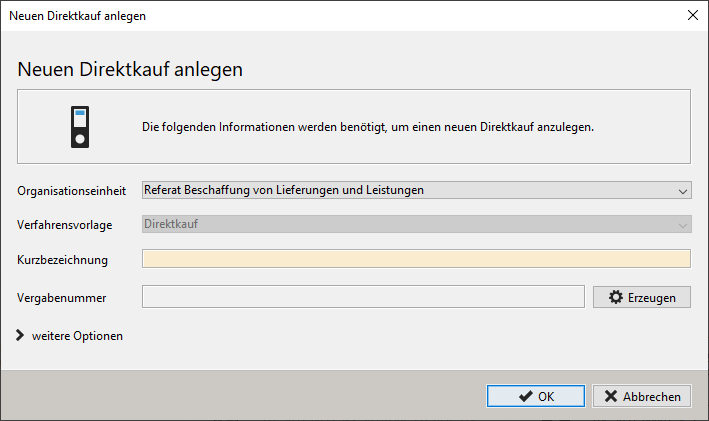
Enter a name for your direct purchase in the short name field. The entry in the short name field corresponds to the file name of the tender. It is displayed in the Title line when the award procedure is open and in each task in the TASK INPUT. Select the short name so that you and other parties involved in the award can quickly find the direct purchase and cannot confuse it.
Then click on Create to generate an award number according to the specifications of the stored file number generator.
Click on More options to display less frequently used input fields.
You can also assign the new direct purchase to an existing project. To do this, click on the button with the magnifying glass symbol to the right of Project. A list of all existing projects is called up, from which you can make a selection. Click the black X button next to the magnifying glass to cancel the selection. The AI TENDERINGMANAGER then creates a new project together with the new direct purchase.
In the Service field, describe the service to be provided. This field is generally used for correspondence in print templates as Subject or Heading.
In the Direct purchase form, most of the fields are already pre-populated. Enter further information about your direct purchase here and add additional files if required.
The Next button takes you to the next workflow step, which allows you to easily create the bill of quantities without estimated prices:
-
Quick and convenient entry of items with automatic numbering
-
Switch between simple and complex view of the bill of quantities with various subdivision options within groups and lots
Select Contractor
In the next automatically called workflow step, you will be shown a list of all company master data available for selecting the contractor for direct purchase. All functions of the Bidder selection module (see chapter Bidder selection in restricted procedures) are fully available here.
Accept the desired company from the list from left to right by clicking on the small right arrow between the areas.
Evaluate Offers
The next step within the module must be started manually and consists of entering the awarded offer.
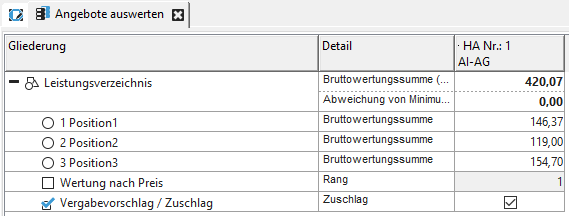
Click on the New quote button at the bottom of the window, select the contractor from the list and enter the prices for the individual items in the bill of quantities. You must then activate the checkbox for Surcharge to complete the workflow step.
Award Note - Award of Contract
This form contains, in addition to the most important information of the direct purchase, the possibility to add a date of the award as well as a reason and other external files.
Order Form
The last workflow step in this module contains the order form for the awarded offer, with the option of adding a date for the start and completion of the service as well as a further justification. The order form can be printed or saved as a PDF file.