Procedure with Participation Competition
Procedures with participation competition are two-stage procedures in which participants are determined after a competition and invited to submit their offers.
In the first, public stage of the procedure, the participation competition documents are published on the procurement platform, and the applications for participation received by post are recorded, or electronically submitted applications are decrypted and reviewed.
Hint
The awarding authority has the option to decide whether the entire procurement documents (including the specifications) are already published in the first stage of the procedure.
The publication dialog for this first stage of the procedure includes an additional column Participation Competition alongside the two columns for the announcement and procurement documents.
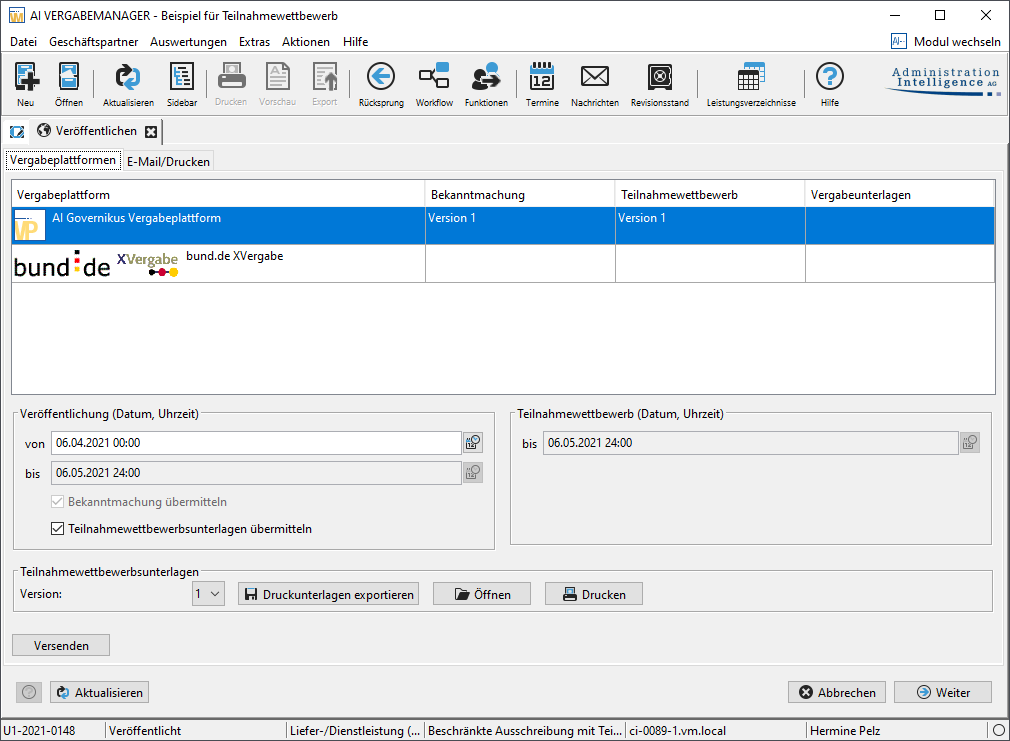
Sending the Participation Competition Documents
In the workflow step Send Participation Competition Documents, you can record additional applicants to whom the documents should be sent by post.
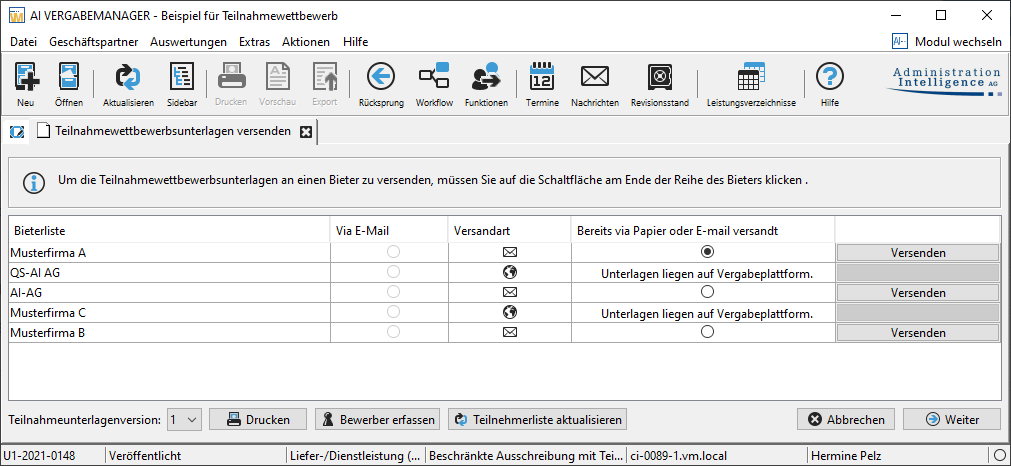
Click the button Record Applicant in the form control bar to record a new applicant for the documents.
The window Record Participant for Participation Competition will open.
Select the participant from the list. If the participant has not yet been recorded, they must first be created via the menu command BUSINESS PARTNERS – COMPANY OVERVIEW. A detailed description of this function can be found at Company Master Data.
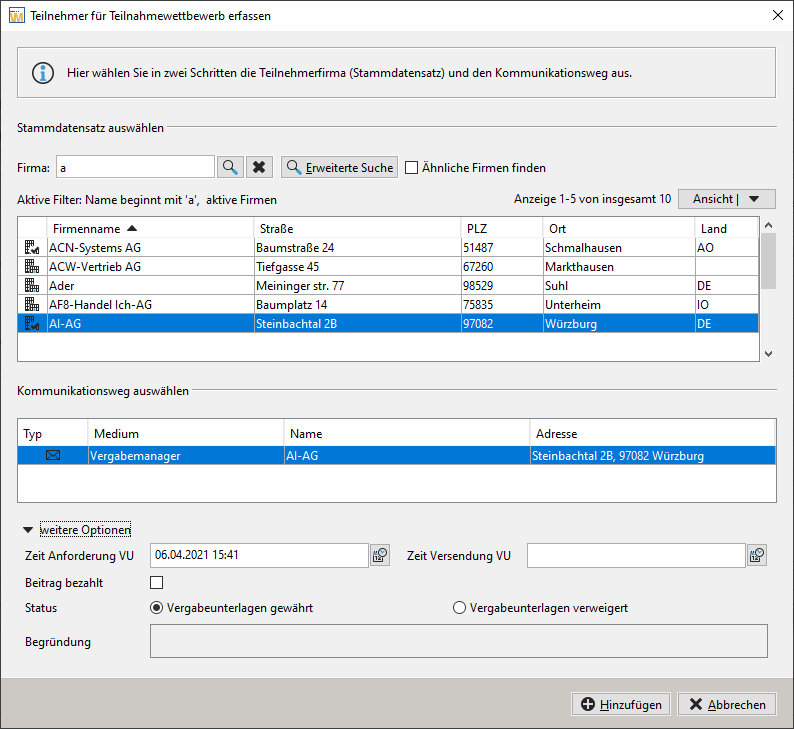
After selecting the applicant in the upper part of the window, the corresponding data records are displayed in the lower section under Select Communication Method with the Company. The letter icon represents a data record manually recorded by the contracting authority.
Select the desired participant and enter the date of Request and Dispatch of the procurement documents. The Status section of the window allows you to deny an applicant the participation documents, after you have mandatorily recorded a reason for this decision. Save the details using the button Add.
Then you must send the procurement documents to manually recorded participants by clicking the button Send on the right in the name list. The procurement documents will be displayed and can be printed individually. In the column Already Sent via Paper or E-Mail, these participants are marked with a colored dot in the options field. For all applicants registered on the platform, the competitive bidding documents are available on the connected platform.
Warnung
Please note that a manually recorded participant is only considered invited if the procurement documents have been printed for them!
Participant Overview
Call up the Participant Overview of your procedure from the Business Partners menu.
Häufige Frage
If a small warning triangle  is displayed next to an entry in the participant overview, the participant data differs from the data recorded in the AI TENDERINGMANAGER master record or, if no master record exists, from the company data in the external system. This can occur if the company data in the external system or the master data is changed after the participation date.
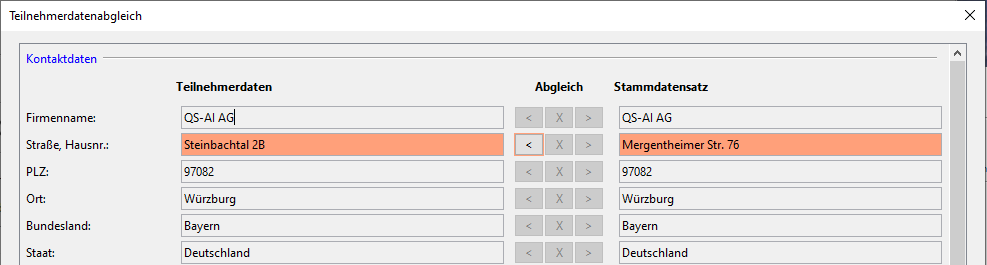
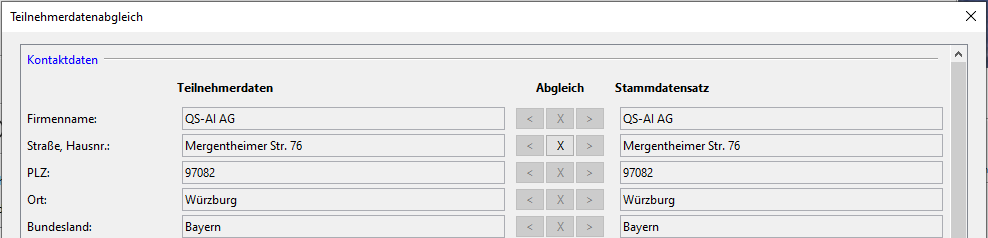
Mark the corresponding row and click the button Data Reconciliation. The window Participant Data Reconciliation contains an overview of the participant’s field contents and the corresponding company data record. Differences in field contents are highlighted in color, and you can transfer values from the master record or the external company data record to your participant data on the left side if necessary. Click the small left arrow in the corresponding row to do so. The values are transferred from right to left. If necessary, you can undo the changes using the X button.
Info
For contracting authorities that must not know the identities of participating companies until the submission deadline for participation applications, AI TENDERINGMANAGER can be configured so that applicants in a procedure are displayed in the overview, but all identifying data is replaced with the word "Concealed." In such anonymized procedures, the number of participants is known, but not their identities.
Recording Participation Requests
Open the task Open Participation Requests in your task inbox.
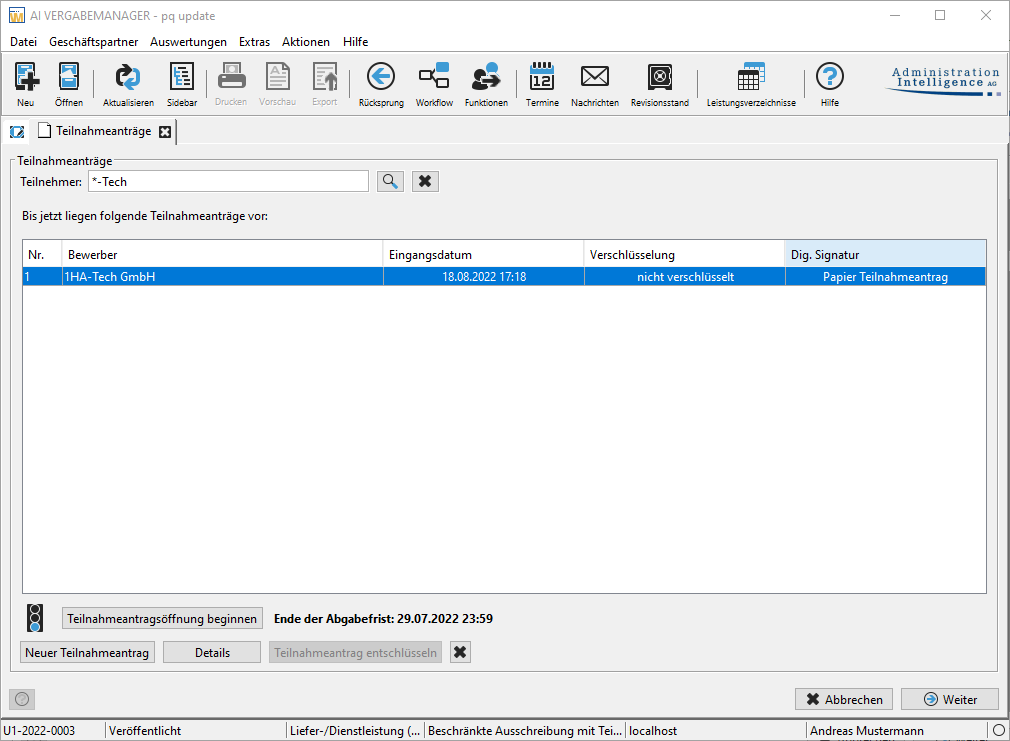
To start opening the participation requests, you must press the button Start Participation Request Opening.
Info
You can recognize the receipt of electronic participation requests by the fact that they are already listed and that the column DIGITAL SIGNATURE does not contain the value "Paper Participation Request".
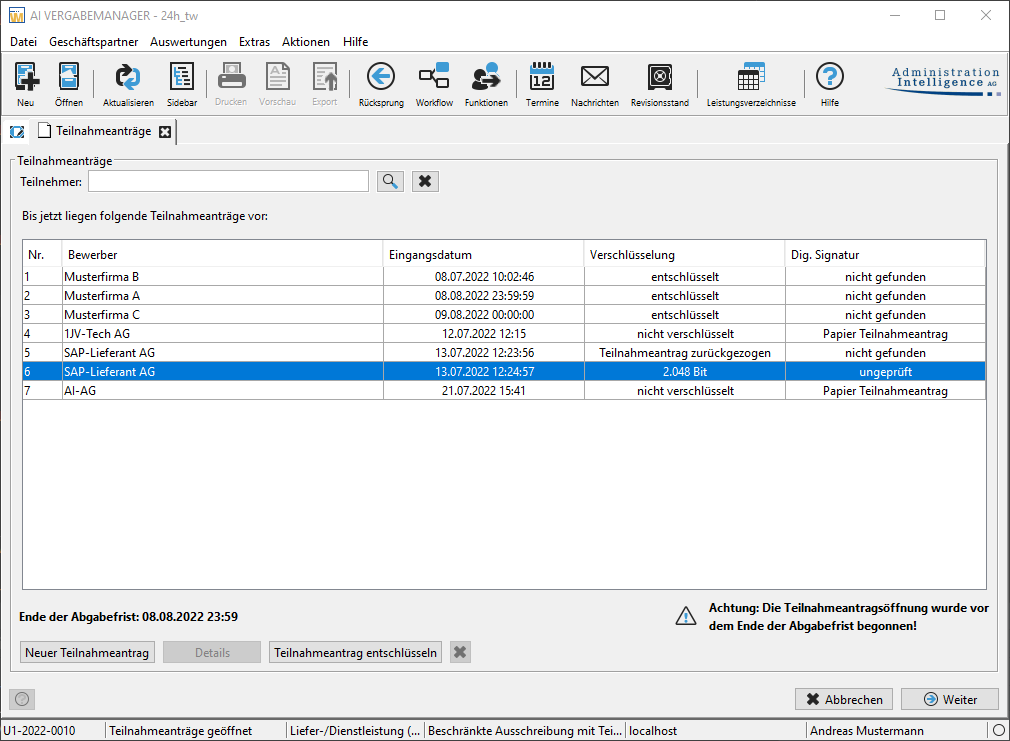
Select the participation request to be opened and click the button Decrypt Participation Request.
You will now be prompted to enter the key generated during publication. Upload or import the first private key. Repeat this process for all electronically received participation requests until the button Decrypt Participation Request is disabled (the text will turn gray).
Info
In anonymized tenders, where the identity of the participating companies must not be known until the participation requests are opened, the de-anonymization of participants can be initiated using the button REVEAL PARTICIPANT LIST.
To capture written participation requests, first click the button New Participation Request, enter the Receipt Date and, if applicable, the Application Date, and then click the button Select Applicant in the Participation Request review window.
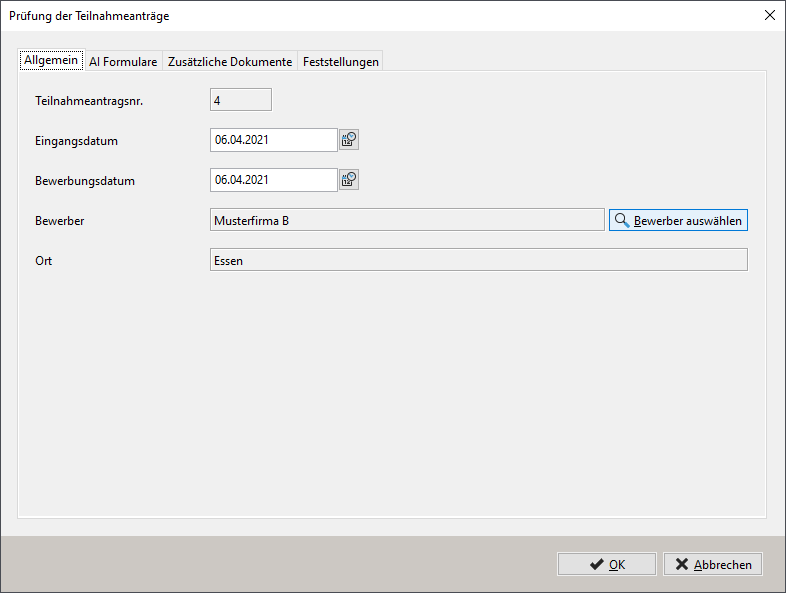
Select the applicant either directly from the list of previous applicants or switch to the Record Participant for Participation Competition list using the button New Applicant. Refer to the description of this function under Sending Participation Competition Documents bzw. Company Master Data.
After selecting an applicant, click Add to fully capture the request. The following tabs are available:
| Tab | Description |
|---|---|
| General | General applicant data is captured here. The participation request number is automatically assigned. |
| AI Forms | AI Forms are specifically designed for completion in the AI BIDDINGCOCKPIT. Data from these forms can be extracted and transferred directly into the AI TENDERINGMANAGER. |
| Additional Documents | All files added by the applicant are located here. |
| Assessment | Documentation of formal criteria: timely submission, proper signature, completeness of documents. |
| Signature | Only for electronic participation requests. Information on the included signature and the status of the certificate used. |
Examination of requests to participate
By default, the applicants in the overview table are sorted in the order in which they were entered. Requests to participate are checked in a matrix that contains the review criteria for the request for participation, analogous to the bid review. The dialog can only be saved and closed if all the necessary justification fields have been filled in.
Covering letter to the bidders
The procurement documents in the two-stage procedure are transmitted in the same way as in the restricted procedure. This makes it easier to see which bidders are invited via which medium.
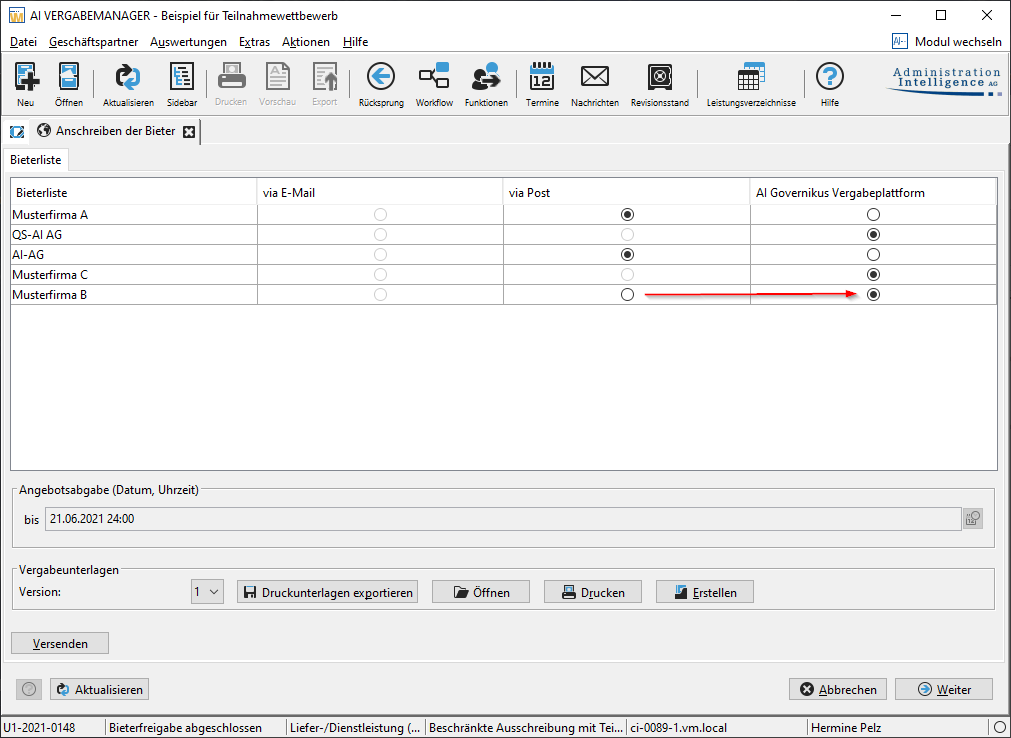
The means of communication of an admitted company to be invited to submit a tender in a two-stage procedure can be determined by the contracting authority. For example, it is possible to switch to electronic communication and the electronic request for tenders even if a request to participate has previously been submitted in paper form.
Tip
The prerequisite for the electronic request for tenders is that the bidder is registered on the AI TENDERINGPLATFORM at that time. So, when the request to participate is being entered, check whether the company is registered on the AI TENDERINGPLATFORM and, if necessary, invite them to create a user account, referring to the upcoming electronic request for tenders. Further information on inviting companies to register on the platform can be found at inviting a company to AI TENDERINGPLATFORM.