Dynamic Procurement System
This procedure consists of two related procedure types, the actual dynamic procurement system (DP) and the associated individual orders (DP EA).
The Dynamic Procurement System is a single-stage procedure with a relatively long duration of 3 to 5 years. This one stage is mapped in AI TENDERINGMANAGER as a participation competition, i.e. with a contract notice, participation competition documents and electronic submission of requests to participate. This DP procedure is sent to the EU and all desired national platforms. The application for inclusion in the procurement system can be carried out via AI BIETERCOCKPIT, comparable to the submission of a request to participate in a conventional, two-stage procedure.
The individual order of a dynamic procurement system also consists of only one stage in AI TENDERINGMANAGER, which is similar to a single-stage, restricted procedure containing all current participants of the higher-level DP. Any number of individual orders can be started simultaneously as long as the dynamic procurement system is running. The dynamic procurement system can be terminated even if some individual orders have not yet been completed.
The two process types are explained below in a process overview.
Create Dynamic Procurement System
Select one of the following options to create a new dynamic procurement system:
-
Click on New in the toolbar and select the entry Dynamic Procurement System from the list.
-
Select the menu command FILE - NEW - DYNAMIC PROCUREMENT SYSTEM.
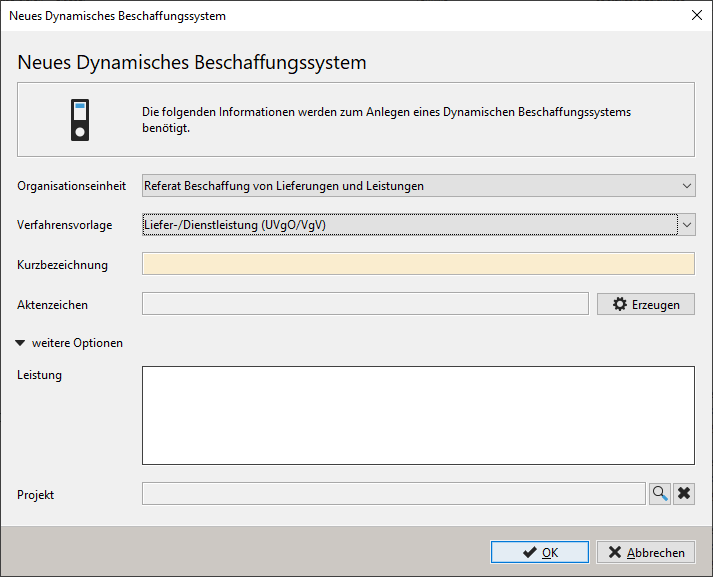
Enter a name for your dynamic procurement system in the short name field. The entry in the shortname field corresponds to the file name of the tender. It is displayed in the Title line when the award procedure is open and in each task in the Task inbox. Select the short name so that you and other parties involved in the award can quickly find the dynamic procurement system again and cannot confuse it.
Then click on Create to generate a award number according to the specifications of the stored file number generator.
Click on More options to display less frequently used input fields.
You can also assign the dynamic procurement system to an existing project. To do this, click on the button with the magnifying glass symbol to the right of Project. A list of all existing projects is called up, from which you can make a selection. Click the black X button next to the magnifying glass to cancel the selection. In this case, the AI TENDERINGMANAGER creates a new project together with the new dynamic procurement system.
In the Service field, describe the service to be provided. This field is generally used for correspondence in print templates as Subject or Heading.
In the Dynamic procurement system form, you can enter the Service field if required. Here you also select the service type of your procedure.
Create Bill of Quantities
In this function dialog, you enter the required items and quantities for your award procedure, the criteria for evaluating the bids and any questions for the bidders. The module makes it easy to create the bill of quantities:
-
Quick and convenient entry of items with automatic numbering
-
BQ display in the contracting authority and bidder view
-
Various validation options for the bill of quantities, including checking the mandatory fields
-
Switch between simple and complex view of the BOS with various subdivision options in groups and lots are possible
A detailed description of this function can be found at bill of quantities.
Cost Estimate and Securing Financing
Use this short form to enter the details for the means test and the result of the cost estimate. The estimated total value of the award procedure should be confirmed and documented here. This estimated value comes from the individual items in the bill of quantity. You can also enter the estimated value in a separate field, independently of the items in the BQ. To do this, activate the YES option in the corresponding Yes/No field below the estimated prices displayed. Three further mandatory fields appear in the form. Enter the net- and gross sum and a reason for the award note.
Data for the Call for Tenders
This form contains a mandatory button Scheduling of participation competition, recognizable by the red frame. This calls up the Deadline and Period Manager function dialog. Set the deadline for submitting requests to participate here. The functions of the deadline manager are described in detail in Deadline manager. End the intermediate step with the button Next.
You return to the initial form. At this point, you also have the option of adding additional documents to the participation competition documents. For more information on file insertion fields, see Forms and function dialogs.
As part of the adaptation to the EU Directive 2014, you can specify the desired signature level and submission medium here. The selection made here will be included in the announcement text and technically stored in the tender documents. The submission of an electronic tender in AI BIETERCOCKPIT is then possible via this specified selection.
Create Questionnaire for Suitability Check
Here you enter your own criteria groups - similar to an evaluation scheme - with criteria that are relevant for the review of requests to participate or tenders. The criteria for the findings when opening the requests to participate or tenders are predefined and cannot be changed here. The exact procedure of the function is described in Flexible request to participate and tender evaluation. Further information on creating an evaluation scheme can be found in rating scheme.
Contract Notice EU
The extensive contract notice form contains information on the contracting authority, the subject of the contract, legal, economic, financial and technical information, the procedure, etc. Most of the fields are already pre-filled. You can check the information in the form in advance using the Print templates and form printout button at the left end of the form control bar. As part of the adaptation to the EU Directive 2014, the SIMAP notification schemes of version 2.0.9. are included in the EU forms. This also contains a link to the tender documents, which are provided on the AI TENDERINGPLATFORM. The registration-free access to the tender documents required by the EU Directive 2014 is complied with by offering interested companies the opportunity to access a special area on the AI TENDERINGPLATFORM without registration, where the tender documents can be downloaded. Messages from the awarding authority to all bidders can also be viewed in this area. You can also make the tender documents available without registration in the two-stage procedure. However, in accordance with the EU Directive 2014, you have the option of deciding on a procedure-specific basis whether registration-free access to the award documents should be prevented if, for example, it is a classified procurement procedure.
Compiling the Tender Documents
You can check the documents for the call for competition before publication and add further documents if necessary. Further information on this function can be found at Compiling the award documents.
Publish Notice
In this step, you send the notice for publication to your tender journals and publication bodies, in particular also to the Official Journal of the EU in the case of EU procedures. You can also send the contract notice and your tender documents to one or more procurement platforms on the Internet. These can be, among others
-
Official Journal of the European Union (via e-sender interface): for EU award procedures.
-
AI TENDERINGPLATFORM**: for national and EU award procedures.
Before publishing an EU award procedure on one of the platforms, you must confirm that you have sent the notice to the Office for Official Publications of the European Communities in accordance with Section 40 EU VgV. A detailed description of the function can be found Publication to the Official Journal of the European Union.
Actions after publication
As requests to participate can be received for the entire duration of the dynamic purchasing system, the workflow remains in the same place after publication and all further steps of the procedure are started via the following actions:
-
Edit contract notice: Calling up the form for the contract notice to record any changes.
-
Publish again (for TW): Call up the publication dialog to resend the amended contract notice to the connected platforms.
-
Correction notice EU: Calls up the publication dialog for sending a correction notice (F14) to the EU.
-
Enter internal documentation notes: Calling up the form for adding internal log files.
-
Request for participation documents: Start a parallel workflow in which messages can be sent to the participants and conversations with the participants can be logged.
-
Open requests to participate: Decrypt the electronic applications and record the applications submitted by post. Further information can be found in Entering requests to participate.
-
Check requests to participate: Check the applications using the check catalog. See also Formal review.
-
Information about rejection of application: Rejected applicants can be informed via this action.
-
Information on admission of application: Admitted applicants receive their commitment to remain in the dynamic procurement system here.
-
Send participation documents: This action can be used to print out personalized participation documents to other applicants without access to the AI TENDERINGPLATFORM.
-
Cancel award procedure: Early termination of the procedure.
Terminate dynamic procurement system
Once the dynamic procurement system has expired, the workflow is continued in order to end the procedure. It is still possible to enter a final revision status.
Create individual order for DP
Select one of the following options to create a new individual order for a dynamic procurement system:
-
Click on New in the toolbar and select the entry Single order for Dyn. procurement system from the list.
-
Select the menu command FILE - NEW - SINGLE ORDER TO DYN. PROCUREMENT SYSTEM.
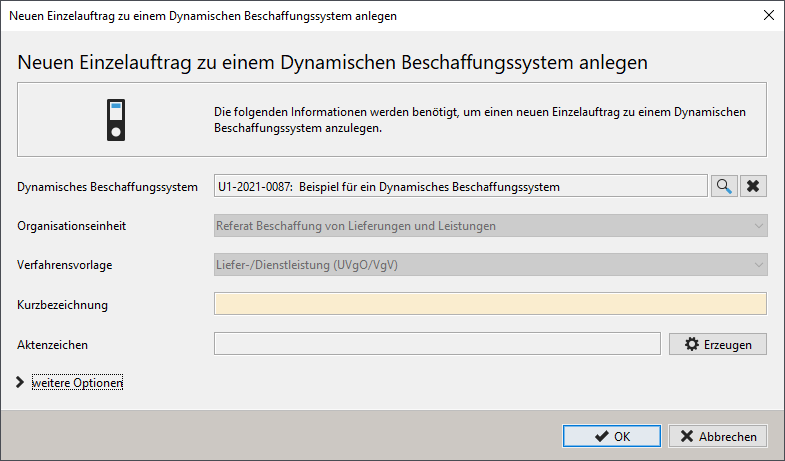
Use the magnifying glass icon to select the desired dynamic procurement system. The fields Organizational unit and Procedure template are taken from the DP and cannot be changed.
Enter a name for your individual order in the short name field.
Then click on Create to generate an award number according to the specifications of the stored file number generator.
Click on More options to display less frequently used input fields.
In the Service field, describe the service to be provided. This field is generally used for correspondence in print templates as Subject or Heading and can be added in the first workflow step of the process.
Process individual order until publication
Most of the workflow steps prior to publication contain information that has been transferred from the higher-level dynamic procurement system. You can add to or change these values as required. The following steps of the individual order are affected by this:
-
Revise bill of quantities: Calling up the bill of quantities from the DP to enter any changes for the individual order.
-
Scheduling: Calling up the Deadline and Period Manager with the proposed deadlines for the individual order, which can be changed if necessary.
-
Request for offer: Call up the EU form of the same name. Enter the possible types of tender submission and the payment terms as well as other relevant information about your procedure.
-
Create suitability criteria: Call up the questionnaire to check the suitability of the bids from the DP in order to record any changes for the individual order.
-
Bidder selection: Here you can specify the participants in your individual order. In contrast to the restricted procedure, only the current participants of the higher-level DP are displayed on the left-hand side. The first time this step is called up, all participants of the DP released at that time are transferred to the right-hand side. Before the tender documents have been published, you can remove individual companies from the right-hand side. After publication, this is no longer possible. You can subsequently add the removed companies or newly added participants from the DP to the right-hand side and also send the tender documents to these new participants.
-
Letter to bidders: In this dialog, you send the award documents to the selected bidders for your individual contract. The lower section of this function dialog is identical to the dialog for publication in a public invitation to tender. In the upper part of the window, the list of selected participants is displayed instead of the list of Internet platforms. The selected communication channel (post or awarding platform) is preset for each participant. After clicking the Publish button, the window for printing the award documents is called up for each via post applicant. If not all participants have been selected from the DP, you will receive a corresponding message the first time you publish.
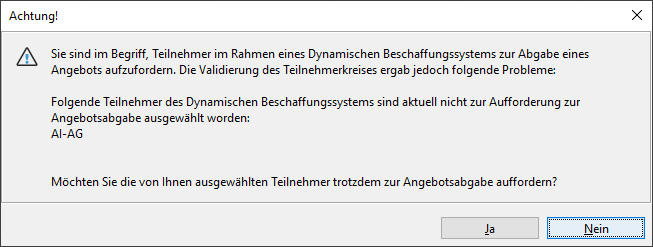
Warning when publishing the VU for the first time</figcaption
All further workflow steps of an individual contract after publication of the tender documents are identical to those from a public EU procedure. Further information on the supply/service procedure can be found at Public invitation to tender (national) or open procedure (EU) or for the construction works procedure for Public invitation to tender (national) or open procedure (EU)