Management of Bills of Quantities
Info
This function is only available to you if the customer model of your AI TENDERINGMANAGER has been adapted accordingly.
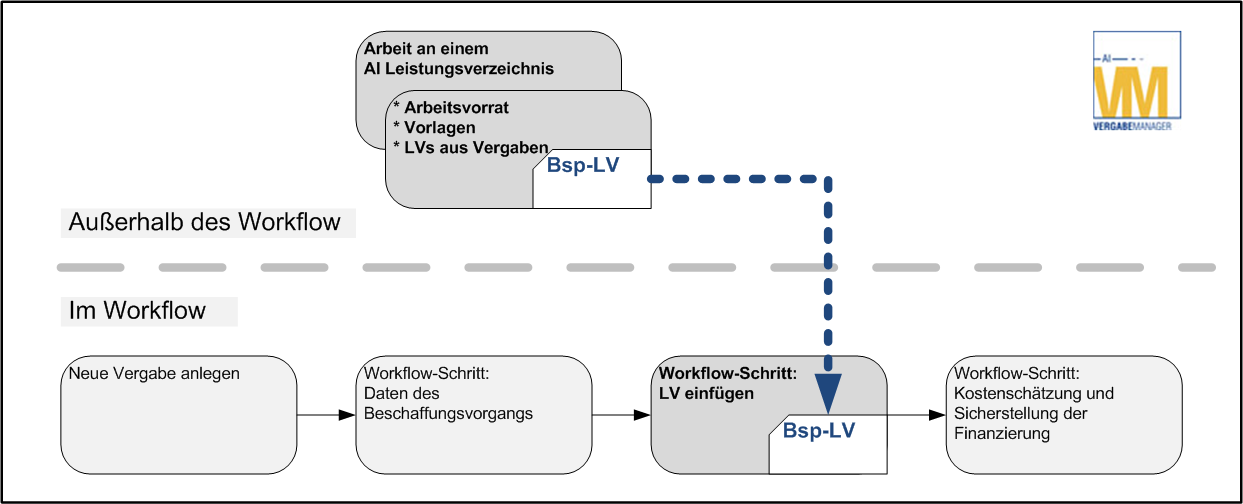
The flexibilized work with bills of quantities means that you can create and manage a bill of quantities completely independently of an ongoing award procedure, without already knowing in which specific procedure it is to be used. Creation begins at the first sign of need and ends when the bill of quantities is required in a specific procedure.
The Administration Areas
This function provides you with three areas for comprehensive management of bills of quantities:
-
Existing procedures
An area that contains all previously used bills of quantities, sorted by procedure template. This allows you to conveniently search for old bills of quantities and copy them either to your personal worklist or to the Examples and samples area for further processing.
-
Examples and samples
Central area for templates that can be accessed jointly (client-wide). The bills of quantities in this area can be copied to the personal worklist for further processing.
-
My worklist
Personal area that can only be viewed by the logged-in user. Here you can define your own folder structure in which you store work statuses, drafts and proposals. Once you have completed a bill of quantity, you can move it to the Examples and samples* area.
Select one of the following options to access the bill of quantities area:
-
Click on Bills of quantities in the toolbar.
-
Select the menu command FILE - OPEN - BILL OF QUANTITY.
-
Select the menu command EXTRAS - BILL OF QUANTITY.
The Bills of quantities tab is opened.
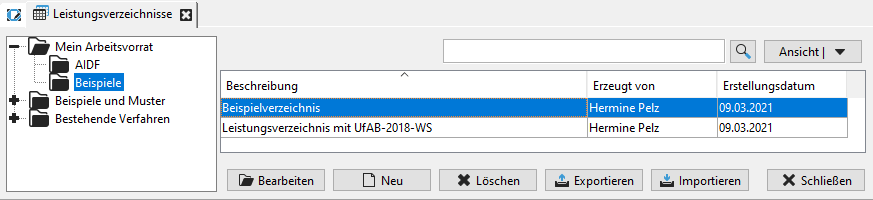
Click on the individual folders in the left-hand area to display their content on the right-hand side. You can easily move individual or multiple bills of quantities with the mouse. Please also read the notes Editing bills of quantities.
Info
A context menu is also available via the right mouse button for editing folders or bills of quantities.
Edit Bills of Quantities
The My worklist area contains the bills of quantities that you have created or that you have added from the other areas for editing. You have full access rights in this area. You can create and remove folders, edit, copy, delete or move the bills of quantities.
The buttons and icons in this tab have the following meanings:
| Button | Meaning |
|---|---|
  |
Full text search of the displayed bills of quantities for the term in the input field to the left of the magnifying glass or delete the filter. |
 |
Select the columns that are available for display in the overview of the bills of quantities. Pre-assigned with the columns DESCRIPTION, CREATED BY and DATE OF CREATION. |
 |
Calls up the selected bill of quantities in edit mode. This is only active in the MY WORKING LIST area. |
 |
Creates a new standard bill of quantities. Is only active in the area MY WORKING DIRECTORY. |
 |
Removes the selected bill of quantities. Is only active in the area MY WORKING INVENTORY. |
 |
Exports the selected bill of quantities as a ***.lv** file for import into another award procedure within the AI TENDERINGMANAGER. |
 |
Calls up the BQ Import window for importing an external bill of quantities. Further information on the supported file formats can be found in Import. Is only active in the area MY WORKING DIRECTORY. |
 |
Calls up the selected bill of quantities in display mode. Is only active outside of the MY WORKING LIST area. |
 |
Closes the bill of quantities tab. |
Info
The FILE-NEW-BILL OF QUANTITY menu command provides you with another option for creating a new procedure-independent bill of quantity in the MY WORKING LIST area.
Insert Bill of Quantities into a Procedure
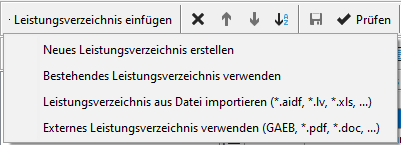
The main function of BQ flexibilization comes into play when you reach the process point in a running process in which the bill of quantities is created. Using the Insert bill of quantities button, you can choose whether you want to create a new bill of quantities, insert an existing bill of quantities from the bill of quantities management into the procedure, import a bill of quantities or use an external bill of quantities.
Use External Bill of Quantities
To do this, select the lowest list entry of the Insert bill of quantities button, select the corresponding file in the Open file window and click Open. The file is added to your tender documents and displayed in the form.
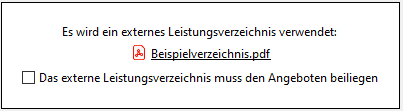
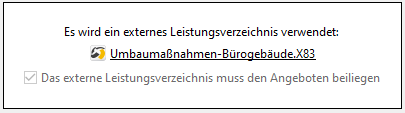
By clicking on the file name, you can open and check the external bill of quantities again. If you activate the checkbox under the file name, the external bill of quantities is automatically attached to an offer. In the case of a GAEB file, this checkbox is activated by default.
The external bill of quantities is automatically added to your tender documents and can be viewed at any time via the project tree.
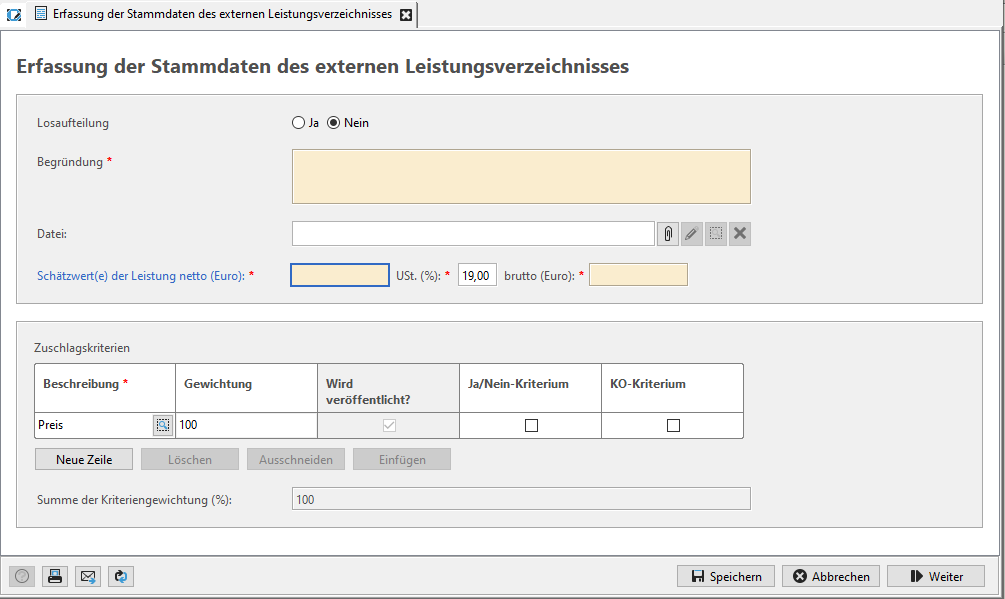
In the next workflow step, you must enter the estimate value , the award criteria and the details for the lot split for processing in the.