Report Manager
Access to the report manager is available to users for whom a special user right has been activated.
Call up the report manager in AI TENDERINGMANAGER via the menu command EVALUATIONS – REPORT MANAGER.
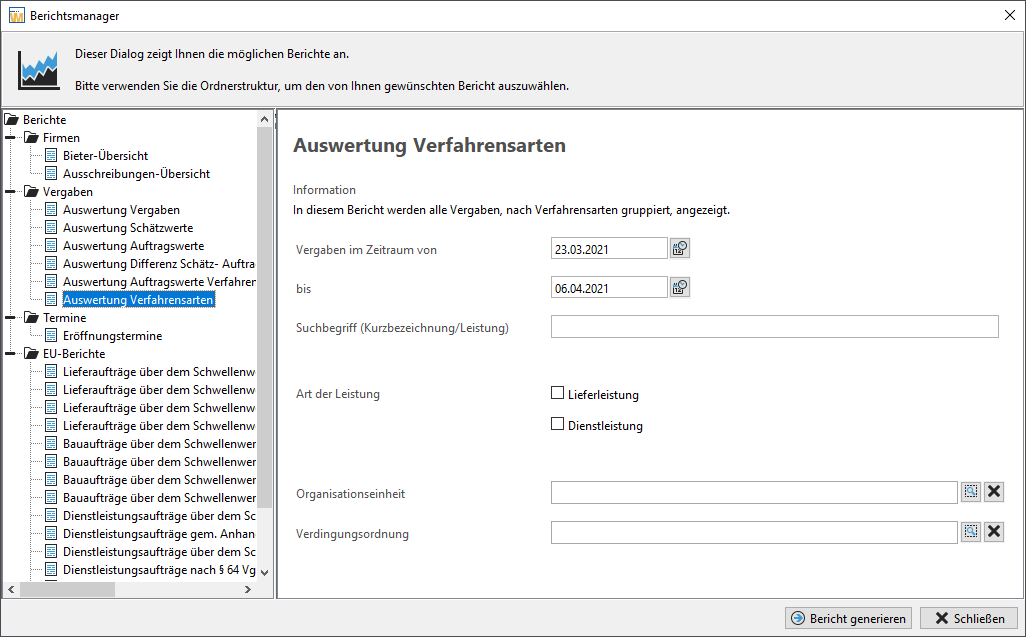
On the left side of the window, you will see the available evaluations, organized by category. The input form for the parameters and filter criteria for the selected evaluation opens on the right. For some reports, parameters may be mutually exclusive. Therefore, only the possible setting fields are displayed.
For certain evaluations, the sorting of the results list can also be set.
The following example shows how to work with the report manager using an evaluation of the procedure types. A report is generated that contains an overview of the number and percentage shares of the procedure types broken down by procurement regulations.
In the left-hand structure area of the report manager, under the Awards category, click on the Procedure Types evaluation.
You can now configure the evaluation in detail in the right-hand settings area:
Enter the period for the evaluation manually in the fields Award procedures in the period from or to, or select a date using the miniature calendar to the right of the input field. How to use the calendar is described in Chart Area.
-
You can restrict the evaluation by entering a search term that is contained in the Short description or Service of the award procedures.
-
If necessary, activate the Delivery performance or Service performance, to narrow down the list of results.
-
If necessary, limit the evaluation to certain organizational units. To do this, click the magnifying glass icon, select an entry from the list, and then click OK. You can undo the selection again if you call up the list again and leave it using the Cancel button. The selection field will then be empty again.
-
You can use the same method to limit the evaluation to a specific procedure by selecting an entry in the Contracting Code field.
Start the evaluation by clicking on the Generate report button. Depending on the selection criteria, this step may take a few seconds or several minutes. The results of the evaluation are then displayed as a Word document or in an Excel spreadsheet.
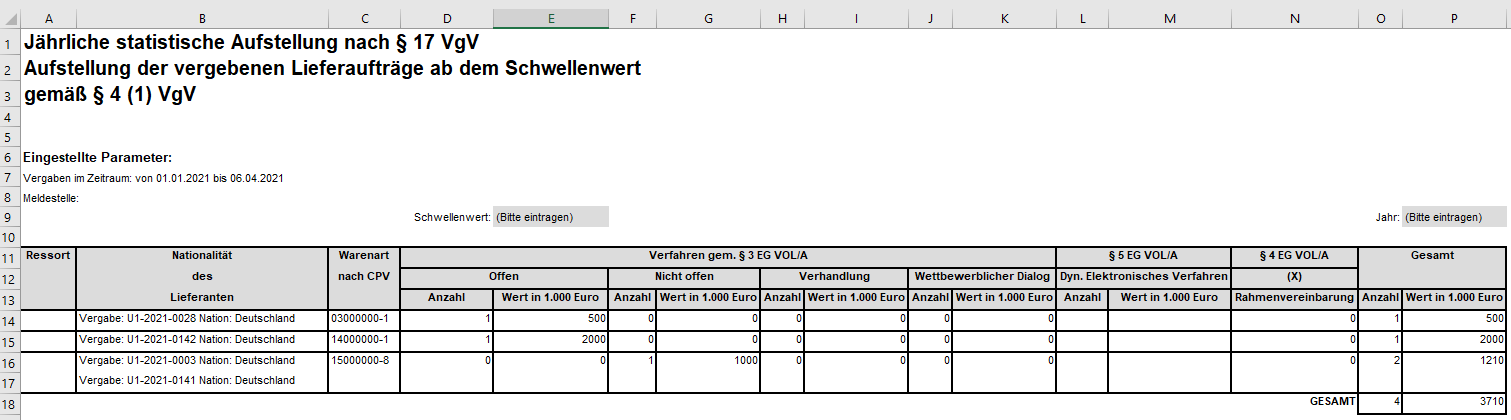
The first page shows the set evaluation parameters. Below that, the overall result of the evaluation is displayed in units and as a percentage.
The following pages contain a detailed list of the number and percentage of each individual process type.
Tip
The report of the evaluation is stored by default in a temporary directory. To save this file permanently, select the command FILE – SAVE AS... and save the document in the desired directory.
You can access and print the reports again at any time.