Price Inquiries
A price inquiry is used for the fully electronic collection of market prices for low-value services as part of a short workflow that maps the process from entry to award with award platform integration.
The advantage of the module lies above all in its simple and uncomplicated application:
-
Intuitive operation.
-
Quick creation of a price request and transmission to selected bidders.
-
The bid documents for the bidder are generated by the system in the background; the bidder only has to fill in the bill of quantity with prices.
-
Neither a signature card nor a reader is required, i.e. bidders without the appropriate signature equipment can also participate in this process.
Create price request and enter order items
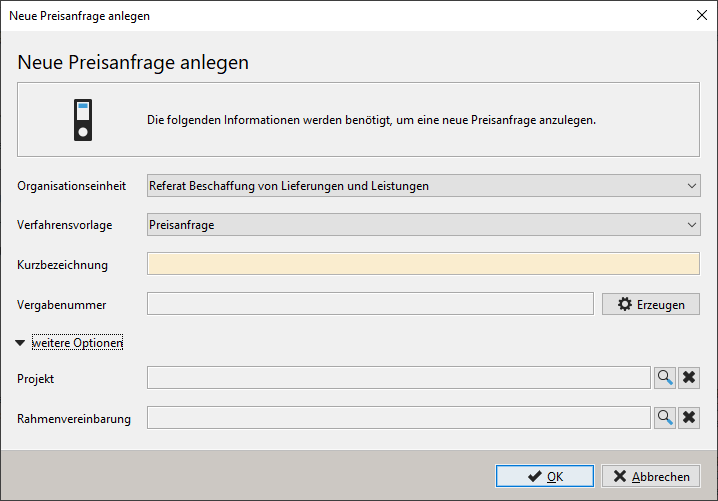
Select one of the following options to create a new price inquiry:
-
Click on New in the toolbar and select the entry Price request from the list.
-
Select the menu command FILE - NEW - PRICE ENQUIRY.
Enter a name for your price inquiry in the short name field.
The entry in the field short name corresponds to the file name of the tender. It is displayed in the Title line when the award procedure is open and in each task in the Task inbox. Select the short name so that you and other parties involved in the award can find the price request quickly and cannot confuse it.
Then click on Create to generate a award number according to the specifications of the stored file number generator.
Click on More options to display less frequently used input fields.
Info
You can also assign the new price inquiry to an existing project or framework agreement. To do this, click on the button with the magnifying glass symbol to the right of Project or Framework agreement. A list of all existing projects is called up, from which you can make a selection. Click the black X button to the right of the magnifying glass to cancel the selection. In this case, the AI TENDERINGMANAGER creates a new project together with the new price request. The assignment to a framework agreement ensures that the request is sent exclusively to the companies participating in the framework agreement. After the price comparison has been carried out, the contract is awarded to the most favorable variant.
The module makes it easy to create the bill of quantities:
-
Quick and convenient entry of items with automatic numbering
-
BQ display in the contracting authority and bidder view
-
Various validation options for the bill of quantities, including checking the mandatory fields
-
Switch between simple and complex view of the BOS with various subdivision options in groups and lots are possible
Select participants
In the next workflow step, the awarding authority is provided with a list of already entered bidder master data for selection for its price inquiry. All functions of the Bidder selection module (see Bidder selection in restricted procedures) are fully available here.
Send price request to participants
After the award documents have been automatically compiled, the price request is published on the award platform, in writing by post or by e-mail, similar to a restricted award procedure. The advantages of this step are
-
Direct deadline entry: the availability date on the platform and the end of the tender period are specified.
-
Automatic generation of the award key in the background without having to start the process manually.
-
Automatic creation of the award documents. If additional files and documents need to be integrated into the award documents, click on the Create button and add the desired files.
Evaluate tenders
The next step within the module is to evaluate the tenders. All offers received by post can be entered using the New offer button. Only the price is used as the evaluation criterion. The user awards the contract by confirming manually.
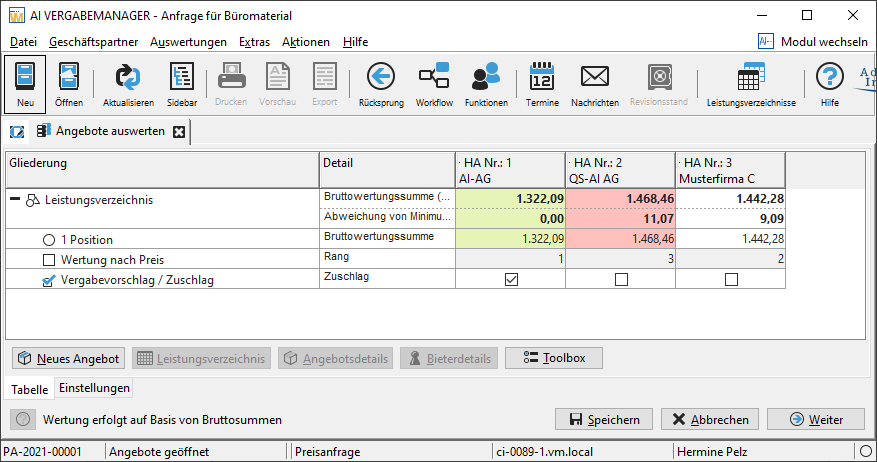
Price requests are procedures with automatic decoding of the bids upon receipt, i.e. there is no bid opening dialog with the option of comparing the consistency of the data with the awarding platform. An additional consistency check has therefore been integrated into the evaluation matrix. It can either be activated via the consistency check button or triggered automatically when exiting the scoring matrix. If differences are detected, the user is informed via a dialog. The user then has the option of decoding the bids that have not yet been decoded and including them in the evaluation.
Award of contract
An award letter is created, printed out and sent to the bidder. Rejection letters to the other bidders are not required. The workflow for this price inquiry is thus completed and no further steps are planned.