Publish Award Procedure¶
The publication of the announcement marks the end of the internal preparations for an award procedure. Publication can only take place once all the necessary approvals have been obtained for all the steps in the process. An award procedure can be published both through the known media and tendering bodies and digitally.
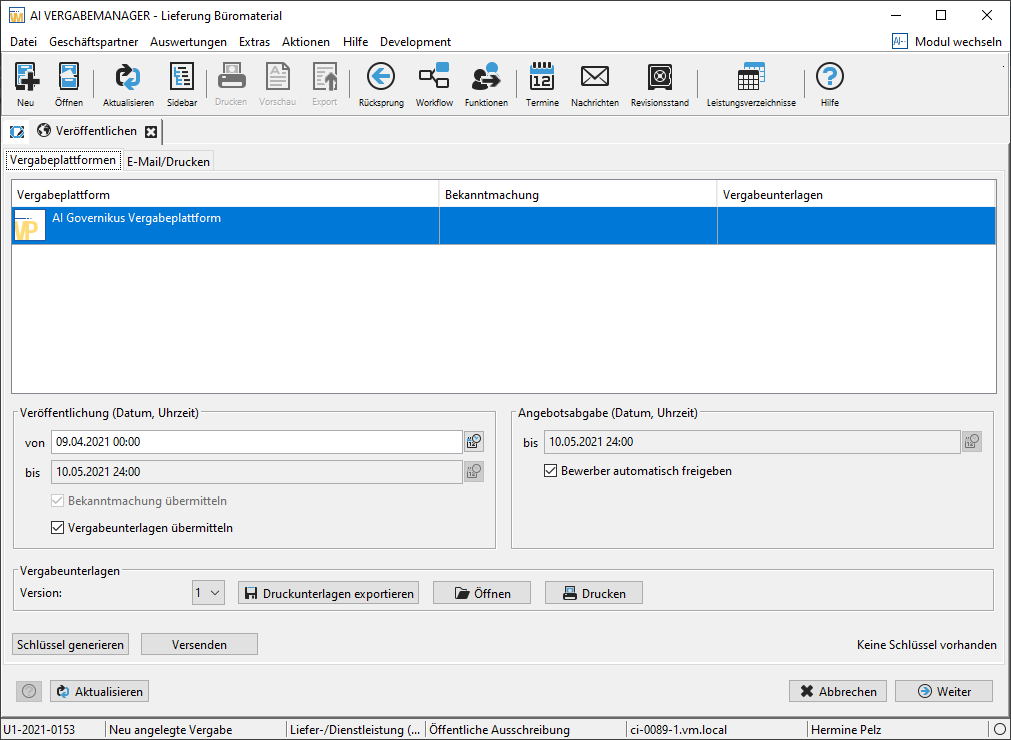
The list of entries in the tendering platforms tab depends on the individual settings of your system. Various electronic platforms are supported by AI TENDERINGMANAGER. The AI TENDERINGPLATFORM is linked by default. Select a platform for publishing your award procedure. This is where you make the tender documents available for applicants to download from the internet.
In this step, you can still view, print or export the tender documents. When publishing on the federal e-procurement platform, you can customize or revise the version of the award documents. You can use Create to manage the various versions of the documents and prepare them for uploading.
Tipp
After publication, in the workflow step Send tender documents, you can export individual tender documents, for example, to send them on an external storage medium or to print them on another computer.
Publication on the Federal E-Award Procedures Platform¶
One possible platform for publication is the federal e-award procedures platform ("e-Vergabe").
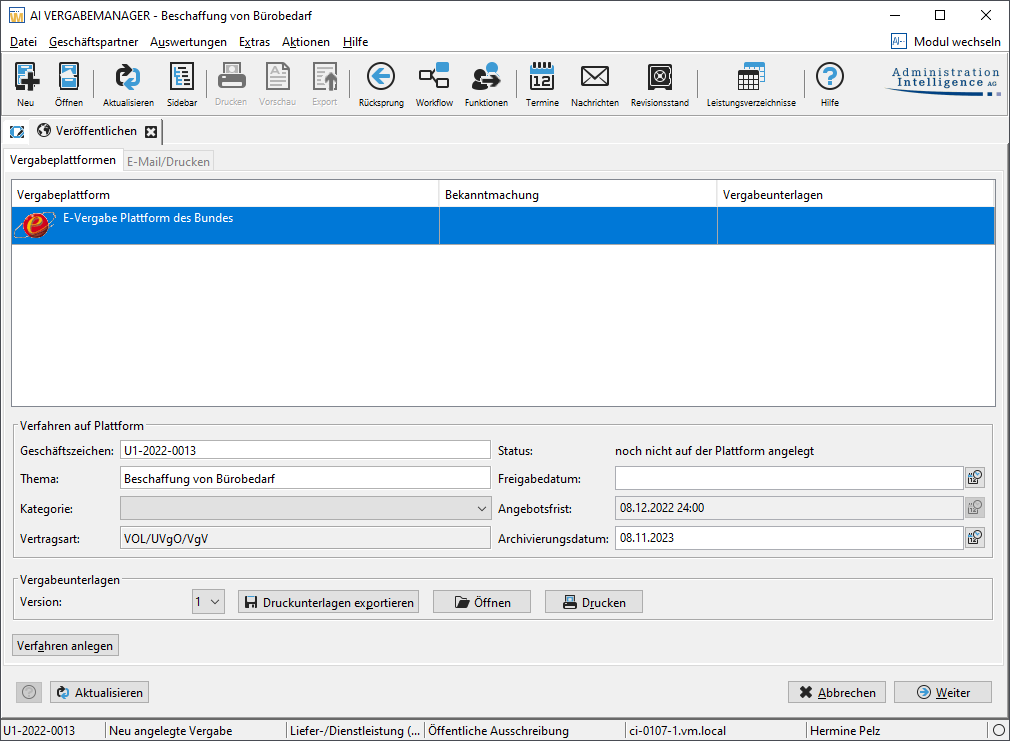
Fill in the data in the procedure on platform section completely and create the version of the tender documents that you want to publish. Once you have completed both steps, you can use Create procedure to transfer the data to the e-procurement platform. A dialog box will appear and indicate that the award documents will also be forwarded to the Publications Office of the EU.
As soon as the data has been successfully transmitted to the Publications Office of the EU, the procedure is automatically activated on the federal e-procurement platform. You do not need to take any further steps.
Publication in the Official Journal of the European Union¶
For EU procedures, the following form types for publication in the Official Journal of the European Union can be carried out automatically: - Planning: 1 - 9 - Prior information notice – Direct award: 25 - 28 - Tender: 10 - 21, 23 - 24 - Result: 29 - 37 - Contract modification: 38 - 40
Publication in the Official Journal of the European Union is triggered by the publication step, analogous to publication on the AI TENDERINGPLATFORM.
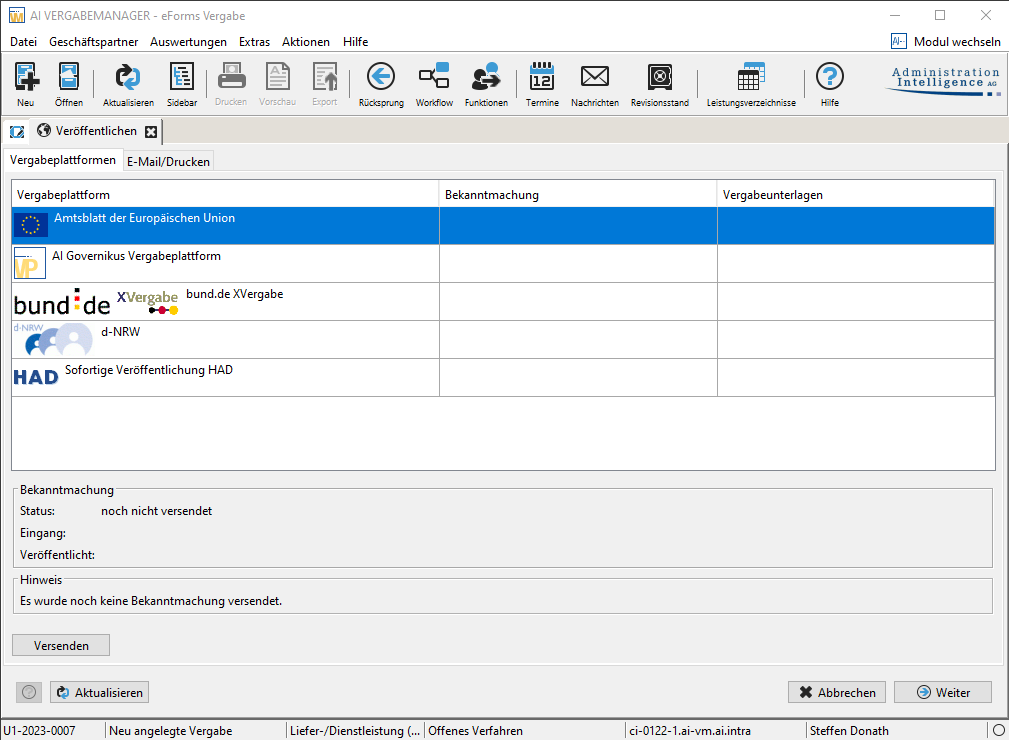
You can send the stored tender documents via Send. A message window will inform you about how to publish:
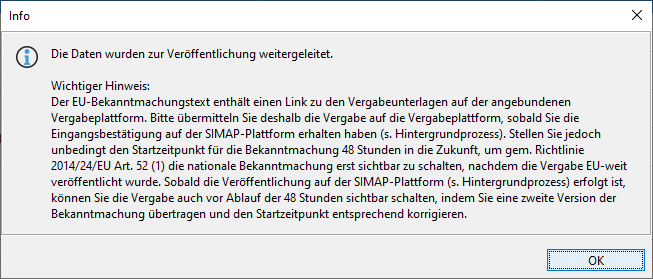
The data is transferred via a separate interface, the progress of which you can view via the menu EXTRAS – HINTERGRUNDPROZESSE. Further information on background processes can be found at E-Tender: Asynchronous Communication.
The Announcement section of the EU publication dialog shows you the current status, the time of receipt and the time of Publication. The corresponding notes can be found further down in the Note section.
The following is a list of all possible statuses and their corresponding notes: - Not yet sent: The announcement has not yet been sent. - Sent: The notice has been sent and is now undergoing technical validation. Receipt has therefore not yet been confirmed. - Receipt confirmed: The notice has been transmitted and technical validation was successful. Receipt has been confirmed. The notice is now undergoing technical review. If this status persists for more than 48 hours (see 'publication date), you can also publish the notice nationally. - Important: Since the notice text contains a link to the award documents, you should transfer the award now. Please set the publication start date 48 hours in the future so that the national notice automatically becomes visible after this period - Published: The notice has been transferred and published in the Official Journal. You can now also publish the notice nationally. If you want to make the notice visible now, set the publication start date to the present time and submit a new version of the notice. - Not Published: The notice has not published because the technical check was not successful or the data submitted was not intended for publication. Please check the background processes for detailed information about the reason for non-publication. - Incorrect: The announcement was rejected due to an error. Please check the background processes for detailed information about the error.
Info
If an attempt is made to transmit to AI TENDERINGPLATFORM without an announcement having been sent to the EU, a warning dialog will appear indicating that no announcement has yet been sent to the EU.
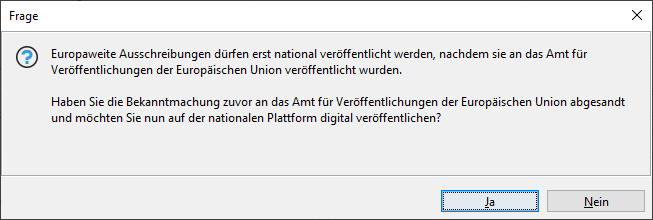
It is not possible to send the same announcement to the EU more than once. A corresponding message will alert you to this and you should use the corrective announcement from the Actions menu.
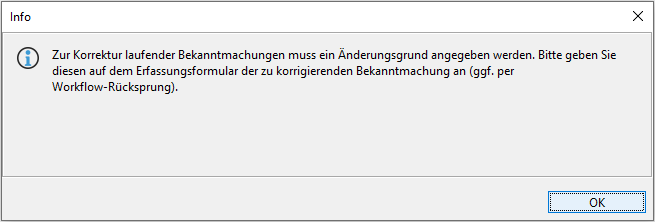
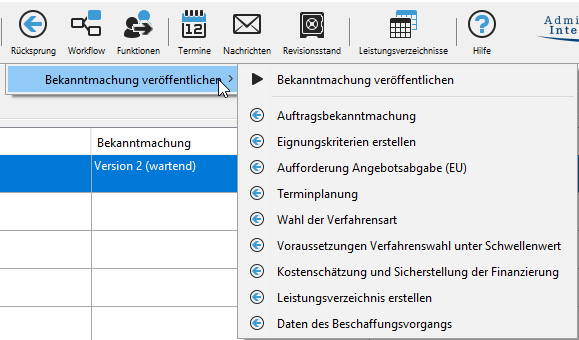
As soon as you have made the changes, you can resend the announcement. The announcement now passes through the same steps up to publication as it did the first time. The announcement is then marked as "Version 2" in the overview of the award platforms.
Info
The AI TENDERINGMANAGER is certified as a class D sender (eSender). Customers who use this function are registered with the EU via Administration Intelligence AG.
Publication on the AI TENDERINGPLATFORM¶
Before publishing your award, first check the publication date. This comes from the scheduling and should not be changed.
Info
Please note that you can only determine the time from which the award appears on the platform. You cannot change the other dates here.
For electronic award procedures, it must be ensured that the content of the offers is only accessible after the specified deadline. This is done using encryption technology based on the dual control principle. Two key pairs are generated, each consisting of a private and a public key. Each private key remains with an employee or an organizational unit and is used to decrypt the digitally received offers at the bid opening date. The two public keys are transmitted transparently to all applicants and enable encrypted bid submission.
To create the private electronic key for the award procedure, click on the button Generate key. The following window will open:
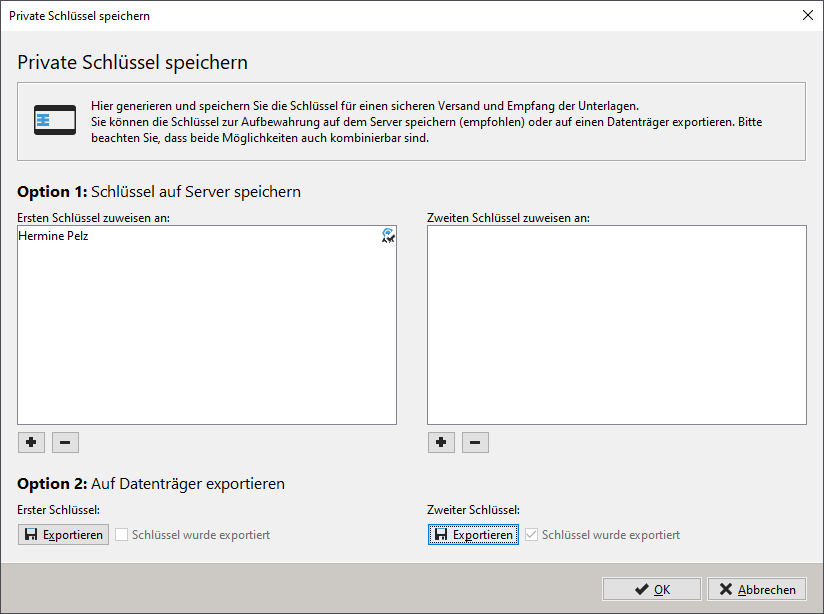
Users displayed in the lists can store the key securely in the AI TENDERINGMANAGER server if they have a signature card registered for them. If no users have registered a signature card in the AI VERGABEMANAGER, you can store both private keys on an external data storage device. The list of users can be changed using the + or -- button. It is recommended that each user appears in only one of the two lists, otherwise the four-eyes principle is no longer guaranteed when opening the offers.
Click on Export key if you want to save the private key on an external data storage medium. Save the keys with the names Private_TENDER_ID_1_Date_Time.privatekey Private_TENDER_ID_2_Date_Time.privatekey
Warning
Make sure that these two files are stored securely, as
- it is not possible to open the digital tenders without these files.
- the owner of these two files can view the digital tenders after the tender opening/submission deadline has passed.
Recommended procedure with signature card:
- Register at least four users with signature cards before creating the keys.
- When saving the keys, add at least two users to each of the two lists. Do not export the keys, as saving them with the signature cards is sufficient.
- After selecting all participants for the bid opening, click OK.
Alternative without signature card:
- First save the keys to your hard disk.
- Then copy the keys to an external storage medium.
- Delete the keys from your hard disk.
- Create backup copies of the storage media, as damage to either of the two storage media would make it impossible to open the digital offers.
- Store the storage media separately in secure locations.
- After the keys have been successfully stored, click OK.
The total size of the tender documents and the estimated download time with a 56K modem, an ISDN line (64 KB/s) and a DSL connection (1000 KB/s) are displayed in the Tender documents section of the publication, under the Version button.
To export your tender documents as a ZIP file, click on the Export print documents button. You can provide these zipped files to applicants on a CD-ROM, for example. However, applicants cannot use these documents to submit electronic offers. To publish your award procedure on the platform, click on the Send button. The publication status will be displayed.
Publication Control¶
Info
This function is only available to you if your customer model has been customized accordingly.
It is often the case that notices and tender documents are published on more than one platform. To ensure that all the necessary publication media are served in the publication dialog and that the information is sent, a customer-specific publication control can be set up. This checks which of the connected platforms the information must be published on and which platforms should only receive a warning if the workflow continues without publication.
Ex-Ante Publication¶
Info
To increase transparency in the area of restricted national VOB award procedures, the notice of an intended contract award can be published on various platforms.
The sent notice is then assigned to a corresponding VOB procedure using the Select prior information notice action.
Printing and E-mailing the Announcement¶
You can also print out the announcement data for your award procedure and send it by post to the usual tendering bodies or newspapers. To do this, switch to the E-mail/Print tab in your publication dialog box.
Info
Please note that in this case you only print the announcement data of your award, not the award documents.
Select the desired file from the E-mail Attachment list and click Open if you want to view a file before sending it.
To send the announcement by email, enter the recipient's email address or select it from the existing addresses.
Tip
You can also enter multiple email addresses in the email address field, separated by a semicolon. Example: email1@test.de; email2@test.de etc.
You can modify and add to the subject line and/or the text of the letter. Send the announcement by clicking on the Send e-mail button.
When sending the announcement or forms, it is possible to open the e-mails directly in the user's default e-mail client instead of sending them via the server.
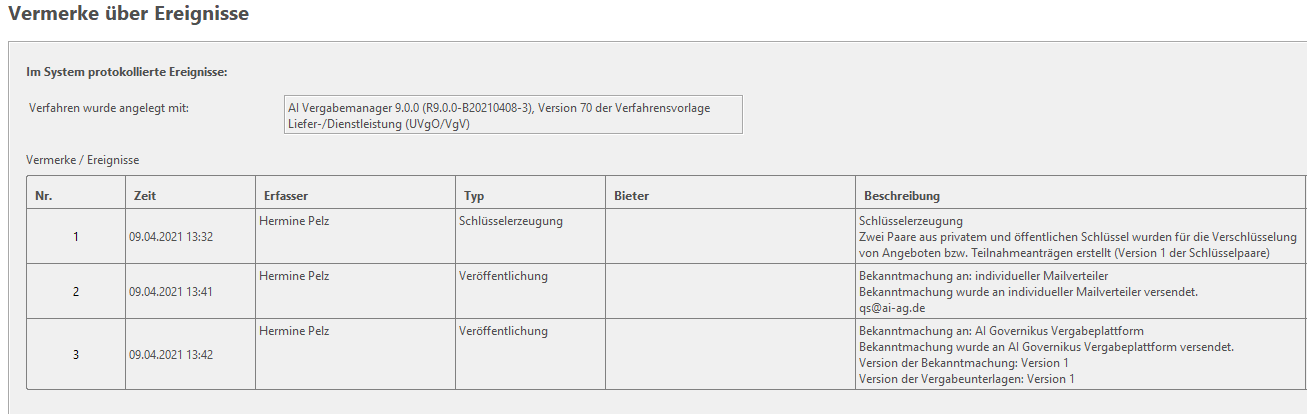
Background: These messages are often replied to and in this way receive the processor's e-mail address as the sender address. Due to the security guidelines of most e-mail servers, this would not be possible if the messages were sent from the server. After publication, the Send tender documents window is displayed. Here you can see the list of participants in your award procedure (in the case of restricted awards) and can print out the tender documents using the Print button to send them by post. In the case of public procedures, this window is of course empty. Each publication is logged with a procurement event. This data can be displayed using the Award notice document.
Info
If the customer model of your AI TENDERINGMANAGER has been customized accordingly, you have the option of attaching a file when entering a contract award notice, which may contain further documentation, for example. This file is then included in the contract award notice and can be accessed and displayed there.
Simplified Key Handling¶
Info
This function is only available if the customer model of your AI VERGABEMANAGER has been customized accordingly and you use the AI TENDERINGPLATFORM or the V24 platform for publishing.
Requirements for Simplified Key Handling¶
Generation of the Personal Key Pair¶
The personal key pair, which is the basis for the assignment of award keys, is automatically generated for each user the first time they log in to AI VERGABEMANAGER. This personal key pair should not be confused with the assignment keys. The award keys are created when the award documents or requests for participation are published with the help of the personal keys of all users who belong to the group of those opening the tenders. These keys are valid only for the award procedure concerned.
Info
The simplified key handling can be set up in such a way that it is only available for certain procedure templates or organizational units.
Key Generation When Logging in with SingleSignOn¶
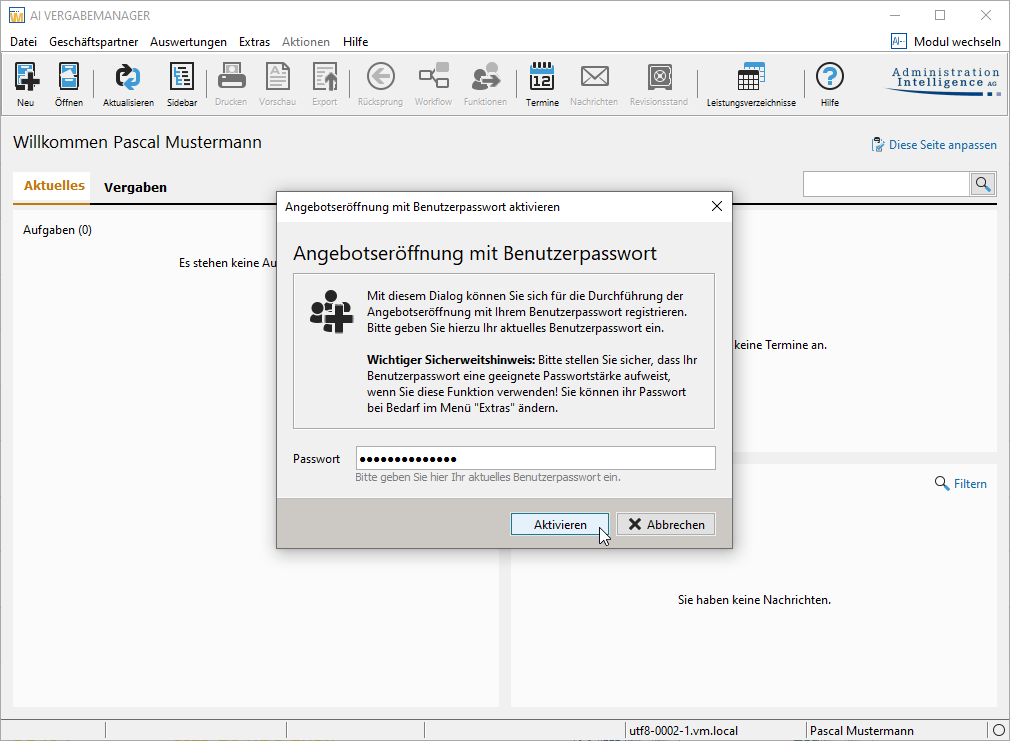
To enable users who do not log in directly to AI TENDERINGMANAGER to participate in simplified key handling, the EXTRAS menu offers the command ACTIVATE OFFER OPENING WITH USER PASSWORD for all users who do not yet have a personal key pair. Here you can generate such a key pair by entering your password.
Key Update after Password Change¶
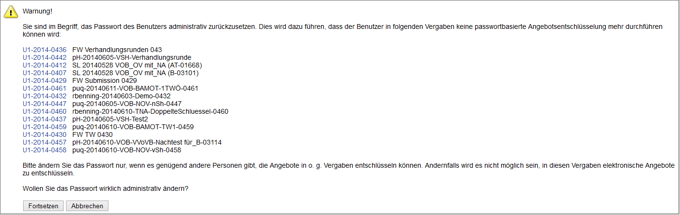
A user can change their own password at any time. The software ensures that all existing current allocation keys are updated. Care should be taken when an administrator resets a user's password. If the user in question is involved in an ongoing tender as part of a group of bidders, a warning will appear before a user's password can be reset by the system administrator.
Warning
If this warning is ignored and the password is reset, this user will irrevocably lose his/her award keys for all still active procedures in which he/she is involved and will no longer be available as a key holder for entering passwords in these procedures.
Publication with Simplified Key Handling¶
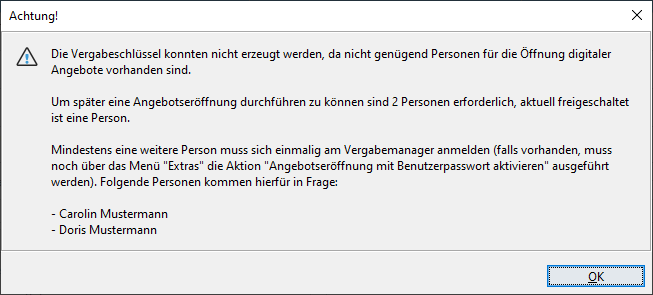
If there are enough users with a personal key pair in the group of users opening the offer, the generation of the award keys during publication takes place automatically in the background. A corresponding message is displayed in the publication dialog.

Info
If the group of tender openers contains only a single user with a personal key pair, a message to this effect will appear when an attempt is made to publish this award, and publication can only take place when another user from this group has first logged into the AI TENDERINGMANAGER.
Opening of Tenders with Simplified Key Handling¶
During the opening of tenders, it is sufficient to enter the personal user password, whereby the dual control principle is maintained, i.e. two persons must always be present. The opening of requests for participation can be carried out either by one or two persons.
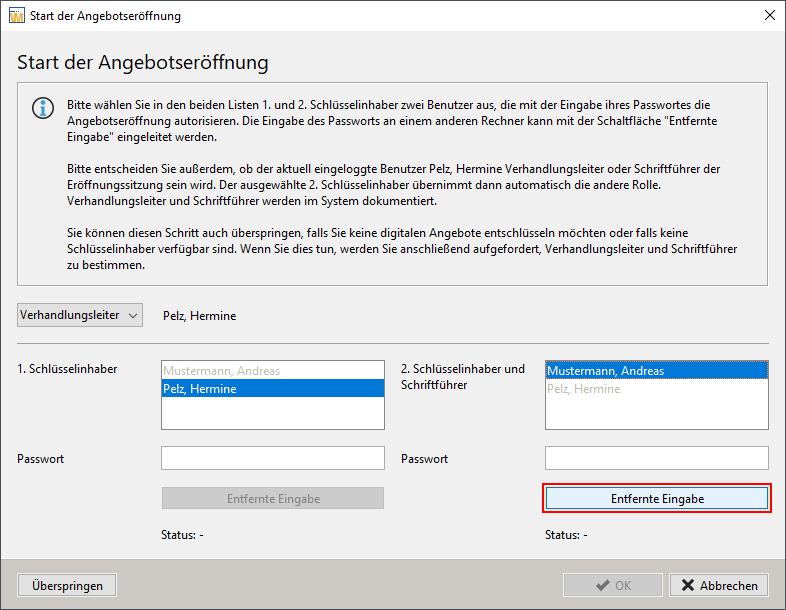
In the window that appears when the bid opening workflow step is started for the first time, both the roles heads of negotiation and secretary for the dual control principle, and the two key holders are selected from the group of offer openers, who must then enter their password to begin the decryption process.
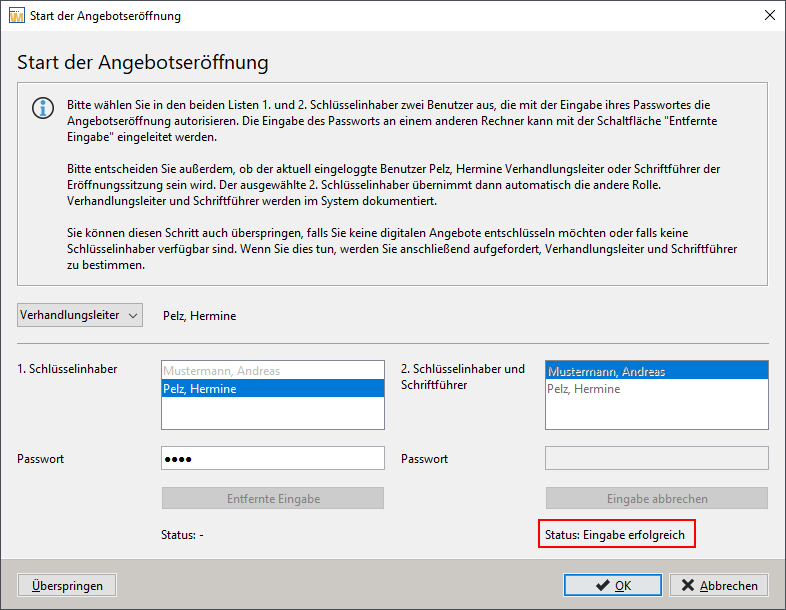
The user who starts the workflow step automatically takes on the role of head of negotiations, but can change this to secretary if necessary using the list field at the top left. After that, the user for the remaining role must be selected from the list on the right under 2. Key holder. If the workflow starter is one of the offer openers, they are automatically selected as the 1st key holder in the list at the bottom left. Otherwise, another user can be selected as the first key holder.
tip
If you do not want to decrypt electronic offers or the key holders are not available, the workflow can be continued by clicking the Skip button. You then only have to determine the role of the chief negotiator and that of the secretary for the documentation in the procurement note.
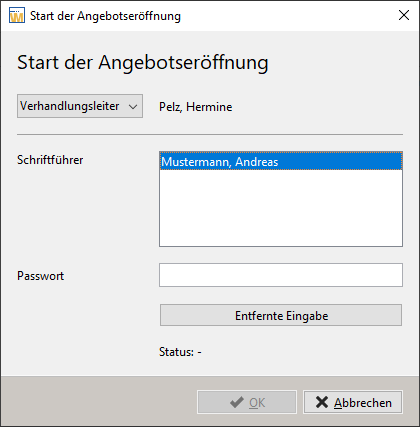
If the bid opening extends over several days and the workflow step bid opening is started again, the two key holders only have to enter their password in the corresponding field to load the procurement keys and decrypt further offers in accordance with procurement law.
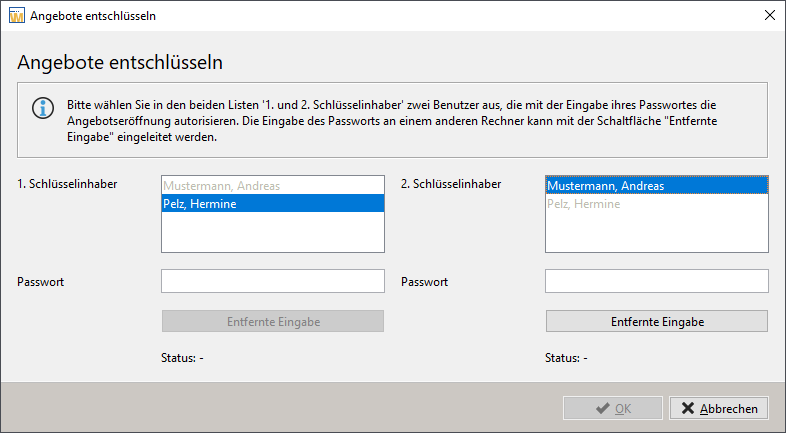
The two key holders must not be the same, i.e. the software ensures that a name that is selected in the left list is no longer available for selection in the right list and vice versa.
Opening Tenders for Remote Users¶
In this special case of opening offers, the four-eyes principle is maintained even though both users are not physically present but logged on to locally separate workstations.
After starting the opening of offers, the requesting user decrypts and views the offers. The second user can then also look at the opened offers if required, but simultaneous, joint viewing is not necessary. In the "Start of offer opening" window, mark the remote user and click on the Remove input button. The Waiting for input status is then displayed.
The requested user is informed by a note in the software that the input of his password is required.
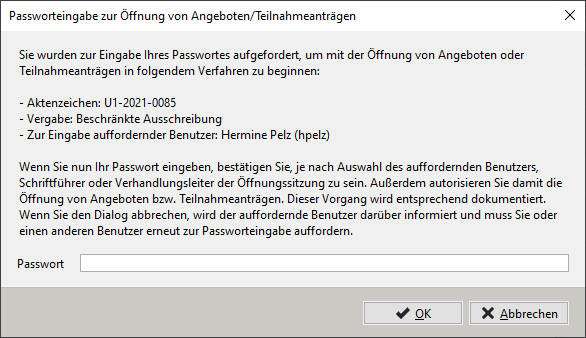
After successfully entering the password, the status changes to Input successful and you can continue with opening the offer.
During the waiting phase, the process can be canceled by either user.
Functions for Use with Other Award Platforms¶
The following describes functions that were developed for use with the E-Vergabe interface.
E-Vergabe: Publication of Prior Information¶
For EU procedures, it is possible to send prior information notices directly from the to the federal e-procurement platform.
E-Vergabe: National Ex Post Publication¶
Ex post publications of national procedures can be published on the federal e-procurement platform.
E-Vergabe: Publication of Awarded Contracts¶
The award notice for the EU can be sent via the interface of the federal e-procurement platform. The publication dialog is used to initiate the sending of the notice to the e-procurement platform. E-procurement then forwards the notice to the EU's Office for Official Publications via its SIMAP XML interface. The publication of the award notice for awarded contracts to the EU via the federal e-award platform is documented as an event in the award notice.
E-Vergabe: Enter the Date of Receipt as the Date of the Offer¶
If no offer date can be read from the electronic offer (e.g. from the Offer.pdf file), the date of receipt of the offer on the federal e-procurement platform is adopted as the offer date.
E-Vergabe: Version Number in the Award Documents¶
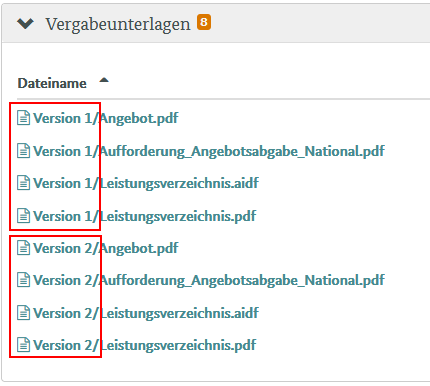
The individual versions of the procurement documents are marked on the federal e-procurement platform via the e-procurement interface. This improves the overview for the bidder, especially when the documents are updated.
E-Vergabe: Presetting a Category¶
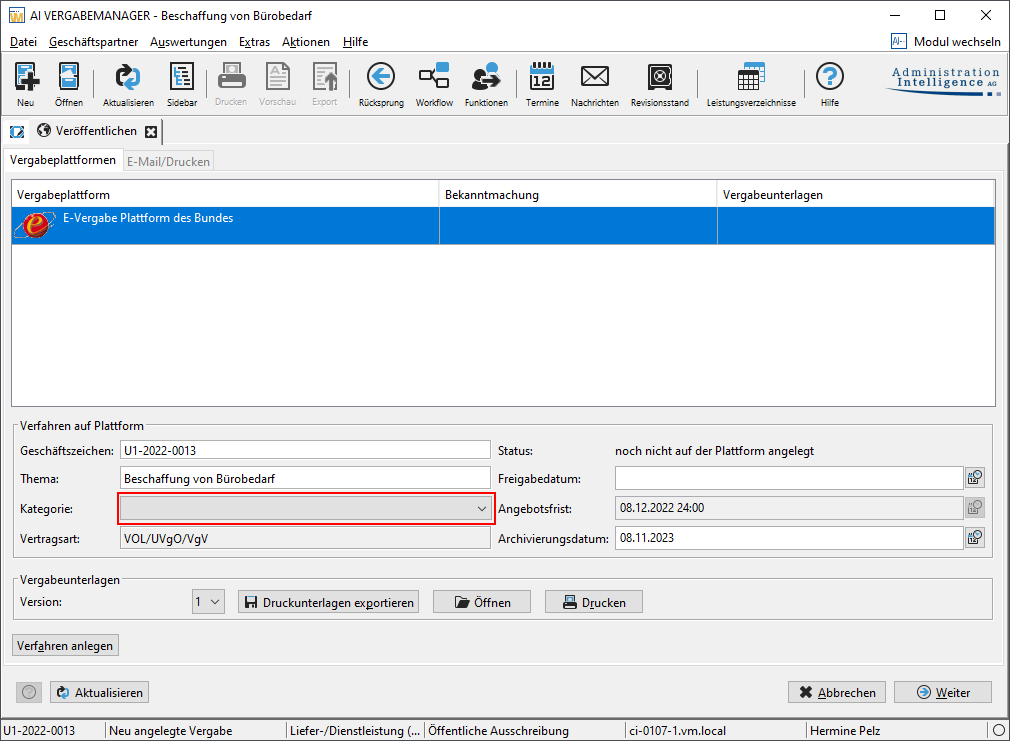
At the customer's request, a default value can be entered for the category on the publication dialog. If no value is entered, the field is displayed without a default.
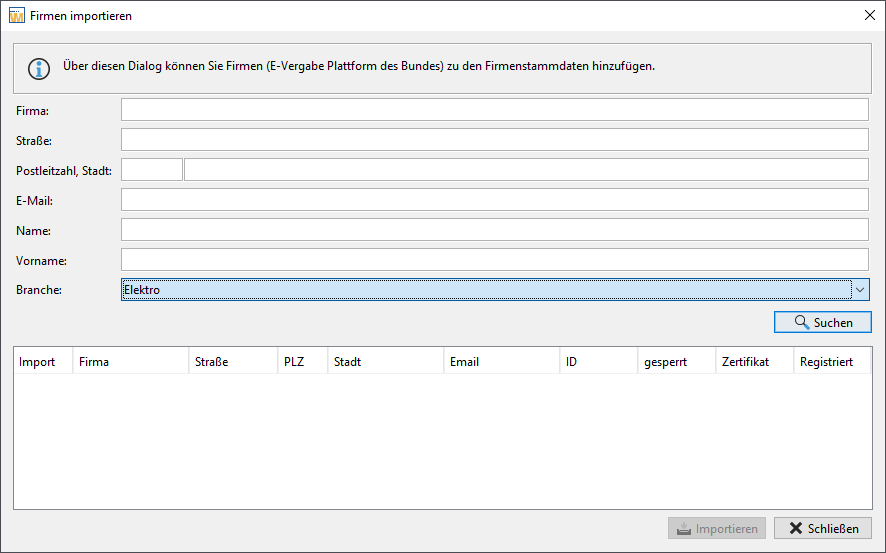
E-Vergabe: Selecting a Sector in the Company Search¶
When searching for companies to select participants from, e.g. for a restricted call for tenders, you can select sectors from a list of entries stored on the federal e-procurement platform in the company search. A free-text search is not possible here.
E-Vergabe: Limiting the Search Values in the Company Search¶
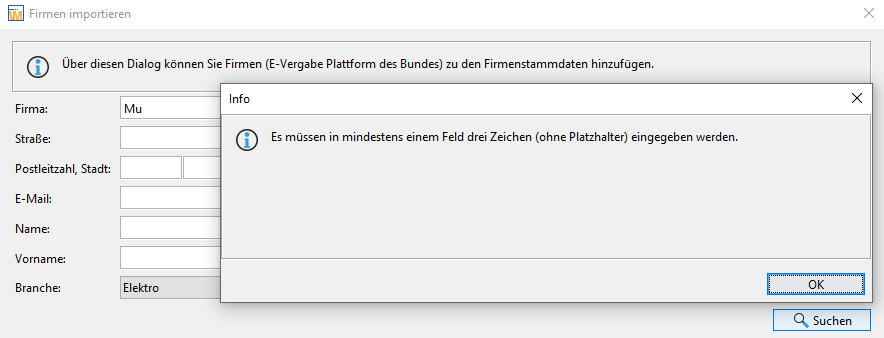
When searching for companies to select bidders in restricted procedures, at least three characters must be entered for a search criterion. It is also possible to use the asterisk symbol * as a placeholder.
E-Award Procedure: Asynchronous Communication¶
As part of the reimplementation of the AI TENDERINGMANAGER interface to the federal government's e-tendering platform, asynchronous communication between the systems was chosen. This means that the sender of a message and its recipient do not have to work synchronously. After a message has been sent from one system, other activities can be continued on that system. After processing the message, the receiving system sends a result message back. This design decision leads to a looser coupling of the systems with the advantage that an expected response does not block the systems. With the changeover to this asynchronous, message-based architecture, the two menu items BACKGROUND PROCESSES and SYSTEM EVENTS have been added to the EXTRAS menu.
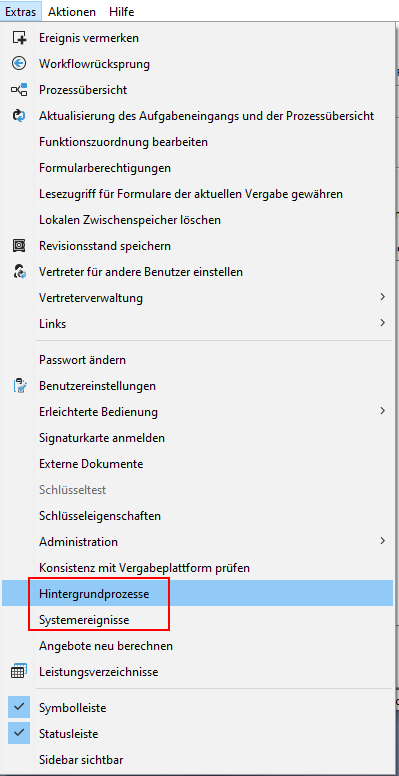
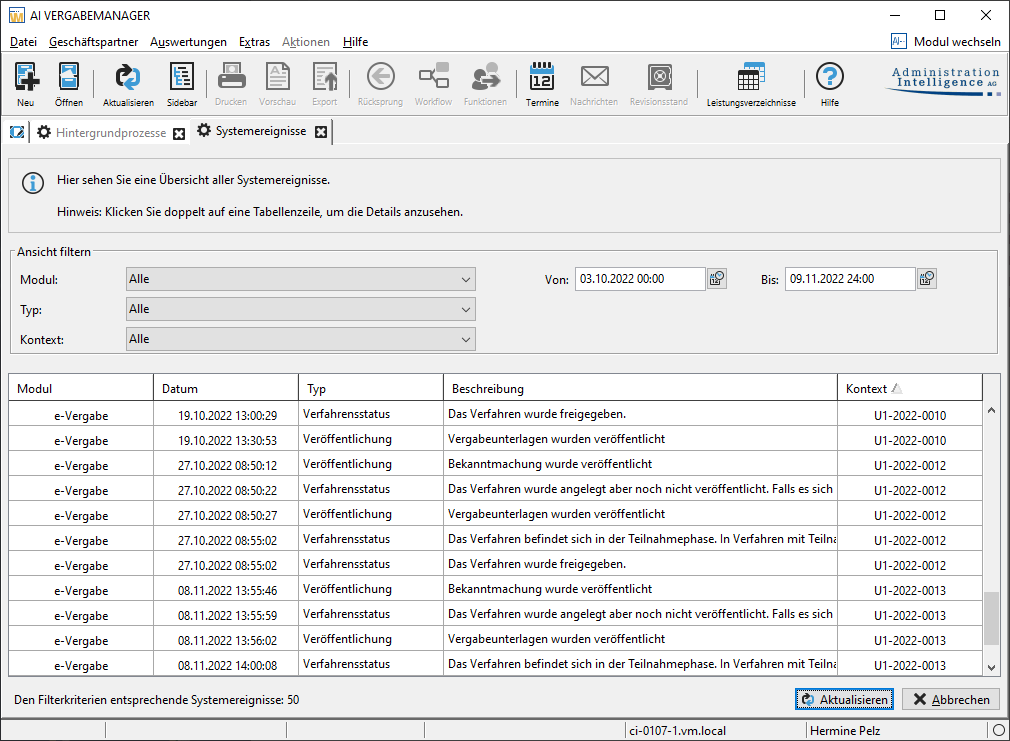
These two menu items can be accessed both in the context within and outside of an award procedure. If the background processes dialog is accessed outside of an award procedure, the cross-award-procedure background processes are displayed, such as the synchronization or change messages of the company data from the e-tendering platform directly after logging in to the AI TENDERINGMANAGER.
The same applies to the System Events dialog. It can be accessed via the EXTRAS menu in the same way as the background processes within or outside of an award procedure. The following figure shows the call outside of an award procedure.
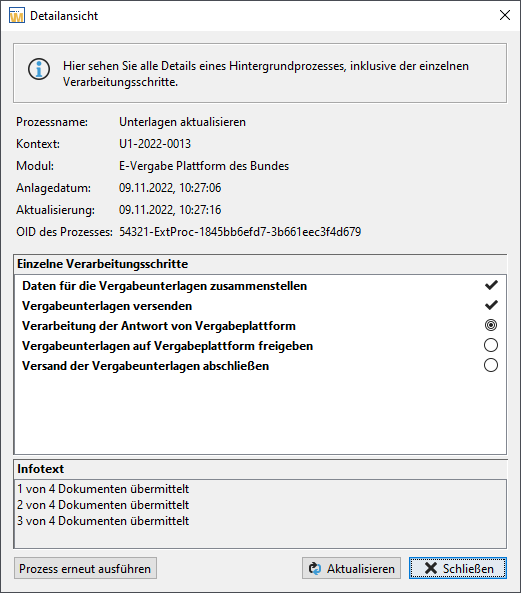
Due to the asynchronous communication, the Update button has been added to the bottom of the publishing dialog. This button is used to update the view of the publishing dialog.
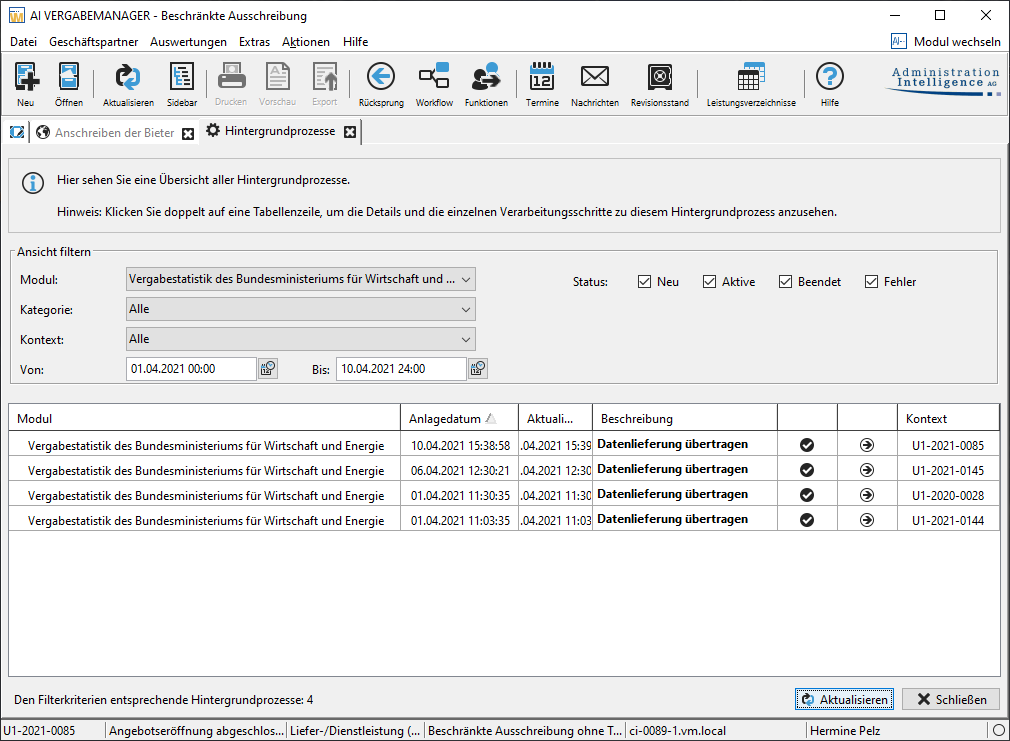
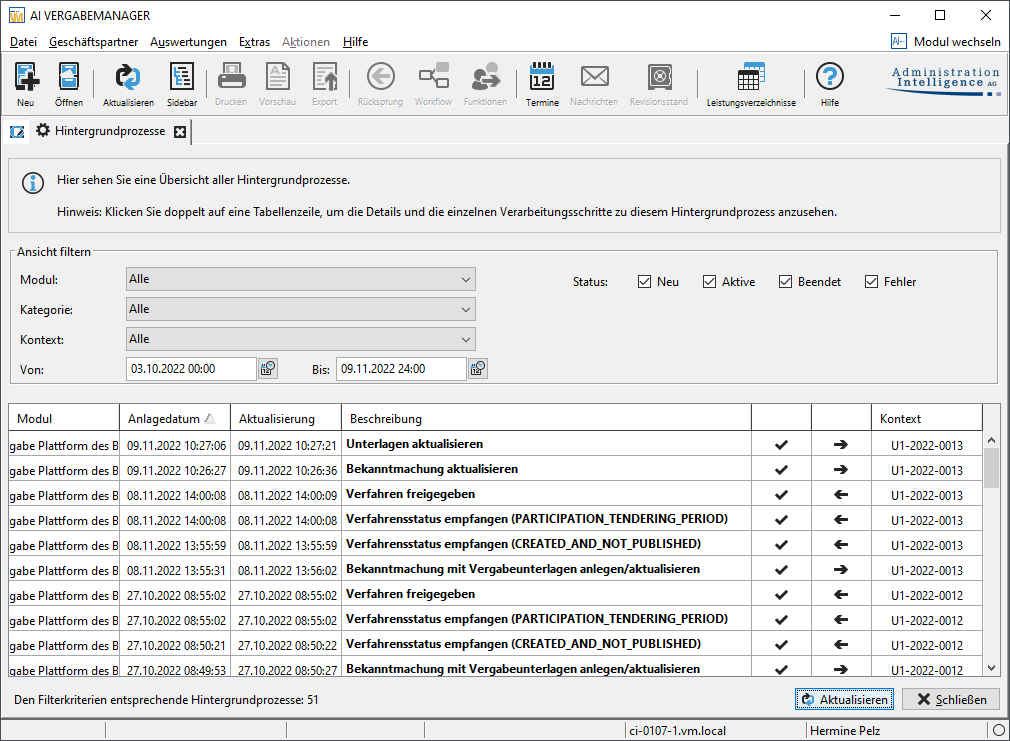
When an award procedure is published using the Create procedure button, the corresponding background processes are created and executed in the background. These processes can be displayed via the menu item EXTRAS – HINTERGRUNDPROZESSE. The following figure shows the corresponding process steps when publishing a public invitation to tender.
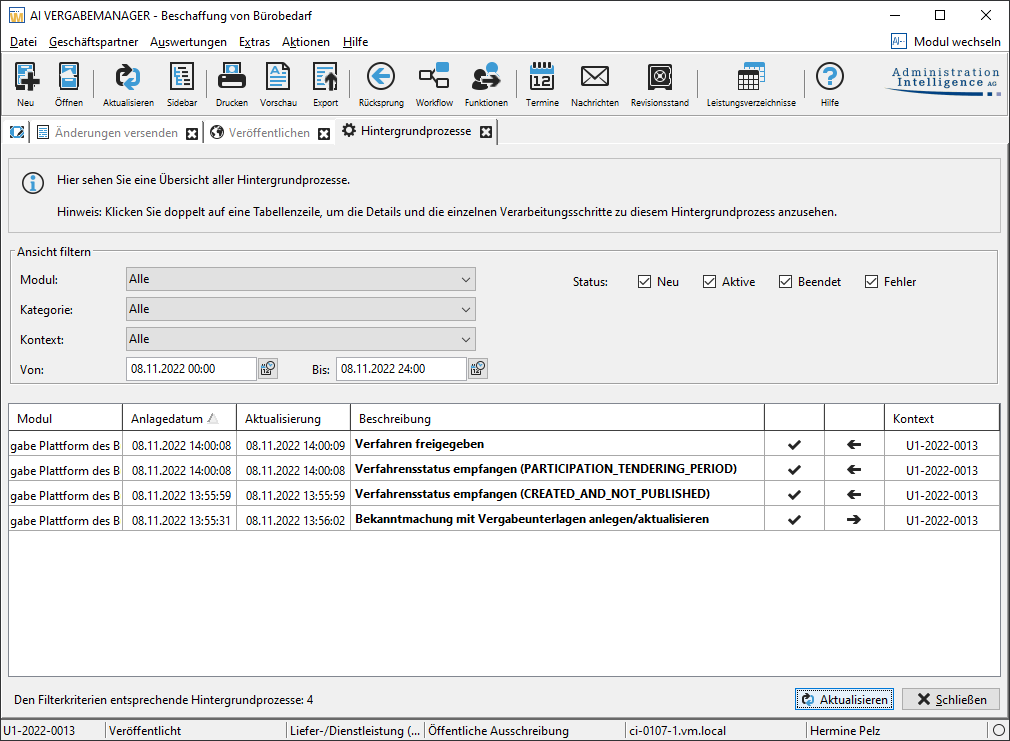
At the top of the dialog, you can set the filter settings for the list of background processes. The Module and Category filters are preset to all. The current date is set by default in the date and time filter. In the Status filter options, the New, Active, and errors. In addition, select the status option Completed if you want to see all background processes for the procurement procedure.
The table in which the background processes are displayed consists of four columns. The Module column displays the module name of the background process. For the e-award interface, this is e-award. The Last Update column contains the last update time of the background process. The Description column contains a short description of the background process. The Status column indicates whether the background process is inbound or outbound. Incoming background processes are marked with a left arrow, outgoing background processes with a right arrow. The circle symbol in the Status column visualizes the current state of the background process: Concentric circles: The process is still in progress. Black check mark: The background process has been successfully processed. Black X: An error occurred while processing the background process. You can open a detailed view for each background process by double-clicking on it. This view contains the individual process steps and their status.
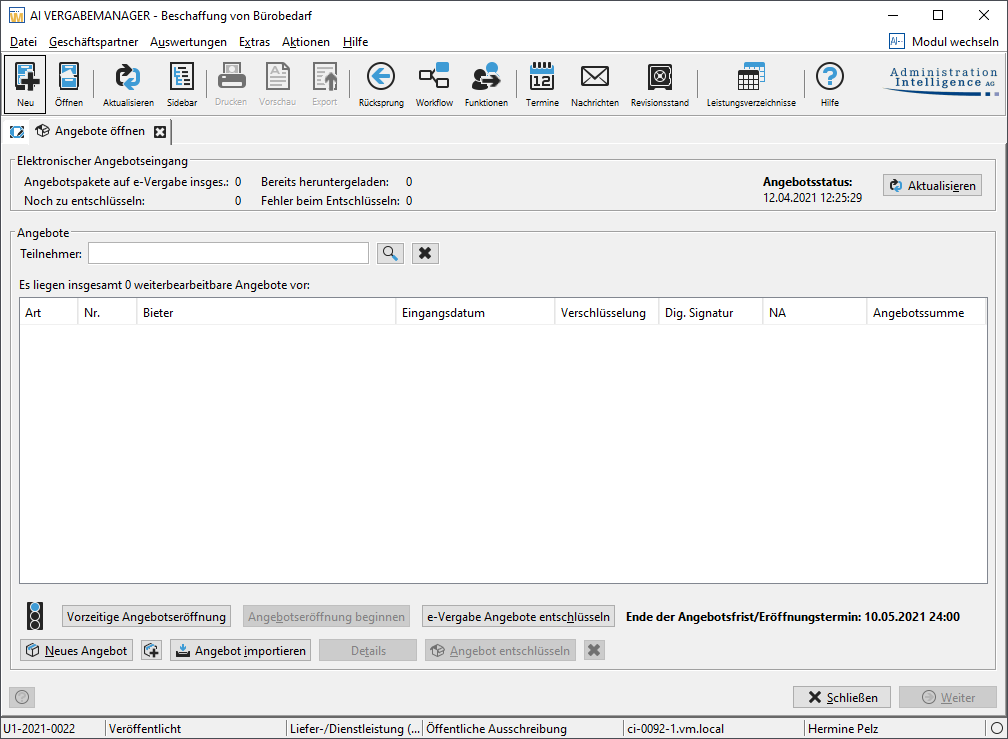
Due to the asynchronous communication, the Update button has also been added to the top right of the offer opening dialog, which can be used to update the display of the dialog.
Info
The "Early bid opening" button is only available in test systems. This button is used to initiate a background process for early bid opening. This changes the bid opening time for test purposes.
E-Awarding: Completing and deleting a procedure on the platform¶
The completion of a procedure can be communicated to the federal e-procurement platform via an action so that the procedure can be removed from the platform.
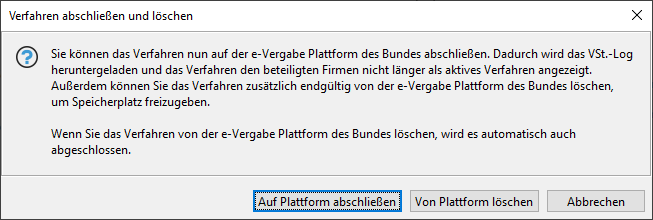
The VST log can be displayed or downloaded via the menu item EXTRAS – EXTERNAL DOCUMENTS. The Close on platform button changes the status of the procedure on the e-procurement platform so that it is no longer displayed as an active procedure for participating bidders. With the button Delete from platform, the procedure is marked on the e-procurement platform as released for deletion. When the deletion actually takes place is not displayed in the AI TENDERINGMANAGER.
E-procurement: Updating ongoing procedures¶
The update of already published procedures has been fundamentally revised with the connection to VMS 2.0. The update steps can now be accessed individually using the corresponding buttons.
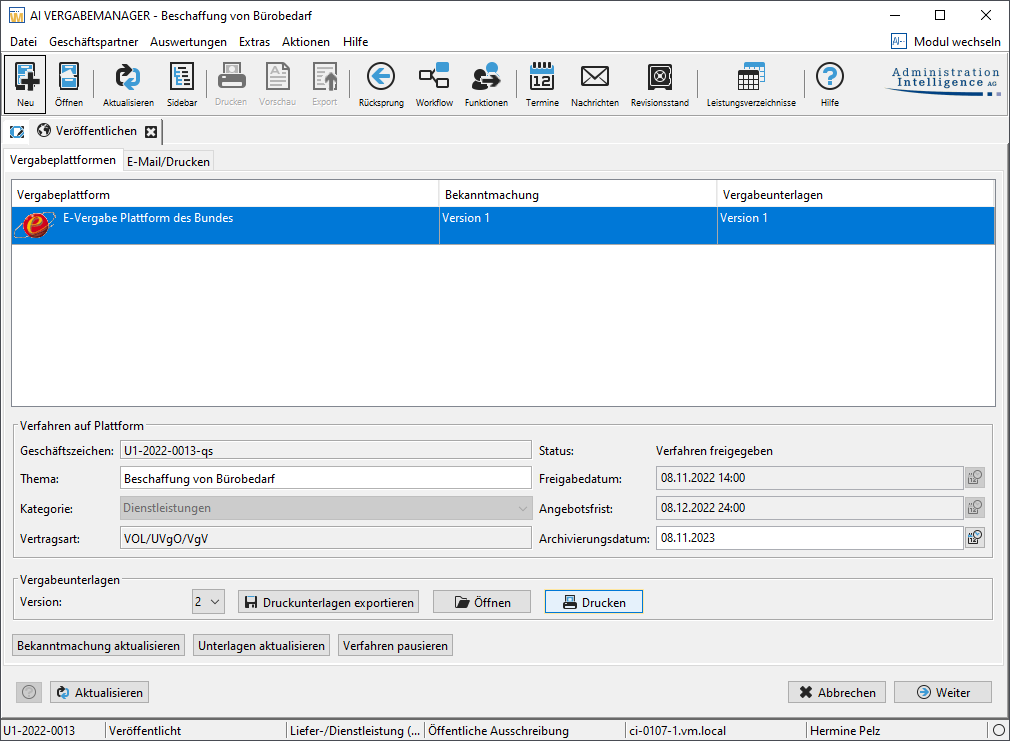
The Update notice button is used to update only the notice of a public procedure. The Update documents button updates either the award or the selection procedure documents, depending on the type of procedure and the stage of the award procedure. The notice or list of participants in restricted procedures will not be changed.
If a change has been made to the list of companies invited to submit a tender in a restricted procedure or in the second stage of a procedure with a call for competition, the list of participants on the platform can be updated using the Update list of participants button. The decisive advantage is that new versions of the tender documents no longer have to be transmitted for this.
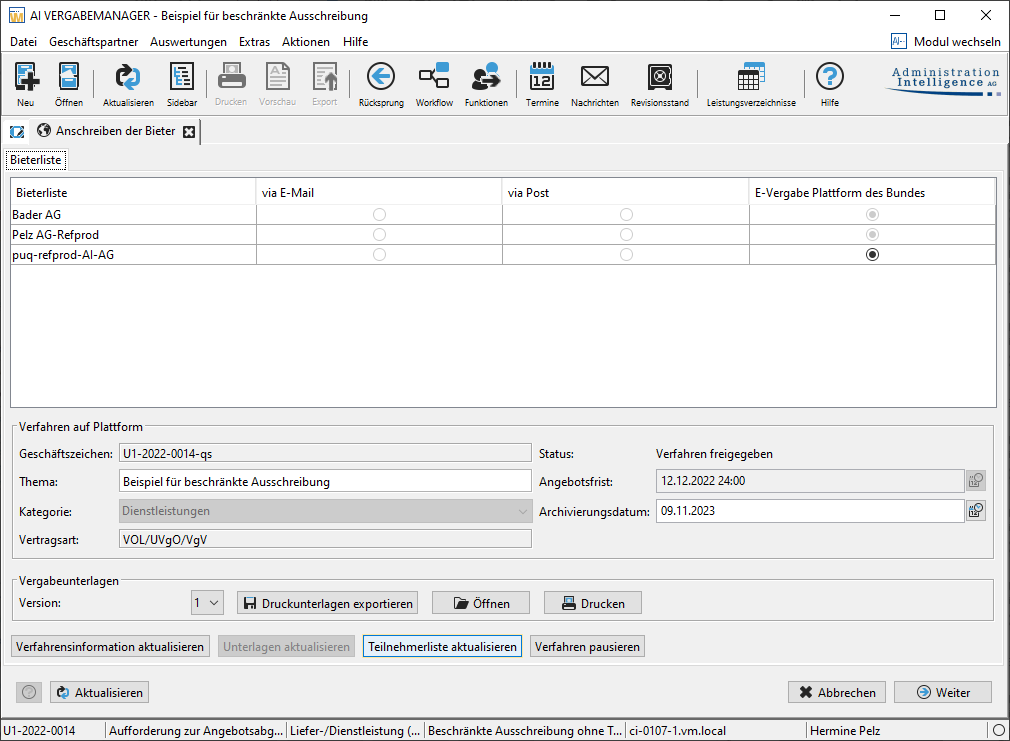
If the meta information for the award procedure has changed due to a return jump in the restricted procedure (e.g. the date of the offer period), these changes can be transferred to the platform by clicking on the Update award information button.
Sending a Corrigendum¶
To correct an EU-wide call for tenders, the amended notice is sent to the e-procurement platform again. The platform automatically determines the difference between the two versions of the notice and generates Form 14 with the changes found, which is then sent to TED/SIMAP. If it becomes necessary to enter "Further additional information" (Section VII.2 of Form 14), this can be done at the very bottom of the input form for the initial contract notice before the update notice action is triggered. The field for Section VII.2 will automatically appear here after the initial contract notice has been sent.
E-Vergabe: Send contract amendments (Form F20)¶
The announcement of a contract amendment, the EU form F20, can be transmitted to the e-procurement platform of the federal government using a supplement procedure.
Destatis: Reporting on the Procurement Statistics Regulation¶
Info
This function is only available if the customer model of your AI TENDERINGMANAGER has been adapted accordingly.
Since 2020, providers of software in the field of public procurement have been obliged by § 1 of the Procurement Statistics Ordinance (VergStatVO) to transmit certain data on the award procedures for public contracts and concessions to the Federal Statistical Office on behalf of the Federal Ministry for Economic Affairs and Energy (BMWi).
In AI TENDERINGMANAGER, this is done via the interface to the eStatistik.core data input, whereby the required data is automatically taken from the respective procedure. The report is generated at the end of the procedure and has been integrated into the workflow.
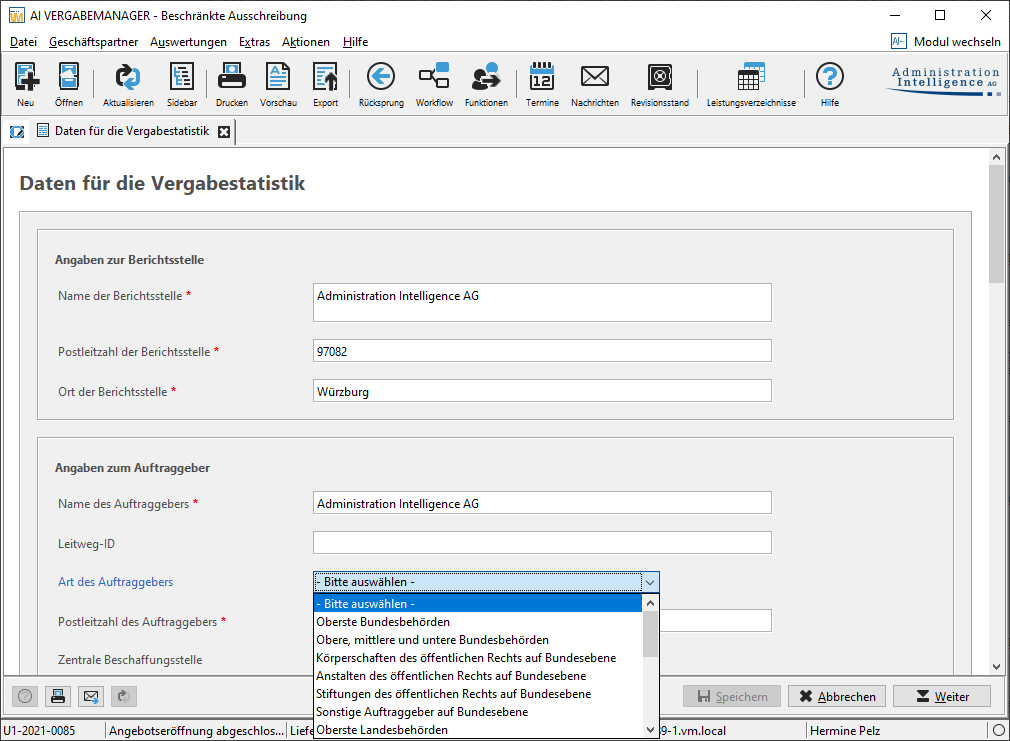
The publication is made in the publication dialog of the award notice.
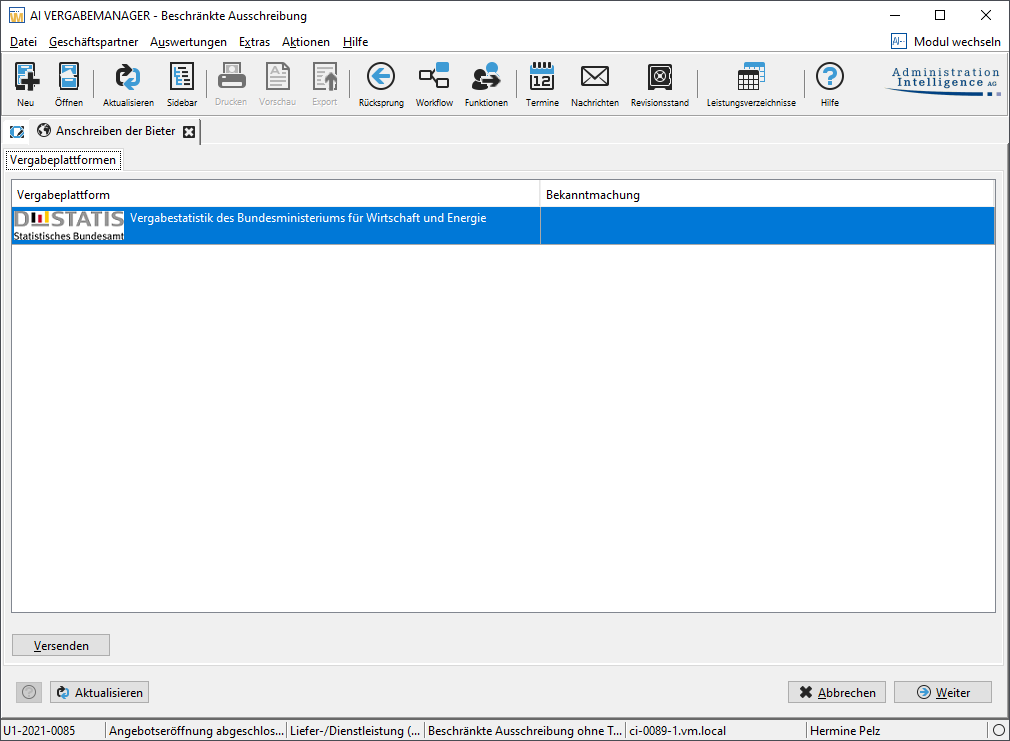
The successful transmission can be checked by means of the background process. To do this, select the menu item EXTRAS – BACKGROUND PROCESSES.