Compiling the Documents
At this point in the program, you can check the award documents before publishing them and adjust them as needed or create an amended version of an already published award. Depending on the system configuration, static parts of the award documents that are used in many award procedures, e.g. information sheets or additional contract conditions, are automatically sorted into the electronic award documents.
Info
In some cases, the compilation of the tender documents is not a separate step within the workflow, but happens automatically when the PUBLICATION DIALOGUE is started. You can then view the compiled documents using the CREATE button and call up the function described here.
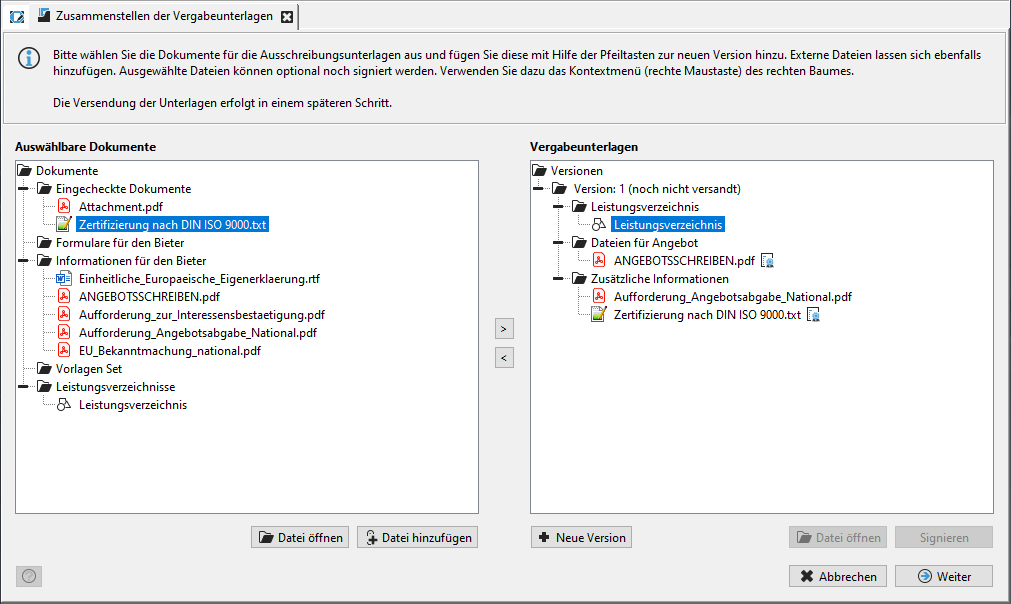
On the left side in the Selectable documents area, all files available for the tender documents are displayed. The order of the documents or folders in this area can be set individually for each customer. You can display the content of individual documents in this area by clicking on the document and then clicking the Open file button.
The right side of the Award Documents window contains all versions of the award documents. The versions with the status (Published) can no longer be changed. You can make changes to the most up-to-date version, which has the status (New), if necessary. Click on a document in this area and then on the left arrow between the two window areas to remove it from the right-hand side. Add a file from left to right using the right arrow. By default, each version of the procurement documents includes the following folders:
- Bill of Quantities: Contains the BOQ as a *.lv (VOL) or GAEB file (VOB).
- Proposal Files: Contains electronic proposal forms in AI format.
- Additional Information: Contains PDF files with additional information.
You can delete, rename or copy folders as required, or create new folders. To do this, use the CONTEXT MENU (right-click on the folder symbol). Clicking on the + and - signs in front of the folder symbols expands or reduces the displayed list.
Tip
You can also add documents from left to right using the mouse (drag and drop). The reverse direction is not possible. It is even faster to simply double-click on the document on the left. It is then stored on the right in the activated folder.
You can easily move the files on the right side from one folder to another by holding down the mouse. Use the Open file button or double-click on the document icon to display the contents of individual documents.
Tip
Click on SIGN to add an electronic signature to a PDF file or use the CONTEXT MENU (right-click on the file icon). Select a method for signing (soft certificate or signature card) and follow the instructions on the screen. After adding the signature, a small signature icon will appear to the right of the file name. 
To add an external file to the tender documents, click on the Add file button. The Open file window will open. Select the desired document and click Open. If you have selected a specific folder in a non-published version of the award procedure, the file will be stored there. Otherwise, it will be stored in the Additional Information folder of the latest version. The new document is added to the Checked-in Documents folder on the left.
Tip
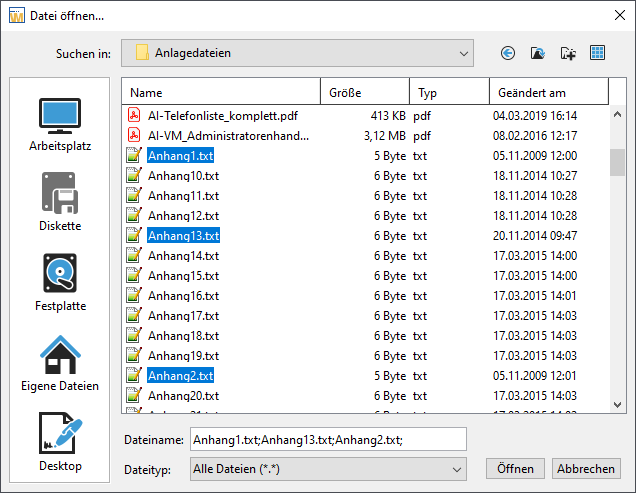
If you want to add several files at once, hold down the [CTRL] key while clicking on the desired files with the mouse. This function is only available when adding new documents to the award procedure and pre-tender procedure documents.
The names of the selected files are displayed in the File name field, separated by a semicolon.
Info
Each document can only be included once in a version of the tender documents. If you try to add the same file again, you will receive an error message.
To compile a new version of the tender documents, click on the button New version. The old versions remain available for documentation purposes.